Interact with Unreal Engine Simulation Environment
R2026bNote
Simulating models in the 3D visualization environment requires Simulink® 3D Animation™.
Simulink 3D Animation provides an interface to a simulation environment that is visualized using the Unreal Engine® from Epic Games®. Within this environment, you can create a 3D environment with actors. An actor is any object in the 3D environment that can move and rotate to support 3D transformations. Build actors and view the 3D environment in the Simulation 3D Viewer through the MATLAB® and Simulink interfaces of the Simulink 3D Animation.
In Simulink, use the block to implement the 3D simulation environment and view the 3D environment. The Simulation 3D Actor (Simulink 3D Animation) block creates actor objects and builds appearance for actors in 3D environment.
You can use keyboard shortcuts and mouse actions to view and navigate in the 3D environment. For more information on the keyboard shortcuts and mouse actions, see Navigate in Unreal Engine Environment.
Simulation 3D Viewer Interface
Simulation 3D Viewer interface enables you to interact with the actors and the 3D environment. During simulation, right-click the actor or the 3D environment to display a context menu that lists options to interact with the corresponding actor or 3D environment. You can also double-click anywhere in the world or an actor to zoom in with a best fit-to-screen view.
Interact with Actor
During simulation, right-click the actor to display the context menu for actor and world.
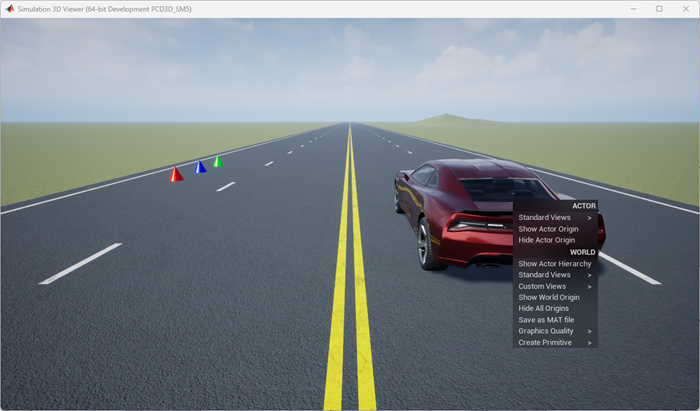
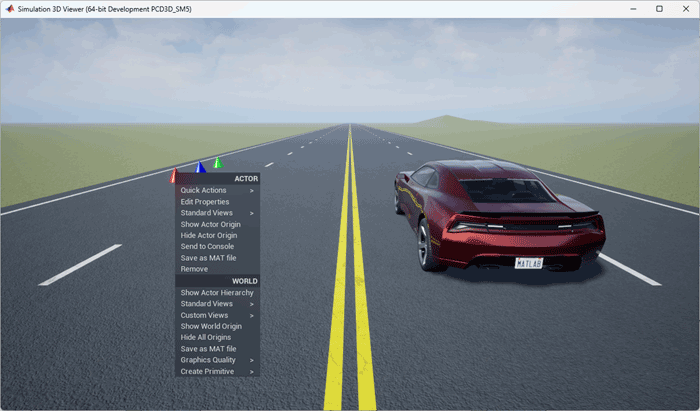
The table summarizes the actor options in the context menu.
| Actor Option | Description |
|---|---|
Quick Actions | To set these properties, select them from the list.
Note To experience the effects of gravity you must select Physics property. |
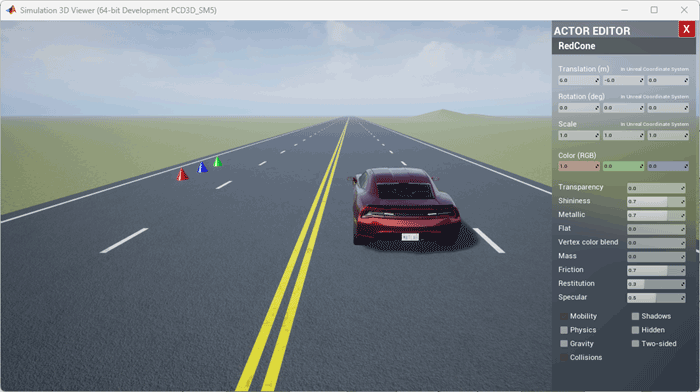
Edit Properties | Open the Actor Editor to view or modify actor properties during simulation. Right-click the actor and select
Properties to display the
Actor Editor on the right side of
the Simulation 3D Viewer. The Actor
Editor displays the actor name and its
properties. You can edit the actor properties using the
sliders and check boxes. For the slider to work, pause on
the box to display a double-headed arrow, then click and
drag to change the value. Alternatively, you can also click
the box to set the property value. For more details on actor
properties, see Properties (Simulink 3D Animation) of
|
Standard Views | List the standard views of the actor.
Note When simulating models, this option is available when
Scene view is set to
|
Show Actor Origin | Display the axes of the default coordinate system at actor origin. |
Hide Actor Origin | Hide the coordinate axes of the actor. |
Send to Console | Display the actor properties in the MATLAB Command Window. |
Save as MAT file | Save the actor properties in a MAT file. |
Remove | Remove actor from the 3D environment. To add the actor back to the 3D environment, run the simulation again. |
Interact with 3D Environment
During simulation, right-click the 3D environment to display the context menu for the world.
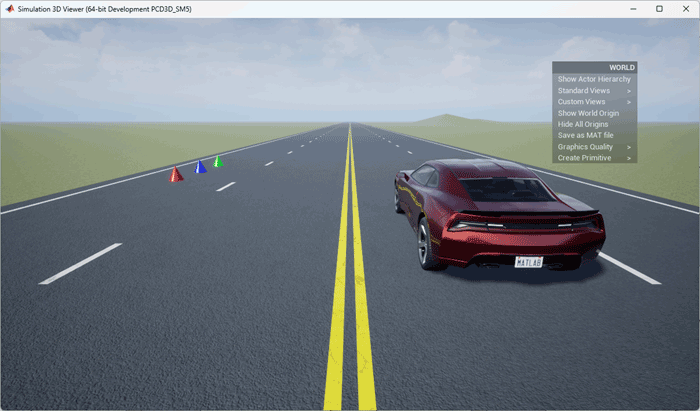
The table lists the options for 3D environment.
| World Option | Description |
|---|---|
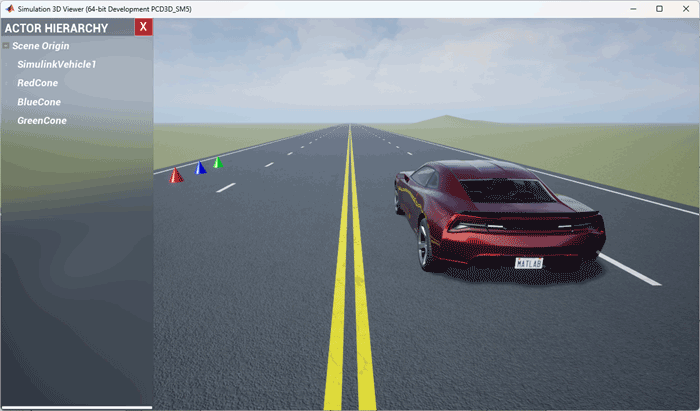
Show Actor Hierarchy | Open the Actor Hierarchy to view the hierarchical structure of the actors in the 3D environment during simulation. You can double-click the actor name to display the best fit-to-screen view of the actor. You can also right-click the actor name to display the context menu for actor and world.
|
Standard Views | List the standard views of the 3D environment.
Note When simulating models, this option is available when
Scene view is set to
|
Custom Views | List the views created to view the 3D environment. |
Show World Origin | Display the axes of the default coordinate system at world origin. |
Hide All Origins | Hide the coordinate axes of all actors and world origin. |
Save as MAT file | Save the 3D environment as a MAT file, including all the actors in the world. |
| Graphics Quality | Balances visual quality and performance. To set the graphics quality, select from the list.
|
| Create Primitive | To create
|
Programmatic Interaction
You can interact with the simulation programmatically to investigate system behavior in the 3D environment. In MATLAB, you can create 3D simulations and issue commands during the simulation to control and interact with the simulation. To get started in creating 3D simulations using MATLAB, see Create 3D Simulation Using MATLAB (Simulink 3D Animation). For more examples on creating 3D simulations, see Create 3D Simulations in Unreal Engine Environment (Simulink 3D Animation).
To interact with a simulation programmatically, you can either set the stopTime (Simulink 3D Animation) in
the run (Simulink 3D Animation)
function to inf or set the EnablePacing (Simulink 3D Animation) property of sim3d.World object to
true or 1. When you co-simulate, you can enter
commands in the MATLAB Command Window. You can also use the view (Simulink 3D Animation)
function to investigate the 3D environment before starting the co-simulation with the 3D
simulation engine.
You can enter these commands to interact with the co-simulation:
Control the co-simulation using
pause(Simulink 3D Animation) andresume(Simulink 3D Animation) functions.Enable pacing using the EnablePacing (Simulink 3D Animation) and PacingRate (Simulink 3D Animation) properties of the
sim3d.Worldobject.Set or modify run-time configurable properties of the actors in the 3D environment.
Create new actors in the 3D environment using the actor objects listed in Actors (Simulink 3D Animation), and add the actors to the 3D environment using the
add(Simulink 3D Animation) function.Create a custom view in the 3D environment using the
createViewpoint(Simulink 3D Animation) function, and set any view using thesetView(Simulink 3D Animation) function.End the co-simulation using the
close(Simulink 3D Animation) function.Close the Simulation 3D Viewer using the keyboard shortcut Ctrl+C in the MATLAB Command Window.
See Also
Simulation 3D Actor (Simulink 3D Animation)
Topics
- 3D Simulation Key Concepts (Simulink 3D Animation)
- Navigate in Unreal Engine Environment

