Generate Code for Variable-Size Arrays
R2026bMATLAB® represents scalars, vectors, matrices, and multidimensional matrices as arrays. A scalar is a 1-by-1 array, a vector is a 1-by-n or n-by-1 array, a matrix is an m-by-n array, and a multidimensional matrix is an array with more than two dimensions. During code generation, the code generator attempts to determine the size of each array dimension by following this process:
If the code generator cannot determine the size of an array dimension or if the size of the dimension changes, the code generator designates the dimension as variable size.
If a variable-size dimension has a fixed maximum size, the code generator designates the dimension as bounded variable-size.
If a variable-size dimension does not have a fixed maximum size, the code generator designates the dimension as unbounded.
If the code generator determines that the size of an array dimension does not change, the code generator designates the dimension as fixed size.
To learn whether a variable dimension in the generated code is fixed size, bounded
variable size, or unbounded, inspect the MATLAB
Coder™ code generation report or the Simulink®
MATLAB function report. In both reports, a colon (:) indicates
that the size of a dimension is variable and a question mark (?)
indicates that the size is unbounded. For example, a variable with a size of
1x:? has a first dimension with a fixed size of 1 and a second
dimension that is variable size and unbounded. To learn more about the code generation
report, see Code Generation Reports. To learn more about the MATLAB function report, see MATLAB Function Reports (Simulink).
Note
The code generator does not treat :1 as equivalent to 1. If
your function requires a scalar, you must pass a variable with a fixed size of
1x1. If you pass a variable with a size of
:1x1, 1x:1, or :1x:1,
code generation might fail or the generated code might produce an error at run time.
Similarly, if your function requires a vector, one of the dimensions must have a
fixed size of 1.
Define Variable-Size Arrays in MATLAB Code
After the code generator assigns a fixed size to an array dimension, code generation can fail if subsequent operations in the MATLAB code change the size of the dimension. To force the code generator to define an array dimension as variable sized, you can:
Construct the array as a matrix with nonconstant dimensions.
Grow the array by using end+1 indexing.
Assign multiple sizes to the same dimension.
Use the
coder.varsizedirective.
Alternatively, if the code generator incorrectly designates a fixed-size dimension as variable size, see Resolve Error: Fixed Size on the Left Side but Variable Size on the Right.
Construct Matrix with Nonconstant Dimensions
You can construct a matrix with one or more variable-size dimensions by using a
matrix-creation function such as zeros or ones and specifying at least one
nonconstant dimension. For example, consider this
function:
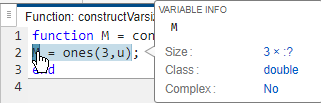
function M = constructVarsize(x) %#codegen
M = ones(3,x);
end
If you generate code for this function, the code generator defines
M with a first dimension that has the fixed-size of
3 and a second dimension that is variable size and unbounded.
If you hover over M in the code generation report, the tooltip
displays the size of M in the generated code.
Grow Array by Using end+1 Indexing
When you grow an array or cell array dimension by using end+1
indexing, the code generator defines that dimension as variable size. For example,
consider this
function:
function M = growVarsize(x) %#codegen
M = 0;
for i = 1:x
    M(end+1) = i;
end
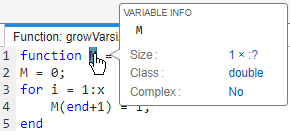
If you generate code for this function, the code generator defines
M with a first dimension that has the fixed-size of
1 and a second dimension that is variable size and unbounded.
If you hover over M in the code generation report, the tooltip
displays the size of M in the generated code.
For more information about code generation when the MATLAB code uses end+1 to grow an array, see Code Generation for Arrays That Grow Via end+1 Indexing.
Assign Multiple Sizes to the Same Variable
Before you use a variable in your code, such as by passing it to or returning from a function, you can assign it values of different shapes. The code generator specifies that array dimensions that vary in size across assignments are variable size.
For example, consider this function:
function M = multisizeVarsize(x) %#codegen
if x>1
    M = ones(10,3,10);
else
    M = ones(10,5);
end
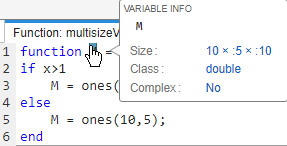
If you generate code for this function, the code generator determines that the
maximum size of M across both code branches is 10-by-5-by-10. In
the generated code, M has a first dimension with a fixed size of
10, a second dimension that is variable size with an upper
bound of 5, and a third dimension that is variable size with an
upper bound of 10. If you hover over M in the
code generation report, the tooltip displays the size of M in the
generated code.
Use coder.varsize
If you change the size of a variable after you pass it to or return it from a
function, the code generator can be unable to determine that one or more of the
dimensions of the variable are variable size. In such cases, you can use the
coder.varsize directive to force the
code generator to recognize that the variable changes size.
For example, this function changes the size of array M on the
else code branch after it passes variable to the
+ function on the if branch. This function
uses the coder.varsize directive to force the code generator to
allow M to vary in
size.
function M = functionVarsize(in) %#codegen
coder.varsize("M")
if (in > 0)
    M = zeros(2,2);
    M = M+in;
else
    M = ones(5,5);
end
end
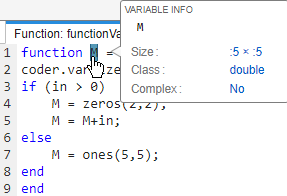
If you generate code for this function, the code generator determines that the
maximum size of M across both code branches is 5-by-5. In the
generated code, both dimensions of M are variable size with an
upper bound of 5. If you hover over M in the code generation
report, the tooltip displays the size of M in the generated
code.
Memory Allocation for Variable-Size Arrays
The code generator allocates memory for fixed- and variable-size arrays depending on the dimensions of the array and the dynamic memory allocation threshold. It:
Dynamically allocates memory for unbounded variable-size arrays.
Dynamically allocates memory for bounded variable-size arrays whose maximum size is greater than 64 kilobytes.
Statically allocates memory for bounded variable-size arrays whose maximum size is less than 64 kilobytes.
Statically allocates memory for fixed-size arrays.
Dynamic memory allocation can optimize storage requirements, but can reduce the speed of the generated code. Depending on the needs of your application, you can fine-tune dynamic memory allocation settings. See Control Dynamic Memory Allocation in Generated Code or Control Memory Allocation for Variable-Size Arrays in a MATLAB Function Block (Simulink).
The code generator implements dynamically allocated data in the generated code differently depending on the target language:
If you generate C code, the code generator uses an
emxArraydata type. See Use Dynamically Allocated C Arrays in the Generated Function Interfaces.If you generate C++ code, the code generator uses the
coder::arrayclass template. See Use Dynamically Allocated C++ Arrays in Generated Function Interfaces.
Disable Support for Variable-Size Arrays
If your application does not use variable-size data, disabling support for variable-size arrays can improve the performance of the generated code. To disable support for variable-size arrays, use one of these methods:
In a MATLAB Coder code configuration object, set the
EnableVariableSizingparameter tofalse.In the MATLAB Coder app, in the Memory settings, clear the Enable variable-sizing check box.
In the MATLAB Function Block Editor, select Edit Data and clear the Support variable-size arrays check box.
Use Variable-Size Arrays in MATLAB Function Blocks
The MATLAB Function block does not support code generation if a variable with a variable-size dimension uses an alias type. This limitation does not apply to input or output variables. For more information on defining variable-size variables in MATLAB Function blocks, see Create MATLAB Function Block Variables (Simulink) and Declare Variable-Size MATLAB Function Block Variables (Simulink).
If the output signal of a MATLAB Function block is variable size, you
must specify that the signal is variable-size in the Property Inspector. You can specify
the upper bounds or define the variable as
unbounded (since R2023b). You do not have to use coder.varsize with
the corresponding output variable inside the MATLAB Function block.
However, if you specify upper bounds with coder.varsize, they must
match the upper bounds in the Property Inspector.

