将 Java 包编译器与 MATLAB Data API 结合使用来打包 MATLAB 函数
R2026b支持的平台: Windows®
此示例演示了如何使用 Java 包编译器,将 MATLAB® 函数打包到一个使用 MATLAB Data API 的 Java® 包中。您可以在一个计算幻方的 Java 应用程序中调用该包。
前提条件
请确认您拥有的 Java 编译器与 MATLAB Compiler SDK™ 兼容。有关详细信息,请参阅MATLAB Compiler SDK .NET 目标要求。
最终用户必须安装 MATLAB Runtime 才能运行应用程序。有关详细信息,请参阅下载并安装 MATLAB Runtime。
出于测试目的,您可以使用安装的 MATLAB 来代替 MATLAB Runtime。
创建 MATLAB 函数
在 MATLAB 中,检查您想要打包的 MATLAB 代码。在此示例中,请在名为 MagicProject 的新文件夹中创建一个名为 magicsquare.m 的 MATLAB 函数。
function y = magicsquare(x)
y = magic(x);
在 MATLAB 命令提示符下,输入 magicsquare(5)。
输出是一个 5×5 矩阵。
    17    24     1     8    15
    23     5     7    14    16
     4     6    13    20    22
    10    12    19    21     3
    11    18    25     2     9
创建工程和编译器任务
使用 Java 包编译器为您的 Java 包创建一个编译器任务。编译器任务允许您针对特定部署目标编译工程中的文件。
要打开该 App,请在 App 选项卡上展开 App 库。在应用程序部署部分,点击 Java 包编译器。
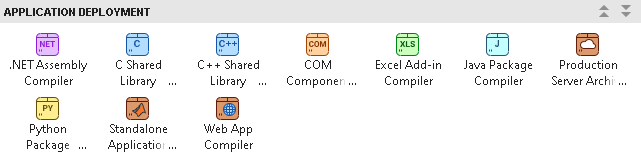
您还可以在 MATLAB 命令行窗口中使用 javaPackageCompiler 函数打开该 App。
打开 App 后,“创建编译器任务”对话框会提示您将任务添加到新的或现有 MATLAB 工程中。在此示例中,选择启动新工程并创建编译器任务,并在 MagicProject 文件夹中创建一个名为 MagicProject 的新工程。有关创建和使用 MATLAB 工程的详细信息,请参阅创建工程。

编辑器中打开了一个名为 JavaPackage1 的新编译任务。
您可以通过打开编译器任务管理器或转到管理任务选项卡并创建新的编译器任务,来创建更多的 Java 编译器任务,或为其他部署目标打包代码。
指定编译选项
在打包之前,您可以为 Java 软件包及其安装程序指定选项,以自定义构建和打包过程。例如,您可以混淆处理 MATLAB 代码,或指定在生成的安装程序中包含 MATLAB Runtime 的方法。
将 MATLAB 函数添加到 Java 包中。所有文件必须位于工程根文件夹中才能添加到工程中。在此示例中,在编译器任务的导出的函数部分,点击添加导出的函数,然后选择 magicsquare.m。在“工程”面板中,该文件现在带有标签 Design 和 Exported Function File。

在 Java 包信息部分,将字符串 My Java Package 替换为您包的名称 Java(例如 magicjava)。
要为生成的文件选择不同的输出位置,请在输出位置部分更新相应路径。
在 Java API 选择部分,选择用于在 Java 应用程序与 MATLAB 代码之间交换数据的 API。对于此示例,请选择 MATLAB Data API。有关详细信息,请参阅 选择 Java 部署选项。
创建示例代码(可选)
MATLAB Compiler SDK 可以生成示例代码 Java,演示如何调用您导出的函数 MATLAB。您可以使用示例来实现您自己的应用程序或者测试编译后的工件。如果您编写了自己的 Java 应用程序代码,可以在 MATLAB 函数打包完成后,将其移动到相应的目录中。有关详细信息,请参阅创建示例代码来调用导出函数。
要创建一个示例 MATLAB 文件,请点击示例部分中的创建新示例。选择文件 magicsquare.m。一个 MATLAB 实时脚本已为您打开,供您编辑。在编辑采样输入下,输入值 5,然后保存文件。文件 sampleFiles\magicsquareSample.mlx 被添加到任务的示例部分。
查看代码和包 Java 包
要查看包含有关构建和打包组件的说明的代码,请点击导出编译脚本旁边的箭头,然后选择显示代码。在右侧,一个窗口显示了一个部署脚本,其中包含与您的构建选项相对应的 compiler.build.javaPackage 和 compiler.package.installer 函数。您可以通过点击导出编译脚本按钮将此代码转换为 MATLAB 脚本文件。运行生成的编译脚本等效于点击编译和打包按钮。

要创建 Java 软件包及其安装程序,请点击编译和打包。若要仅创建 Java 包,请点击编译和打包旁边的箭头,然后选择编译。
编译器将在您的工程文件夹中的 文件夹内生成文件。整合过程中使用的关键文件是包含 MATLAB 代码的代码存档(<compiler_task_name>/output.ctf 文件)。有关其他文件的信息,请参阅打包 MATLAB 函数后生成的文件。
如果您创建了安装程序,package 子文件夹中包含您的共享库文件的安装程序以及 MATLAB 运行时。
小心
生成的安装程序中不包含 Java 应用程序的可执行文件。打包完成后,您必须编译您的 Java 应用程序。然后,手动分发应用程序文件以及 MATLAB Runtime,或者使用 compiler.package.installer 的 AdditionalFiles 选项将可执行文件包含在安装程序中。有关详细信息,请参阅将 MATLAB Compiler SDK 文件分发给应用程序开发人员。
将 MATLAB 代码存档集成到 Java 应用程序中
创建完 Java 包后,请在您喜欢的 Java 开发环境中编写 Java 应用程序的源代码。有关详细信息,请参阅 设置 Java 开发环境。
如果您在打包前创建了示例代码,MATLAB Compiler SDK 会在 samples 文件夹中生成一个名为 magicsquareSample.java 的示例 Java 应用程序。
编写完源代码后,请编译并运行您的 Java 应用程序。
在系统命令提示符下,导航至包含您的 Java 应用程序的 samples 文件夹。请将类路径设置为包含 matlabruntime.jar,该文件位于您的 MATLAB 或 MATLAB Runtime 安装目录中,然后编译您的 Java 代码。
set MATLABROOT=<MATLAB_INSTALL_DIR>

javac -classpath ".;%MATLABROOT%\toolbox\javabuilder\jar\matlabruntime.jar" magicsquareSample.java
通过将类路径设置为包含 matlabruntime.jar,并配置对本机运行时库的访问权限,来运行您的 Java 应用程序。
java -classpath ".;%MATLABROOT%\toolbox\javabuilder\jar\matlabruntime.jar" magicsquareSample
该应用程序返回与您在打包过程中创建的示例 MATLAB 代码相同的输出。
    17    24     1     8    15
    23     5     7    14    16
     4     6    13    20    22
    10    12    19    21     3
    11    18    25     2     9
要在 MATLAB 之外运行该应用程序,您必须安装 MATLAB Runtime。有关详细信息,请参阅下载并安装 MATLAB Runtime。如果您使用编译和打包创建了安装程序,该安装程序包含与用于编译 Java 包的 MATLAB 版本相匹配的 MATLAB 运行时版本。
另请参阅
Java 包编译器 | compiler.build.javaPackage | compiler.package.installer

