Create Microservice Docker Image Using Microservice Docker Image Compiler App
R2026bSupported platforms: Windows®, Linux®, Mac
This example shows how to use the Microservice Docker® Image Compiler App to package a MATLAB® function into a Microservice Docker Image. The microservice image provides an HTTP/HTTPS endpoint to access MATLAB code.
Before R2025b: See Create Microservice Docker Image.
This option is best for developers who want to incorporate a MATLAB algorithm or Simulink® simulation within a larger application as a service, or to provide a synchronous request-response backend API service. To create a Docker image that contains a standalone application, see Package MATLAB Standalone Applications into Docker Images.
Prerequisites
Verify that you have MATLAB Compiler SDK™ installed on the development machine.
Verify that you have Docker installed and configured on the development machine by typing
[~,msg] = system('docker version')in a MATLAB command window.Note
If you are using WSL, use
[~,msg] = system('wsl docker version')instead.If you do not have Docker installed, follow the instructions on the Docker website to install and set up Docker.
docs.docker.com/engine/install/To build microservice images on Windows, you must install either Docker Desktop or Docker on Windows Subsystem for Linux v2 (WSL2).
To install Docker Desktop, see
docs.docker.com/desktop/setup/install/windows-install//.To install Docker on WSL2, see
https://www.mathworks.com/matlabcentral/answers/1758410-how-do-i-install-docker-on-wsl2.
If the computer you are using is not connected to the Internet, you must download the MATLAB Runtime installer for Linux from a computer that is connected to the Internet and transfer the installer to the offline computer. Then, run the command
compiler.runtime.createInstallerDockerImage(filepath)filepathis the path to the transferred MATLAB Runtime installer archive.You can download the installer from the MathWorks® website.
https://www.mathworks.com/products/compiler/matlab-runtime.html
Note
Some deployable archives, such as Simulink Compiler™ artifacts, are not cross-platform compatible and must be built on Linux to use with Docker. For more information, see Limitations for MATLAB Compiler and MATLAB Compiler SDK.
Create MATLAB Function
In MATLAB, examine the MATLAB program that you want to package.
For this example, write a function named mymagic.m using the
following code.
function y = mymagic(x)
y = magic(x);
At the MATLAB command prompt, enter mymagic(5).
The output is a 5-by-5 magic square matrix.
ans =

    17    24     1     8    15
    23     5     7    14    16
     4     6    13    20    22
    10    12    19    21     3
    11    18    25     2     9
Create Project and Compiler Task
Create a compiler task for your function using the Microservice Docker Image Compiler App. Compiler tasks allow you to compile files in a project for a specific deployment target.
To open the app, on the Apps tab, expand the Apps gallery. In the Application Deployment section, click Microservice Docker Image Compiler App.

You can also open the app using the microserviceCompiler function
at the MATLAB Command Window.
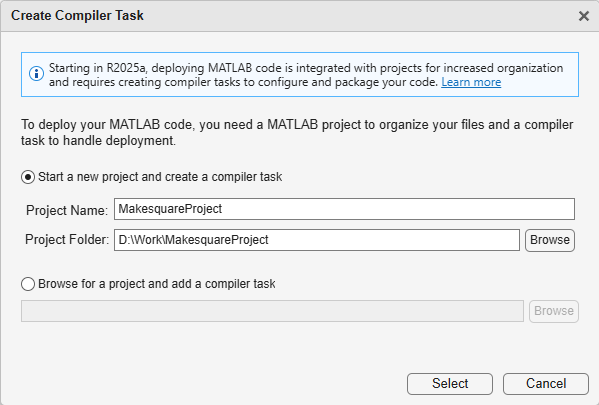
After you open the app, the Create Compiler Task dialog box prompts you to add a
compiler task to a new or an existing MATLAB project. For this example, select Start a new project and create a
compiler task and create a new project named
MakesquareProject in your working folder. For more information on
creating and using MATLAB projects, see Create Projects.
A new compiler task named MicroserviceImage1 opens in the Editor. You
can compile code for other deployment targets by opening the Compiler Task
Manager or going to the Manage Tasks tab and creating a new
compiler task.
Specify Build Options
You can specify options for the Microservice Docker image before packaging to customize the building and packaging process. For instance, you can obfuscate the MATLAB code or add a function signature file. For information on function signatures, see MATLAB Function Signatures in JSON (MATLAB Production Server).
For this example, in the Exported Functions section of the compiler
task, click Add Exported Function and select
mymagic.m. In the Project panel, the file now has the labels
Design and Exported Function File.

In the Microservice Docker Image Settings section, replace the
string mymicroservicedockerimage with the name for your microservice
image, magic-micro.
View Code and Package Microservice Docker Image
To view code that contains instructions on building and packaging your component, click
the arrow next to the Export Build Script button and select
Show Code. On the right, a window opens that displays a deployment
script with the compiler.package.microserviceDockerImage function that corresponds to your
build options.
You can convert this code to a MATLAB script file by clicking the Export Build Script button. Running the generated build script is equivalent to clicking the Package button.

To create the Microservice Docker Image, click Package.
Note
On Windows, you may need to create a MATLAB Runtime installer image using compiler.runtime.createInstallerDockerImage before packaging.
The compiler generates files in the
folder in your
project folder. To choose a different output location for the generated files, update the
paths in the Output Location section.<compiler_task_name>/output
Test Docker Image
Note
If Docker is running in a WSL2 session, preface the following commands with
wsl.
In a Linux terminal, verify that your
magic-microimage is in your list of Docker images.docker imagesREPOSITORY TAG IMAGE ID CREATED SIZE magic-micro latest 4401fa2bc057 23 seconds ago 1.42GB matlabruntime/r2026b/update0/4200000000000000 latest 5259656e4a32 24 hours ago 1.42GBRun the
magic-micromicroservice image in Docker.docker run --rm -p 9900:9910 magic-microPort 9910 is the default port exposed by the microservice within the Docker container. You can map it to any available port on your host machine. For this example, it is mapped to port 9900.
You can specify additional options in the Docker command. For a complete list of options, see Microservice Command Arguments.
Once the container is running in Docker, you can check the status of the service by opening the following URL in a web browser:
http://hostname:9900/api/health
Note
Use
localhostas the hostname if Docker is running on the same machine as the browser. If you are using Docker Desktop, you can access the container usinghost.docker.internal.If the service is ready to receive requests, you see the following message:
"status: ok"
Test the running service. In the terminal, use the
curlcommand to send a JSON query with the input argument4to the service through port 9900. For more information on constructing JSON requests, see JSON Representation of MATLAB Data Types (MATLAB Production Server).curl -v -H Content-Type:application/json -d '{"nargout":1,"rhs":[4]}' \ "http://hostname:9900/magicarchive/mymagic"The output is:
{"lhs":[{"mwdata":[16,5,9,4,2,11,7,14,3,10,6,15,13,8,12,1],\
"mwsize":[4,4],"mwtype":"double"}]}
Note
To use
curlon Windows, use the following syntax:curl -v -H Content-Type:application/json -d "{\"nargout\":1,\"rhs\":[4]}" \ "http://hostname:9900/magicarchive/mymagic"To stop the service, use the following command to display the container id.
docker psCONTAINER ID IMAGE COMMAND CREATED STATUS PORTS NAMES df7710d69bf0 magic-micro "/opt/matlabruntime/…" 6 minutes ago Up 6 minutes 0.0.0.0:9900->9910/tcp epic_herschelStop the service using the specified container id.
docker stop df7710d69bf0
Share Docker Image
You can share your Docker image in various ways.
Push your image to the Docker central registry Docker Hub, or to your private registry. This is the most common workflow.
Save your image as a tar archive and share it with others. This workflow is suitable for immediate testing.
For details about pushing your image to Docker Hub or your private registry, consult the Docker documentation.
Save Docker Image as Tar Archive
To save your Docker image as a tar archive, open a system command window, navigate to the Docker context folder, and type the following.
docker save magic-micro -o magic-micro.tarThis command creates a file named magic-micro.tar in the current
folder. Set the appropriate permissions (for example, using chmod)
prior to sharing the tarball with other users.
Load Docker Image from Tar Archive
Load the image contained in the tarball on the end user machine.
docker load --input magic-micro.tarVerify that the image is loaded.
docker imagesRun Docker Image
docker run --rm -p 9900:9910 magic-microSee Also
Microservice
Docker Image Compiler | compiler.package.microserviceDockerImage | compiler.runtime.createInstallerDockerImage
Topics
- Create Microservice Docker Image
- Microservice Command Arguments
- Create Deployable Archive for MATLAB Production Server
- Client Programming (MATLAB Production Server)
- JSON Representation of MATLAB Data Types (MATLAB Production Server)
- MATLAB Function Signatures in JSON (MATLAB Production Server)
- Package MATLAB Standalone Applications into Docker Images

