Acquire Temperature Data from Thermocouple Using Analog Input Recorder
R2026bThis example shows how to view and record temperature data from an NI™ device using the Analog Input Recorder.
This example uses a National Instruments™ CompactDAQ Chassis NI cDAQ-9179 and module NI 9214 with ID
cDAQ1Mod1. Connect a thermocouple to the ai0
channel of the NI module. This thermocouple has an embedded TEDS chip that Analog
Input Recorder can use for channel configuration. If you are using a thermocouple
without TEDS, you must configure the channel manually.
Set Up Device and Configure Channel Using TEDS
Open the Analog Input Recorder app. In the Apps tab,
click Analog Input Recorder or enter
AnalogInputRecorder at the command line. To begin a new
acquisition session, select the NI 9214 module from the list of devices. A new session
opens with acquisition active on the first input channel.
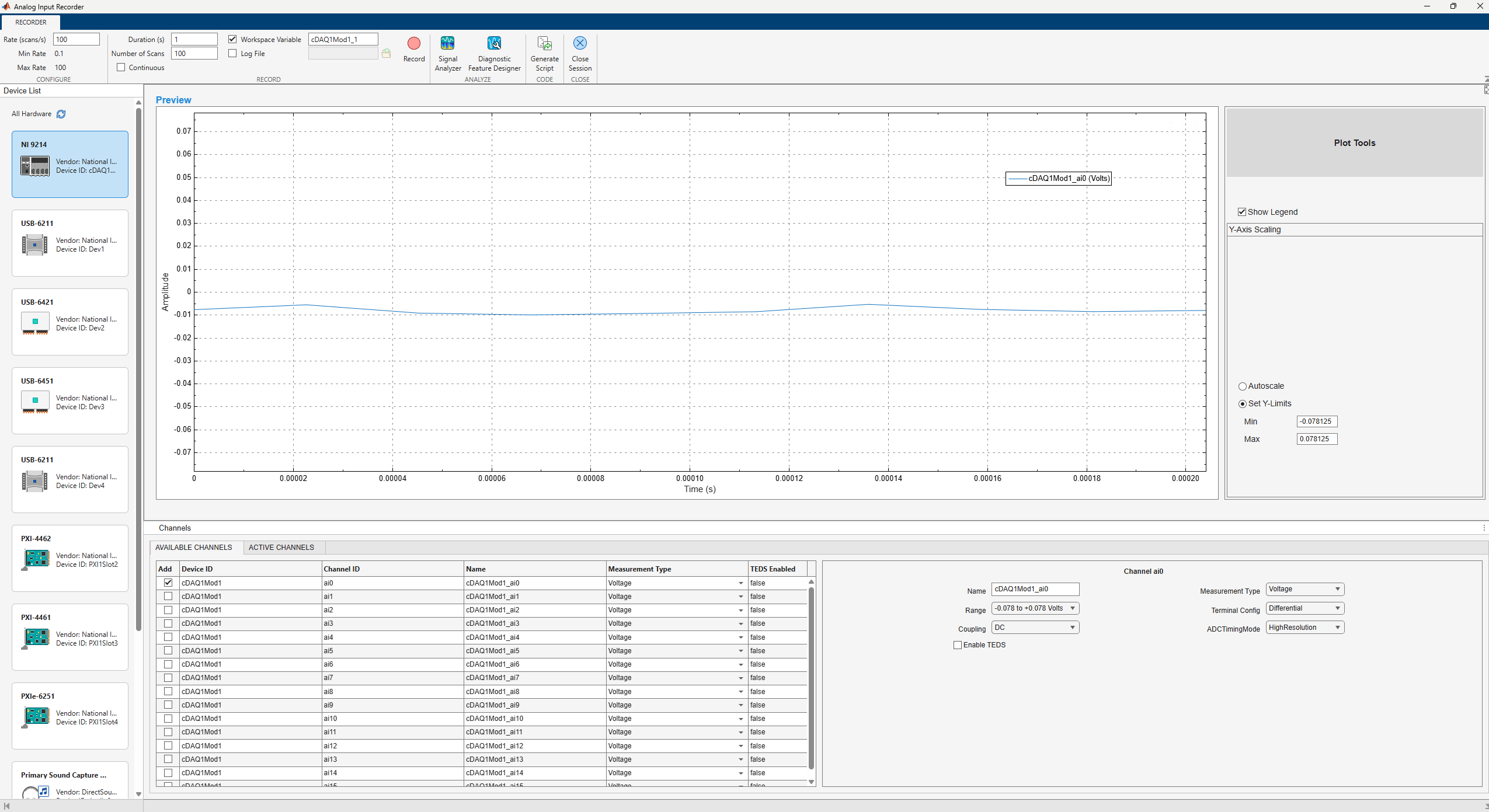
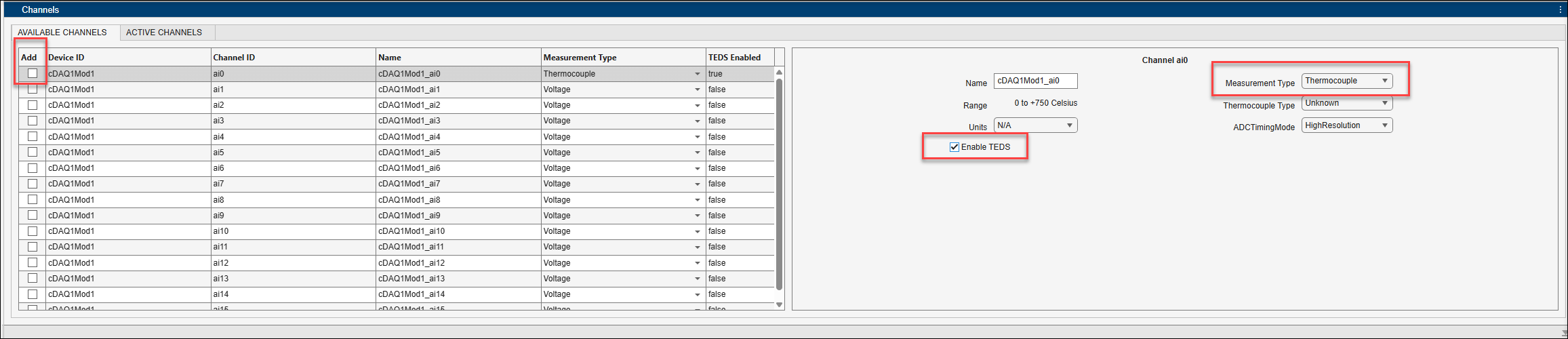
To stop acquiring voltage data on the first input channel, clear the
Add checkbox for the ai0 channel. In the
Channel ai0 parameters pane on the right, set
Measurement Type to Thermocouple and select
Enable TEDS.
Acquire Temperature Data
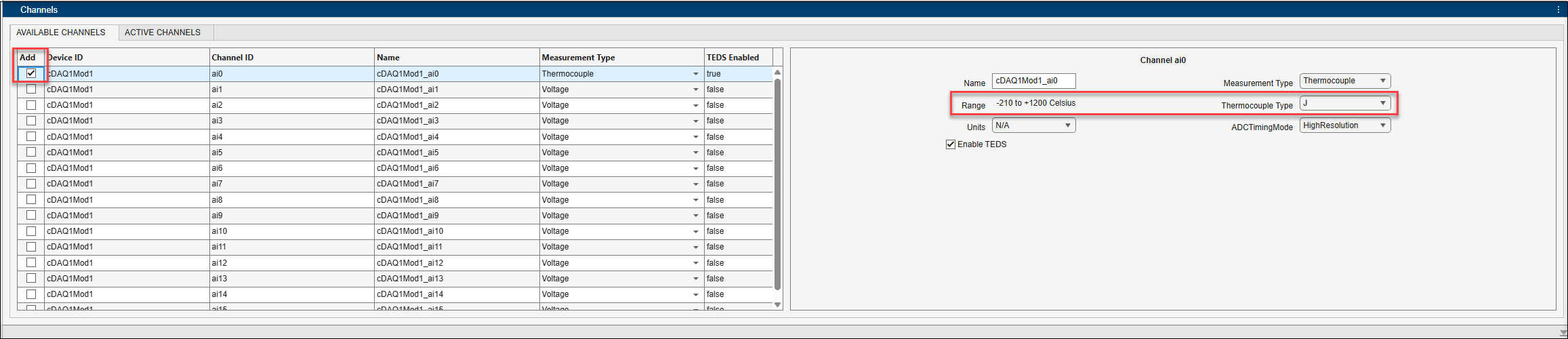
To add the channel and begin acquisition, select the Add
checkbox for the ai0 channel. The app automatically configures
channel properties such as, Range and Thermocouple
Type using TEDS. If the thermocouple is not embedded with a TEDS chip,
before you begin acquisition set the Thermocouple Type by referring
to the sensor datasheet.
The Units channel property is not automatically set and defaults
to N/A. Set the Units property to
Celsius. The plot automatically updates to display the data in
Celsius.
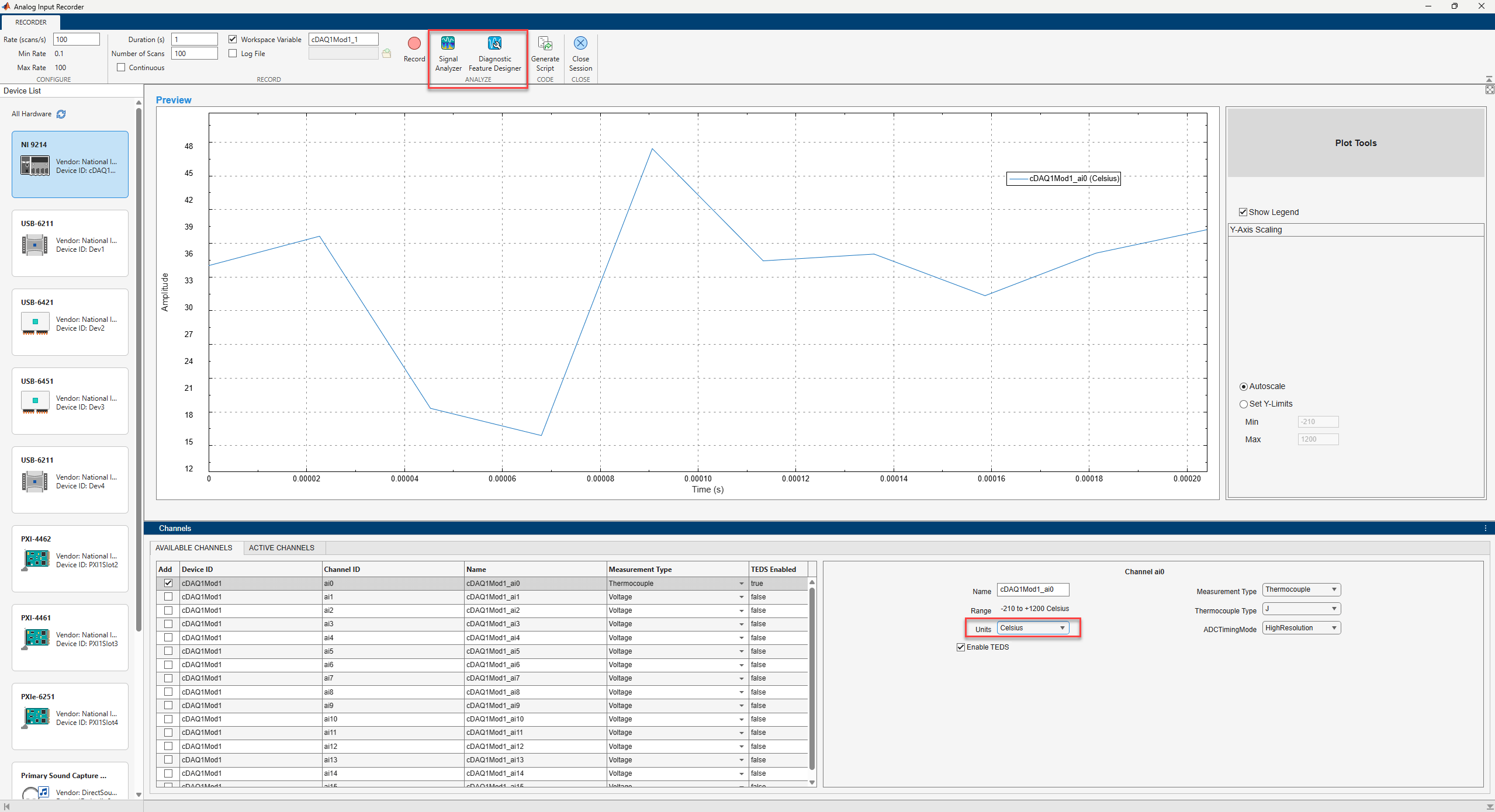
Monitor the data as it comes in using the plot. To record data, click Record, and then click Stop after the desired duration. To analyze the recorded data, use the options in the Analyze section of the app toolstrip.

