Customize C Functions Generated from Global Simulink Functions
R2026bIn the generated model code, each Simulink function corresponds to one of the generated functions. The return value and input arguments of the generated function represent the Argument Inports and Argument Outports of the Simulink function, and the function body corresponds to the Simulink function logic.
A global Simulink® function is a Simulink Function block with the Function visibility parameter of its Trigger block specified as global. Global Simulink functions are callable from any function generated from the model, regardless of the hierarchical relationship between the functions.
This example shows how to customize the generated function name, return value, and input arguments.
Open Model and Explore Global Simulink Function Block
Load the model SimFuncs and open the global Simulink Function block.
sfModel = "SimFuncs";
globalSf = "SimFuncs/globalSimFunc";
load_system(sfModel)
open_system(globalSf)
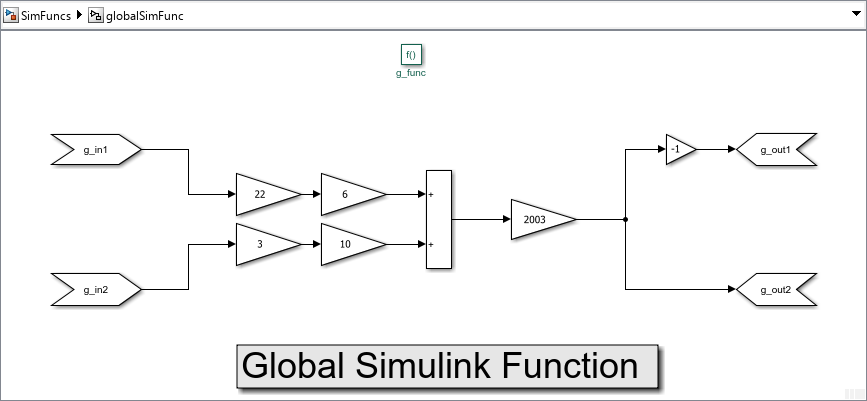
In globablSimFunc, double-click the Trigger block g_func to open its Block Parameters dialog box.
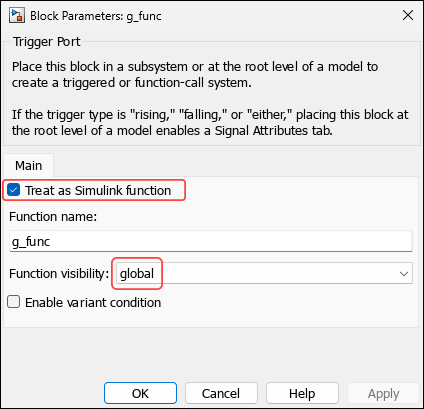
Treat as Simulink function is selected and Function visibility is set to global.
Prepare to Customize Generated Function
To customize the function, use the Configure C/C++ Function Interface dialog box:
Open the Embedded Coder® app.
Open the Code Mappings editor and navigate to the Functions tab.
Locate the entry with
Simulink Function:g_funcin the Source column and click on the Function Preview content of the entry.
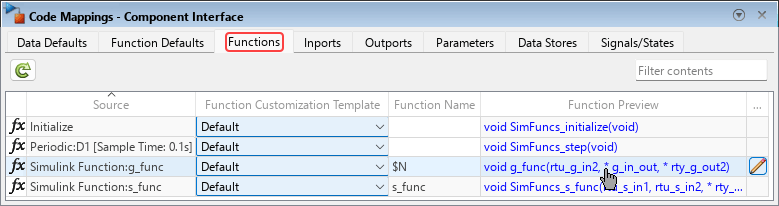
The Configure C/C++ Function Interface dialog box opens.
![Configure C/C++ Function interface dialog box. The Simulink function prototype is [g_out1,g_out2] = g_func(g_in1,g_in2). The C/C++ function prototype is void g_func(*rty_g_out1, *rty_g_out2, rtu_g_in1, rtu_g_in2).](../../examples/ecoder/CustomizeGlobalSimulinkFunctionsExample_04.png)
Customize Generated Function Name
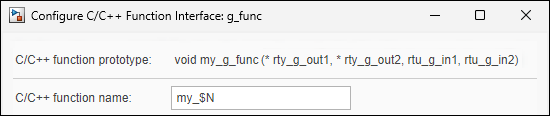
You specify the function name as a combination of valid C language characters and macros defined in Identifier Format Tokens. In the C/C++ function name edit box type my_$N, then click Apply. The macro $N is replaced by the Simulink function name, g_func. The name of the function in C/C++ function prototype changes to my_g_func.
In the Simulink Toolstrip, select the C Code tab and in the Generate Code section, click Generate Code.

In the Code pane, navigate to the generated source code file SimFuncs.c and search for my_g_func to see the definition of the generated function.
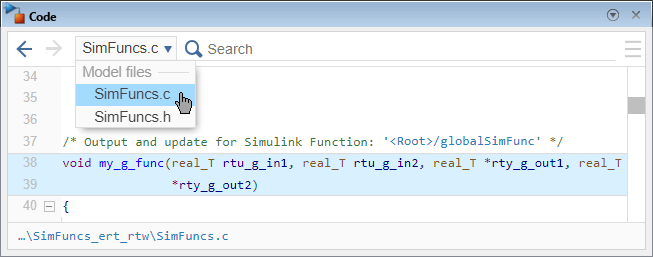
The name of the generated function, my_g_func, adheres to the naming rule you specified.
Customize Function Arguments
The return value and input arguments of the generated function represent the Argument Inports and Argument Outports of the Simulink function.
Each Argument Inport corresponds to one input argument of the generated function. You can optionally specify, for each of these input arguments, the preferred type qualifier.
You can optionally designate one of the Argument Outports of the Simulink function to be the return value of the generated function. Each of the remaining Argument Outports corresponds to one pointer input argument of the generated function.
You can specify the argument order.
You can specify the naming rule for the identifier of each argument.
Customize Arguments that Correspond to Argument Outports
The C language syntax allows only one explicit return value. You can specify the return value of the generated function as either void or as one of the Argument Outports of the Simulink Function block. Except for the Argument Outport you designate to be the return value of the generated function, all Argument Outports become pointer input arguments in the generated function. You can customize the naming rules for the identifiers of these implicit output arguments. In this example, designate the Argument Outport g_out2 as the return value, and specify the naming rule of the Argument Outport g_out1 as $I_$N.
From the Code Mappings editor, open the Configure C/C++ Function Interface dialog box.
From the C/C++ return argument list, select
g_out2to specify it as the return value of the generated function.In the table at the bottom of the dialog box, locate the entry for
g_out1and specify its identifier as$I_$N. The macro$Nis replaced by the identifier of the Argument Outport in the Simulink function,g_out1. The macro$Iis replaced byy, indicating that the argument corresponds to an Argument Outport.
The function prototype is updated accordingly.
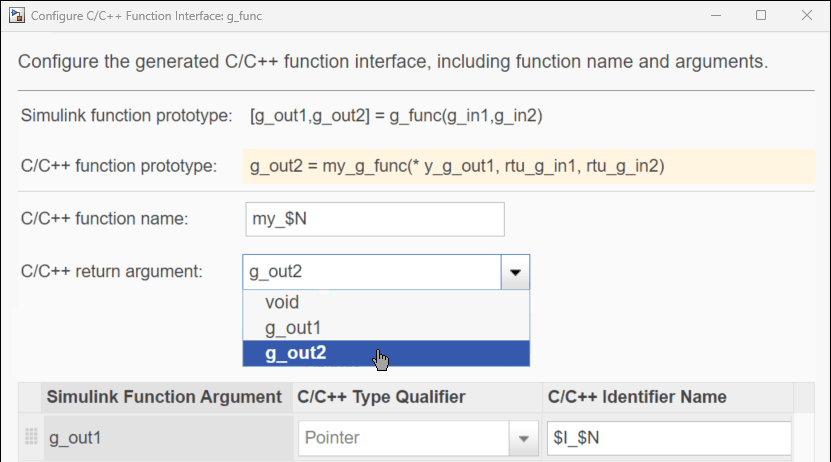
You can see the type qualifier for g_out1, Pointer, but you cannot change it.
Customize Arguments that Correspond to Argument Inports
For each input argument that corresponds to an Argument Inport of the Simulink function, you can specify one of two values for C/C++ Type Qualifier, indicating the preferred qualifier for the argument:
Pointer to const— The argument is passed as a pointer to a constant in the generated function.Auto— The code generator attempts to have the argument passed by value in the generated function. If it cannot, the argument is passed as a pointer in the generated function.
You can customize the naming rule for the identifier of each of these arguments.
In the table at the bottom of the Configure C/C++ Function Interface dialog box, locate the entries for the input arguments.
In the C/C++ Type Qualifier column, select
Autoforg_in1, andPointer to constforg_in2.In the C/C++ Identifier Name column, specify
$I_$Nfor both arguments. The macro$Nis replaced by the identifier of the port in the Simulink function. The macro$Iis replaced byu, indicating that the arguments correspond to Argument Inports.
Click Apply. The function prototype changes accordingly.
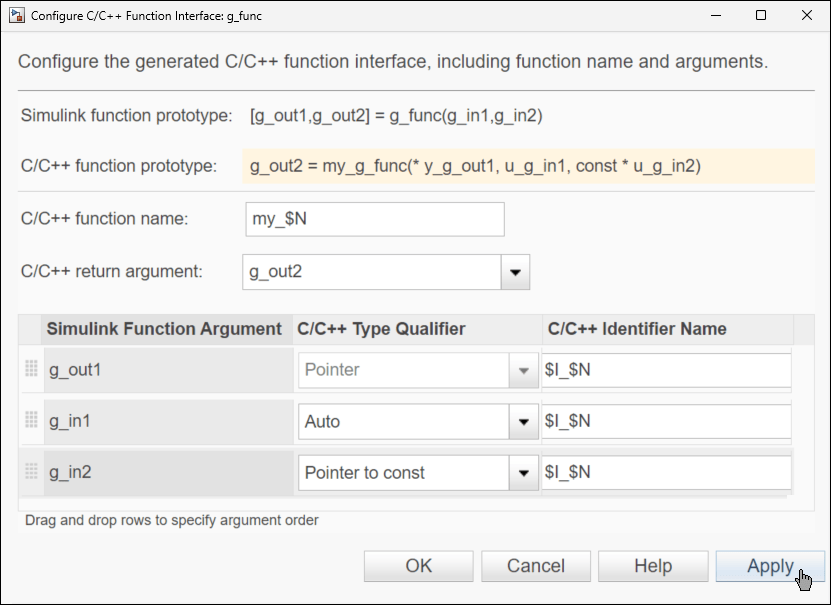
Customize Argument Order
You can customize the order that arguments appear by reordering the table rows at the bottom of the Configure C/C++ Function Interface dialog box. Locate the dotted drag-and-drop area on the left side of the table entries, and adjust the order to be g_in2, g_out1, and g_in1. Click Apply. The order of the arguments in the C/C++ function prototype changes according to the order you specified.
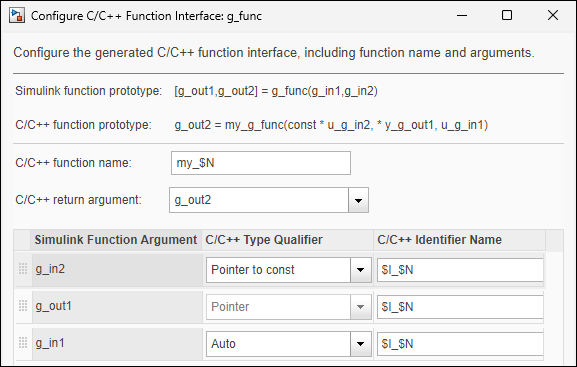
Generate model code again, and examine the generated function code in the Code pane.
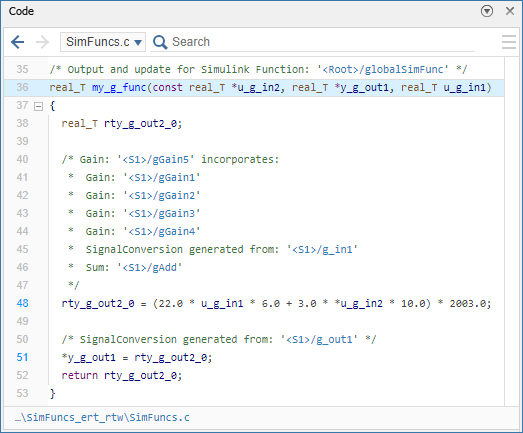
In the generated code:
The argument order and identifiers adhere to your specifications.
The return value is kept, during the running of the function, in the temporary variable
rty_g_out2_0, which corresponds to Argument Outportg_out2of the Simulink function.
Use Combined Inports and Outports
You can customize the generated function to have combined arguments, corresponding each to one Argument Inport and one Argument Outport of the Simulink function. A combined argument is passed by pointer and is used in the generated function for both input and output. To use combined arguments, specify the same identifier for both the Argument Inport and the Argument Outport. In the example, update the Simulink function prototype with the argument g_in_out as the first Argument Inport and the first Argument Outport.
In the Simulink Editor, navigate to the top model. The left block in the lower part is the global Simulink Function block, globalSimFunc. Above it is its Function Caller block, globalSimFuncCaller.
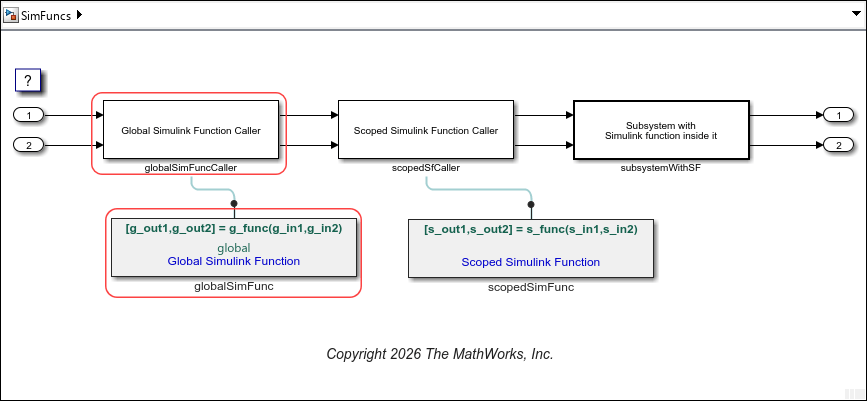
Update the prototype in the Simulink function block:
Click once on the prototype of the Simulink Function block to turn on editing mode.
Revise the prototype to
[g_in_out,g_out2] = g_func(g_in_out,g_in2).
![Simulink Function block with prototype [g_in_out,g_out2] = g_func(g_in_out,g_in2).](../../examples/ecoder/CustomizeGlobalSimulinkFunctionsExample_13.png)
Update the Function Caller block:
Double-click on the global Simulink Function Caller block,
globalSimFuncCaller.In the Block Parameters dialog box, change Function prototype to the new Simulink function prototype.
Click OK.
![Block Parameters dialog box of globalSimFuncCaller. The Function prototype parameter is [g_in_out,g_out2] = g_func(g_in_out,g_in2).](../../examples/ecoder/CustomizeGlobalSimulinkFunctionsExample_14.png)
Customize Function Arguments
You need to update the function argument specifications to conform to the new Simulink function prototype.
Open the Configure C/C++ Function Interface dialog box from the Functions tab of the Code Mappings editor.
Specify the return argument as
void.Use the dotted drag-and-drop area on the left side of the table to arrange the arguments in the order
g_in_out,g_in2,g_out2.For
g_in2, set C/C++ Type Qualifier toAuto. This way the code generator tries to generate the input argumentg_in2as passed by value.For all three identifiers, specify C/C++ Identifier Name as
gArg_$I_$N. The$Irepresents the type of argument. For Argument Inports it is replaced byu, for Argument Outports it is replaced byy, and for combined arguments it is replaced byuy.$Nis replaced by the identifier of the port in the Simulink function.
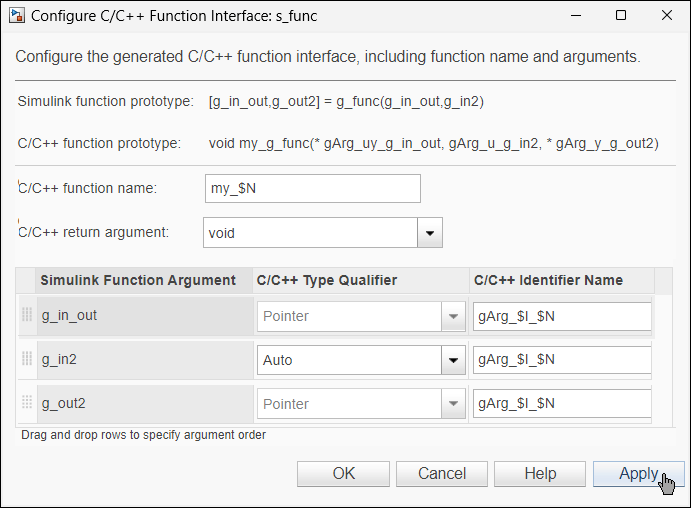
Click Apply. In the Configure C/C++ Function Interface dialog box:
Simulink function prototype changes to
[g_in_out,g_out2] = g_func(g_in_out,g_in2).C/C++ function prototype changes to
void my_g_func(*gArg_uy_g_in_out, gArg_y_g_in2, *gArg_y_g_out2).
Generate code from the model and examine the generated function in the Code pane.
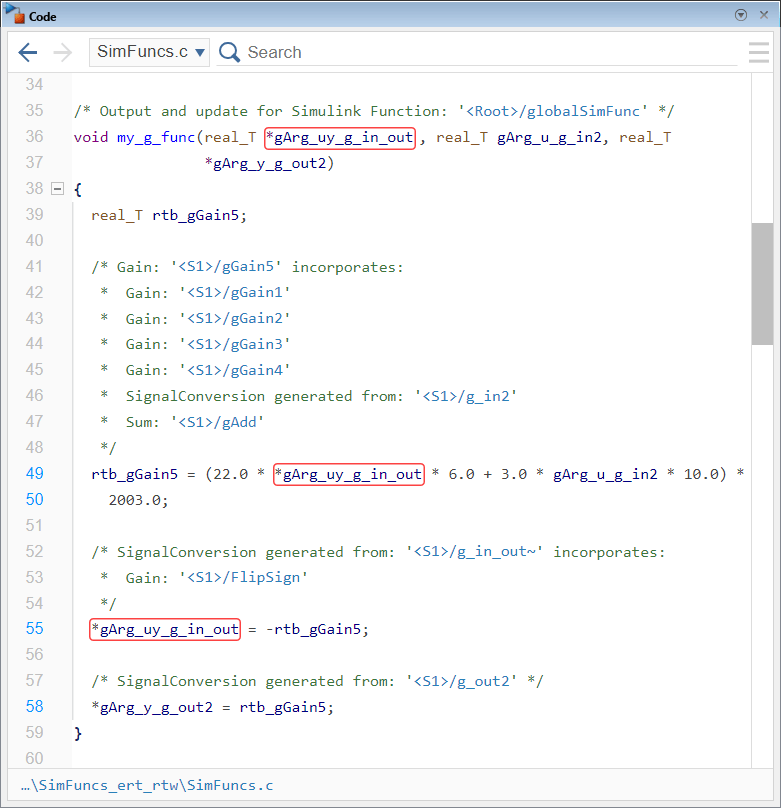
In the generated function:
The
$Ipart of the naming rule is replaced byuyin the combined argument.The combined argument is used for both input and output in the function body. Its value is used in the calculation and is being updated.
See Also
Function visibility | Identifier Format Tokens

