从 Artifactory 存储库配置安装
R2026bArtifactory® 由 JFrog® 发布,它是工件存储库管理器,支持版本管理、访问控制和 CI/CD 集成。命令行工具 MATLAB® 包管理器 (mpm) 使用户能够从您组织的 Artifactory 存储库下载和安装 MathWorks® 产品和支持包。本主题说明如何为 MathWorks 产品和支持包从您组织的 Artifactory 存储库配置安装。
限制
在离线环境中,mpm 无法从 Artifactory 安装包含第三方包的支持包。在安装过程中,mpm 会尝试从供应商网站下载第三方包,而不是从 Artifactory 检索它们。如果无法访问供应商网站,mpm 会引发错误。要安装包含 Artifactory 之外的第三方包的支持包,请参阅在离线计算机上安装支持包。
安装配置工作流
要配置从您组织的 Artifactory 存储库安装 MathWorks 产品和支持包,请执行下列步骤:
在 Artifactory 中设置存储库文件夹结构(一次性步骤)。
创建从存储库安装产品和支持包所需的 JSON 配置文件(一次性步骤)。
使用
mpm download从 MathWorks 下载产品和支持包。将产品上传到您组织的 Artifactory 存储库。

对于 MathWorks 产品和支持包的每个新版本或更新版本,重复上述步骤 3 和 4。
然后,用户可以使用 mpm install 和配置文件从存储库安装产品。
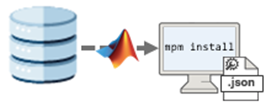
设置存储库文件夹结构(一次性步骤)

设置用于存储 MathWorks 产品和支持包的 Artifactory 存储库。
在 Artifactory 中,创建一个新存储库或重用现有存储库。在这两种情况下,存储库类型都必须设置为通用。示例存储库 URL:
https://artifactory.example.com/artifactory/my-repo在您的 Artifactory 存储库的顶层文件夹中,创建一个名为
MathWorks的子文件夹,用于存储 MathWorks 版本。MathWorks/在后面的步骤中,当您从 MathWorks 下载产品和支持包版本时,您将这些版本上传到
MathWorks子文件夹。每个版本和更新将存储在MathWorks文件夹下的一个单独子文件夹中(例如,R20XXaU0、R20XXaU1,依此类推)。此文件夹结构显示一个包含多个已上传版本和更新的存储库:MathWorks/ R20XXaU0/ R20XXaU1/ R20XXaU2/ ... R20XXbU0/ R20XXbU1/ R20XXbU2/ ...
创建存储库配置文件(一次性步骤)
创建允许用户安装产品和支持包的 JSON 配置文件。此文件包含安装所需的存储库有关信息。
创建一个 JSON 文件。例如:
my_repo_config.json。将以下内容复制到 JSON 文件中:
{
  "repository_configuration": [
    {
      "name": "my-repo",
      "url": "https://my-artifactory-instance/my-repo",
      "type": "artifactory",
      "repository_layout": {
        "mathworks_products": "MathWorks"
      },
      "auth": {
        "type": "token",
        "access_token": "${ARTIFACTORY_ACCESS_TOKEN}"
      }
    }
  ]
}
根据您的存储库修改 JSON 文件字段。
"name"- 您的 Artifactory 存储库的名称。"url"- 您的 Artifactory 存储库的 URL。"type"- 存储库的类型。目前,"artifactory"是唯一受支持的存储库类型。"repository_layout"- 您的 Artifactory 存储库的文件夹布局。repository_layout中的每个子字段定义存储可安装 MathWorks 软件的一个子文件夹。支持的子字段:"mathworks_products"- 包含 MathWorks 产品和支持包版本的子文件夹的名称。例如,假设您的配置文件包含以下字段值:如果您安装... "url": "https://my-artifactory-instance/my-repo", ... "repository_layout": { "mathworks_products": "MathWorks" }, ...R2026bU0的产品和支持包,则mpm从以下 URL 检索产品和支持包:https://my-artifactory-instance/my-repo/MathWorks/R2026bU0
"auth"- 用于访问存储库的身份验证详细信息。支持的子字段:"type"- 身份验证类型。目前,"token"是唯一受支持的类型。"access_token"- 用于对访问存储库的用户进行身份验证的令牌。从 IT 管理员获取访问令牌后,在ARTIFACTORY_ACCESS_TOKEN环境变量中设置该令牌。按照您组织的环境变量设置过程进行操作。示例语法:ARTIFACTORY_ACCESS_TOKEN=abc123xyz456然后在 JSON 文件中,使用以下语法在
access_token字段中指定环境变量名称:"access_token": "${ARTIFACTORY_ACCESS_TOKEN}"您也可以直接在 JSON 文件中指定访问令牌。例如:
"access_token": "abc123xyz456"安全注意事项:直接在 JSON 文件中指定访问令牌会以纯文本形式公开敏感凭据。为降低在配置文件中公开凭据的风险,请将访问令牌指定为环境变量。
将 JSON 文件保存在用户可以访问的位置,例如共享驱动器。如果用户可以从您的 Artifactory 存储库下载文件,请考虑将该文件上传到您的 Artifactory 存储库。
从 MathWorks 下载产品

使用 mpm 下载您要上传到 Artifactory 的特定版本的产品和支持包。您无法上传从其他来源(例如 ISO 或 DMG 镜像)下载的 MathWorks 软件。
按照获取 MATLAB 包管理器中的说明获取最新版本的
mpm。使用
mpm download下载产品。例如,下载初始 (update 0) R2026b 版本的 Simulink® 和 Deep Learning Toolbox™ Model for ResNet-50 Network,用于 Linux® (glnxa64)、Windows® (win64) 和 Mac (maca64) 平台。将<USER>替换为您的计算机用户名。mpm还会下载必需的产品:MATLAB 和 Deep Learning Toolbox。Linux 或 Mac:
./mpm download --release=R2026bU0 --destination=/home/<USER>/Downloads/R2026bU0 --platforms=glnxa64 win64 maca64 --products=Simulink Deep_Learning_Toolbox_Model_for_ResNet-50_NetworkWindows:
.\mpm.exe download --release=R2026bU0 --destination=C:\Users\<USER>\Downloads\R2026bU0 --platforms=glnxa64 win64 maca64 --products=Simulink Deep_Learning_Toolbox_Model_for_ResNet-50_Network要下载大量产品和支持包,请使用
--inputfile选项在输入文件中指定产品。有关详细信息,请参阅mpm download参考页上的示例使用输入文件下载产品。
R2026bU0 文件夹具有以下结构:
R2026bU0/
  archives/
  mpm/
ProductFilesInfo.xmlR2026bU0 文件夹包含以下文件和子文件夹:
archives- 包含下载的产品和支持包的子文件夹。mpm- 包含下载的mpm版本的子文件夹,您在mpm的--platforms选项中指定的每个平台对应一个版本。您的用户可以使用这些版本的mpm安装产品和支持包,如下示例结构所示:mpm/ glnxa64/ mpm maca64/ mpm win64/ mpm.exeProductFilesInfo.xml- 包含有关产品和支持包的信息的元数据文件。
将产品上传到 Artifactory

将您在上一节中下载的产品和支持包上传到 Artifactory。由于 Artifactory 不支持文件夹上传,您必须先将下载的文件夹压缩为 ZIP 文件。在压缩和上传之前,请不要修改此文件夹的结构或内容。
使用您喜欢的工具,将您下载的版本文件夹压缩为 ZIP 文件。例如,导航到下载的文件夹,并使用
zip(Linux 或 Mac)或tar(Windows) 将内容压缩到父文件夹Downloads中的 ZIP 文件中。Linux 或 Mac:
cd /home/<USER>/Downloads/R2026bU0
zip -r ../R2026bU0.zip ./*
cd ..
Windows(命令提示符):
cd C:\Users\<USER>\Downloads\R2026bU0
tar -a -c -f ..\R2026bU0.zip *
cd ..
根据下载的产品和支持包数量,此过程可能需要几分钟。压缩后的 ZIP 文件应包含此示例中所示的子文件夹和文件:
R2026bU0.zip
  archives/
  mpm/
  ProductFilesInfo.xml
在您的 Artifactory 存储库的
MathWorks文件夹中,创建一个子文件夹用于上传 ZIP 文件。要创建此子文件夹,请使用 JFrog CLI 或您喜欢的工具。以下示例说明如何使用命令行工具curl发出 HTTPS Web 请求来创建文件夹。Linux 或 Mac:
curl --user <USER>:<PASSWORD> \
     --request PUT \
     "https://my-artifactory-instance/my-repo/MathWorks/R2026bU0/"
Windows(命令提示符):
curl --user <USER>:<PASSWORD> ^ --request PUT ^ "https://my-artifactory-instance/my-repo/MathWorks/R2026bU0/"curl命令包含以下选项:--user <USER>:<PASSWORD>- 指定您的用户名和 Artifactory 密码。或者,如果您使用访问令牌,请将--user <USER>:<PASSWORD>替换为以下附加标头:--header "Authorization: Bearer <TOKEN>"--request PUT- 使用PUT请求,因为上传会修改存储库。https://my-artifactory-instance/my-repo/MathWorks/R2026bU0/- 指定该文件夹将在 Artifactory 中显示的 URL 端点。在 URL 中包含尾部斜杠。使用以下 URL 格式:https://my-artifactory-instance/my-repo/MathWorks/R20XXyUn/https://my-artifactory-instance/my-repo/是您的 Artifactory 存储库的 URL,由您的存储库配置文件的"url"字段确定。MathWorks/是存储 MathWorks 产品和支持包版本的子文件夹,由您的存储库配置文件的"repository_layout"字段内的"mathworks_products"子字段确定。R20XXyUn/是版本文件夹,其中R20XXy是版本名称(例如,R2026b),Un是更新版本号(例如,U0、U1,依此类推)。
将 ZIP 文件上传到您刚刚在 Artifactory 存储库中创建的产品版本文件夹。使用 JFrog CLI 或您喜欢的工具。以下示例说明如何使用
curl上传 ZIP 文件。Linux 或 Mac:
curl --user <USER>:<PASSWORD> \
     --header "X-Explode-Archive:true" \
     --request PUT \
     --upload-file /home/<USER>/Downloads/R2026bU0.zip \
     "https://my-artifactory-instance/my-repo/MathWorks/R2026bU0/"
Windows(命令提示符):
curl --user <USER>:<PASSWORD> ^ --header "X-Explode-Archive:true" ^ --request PUT ^ --upload-file "C:\Users\<USER>\Downloads\R2026bU0.zip" ^ "https://my-artifactory-instance/my-repo/MathWorks/R2026bU0/"curl命令包含以下选项:--user <USER>:<PASSWORD>- 指定您的用户名和 Artifactory 密码。或者,如果您使用访问令牌,请将--user <USER>:<PASSWORD>替换为以下附加标头:--header "Authorization: Bearer <TOKEN>"--header "X-Explode-Archive:true"- 在请求标头中指定X-Explode-Archive:true以在上传后解压缩该文件夹。--request PUT- 使用PUT请求,因为上传会修改存储库。--upload-file ...- 指定 ZIP 文件的路径。https://my-artifactory-instance/my-repo/MathWorks/R2026bU0/- 指定您在上一步骤中创建的文件夹的 URL 端点。
安装 Artifactory 提供的产品和支持包
要使您的用户能够从您的 Artifactory 存储库安装产品和支持包,请向他们提供以下内容:
存储库配置文件(例如,
my_repo_config.json)的副本。与其平台兼容的
mpm的版本。用户可以下载已上传到存储库的mpm的副本,也可以按照获取 MATLAB 包管理器中的说明从 MathWorks Web 服务器下载mpm。
此示例 mpm install 命令使用存储在共享位置的配置文件从 Artifactory 存储库安装产品。
Linux 或 Mac:
./mpm install --repo-config=/usr/share/my_repo_config.json --release=R2026bU0 --destination=/home/<USER>/matlab --products=Simulink Deep_Learning_Toolbox_Model_for_ResNet-50_NetworkWindows (以管理员身份运行):
.\mpm.exe install --repo-config="Z:\share\my_repo_config.json" --release=R2026bU0 --destination="C:\Users\<USER>\matlab" --products=Simulink Deep_Learning_Toolbox_Model_for_ResNet-50_Network要安装大量产品和支持包,请使用 --inputfile 选项在输入文件中指定它们。有关详细信息,请参阅 mpm install 参考页上的示例使用输入文件从 Artifactory 存储库安装产品和支持包。
用户也可以在 Dockerfile 中使用 mpm 将 MATLAB 集成到 CI/CD 管道中。有关示例,请参阅 GitHub® 上的创建 MATLAB 容器镜像。

