Use TCP/IP Explorer App to Communicate with Server
R2026bThis example shows how to use TCP/IP Explorer app to communicate as a client with a TCP/IP server.
The TCP/IP Explorer can connect to any TCP/IP server (an instrument or another application running on the same computer or another computer) that listens at a specific IP address and port. For simplicity and for making the example self-contained, this example includes a simple TCP/IP server script, that uses the tcpserver function and responds to a few predefined commands. To run this example, make sure MATLAB® is installed on your computer in addition to the Instrument Control Toolbox™ to run tcpserver. The attached script should be run prior to beginning the Connect a Client to the Server section of the example.
Create Server
In the attached script, a tcpserver object that listens for client connection requests is created. A tcpserver object enables your code to act as a TCP/IP server, allowing it to accept and manage network connections from remote clients. It provides methods and properties for configuring the server, handling incoming data, and responding to client requests. When a connection is made, the server has the capability to receive a set list of commands and return information back to the client.
First, the script creates a tcpserver object using the local address of the machine and port 5000. Next, a callback function is set to trigger each time a complete line ending with a terminator is received from the client in addition to a callback to indicate connection status. The callback function called readDataFcn is created to process each line of text received from the client, where each message is terminated by a line-ending character. You can find readDataFcn at the end of the attached file.
Before beginning the next section, execute the attached script to create the server. This server can run in either the same MATLAB session as the client or a separate one. A connection will not be established until a client session is created, which will be made in the next section. To shut down the server, type clear(server) in the Command Window.
Connect a Client to the Server
To connect to the server and send commands, open the TCP/IP Explorer from the Command Window by typing tcpipExplorer or search for the application in the App Gallery. After the app opens, previously configured connections can be seen in addition to the ability to configure a new connection. To configure a new connection, click Configure TCP/IP Connection.
Configure Client
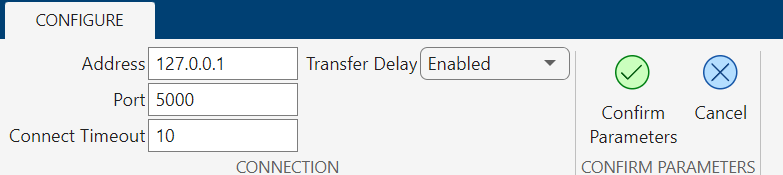
Before beginning, verify the script that creates the server is running. As a TCP/IP client, the TCP/IP Explorer app must be configured to connect to a specific IP address and port on which a server is listening. The address and port number fields allow the client to locate and communicate with the server and should match the settings used in the server script. Type the address of the server, 127.0.0.1, into Address. This is the address of the local machine. Verify that the port number aligns with the port number used in the server script. After both values are entered, click Confirm Parameters. If a connection is made, the server's Command Window displays the message Client connection accepted by server.
Communicate with the Server Through TCP/IP Explorer
Once the client is set up, you can send commands to the server. In this example, we are demonstrating a typical client/server interaction using three specific commands. These commands are designed for this tutorial and may not work in other situations. The table below lists the three supported commands, which will be explained in more detail later. If you enter an invalid command, the server will respond with a message indicating that the command is not supported.
Command | Returned Data Type | Description |
identification? | String | Returns a string containing "Example TCP/IP Server". |
version? | uint8 | Returns a hypothetical version number of type uint8. |
waveform? | Double | Returns 100 values of a sine wave between 0 and 2 pi of type double. |
Invalid Command | String | Returns a string containing "UNSUPPORTED COMMAND". |
Query Identification of Server Command
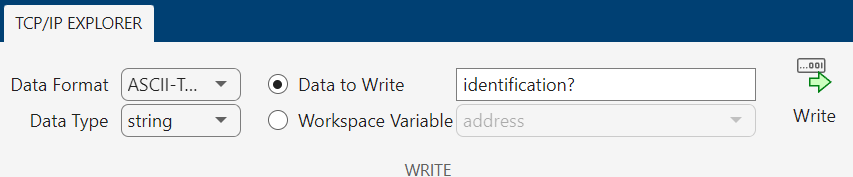
In TCP/IP Explorer, click Data Format > ASCII-Terminated String in the dropdown. Then, in the Data to Write field, type identification? and click Write.
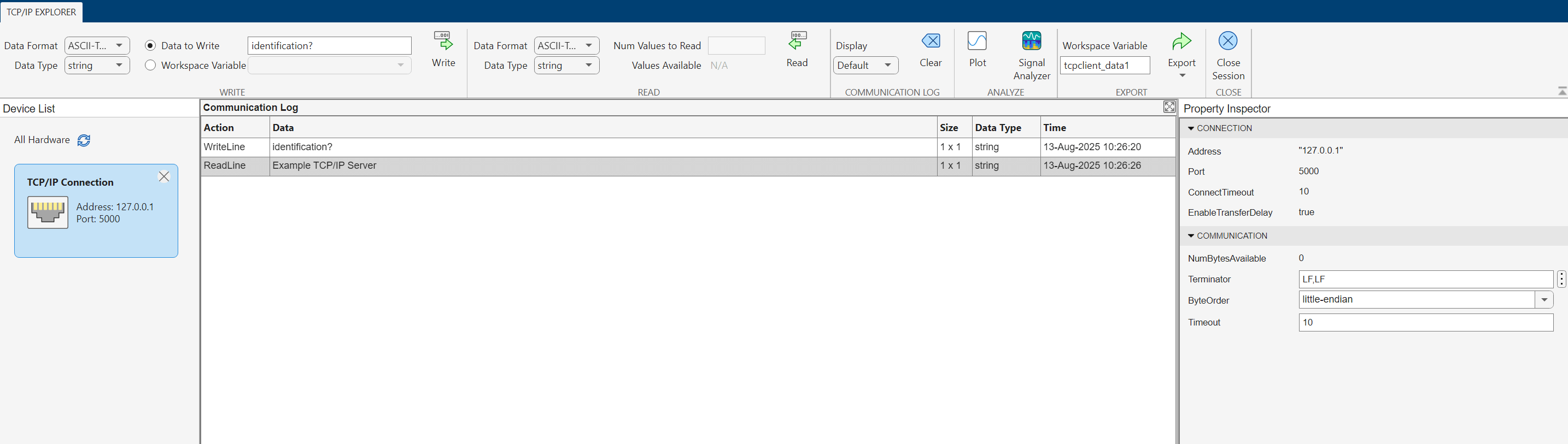
Under the Read section of the toolstrip, there should now be values available to read. Set Data Format > ASCII-Terminated String. Since the expected response is a string terminated with LF, the Num Values to Read field does not have to be used. Click Read. The Communication Log then displays the message "TCP/IP Server". The app now looks like the following.
Query Version of Server Command
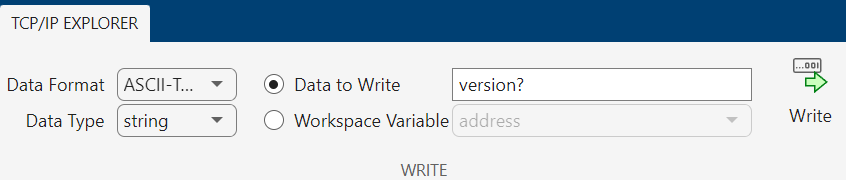
In TCP/IP Explorer, click Data Format > ASCII-Terminated String in the dropdown. Then, in the Data to Write field, type version? and click Write.
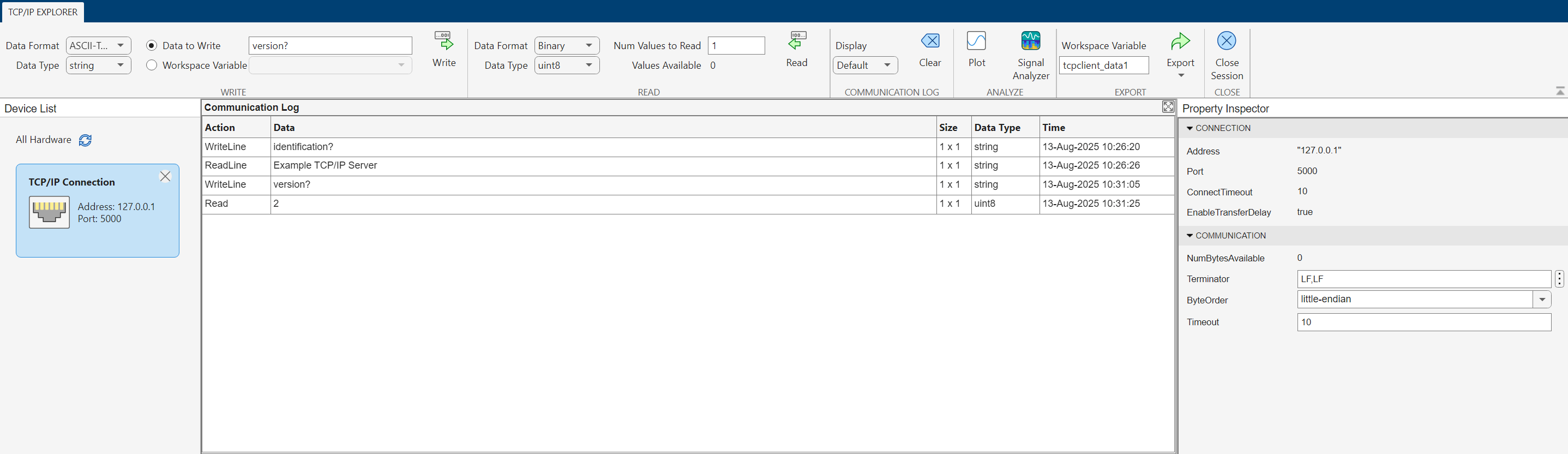
Under the Read section of the toolstrip, there should now be values available to read. Set Data Format > Binary. Then set Data Type > uint8, and type 1 into the Num Values to Read field. Click Read. The Communication Log then displays the number 2 representing a hypothetical version number. The app now looks like the following.
Query Sine Waveform Command
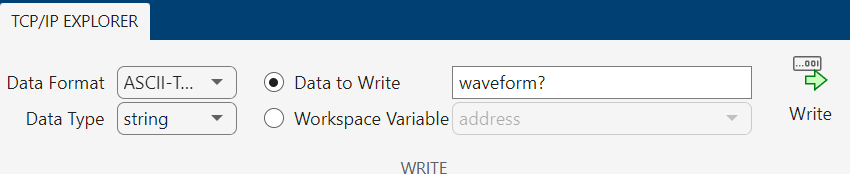
In TCP/IP Explorer, click Data Format > ASCII-Terminated String in the dropdown. Then, in the Data to Write box, type waveform? and click Write.
Under the Read section of the toolstrip, there should now be values available to read. Set Data Format > Binary. Then set Data Type > double, and type 100 into the Num Values to Read field. Click Read. The Communication Log then displays the sine wave data. The app now looks like the following.
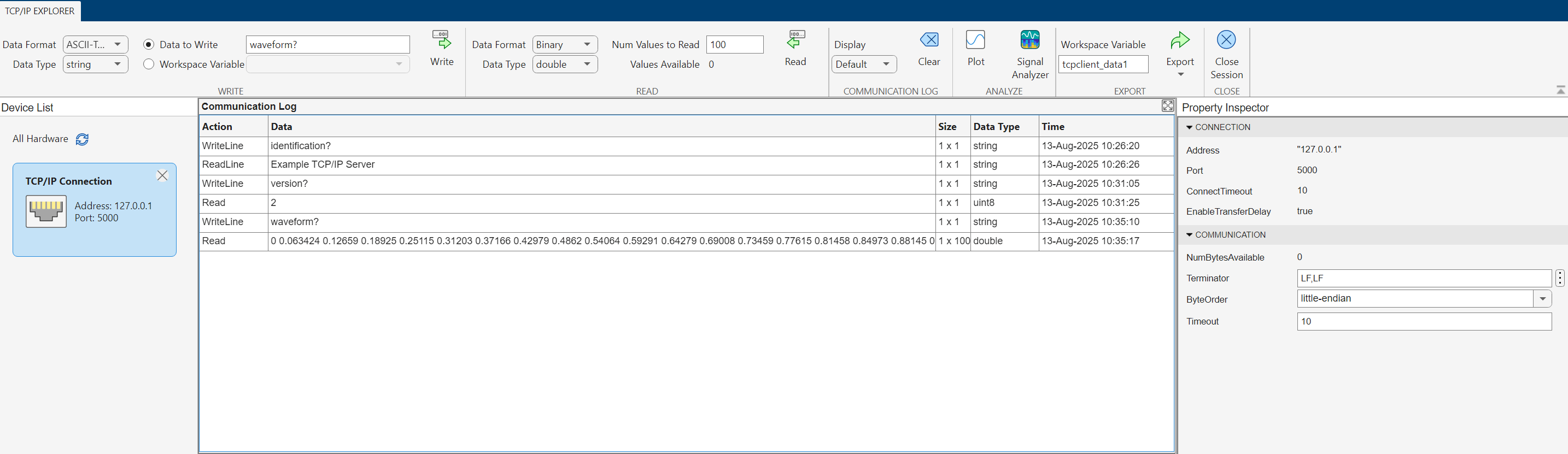
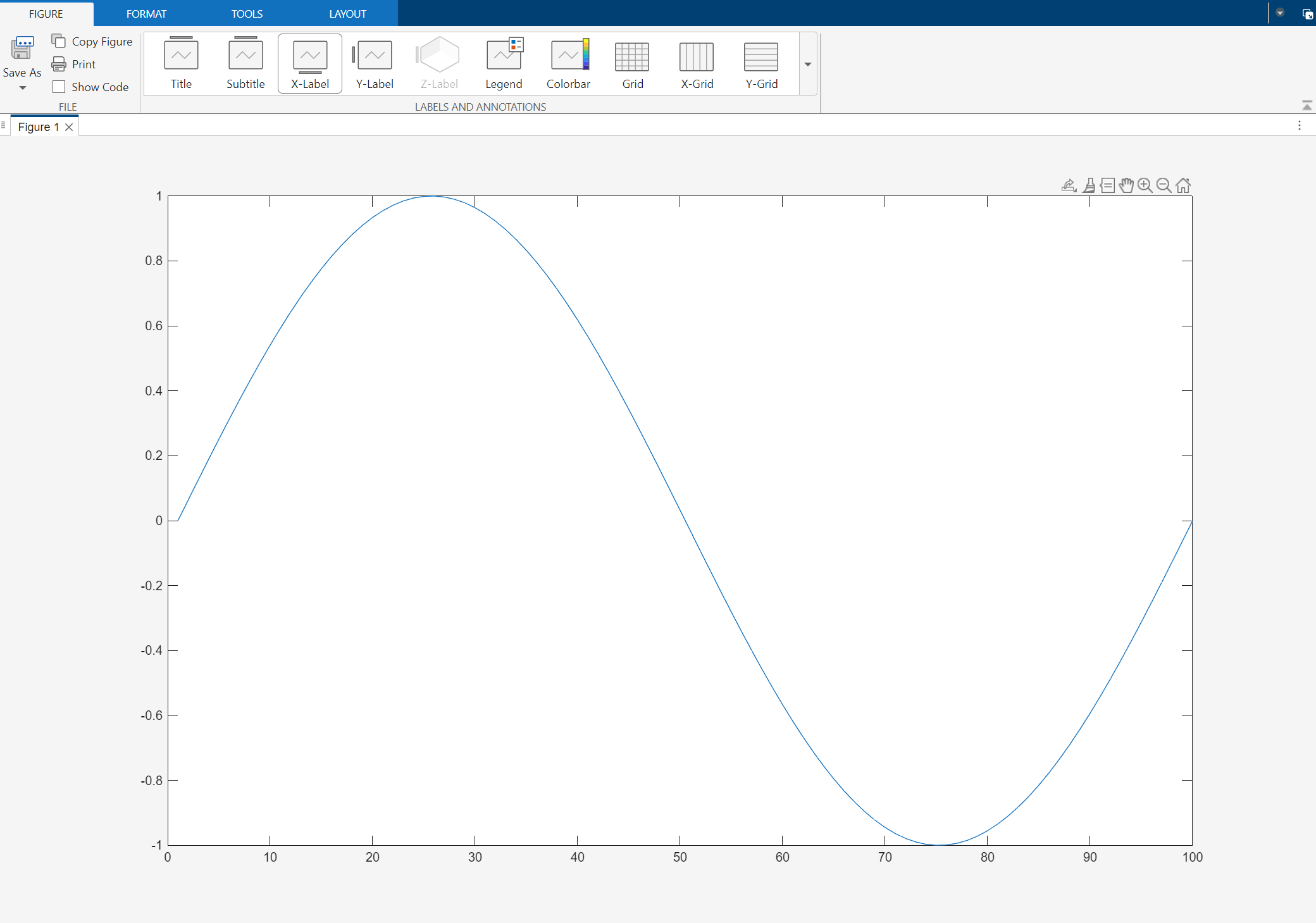
You can plot vectors of data in TCP/IP Explorer. Click the row of sine wave data, then click Plot. The Plot button is in the Analyze section of the toolstrip.