Create MATLAB Exercise Using MATLAB Course Designer
This example shows how to add a MATLAB® exercise to a course in MATLAB Course Designer™.

MATLAB exercises allow learners to receive automated assessments and feedback after submitting their task solutions. For examples of MATLAB exercises, see courses like MATLAB Onramp.
For more information on MATLAB Course Designer, see Create Courses Using MATLAB Course Designer.
Create Course
Open MATLAB and Simulink® Online™ Courses from your learning management system (LMS) or at course-designer.mathworks.com. For information on how to integrate MATLAB and Simulink Online Courses into your LMS, see Integrate MATLAB and Simulink Online Courses with Learning Management System (LMS).
To open MATLAB Course Designer from your LMS, click Launch Course Designer.
Create a new course by clicking Create Course. Choose a course title.

Create Exercise
To add a MATLAB exercise, follow these steps.
Add a course module by clicking Add Module.
Expand the module pane.
Add a MATLAB exercise to the module by clicking Add Learning Activity > MATLAB Exercise.
Edit the exercise by clicking Edit next to the untitled MATLAB exercise.

Add Title
The exercise title sets learner expectations for the exercise. A good exercise title defines the scope of the learning activity, particularly in the context of the module title and the other learning activities in the module.
To add a title, click Title in the left navigation pane of the Edit Exercise window. The Title pane opens. Enter the title of your exercise in the Exercise Title text box.

Add Background
The task background sets the context for the task learners must perform to complete the exercise. Use the task background to explain the learning objective and provide high-level information that learners need to know to be able to complete the task.
Click Background in the left navigation pane. The Background pane opens. Enter the task background into the text box.

Add Task Description
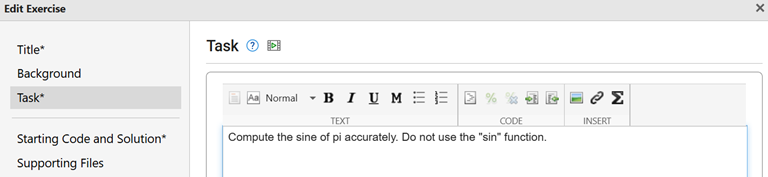
The task description provides instructions for the learner to follow to complete the task. Provide specific instructions, such as which functions to use and which variable names to use.
Click Task in the left navigation. The Task pane opens. Enter the task description in the text box.

To preview the title, background text, and task in the task panel, click Refresh Preview.
Add Starting Code
Click Starting Code and Solution in the left navigation pane.
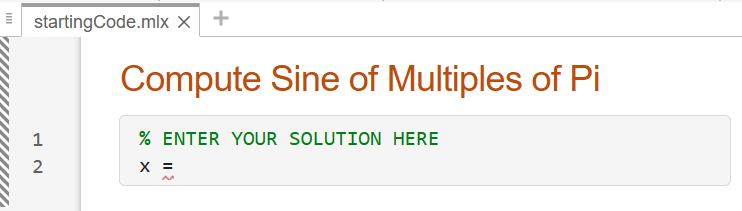
The starting code is an MLX (*.mlx) file containing the code snippet that learners see when they open the exercise.
The exercise starts with a blank starting code file or upload an MLX (*.mlx) file
by clicking Upload. To edit the file, close the Edit
Exercise window and add content to the starting code file
startingCode.mlx.

Save the file. To reopen the Edit Exercise window, click Edit Exercise in the task pane on the left.
Add Solution
Click Starting Code and Solution in the left navigation pane.
The solution is an MLX (*.mlx) file containing the solution to the task. You can use the solution to assess the learner solution by adding tests. You can also allow learners to access the solution by selecting Enable learner to see solution in the left navigation pane.
The exercise starts with a blank solution file or upload an MLX (*.mlx) file by
clicking Upload. To edit the file, close the Edit
Exercise window and add content to the solution file
solution.mlx.

Save the file. To reopen the Edit Exercise window, click Edit Exercise in the task pane on the left.
Add Supporting Files
Click Supporting Files in the left navigation pane. To add a supporting file, click Upload. Both the learner solution and the reference solution can access the supporting files.
These file formats are not supported:
EXE (*.exe)
SH (*.sh)
JS (*.js)
Add Assessments
You can use assessments to check if the learner solution produces correct results. You can also check if the learner solution includes or excludes specific keywords or functions.
Click Assessments in the left navigation pane.
To add assessments, you must have a reference solution. Click Run Solution to generate the workspace variables that the tests can access. You can rerun the solution to regenerate the workspace variables at any time.
First, add a test that checks if the learner solution uses the
sin function. From the Test list,
select Is Function/Keyword Absent? and click
Add. Enter sin in the Is
Function/Keyword Absent? text box.
Next, add a test that checks if the value of x is correct. From
the Test list, select Is Variable Correct?
and click Add. From the Is Variable
Correct? list, select x.
The sinpi function returns integers for integer input. Expand
the Tolerance pane and set the relative and absolute tolerances
to zero. The tolerance the software uses is:
|xlearner-xsolution| ≤ max( (absolute tolerance), (relative tolerance) × max(xlearner,xsolution) ),
where xlearner is a variable created by the learner solution and xsolution is the same variable created by the solution.

For more information about tests in MATLAB Course Designer, see MATLAB Exercise Assessment Tests in MATLAB Course Designer.
Add Hint
You can provide a hint to help the learner complete the task. A good hint can provide additional reference information, address common mistakes, and remind learners of important details such as functions to use.
When a learner works on a task, the hint for that task is hidden until they click the Hint hyperlink.
Click Hint in the left navigation. The Hint pane opens. Enter the hint in the text box.

Preview Exercise
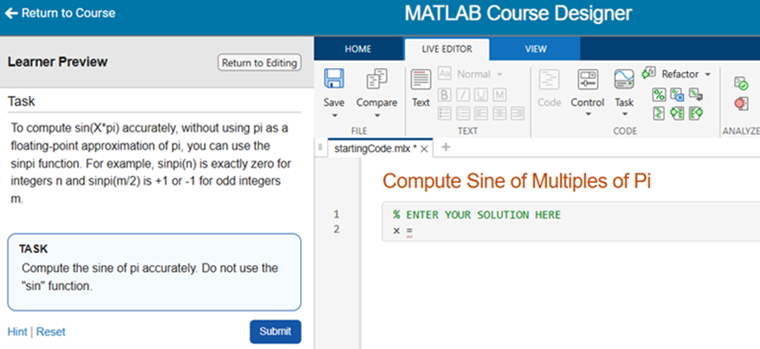
To preview what the exercise looks like from the perspective of the learner, close the Edit Exercise window and click Learner Preview.

Next Steps
To return to the Edit Exercise window, click Return to Editing. To return to your course, click Return to Course.
You can add additional modules and learning activities to your course. When your course is ready, click Publish. You can then assign your course to learners from your LMS. For more information on how to assign courses, see Add MATLAB and Simulink Online Courses to LMS Course.