Autocomplete Code Using Suggestions
R2026bWhen you write code in the Command Window, Editor, Live Editor, and App Designer, MATLAB® provides real-time suggestions as you type. These suggestions include the names of functions, models, MATLAB objects, files, folders, variables, structures, graphics properties, Live Editor tasks, and code snippets. In addition, when you type a function name, MATLAB shows basic syntax information for the function and offers suggestions for arguments and options.
Name Suggestions
As you type, MATLAB shows the most relevant name suggestions based on the text you
entered. To show new and more refined suggestions, continue typing. If a list of
suggestions does not appear, press Ctrl+Space or
Tab to show the list. If there are no suggestions, MATLAB displays No suggestions.
To insert a suggestion in your code, use the arrow keys to select the suggestion and then accept it by pressing Tab, Enter, or the right arrow key. To dismiss the list of suggestions without selecting anything, press Esc.

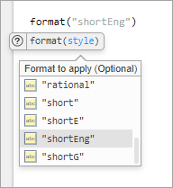
Name suggestions help complete function arguments and options. For example, type
format( and use suggestions to complete the
format to apply.
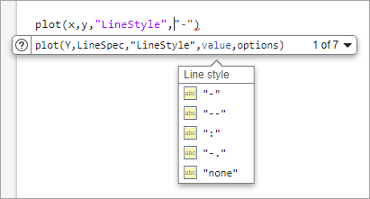
In addition, name suggestions help complete name-value arguments that set graphics
properties. For example, type plot(x,y,LineStyle=
and use suggestions to complete the value of the LineStyle argument.
MATLAB displays suggestions based on:
The current workspace variables.
Files and folders on the search path or in the current folder.
Variables, functions, class properties, and class methods defined in the active document and available at the current cursor location. Field names of structure arrays defined within the active document are not included.
Function Syntax Suggestions
When you type the name of a function followed by a (, MATLAB shows basic syntax information for the function. If a function has
multiple syntaxes, use the drop-down arrow to the right of the syntax or press
Ctrl+down arrow to show all available syntaxes. On macOS systems, use Command+down arrow instead.
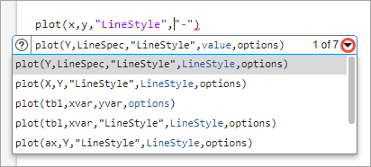
You can type an input for any argument that appears in blue. Enter your own input variables or values, not the argument names shown in the suggestion. The displayed syntax suggestions change based on the arguments you enter.
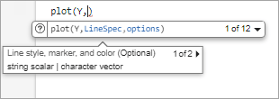
For each argument, MATLAB shows a description and indicates whether the argument is optional. If MATLAB suggests multiple arguments, click the arrow to the right of the argument description or press Ctrl+Alt+right arrow and Ctrl+Alt+left arrow to view the additional arguments. To open the documentation page for the function, click the Help button to the left of the function syntax suggestion.
Custom Functions
Suggestions for functions that you create come from your function definition files and require that the files be on the search path or in the current folder. For more information about customizing these suggestions, see Customize Code Suggestions and Completions.
Code Snippets
Code snippets are templates that simplify adding recurring code structures, such
as loops or conditional statements, to your code. As you type in the Editor or Live
Editor, MATLAB shows relevant code
snippets along with other name suggestions. For example, if you type the word
if, MATLAB
suggests the If-Else Statement and If
Statement snippets in addition to functions whose name starts with
if.
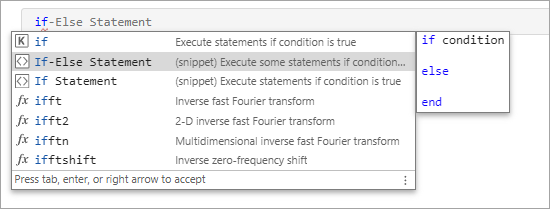
To insert a code snippet in your code, use the arrow keys to select the suggestion and then accept it by pressing Tab, Enter, or the right arrow key. To dismiss the list of suggestions without selecting anything, press Esc.
Insert Tabs
The Tab key provides a way to interact with real-time suggestions from MATLAB. However, if you just want to insert a tab character in your code, add a space before pressing Tab.
Alternatively, to disable showing suggestions when you press the Tab key, go to the Home tab, and in the Environment section, click Settings. Select MATLAB > Suggestions and then, to disable showing suggestions upon a Tab key press in the Command Window, clear the Use Tab key to show suggestions (in addition to Ctrl+Space) setting in the Command Window section. To disable showing suggestions upon a Tab key press in the Editor, Live Editor, and App Designer, clear the Use Tab key to show suggestions (in addition to Ctrl+Space) setting in the Editor section.
MATLAB always inserts a tab character if there are no available suggestions.
Modify Suggestions Settings
You can change how MATLAB suggests and completes names in the Command Window, Editor, Live Editor, and App Designer.
On the Home tab, in the Environment section, click Settings. Select MATLAB > Suggestions, and then adjust the settings as described in this table.
In R2025a: Suggestions settings for the Command Window are located under MATLAB > Command Window > Suggestions. Suggestions settings for the Editor, Live Editor, and App Designer are located under MATLAB > Editor/Debugger > Suggestions and Autocompletions.
Before R2025a: Suggestions settings for the Command Window are located under MATLAB > Command Window > Automatic Completions. Suggestions settings for the Editor, Live Editor, and App Designer are located under MATLAB > Editor/Debugger > Automatic Completions.
| Setting | Usage |
|---|---|
General | Select Show inline text for suggestions to show placeholder text for the first suggestion in the suggestions window. Clear Show inline text for suggestions to hide the placeholder text. When placeholder text is hidden, the first suggestion is automatically selected in the Editor. (since R2026b) |
Select Use Right Arrow to accept suggestions (in addition to Tab and Enter) to accept suggestions using the right arrow key in the Command Window, Editor, Live Editor, and App Designer. Clear Use Right Arrow to accept suggestions (in addition to Tab and Enter) to accept suggestions using the Tab and Enter keys. | |
Select Show suggestions tips to show a footer at the bottom of the suggestions window with tips on how to configure suggestions. Clear Show suggestions tips to hide the footer. | |
Click the Reset Suggestions Window Size button to reset the suggestions window to its original size. | |
Command Window | Select Show suggestions as you type to automatically show suggestions as you type in the Command Window. Clear Show suggestions as you type to show suggestions only when you press Ctrl+Space or the Tab key. |
Select Use Tab key to show suggestions (in addition to Ctrl+Space) to show suggestions when you press the Tab key in the Command Window. Clear Use Tab key to show suggestions (in addition to Ctrl+Space) to show suggestions only when you press Ctrl+Space. | |
Select Tab key accepts only on one suggestion to only accept a suggestion with the Tab key in the Command Window if it is the sole suggestion. Clear Tab key accepts only on one suggestion to accept the first suggestion when you press the Tab key. | |
Editor | Select Show suggestions as you type to automatically show suggestions as you type in the Editor, Live Editor, and App Designer. Clear Show suggestions as you type to show suggestions only when you press Ctrl+Space or the Tab key. |
Select Use Tab key to show suggestions (in addition to Ctrl+Space) to show suggestions when you press the Tab key in the Editor, Live Editor, and App Designer. Clear Use Tab key to show suggestions (in addition to Ctrl+Space) to show suggestions only when you press Ctrl+Space. | |
Select Tab key accepts only on one suggestion to only accept a suggestion with the Tab key in the Editor, Live Editor, and App Designer if it is the sole suggestion. Clear Tab key accepts only on one suggestion to accept the first suggestion when you press the Tab key. |

