Creating an Optimization from Your Own Algorithm
R2026bProcess Overview
The CAGE optimization feature allows you to use your own optimization algorithms
as alternatives to the library routines fmincon,
NBI, ga and
patternsearch.
Using an example, this tutorial illustrates how to take an existing optimization algorithm and implement it as an optimization function for use in CAGE optimization.
The problem to be solved is the worked example problem:
Maximize torque (TQ) over the free variables (SPK,
AFR) over a specified set of (N, L) points. These
points are defined in the data set New_Dataset, which can be
found in the CAGE session optimworkedexample.cag and can be
imported to the fixed variable values pane in the Optimization view.
The torque model to be used is that in
/mbctraining/Holliday.mat.
The process steps are:
Start with your own algorithm. We will use
fminuncfrom the Optimization Toolbox™ product as an example.Create a CAGE optimization function.
Define the attributes of your optimization in the CAGE optimization function.
Add your algorithm to the CAGE optimization function.
Register your completed optimization function with CAGE.
Verify the optimization.
The steps of this tutorial lead you through a series of examples illustrating how to construct the code to incorporate your own algorithm into an optimization in CAGE.
Before you begin you must create a working folder.
Create a new folder (for example,
C:\Optimization_Work). We recommend that you place this folder outside your MATLAB® folders to avoid interfering with toolbox files.Copy the following six files from the mbctraining folder into your new working folder:
currtutoptim.m
mbcOStemplate.m
mbcOStutoptimfunc_s1.m
mbcOStutoptimfunc.m
optimtut.mat
optimtuteg.mat
Make sure your new working folder is on the MATLAB path; either change Current Folder in MATLAB to the new working folder, or add the folder to the path as follows:
On the Home tab, in the Environment section, click Set Path.
Click Add Folder and browse to your working folder.
Click OK.
Click Save.
Click Close.
Step 1: Verify the Algorithm
currtutoptim.m is an example file to verify that
fminunc solves the worked example problem. You can try this
at the MATLAB command line.
To open the algorithm file in the Editor, either enter
open currtutoptim.mat the command line, or if the Current Folder in MATLAB is your new working folder, then double-clickcurrtutoptim.min the Current Folder. You should see the code in the MATLAB editor.To verify that
fminuncsolves the worked example problem, type the following command at the MATLAB prompt:bestX = currtutoptim
After the progress messages complete the workspace output should resemble the following:
BestX =
       23.768        12.78
       18.179        12.78
       14.261        12.78
       12.014        12.78
       11.439        12.78
       12.535        12.78
       27.477        12.78
       21.887        12.78
       17.969        12.78
       15.722        12.78
       15.147        12.78
       16.243        12.78
       31.185        12.78
       25.595        12.78
       21.677        12.78
        19.43        12.78
       18.855        12.78
       19.951        12.78
       34.893        12.78
       29.303        12.78
       25.385        12.78
       23.138        12.78
       22.563        12.78
       23.659        12.78
       38.601        12.78
       33.012        12.78
       29.093        12.78
       26.847        12.78
       26.271        12.78
       27.368        12.78
       42.309        12.78
        36.72        12.78
       32.802        12.78
       30.555        12.78
       29.979        12.78
       31.075        12.78
The matrix bestX contains the optimal SPK
and AFR values that maximize the MBC model torque (exported from
Holliday.mat) at the speed and load points defined in the
matrix data.
fminunc is the example optimization algorithm that you want to
transfer to CAGE for use in the optimization GUI.
This tutorial shows how to make fminunc available for use in
the CAGE optimization feature.
Step 2: Create a CAGE Optimization Function
Any optimization algorithm you want to use in CAGE must be contained in an optimization function. A CAGE optimization function consists of two sections.
The first section defines the following attributes of the optimization:
A name for the optimization
A description of the optimization
Number of free variables
Labels for free variables (if required), so the user can match variables in CAGE to the required algorithm free variables.
Number of objectives
Labels for objective functions, so the user can match models in CAGE to the required algorithm objectives (you can match in CAGE, so labels do not have to be exact in the optimization function)
Number of constraints
Labels for constraints, so the user can match models in CAGE to the required models in your algorithm constraints
Number of data sets
Labels for data sets, so the user can match data sets in CAGE to the required variable data for your algorithm
Any other parameters required by the optimization algorithm
The second section contains the optimization algorithm.
Open mbcOStemplate.m in the MATLAB editor.
mbcOStemplate.m is an empty CAGE optimization function. The two
(currently empty) sections of the function are options (for
defining optimization attributes) and optimstore (for defining
your optimization algorithm). Note that this file can be used as a template for any
optimization function that you write.
Step 3: Define the Optimization Options
The next step is to define the attributes of your optimization (in Section 1 of the template).
Open mbcOStutoptimfunc_s1.m. In this file,
you can see the optimization attributes that have been defined.
The following is a code fragment from this file:
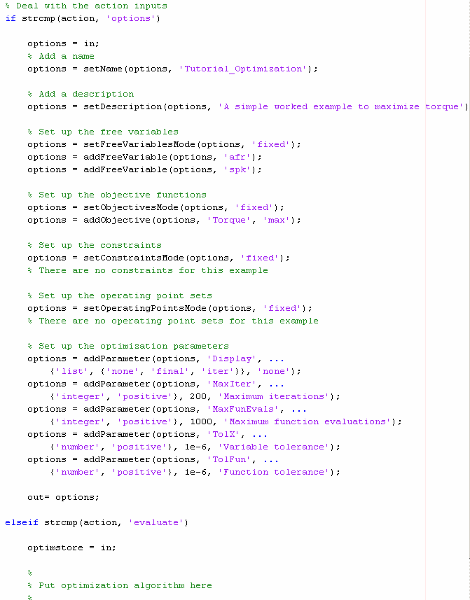
The optimization attributes are passed to CAGE via the
cgoptimoptions object, referenced by options in the code in
mbcOStutoptimfunc_s1.m. See after the table for details of
the cgoptimoptions object. The cgoptimoptions
object has a set of functions that set the optimization attributes in CAGE. This is
where you specify the name, description, free variables, objective functions,
constraints, helper data sets, and optimization parameters for the
optimization.
The above code has used the cgoptimoptions object
(options) to set the optimization attributes as described in
the following table.
Look through the code to locate the listed Code Section Where Set for each attribute to see how each of the optimization options is set up.
| Attribute | Value | Code Section Where Set |
|---|---|---|
Optimization Name |
| Add a name - setName |
Description | A simple worked example to maximize torque | Add a description - setDescription |
Number of Free Variables | Cannot be changed by the user in the GUI (the mode has been
set to | Set up the free variables -
setFreeVariablesMode |
Required Free Variables | This function requires two free variables, labeled
| Set up the free variables -
addFreeVariables |
Number of Objectives | Cannot be changed by the user in the GUI (the mode has been
set to | Set up the objective functions -
setObjectivesMode |
Required Objective functions | This function requires one objective function, which will
be labeled | Set up the objective functions -
addObjective |
Number of Constraints | Cannot be changed by the user in the GUI (the mode has been
set to | Set up the constraints -
SetConstraintsMode |
Required Constraints | As the mode is fixed and no constraint labels have been defined, this optimization has no linear or nonlinear constraints. | Set up the constraints - %There are no
constraints |
Number of Helper Data Sets | Cannot be changed by the user in the GUI (the mode has been
set to | Set up the operating point sets -
setOperatingPointsMode |
Optimization Parameters | This function will allow the user to change five parameters. These will be displayed in the Optimization Parameters dialog box and labeled Display, Maximum iterations, Maximum function evaluations, Variable tolerance, and Function tolerance. | Set up the optimization parameters -
addParameter |
When one of your optimizations is created in the CAGE GUI, CAGE first calls your optimization function to define the attributes of the optimization. The function call from CAGE has the form
optionsobj = <your_optimization_function>('options', optionsobj)
Step 4: Add the Algorithm to the Optimization Function
In this step you complete the optimization function by adding your algorithm. To do this, a few changes need to be made to the code that calls the algorithm, as data (for example, free variable values, constants, and so on) will now be passed to and from CAGE rather than from the MATLAB workspace.
Open
mbcOStutoptimfunc.m.This file contains the completed optimization algorithm. The following is a code fragment from this file.
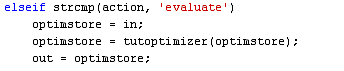
A single line has been added, namely
optimstore = tutoptimizer(optimstore)
This line calls the modified optimization algorithm. Note the syntax of the algorithm: it must take the form
optimstore = <your_optimization_algorithm>(optimstore)
The local function
tutoptimizercan be found at the bottom of the filembcOStutoptimfunc.m. Scroll down to view the algorithm, modified for use in CAGE.optimstoreis acgoptimstoreobject. This is an interface object that allows you to get data from and set data in the CAGE optimization feature. You can now see how theoptimstoreobject is used by comparing the modified optimization algorithm,tutoptimizer, with the original algorithm,currtutoptim, for each of the main sections of the algorithm.
The following sections illustrate how to convert an existing algorithm for use in CAGE. Note that in this tutorial example, the code is already modified for you to examine.
Algorithm Section 1
Get the start conditions (x0) for the free
variables.
Original code:
x0 passed in from the MATLAB workspace.
Modified code:
x0 = getInitFreeVal(optimstore);
In the original algorithm, x0 is passed into the algorithm
from the MATLAB workspace. In CAGE, we invoke the
getInitFreeVal function on the
optimstore object to retrieve
x0.
Algorithm Section 2
Perform the optimization (in Section 2 of the template).
Original code (from currtutoptim):
    [bestx(i, :), notused1, notused2, OUTPUT(i)] = fminunc(trqfunc,
 x0, algoptions);
which calls the following code to evaluate the cost function:
    function tq = trqfunc(x)

        % Evaluate torque. Note x = [SPK, AFR]
        tq = EvalModel(TQMOD, [x(1), N(i), L(i), x(2)]);

        % Maximising torque, so need to return -tq
        tq = -tq;

    end
Modified code:
[bestx, unused, exitFlag, OUTPUT] = fminunc(@trqfunc_new,
 x0, algoptions);
which calls the following code to evaluate the cost function:
    function y = trqfunc_new(x)
        % Evaluate the torque objective function
        y = -evaluate(optimstore, x);
			end
In performing the algorithm, the only difference between the original and
modified code is how the objective function is evaluated. The original algorithm
requires the objective function (a Model-Based Calibration Toolbox™ model for torque) to be loaded in and evaluated as required. In
the modified algorithm the objective function (torque) is evaluated by invoking
the evaluate function on the optimstore
object. Note that the inputs to the torque model are passed in to the
evaluate function as shown in the following table.
| Original Input | Input to Evaluate Function |
|---|---|
S | X(1) |
A | X(2) |
Algorithm Section 3
Retrieve output data.
Original code:
Optimal free variable settings are returned through the variable
bestX in currtutoptim.
Modified code:
% Write results to the optimstore
optimstore = setFreeVariables(optimstore, bestx);

% Set termination message
termMsg = OUTPUT.message;
OUTPUT = rmfield(OUTPUT, 'message');

% Set all information in the optimstore and leave
optimstore = setExitStatus(optimstore, exitFlag, termMsg);
optimstore = setOutput(optimstore, OUTPUT);
In the modified algorithm, the results need to be sent back to the CAGE
optimization feature and not the MATLAB workspace. To do this, optimization results are set in the
optimstore object, which is then returned to CAGE. There
are three functions you should invoke on the optimstore
object to return optimization results to CAGE:
setFreeVariables— Returns the optimal free variable values to CAGEsetExitStatus— Returns an integer that indicates whether the algorithm terminated successfully or not (positive is successful). This sets the termination message.setOutput— Returns any diagnostic information on the algorithm to CAGE
Step 5: Register Your Optimization Function with CAGE
The worked example provided is preregistered so you can see it as an option in the Optimization Wizard when setting up a new optimization. You must register new functions before you can use them. When you have modified the template to create your own optimization function, as in this example, you must register it with the Model-Based Calibration Toolbox product in order to use the function in CAGE. Once you have checked in your optimization function it appears in the Optimization Wizard.
In CAGE, select File > Preferences.
The CAGE Preferences dialog box appears.
Click the Optimization tab and click Add to browse to your file.
Locate the file
mbcOStutoptimfunc.m(in the working folder you created) and click Open.This registers the optimization function with CAGE.
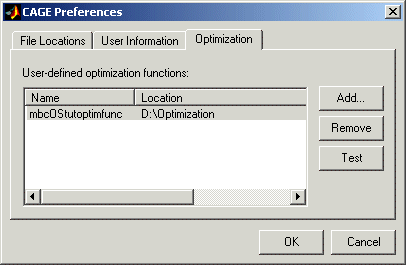
You can now test the function by clicking Test. This is a good check for any syntax errors in your optimization function. This is a very useful function when you use your own functions; if anything is incorrectly set up the test results will tell you where to start correcting your function.
You could see an example of this by saving a copy of the worked example file and changing one of the variable names (such as
afr) to a number. Try to check this altered function into CAGE, and the Test button will return an informative error specifying the line you have altered.Click OK to leave the CAGE Preferences dialog box. If the optimization function tested successfully, it is registered as an optimization function that can be used in CAGE, and appears in the Optimization Wizard.
Step 6: Verify Your New Optimization
To verify the algorithm we set up a CAGE session to run the optimization that was performed in step 1. For this example, the CAGE session has already been set up. Follow the steps below to run the tutorial optimization in CAGE.
In CAGE, select File > Open Project and load the file
optimworkedexample.cag(unless you already have this project open). This project is in thembctrainingfolder.Select File > New > Optimization.
The newly registered optimization appears in the list of algorithm names. Select
Tutorial_Optimizationfrom the list. Click Next.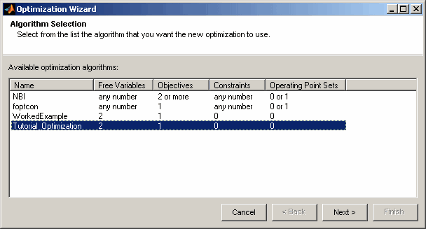
Match the variables as shown.
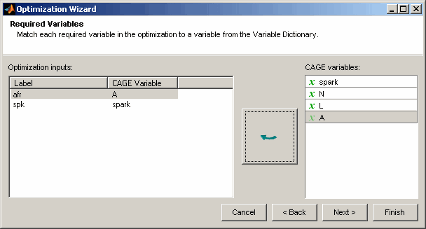
Click Next.
Match the
Torquemodel to thetuttqCAGE model as shown.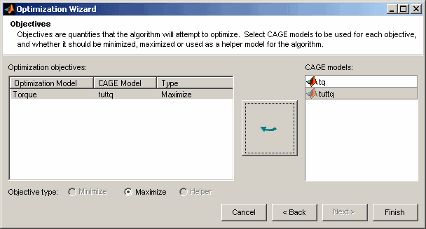
Click Finish.
If you ran the optimization now it would run at one point, the set point of all the variables. You use the free and fixed Variable Values panes to select operating points. You can edit points manually or import them. Do one of the following:
If you have the previous worked example optimization in your current session, in the optimization view increase the Number of runs to 36, and then copy and paste the fixed variable values from the previous optimization.
If you do not have the previous optimization in your session, select Optimization > Import From Data Set. The project file contains a data set with N and L values, and these are automatically selected. Click OK to import.
Now you should have 36 rows in both fixed and free variable panes, and operating point values in the N and L columns in the Fixed Variables pane. The initial values for A and spark for each point are the set points in the variable dictionary.
Select Optimization > Set Up. The Optimization Parameters dialog box appears. Observe the five parameters defined in the tutorial optimization script.
Change the variable and function tolerances to
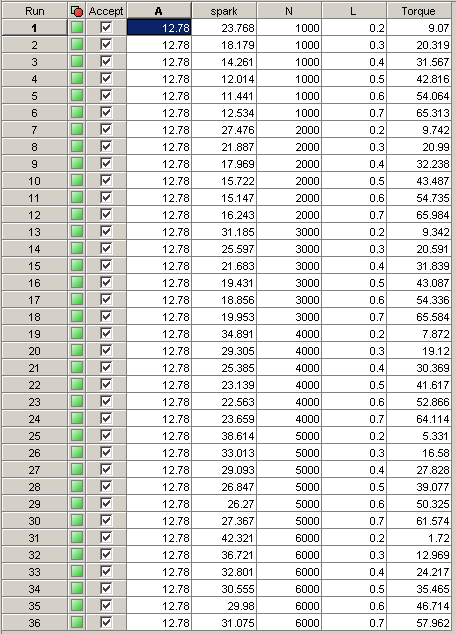
1e-4, and click OK to close the dialog box.Run the optimization and view the results. The output data matrix should resemble the following. Note that the optimal values for A and SPK are very similar to those from the original algorithm.