Create a Constrained Space-Filling Design
R2026bSpace-filling designs should be used when there is little or no information about the underlying effects of factors on responses. For example, they are most useful when you are faced with a new type of engine, with little knowledge of the operating envelope. These designs do not assume a particular model form. The aim is to spread the points as evenly as possible around the operating space. These designs literally fill out the n-dimensional space with points that are in some way regularly spaced. These designs can be especially useful with nonparametric models such as radial basis functions (a type of neural network).
In the Design Editor, with the new design selected, select Design > Space Filling > Design Browser, or click the Space Filling Design button on the toolbar.
Leave the default
Sobol Sequencein the Design type list, and the default Number of points.Use the Preview tabs to view 2-D and 3-D previews.
Click OK to calculate the space-filling design and return to the main Design Editor.
Apply Constraints
In many cases, designs might not coincide with the operating region of the system to be tested. For example, a conventional stoichiometric AFR automobile engine normally does not operate with high exhaust gas recirculation (EGR) in a region of low speed (n) and low load (l). You cannot run 15% EGR at 800 RPM idle with a homogeneous combustion process. There is no point selecting design points in impractical regions, so you can constrain the candidate set for test point generation. Only optimal designs have candidate sets of points; classical designs have set points, and space-filling designs distribute points between the coded values of (1, -1).
You would usually set up constraints before making designs. Applying constraints to classical and space-filling designs simply removes points outside the constraint. Constraining the candidate set for optimal designs ensures that design points are optimally chosen within the area of interest only.
Designs can have any number of geometric constraints placed upon them. Each constraint can be one of four types: an ellipsoid, a hyperplane, a 1-D lookup table, or a 2-D lookup table.
To add a constraint to your currently selected design:
Select Edit > Constraints from the Design Editor menus.
The Constraints Manager dialog box appears. Click Add.
The Constraint Editor dialog box with available constraints appears. Leave the default
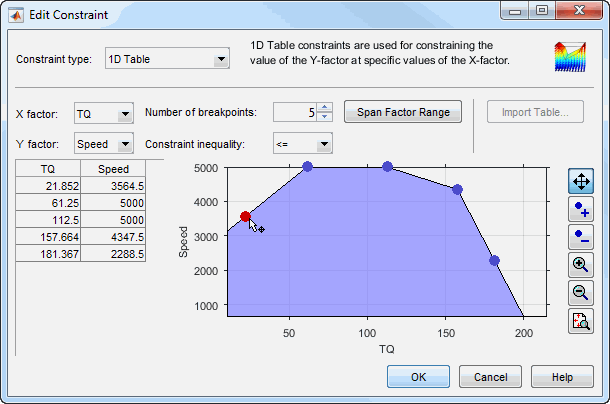
1D Tablein the Constraint type list.You can select the appropriate factors to use. For this example, choose speed (N) and air/fuel ratio (A) for the X and Y factors.
Move the large dots (click and drag them) to define a boundary. The Constraint Editor should look something like the following.
Click OK.
Your new constraint appears in the Constraint Manager list box. Click OK to return to the Design Editor. A dialog box appears because there are points in the design that fall outside your newly constrained candidate set.
Click Continue to remove the points outside the constraint. Note that fixed points are not deleted by this process.
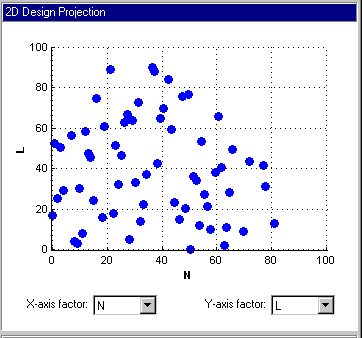
Plot the 2-D projection of the hypercube, and observe the effects of the new constraint on the shape of the design, as shown in the preceding example.
Right-click the display pane to reach the context menu, and select Current View > 3D Constraints.These views are intended to give some idea of the region of space that is currently available within the constraint boundaries.
Return to the Constraint Editor, choose Edit > Constraint, and click Add in the Constraint Manager.
Add an ellipsoid constraint. Choose
Ellipsoidfrom the drop-down menu of constraint types.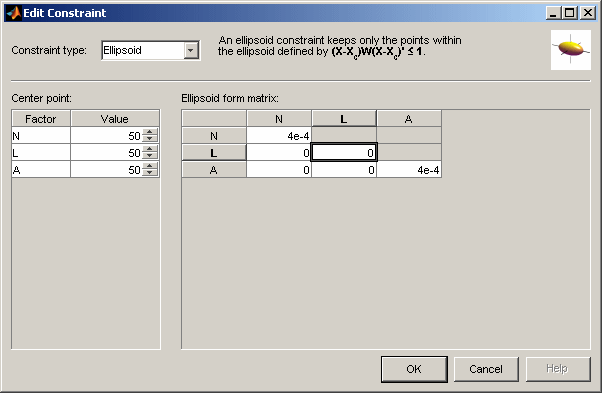
Enter
0as the value for the L diagonal in the table, as shown. This will leave L unconstrained (a cylinder). The default ellipsoid constraint is a sphere. To constrain a factor, if you want a radius of r in a factor, enter 1/(r^2). For this example, leave the other values at the defaults. Click OK to apply the constraint.Click OK, click OK again in the Constraint Manager, and click Continue to remove design points outside the new candidate set (or Replace if you are constraining an optimal design). Examine the new constraint 3-D constraints plot.
Both constraints are applied to this design.

