Combine Point Clouds Using pcalign, pccat, and pcmerge Functions
R2026bThis example compares three functions for combining point clouds: pcalign, pccat, and pcmerge. It demonstrates when to use each function based on the input data and the desired output. While these three functions produce similar results, their main difference is how they handle duplicate point removal. They also differ in their input requirements, including the number of point clouds they support and whether the point clouds must already be transformed to a common reference frame. The following table summarizes the differences between these three functions.
Function | Duplicate Point Removal | Number of Point Clouds | Required Data |
|---|---|---|---|
| No duplicate point removal | Any | Already transformed point clouds |
| Applies grid filter to overlap region only | 2 | Already transformed point clouds |
| Applies grid filter to the combined point cloud | Any | Raw point clouds + transformations |
Load and Register Point Clouds to Combine
Load two colored point clouds of an indoor scene. These point clouds partially overlap, but they are not yet registered to a common reference frame.
fixedPtCloud = pcread("apartmentFixed.pcd");
movingPtCloud = pcread("apartmentMoving.pcd");
Register the moving point cloud to the fixed point cloud using the pcregistericp function with the planeToPlaneWithColor metric. The color metric leverages RGB information in addition to geometric features, which improves registration accuracy for scenes with distinctive color patterns.
[tform,movingTransformed] = pcregistericp(movingPtCloud,fixedPtCloud,...
    Metric="planeToPlaneWithColor");
Visualize the aligned point clouds.
pcshowpair(movingTransformed,fixedPtCloud,ViewPlane="YX")
title("Aligned Point Clouds")
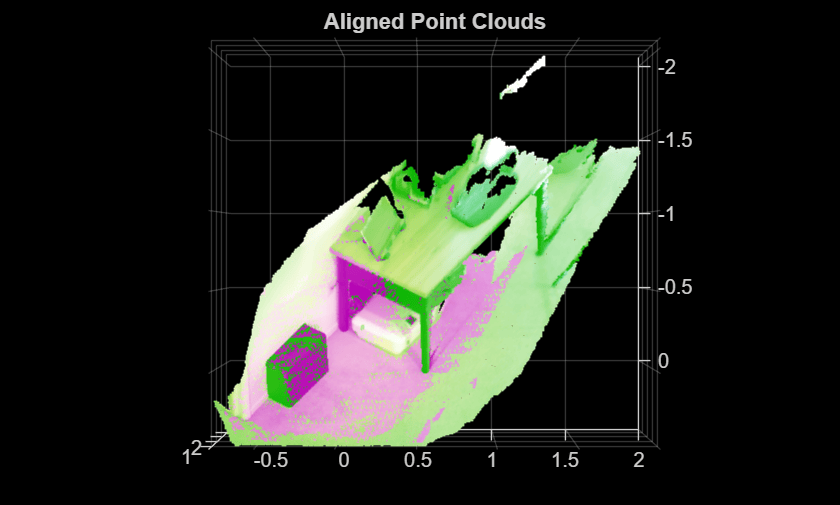
The following sections explore three ways to combine these point clouds, each with different trade-offs in simplicity and duplicate point handling.
Combine Using pccat
pccat is the simplest of the three functions. It places all the points from the input point clouds into a single pointCloud object. It does not filter, downsample, or modify the points in any way. The resulting point cloud has exactly the same number of points as the sum of the input point clouds. Use pccat when your point clouds have no overlapping region, or when you need to preserve every point for downstream processing.
Since pccat requires point clouds in the same reference frame, use the transformed point cloud output of the pcregistericp function. If you are using other registration functions that do not output the transformed moving point cloud, transform it using pctransform.
combinedCat = pccat([fixedPtCloud movingTransformed]);
Verify that the total number of points equals the sum of the two inputs.
disp("Expected number of points: " + (fixedPtCloud.Count + movingTransformed.Count))Expected number of points: 398979
disp("Number of points in combined point cloud: " + combinedCat.Count)Number of points in combined point cloud: 398979
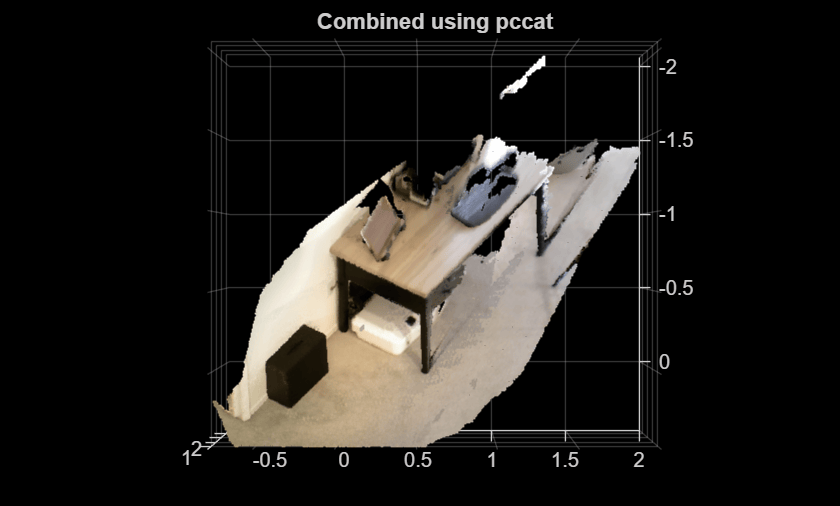
Visualize the combined point clouds.
pcshow(combinedCat,ViewPlane="YX")
title("Combined using pccat")
Combine Using pcmerge
Use pcmerge to combine two point clouds in the same reference frame and downsample only the region of overlap. For combining more than two overlapping point clouds, use pcalign instead.
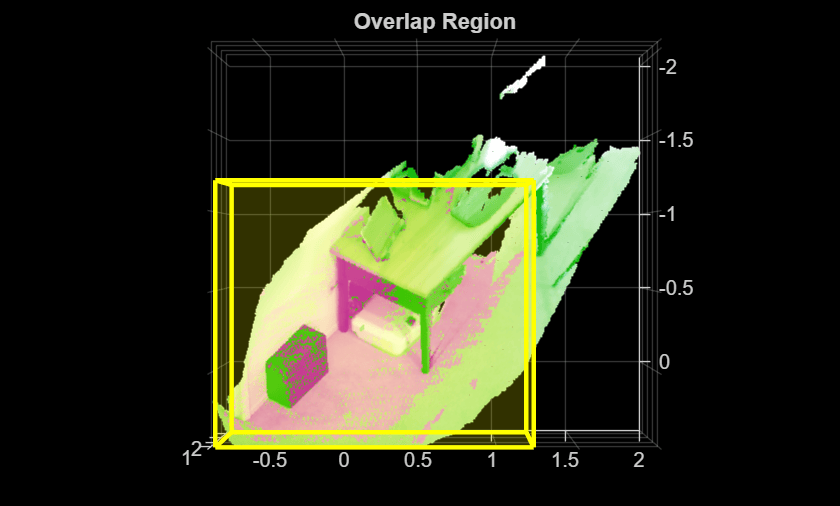
For this data, the moving point cloud is fully contained within the fixed point cloud, so the overlap region is equal to the extent of the moving point cloud. Visualize the region of overlap before using pcmerge to combine the point clouds.
movingCenter = [mean(movingTransformed.XLimits) mean(movingTransformed.YLimits) mean(movingTransformed.ZLimits)];
movingExtent = [diff(movingTransformed.XLimits) diff(movingTransformed.YLimits) diff(movingTransformed.ZLimits)];

pcshowpair(movingTransformed,fixedPtCloud,ViewPlane="YX")
title("Overlap Region")
hold on
showShape("cuboid",[movingCenter movingExtent 0 0 0],Color="yellow",Opacity=0.1)
hold off
Now, combine the fixed point cloud and the moving point cloud (transformed to the reference frame of the fixed point cloud) using pcmerge and visualize the resulting point cloud.
gridStep = 0.02;
combinedMerge = pcmerge(fixedPtCloud,movingTransformed,gridStep);
pcshow(combinedMerge,ViewPlane="YX")
title("Combined using pcmerge")
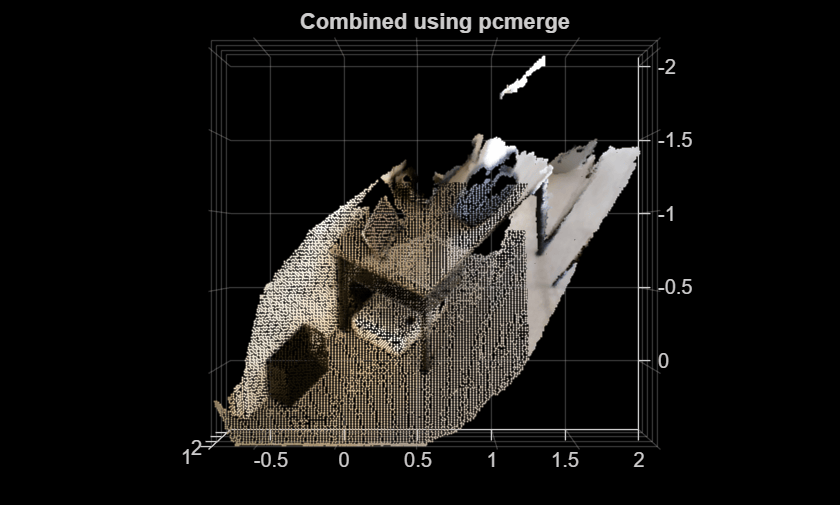
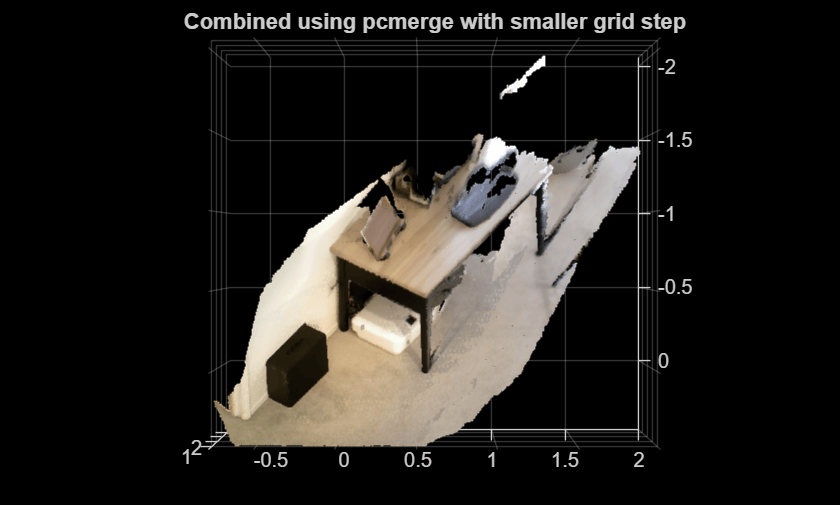
Note that the density of the resulting point cloud is not uniform since downsampling is only applied to the region of overlap. To achieve more uniform density, reduce the gridStep value or use pcalign, which applies downsampling globally.
gridStepSmall = 0.001;
combinedMergeSmall = pcmerge(fixedPtCloud,movingTransformed,gridStepSmall);
pcshow(combinedMergeSmall,ViewPlane="YX")
title("Combined using pcmerge with smaller grid step")
Combine Using pcalign
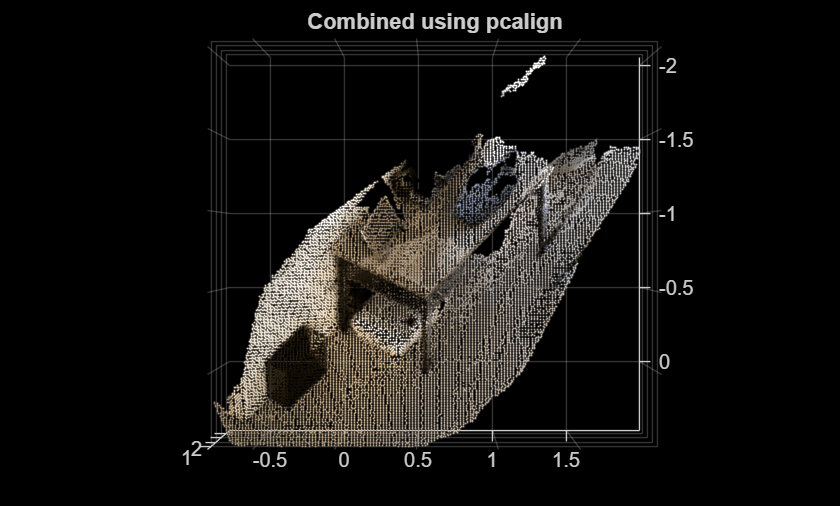
The pcalign function is the recommended approach for combining overlapping point clouds. It accepts the raw point clouds (without transforming them to the same reference frame) along with their transformations, and it applies a grid filter to the resulting point cloud to remove duplicate points. Unlike pcmerge, which is limited to two input point clouds and requires a for loop to combine a point cloud sequence, pcalign supports any number of input point clouds.
combinedAlign = pcalign([fixedPtCloud,movingPtCloud],[rigidtform3d,tform],gridStep);
pcshow(combinedAlign,ViewPlane="YX")
title("Combined using pcalign")
Combine a Sequence of Point Clouds Using pcalign
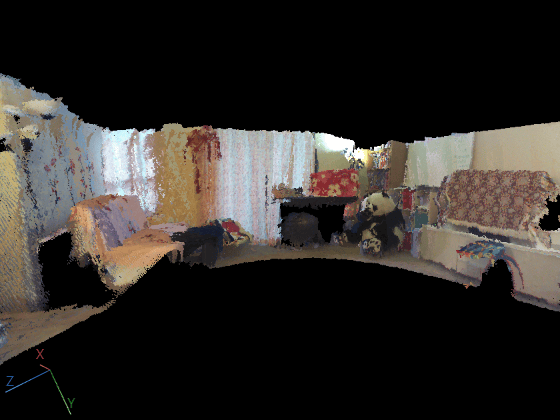
The pcalign function is well-suited for combining more than two point clouds. This section registers a sequence of Kinect point clouds to a common reference frame and combines them into a 3-D scene using pcalign.
Download and load a sequence of point clouds captured with a Kinect sensor.
dataURL = "https://www.mathworks.com/supportfiles/vision/data/livingRoom.mat";
ptCloudFolder = fullfile(tempdir,"pointCloudDataCombine");
ptCloudFile = fullfile(ptCloudFolder,"livingRoom.mat");
if ~exist(ptCloudFile,"file")
    if ~exist(ptCloudFolder,"dir")
        mkdir(ptCloudFolder);
    end
    disp("Downloading point cloud data (5.5 MB)...");
    websave(ptCloudFile,dataURL);
end
ld = load(ptCloudFile);
ptCloudArr = [ld.livingRoomData{:}];
Register each point cloud to the first by accumulating the pairwise transformations. Store the transformations to use with pcalign.
gridSize = 0.03;
numPtClouds = length(ptCloudArr);
tforms = repmat(rigidtform3d,1,numPtClouds);
fixedPtCloud = pcdownsample(ptCloudArr(1),"gridNearest",gridSize);
for i = 2:numPtClouds
    movingPtCloud = pcdownsample(ptCloudArr(i),"gridNearest",gridSize);
    relTform = pcregistericp(movingPtCloud,fixedPtCloud,Metric="pointToPlaneWithColor",InlierDistance=0.2);
    tforms(i) = rigidtform3d(tforms(i-1).A * relTform.A);
    fixedPtCloud = movingPtCloud;
end
Combine all point clouds using pcalign, which produces a uniformly dense scene without duplicate points.
gridStep = 0.002;
ptCloudScene = pcalign(ptCloudArr,tforms,gridStep);
Visualize the reconstructed scene and set the camera properties.
v = pcviewer(ptCloudScene);
v.CameraPosition = [-2.0 0.6 1.0];
v.CameraTarget = [6.0 2.1 -0.1];
v.CameraUpVector = [0.1 -0.8 -0.4];
v.CameraViewAngle = 65;

