Configure Polyspace Copilot
R2026bPolyspace® Copilot provides generative AI capabilities while using Polyspace. You can ask Polyspace related questions, get explanations of Polyspace results with links to relevant documentation, and generate fixes for Polyspace results. You can ask follow-up prompts to clarify responses from Polyspace Copilot. Polyspace Copilot responses are augmented with domain-specific material from Polyspace documentation.
Use Polyspace Copilot to assist you with Polyspace workflows and analysis review. Polyspace Copilot can:
Help with Polyspace configuration or product capabilities.
Explain Polyspace code analysis results.
Explain risks and fixes for Polyspace code analysis results.
Generate code suggestions to address Polyspace code analysis results.
Activate Polyspace Copilot
Use Polyspace Copilot alongside Polyspace as You Code™ to help find defects and coding standard violations while you write code in Visual Studio Code. Before you can activate Polyspace Copilot, first install Polyspace as You Code for Visual Studio Code. To do this, install both the Polyspace analysis engine and the Polyspace as You Code extension for Visual Studio Code. For more information, see Install Polyspace as You Code (Polyspace as You Code).
After you install Polyspace
as You Code, start Visual Studio Code and open a code file. The Polyspace
as You Code extension activates once you open a file. Click the Polyspace button  in the Visual Studio Code sidebar to open the Polyspace sidebar. This sidebar has several panes such as the
Configuration and Quality Monitoring
panes that you use to run an analysis and view results using Polyspace
as You Code.
in the Visual Studio Code sidebar to open the Polyspace sidebar. This sidebar has several panes such as the
Configuration and Quality Monitoring
panes that you use to run an analysis and view results using Polyspace
as You Code.
Enabling Polyspace Copilot requires a Polyspace Copilot license associated with your MathWorks® account. You gain access to Polyspace Copilot by logging into your MathWorks account in Polyspace as You Code.
In the Configuration pane, select the sign in to MathWorks
account icon  to log into your MathWorks account.
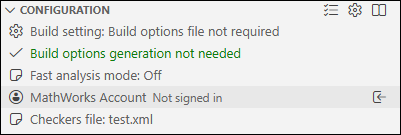
If prompted, sign in to your account using your MathWorks credentials.
After you log in, the Polyspace Copilot pane opens.
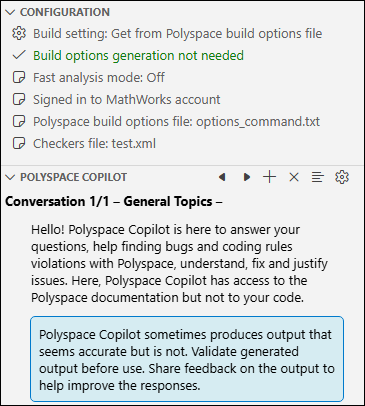
Using Polyspace Copilot Behind a Proxy Server
If your organization uses a proxy server, Polyspace Copilot requires additional setup. You can provide your proxy address using one of these methods:
Set your proxy using the Visual Studio Code setting HTTP: Proxy.
Set the environment variables
MW_PROXY_HOSTandMW_PROXY_PORTwith your proxy host and port respectively.Set the environment variable
HTTP_PROXYor equivalent for your system.
Setting a proxy in Visual Studio Code takes precedence over any environment variables set on your system.
Configure Polyspace as You Code for Polyspace Copilot
Polyspace Copilot can provide assistance when reviewing Polyspace results, including explaining analysis results, generating a code fix,
or suggesting justifications. In order to use Polyspace Copilot to explain Polyspace results and generate code fixes for results, you first need to run an
analysis using Polyspace
as You Code. In order to run a Polyspace
as You Code, configure these settings by clicking the  in the Configuration pane of
the Polyspace sidebar:
in the Configuration pane of
the Polyspace sidebar:
Analysis Engine: Polyspace Installation Folder — This is the folder path you specified during the installation of Polyspace as You Code. Polyspace attempts to fill this setting in automatically. For more information, see Specify Analysis Engine Preferences (Polyspace as You Code).
Manual Setup: Build — This setting determines how Polyspace generates build options. For more information, see Visual Studio Code: Generate Build Options for Polyspace as You Code (Polyspace as You Code).
Analysis Options: Checkers File — This is the full path to an XML or
.pschkfile that contains your checkers selection. You can create a new file or use an existing file from another Polyspace project. For more information, see Visual Studio Code: Configure Checkers and Coding Rules in Polyspace as You Code (Polyspace as You Code).
Depending on your organization's environment, you may need to configure additional settings. For more information on configuration, see Visual Studio Code: Configure Polyspace as You Code Extension (Polyspace as You Code).
Once you successfully configure Polyspace as You Code, you can run an analysis on your code. In the code editor for the file you want to analyze, right-click and select Run Polyspace Analysis. For additional ways to monitor files and run an analysis, see Run Polyspace as You Code in Visual Studio Code and Review Results (Polyspace as You Code).
Customize Copilot Responses and Actions
You can customize Polyspace Copilot's language and responses to fit your needs.
Click the configure settings icon in the Polyspace Copilot
pane to open Polyspace Copilot specific settings in Visual Studio Code. Settings include:
Chat Language — Choose the language that Polyspace Copilot responds in.
Propose Follow Up Questions — Enable to allow Polyspace Copilot to propose follow-up questions in the conversation chat.
Propose Fix as Diff View — Enable to view Polyspace Copilot proposed fixes in a diff view. When Polyspace Copilot proposes a fix, you have the option to view it in a diff where you can accept the fix to apply it to your code or discard the proposed fix.
Check Polyspace Copilot Responses
Because generative AI responses can contain errors and inaccuracies, validate any generated code and text before using it.
Use these strategies to validate Polyspace Copilot responses:
Review generated code before implementing it in your own code.
Run generated code and review its output. Verify that the output is what you expect.
Check that the generated responses align with documentation.
In the Polyspace Copilot chat, ask Polyspace Copilot to explain the code it just generated.

