C/C++ Test Authoring Tips and Tricks
R2026bThis page lists the techniques you can use to author C/C++ tests more efficiently in the Polyspace® Platform user interface.
Start Test Authoring by Duplicating Existing Test
You can start creating new tests by duplicating an existing graphical test and modifying inputs, assessments, test data, or other test information. You can start from a duplicate of an existing test if your new test:
Calls the same function as the existing test but with different input values.
Uses the same arrays for test data or test parameters as the existing test.
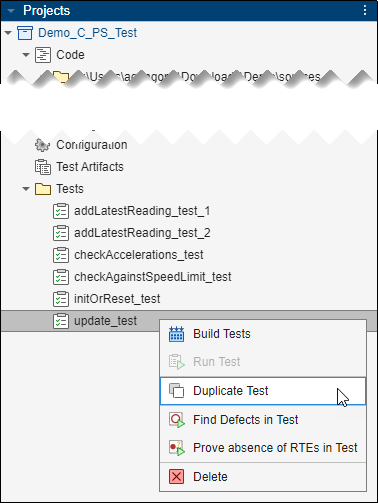
To duplicate a test in the Polyspace Platform user interface, on the Projects pane, right-click the test under the Tests node and select Duplicate Test.
Parameterize Tests for Different Input Values
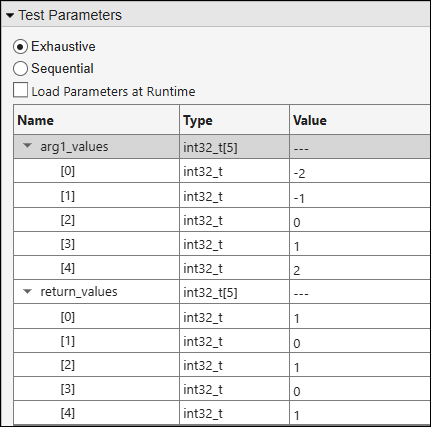
If you want to write multiple C/C++ tests that differ only in their input values or expected values of assessments, you do not have to duplicate the same test multiple times. Instead, you can write a parameterized test where you specify parameters for test inputs instead of constants, and then iterate the parameter through a test data array.
For example, in the Test Parameters section of the test, you can parameterize one input to the function under test. If your test assesses the function return value, you will also have to parameterize the return value.
For more information, see Run Same Test with Different Inputs in Polyspace Platform User Interface.
Fill Aggregates Using C-Style Initializer Lists
When authoring tabular tests, you often have to fill individual member values for aggregates such as arrays and structures, especially in the Test Data and Test Parameters section of the test. Instead of entering the member values in each row, you can enter their values all at once in a C-style initializer list.
To enter values for an aggregate such as a structure or array using initializer lists:
Right-click the row containing the aggregate and select Fill Using Initializer List.
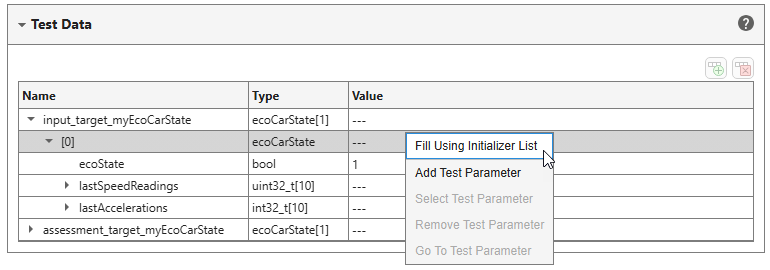
A dialog box opens with a template initializer list prepopulated with default values.
Edit values in the initializer list as needed.
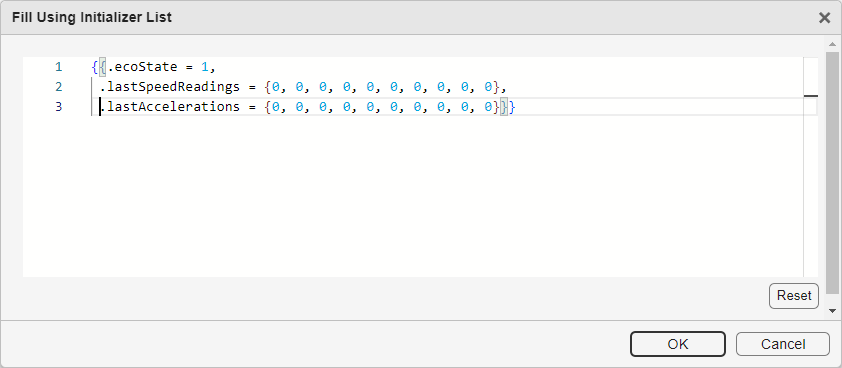
If there are no validation errors, click OK to see the new values reflected in the Value column for members of the aggregate.
Add or Edit Multiple Rows of Data in Project Configuration
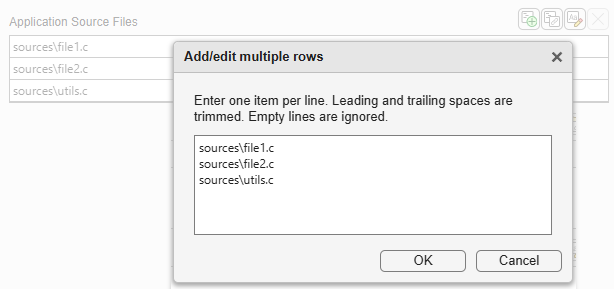
When you create a Polyspace Platform project to test C/C++ code, you use options in the project configuration to specify information like source files, Polyspace xUnit tests, external tests, and more. Instead of entering this information row by row, look for the Add/edit multiple rows button  next to the configuration option to enter values more efficiently. Clicking this button opens the Add/edit multiple rows dialog box, which allows you to type or paste one item per line and quickly edit multiple rows of data. Any leading or trailing spaces are trimmed and empty lines are ignored.