Constrain Values and Target Sizes in Generated C/C++ Tests
R2026bUsing Polyspace® Test™, you can generate C/C++ unit tests with specific objectives instead of manually authoring tests. For instance, you can generate tests that call functions with boundary values for inputs, or tests that cover true and false outcomes of all conditions in a function (full condition coverage).
The default test generation strategy attempts to generate sufficient number of tests to satisfy the test generation objectives. This topic shows how to apply additional constraints on the generated tests on top of the test generation objectives. For instance, you can fix some of the input values while generating values for others, or fix the sizes of pointer targets.
Example Files
This tutorial uses the files in the folder <polyspaceroot>\polyspace\examples\doc_pstest\coverage_tests\src. Here, <polyspaceroot> is the Polyspace installation folder, for instance, C:\Program Files\Polyspace\R2026b. To continue with this tutorial:
Create a new Polyspace Platform project and add the folder to the project.
Select Parse Code on the toolstrip to analyze the files in the folder.
Fix Input Values or Range
You can constrain the value of a subset of inputs while auto-generating values for the remaining inputs.
For instance, consider the function checkAgainstSpeedLimit() in the file helpers.c:
bool checkAgainstSpeedLimit(uint32_t speedReading, uint32_t limit) {
    bool speedOk;
    speedOk = 1;
    if(speedReading > SPEED_UPPER_BOUND || limit > SPEED_UPPER_BOUND) {
        return 0;
    }
    return speedOk;
}
When generating tests for this function, you can set the value of the second parameter limit while generating values for the first parameter. In all the generated tests, the second parameter has the value that you set.
To generate tests that are constrained in this way:
On the Projects pane, right-click
checkAgainstSpeedLimitand select Generate Tests (coverage metrics).You can do the same exercise with the option Generate Tests (boundary values).
On the Generate Tests (coverage metrics) dialog box, expand the Inputs section. Enter the value
70ufor the inputlimit.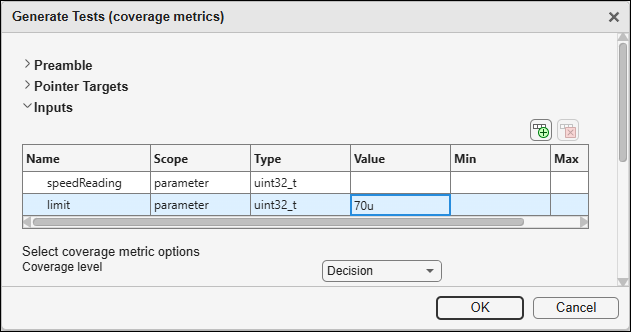
Instead of setting a fixed value, you can also constrain the generated input values within a specific range. To constrain an input, in the Inputs section, enter the lower limit of the range in the Min column and the upper limit in the Max column.
Leave the remaining options at their default value and click Generate.
In all the generated tests, you see that the input limit is set to the value 70u.
Fix Pointer Target Size
You can specify sizes of pointer targets when generating tests. By default, in generated tests, pointer inputs always point to a one element array. You can resize pointer targets before test generation so that pointer inputs point to a multi-element array.
For instance, consider the function addLatestReading() in the file helpers.c:
void addLatestReading(ecoCarState* myEcoCarState, uint32_t latestSpeedReading) {
    uint8_t idx;
    uint32_t lastSpeedReading;
    if (myEcoCarState != NULL) {
        for (idx = MAXSIZE - 1; idx >= 1; idx--) {
            myEcoCarState->lastSpeedReadings[idx] = myEcoCarState->lastSpeedReadings[idx - 1];
        }
        myEcoCarState->lastSpeedReadings[0] = latestSpeedReading;
    }
}
In tests generated for this function, the first pointer input points to a one-element array by default. To change this default behavior so that the pointer points to a five-element array:
On the Projects pane, right-click
addLatestReadingand select Generate Tests (coverage metrics).You can do the same exercise with the option Generate Tests (boundary values).
On the Generate Tests (coverage metrics) dialog box, expand the Inputs section. You can see that the input
myEcoCarStatepoints to a targetparam1.Expand the Pointer Targets section and note that the pointer target
param1has one element. Right-click the Value column on the row corresponding toparam1and select Resize Test Data.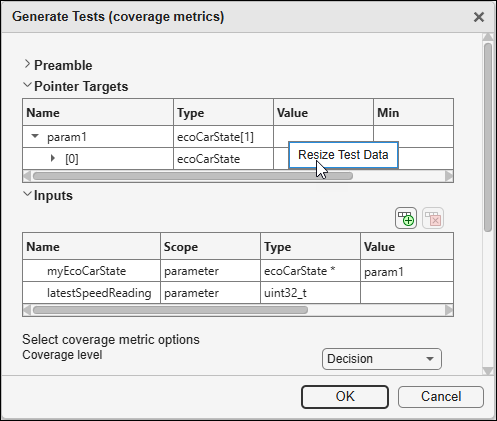
Enter a new size of 5.
You can now see that the pointer target has five elements.
Similar to inputs, you can also constrain values of the pointed target elements:
To fix the value of an element in all generated tests, enter the value in the Value column.
To constrain the value of an element to a certain range, enter the lower bound of the range in the Min column and the upper bound in the Max column.
In all generated tests, the pointer input myEcoCarState points to a five-element array with array elements constrained based on values or ranges you specified.
Constrain Array and Array Size Arguments
Combining the previous two capabilities, you can constrain test generation for a multi-argument function where multiple arguments are required to be consistent with each other. For instance, you can generate functionally correct tests for a multi-argument function where one argument represents an array and another represents the size of the array.
For instance, consider the function containsNumber() in the file helpers_with_arrays.c:
uint32_t containsNumber(uint32_t arr[], uint32_t size, uint32_t number) {
    for (uint32_t i = 0; i < size; i++) {
        if (arr[i] == number) {
            return 1;
        }
    }
    return 0;
}arr to have a size that is consistent with the value of the size argument.To constrain test generation for this function:
On the Projects pane, right-click
containsNumberand select Generate Tests (coverage metrics).On the Generate Tests (coverage metrics) dialog box, expand the Inputs section and enter a number, say 5, for the argument
size.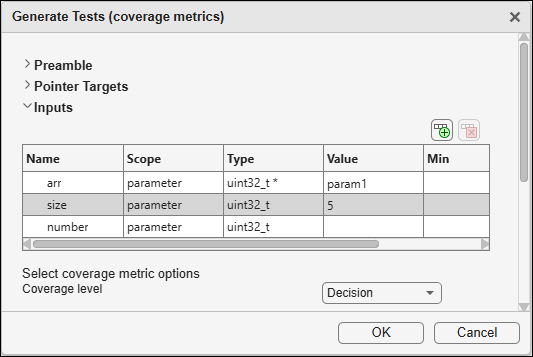
Expand the Pointer Targets section. Right-click the row containing the pointer target
param1and select Resize Test Data.Enter a Size value that is same as the number you entered in step 2, for instance, 5.
Your resized pointer target looks like the following:
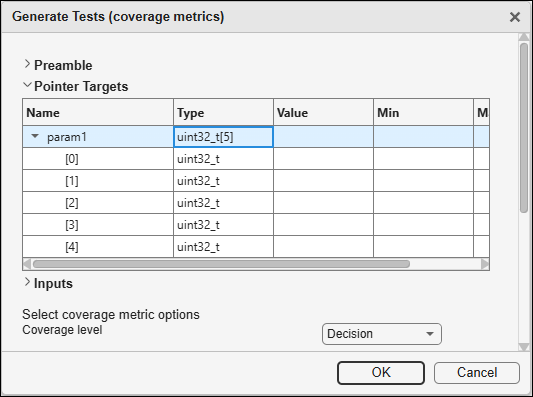
Click Generate.
After test generation completes, open any of the generated tests. Note that the
sizeargument has the value 5 and thearrelement points to a 5-element pointer target in all generated tests. For more information on pointer targets, see Specify Pointer Targets for C/C++ Test Authoring in Polyspace Platform User Interface.

