Generate Additional C/C++ Tests for Missing Code Coverage
R2026bUsing Polyspace® Test™, you can generate C/C++ tests with specific objectives (instead of manually authoring tests). For instance, you can generate tests that attempt to cover true/false outcomes of all conditions in a function (full condition coverage).
This example shows how to generate additional tests to fix missing code coverage. By default, the test generation process does not consider existing tests. To generate only as many tests as needed after taking into account existing tests, you can provide the path to coverage results based on existing tests.
Example Files
This tutorial uses the files in the folder <polyspaceroot>\polyspace\examples\doc_pstest\coverage_tests\src. Here, <polyspaceroot> is the Polyspace installation folder, for instance, C:\Program Files\Polyspace\R2026b. To continue with this tutorial:
Create a new Polyspace Platform project and add the folder to the project. Save the project with the name
coverage_Tests.Select Parse Code on the toolstrip to analyze the files in the folder.
The file example.c in this folder contains a function whichQuadrant(), which returns a quadrant number (one of 1, 2, 3, or 4) depending on the values of x and y:
#include "decls.h"

uint32_t whichQuadrant(int32_t x, int32_t y)
{
    if(x > 0 && y > 0)
        {
            return 1;
        }
    else if(x < 0 && y > 0)
        {
            return 2;
        }
    else if(x < 0 && y < 0)
        {
            return 3;
        }
    else
        {
            return 4;
        }
}
Calculate Coverage with Respect to Existing Tests
Write a test for the whichQuadrant() function that covers the first if branch in the function (with positive values of the inputs x and y). Calculate coverage with respect to the test you wrote. You will later generate tests that cover the remaining decisions.
On the Projects pane, right-click
whichQuadrantand select Add Test Case.In the Inputs section of the test, enter the value
1for bothxandy.In the Assessments section of the test, enter the value
1uforpst_call_out(function return value).
This test covers the true outcome of the decision:
Name the testx > 0 && y > 0
firstQuadrantTest.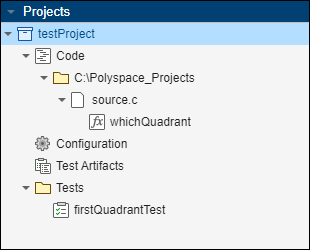
On the Polyspace Platform toolstrip, instead of No Profiling, select Code Coverage.
Select Build Project.
This step instruments the sources for coverage calculation, and builds the sources together with the tests.
Select Run Tests.
Running tests with code coverage enabled leads to coverage results being generated along with test execution results.
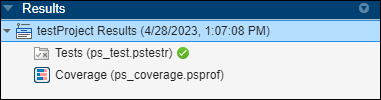
For more information, see Calculate C/C++ Code Profiling Metrics in Polyspace Platform User Interface.
In the Results pane, right-click the coverage result and select Show in Explorer. In your explorer window, copy the path to the
.psprofresult file. Later during test generation, you provide the full path to the result file including the file name.In the Results pane, right-click the Coverage node and select Open Review. You can see that only the decision
x > 0 && y > 0is partially covered.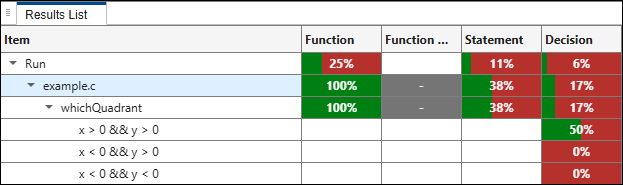
Generate Additional Tests
To generate additional tests for missing coverage, provide the path to the previously generated coverage result at the time of test generation.
If you are reviewing results, on the Polyspace Platform toolstrip, select Project to return to the project perspective.
On the Projects pane, right-click
whichQuadrantand select Generate Tests (coverage metrics).In the Generate Tests (coverage metrics) window, select Add tests for missing coverage. Provide the path to the coverage result file (
.psproffile) previously generated.Make sure that the source files associated with these coverage results have not moved to a new location since the coverage calculation. Otherwise, automatic test generation might not be able to use the coverage results and take existing tests into consideration.
Change other test generation options if needed, and click Generate.
You can see new generated tests under the Tests node of your project.
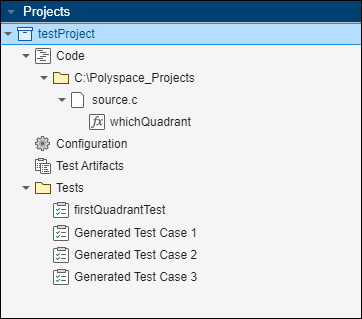
In this example, two additional tests are generated, where one of the tests has multiple steps. The new tests cover the remaining uncovered decisions:
True outcome of this decision:
x < 0 && y > 0Which also covers false outcome of the previous decision.
True outcome of this decision:
x < 0 && y < 0Which also covers false outcome of the previous two decisions.
False outcomes of all three decisions.
If your source code contains coverage annotations that justify missing coverage (for example,
/* polyspace COV:<TYPE> [Justified] "reason" */), the test generation process skips those justified outcomes and does not generate tests for them. For more information about coverage annotations, see Annotate Source Code to Justify Known Missing Coverage.The automatic test generation fills in the test inputs but leaves the assessments undefined. Before building and running the tests, fill the Assessments section of each generated test.
Inputs Expected Return Value ( pst_call_out)Test that covers true outcome of:
x < 0 && y > 02uTest that covers true outcome of:
x < 0 && y < 03uTest that covers false outcome of all decisions. That is, the test that covers true outcome of this implicit decision:
x > 0 && y < 04uBuild all tests with coverage enabled, run the tests, and open the coverage results. You see that all decisions in the function
whichQuadrant()are fully covered.