Generate Functional Tests Using Polyspace Copilot
R2026bYou can generate tests for C/C++ code using Polyspace® Copilot. Unlike coverage-based test generation techniques, Polyspace Copilot uses large language models (LLMs) to interpret the functional behavior of the code under test and generate tests that validate functional requirements. You can generate these tests directly from the Polyspace Platform user interface.
This topic outlines the brief steps for test generation using Polyspace Copilot.
Log in to Polyspace Copilot
Before you can generate tests, you must log in to Polyspace Copilot.
On the upper right of the Polyspace Platform user interface, click the
 button.
Enter your credentials to log in.
The Polyspace Copilot chat window opens. You can enter commands or questions in this chat window, or follow the progress of Copilot actions initiated elsewhere.
Load Example Project
Load an example project and parse the source code.
On the Start Page pane, in the Examples section, click the link Create and run functional tests.
This action loads the example project,
Demo_C_PS_Test.psprjx, on the Projects pane.On the toolstrip, select Parse Code.
You see function names listed below each source file under the Code node of the project on the Projects pane.
Generate Tests
After code parsing, you can generate tests using Polyspace Copilot in one of these ways:
On the Projects pane, right-click a function and select Generate Tests using Copilot.
On the Code pane, right-click a function and select Generate Tests using Copilot. To open the Code pane, on the toolstrip, select the Code Explorer button
 .
.Type the signature of the function in the Polyspace Copilot chat.
For instance, right-click the function checkAgainstSpeedLimit(uint32_t speedReading, uint32_t limit) and select Generate Tests using Copilot.
The Polyspace Copilot chat opens and reports progress as it analyzes the code, presents a test plan, and implements each test.
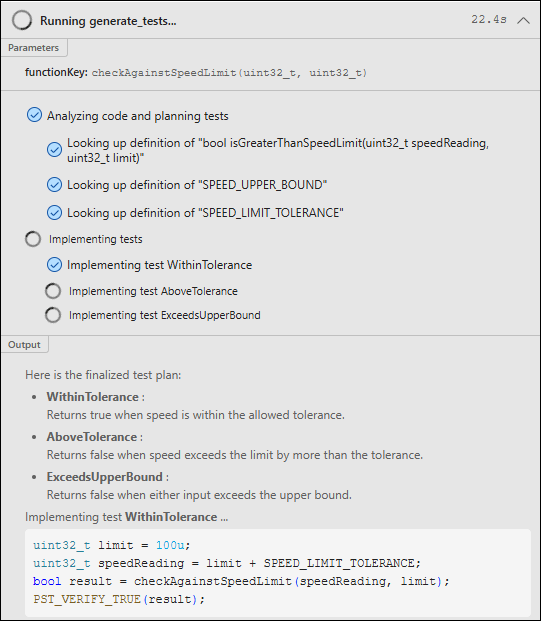
Note that certain functions are not supported for test generation using Polyspace Copilot. For more information, see Limitations of Test Generation Using Polyspace Copilot.
Review Generated Tests
As with any AI-generated content, you must review the generated tests to verify that they correctly test the intended behavior. The generated test plan might not accurately reflect the actual functional requirements of your code.
The generated tests are added to the default suite in the project with the name pst_default_suite. A test might have one or more steps, and each step can be one of the following:
A graphical step that calls the function once, and has inputs and assessments entered in a table.
A scripted step that can call the function more than once, and has inputs and assessments entered as code. The assessments use the macros in the Polyspace Test™ xUnit API.
For more information on scripted steps, see Test C/C++ Functions by Using Scripts in Graphical Tests.
Build and Run Tests
After reviewing the generated tests, you can build and run them as you would any other test in Polyspace Test. For more information, see Build and Run Tests in Polyspace Platform User Interface.

