Override Callee Definitions When Testing Functions in Polyspace Platform User Interface
R2026bWhen testing a C/C++ function in the Polyspace® Platform user interface, you might not want to invoke all callees of the function. You can create and attach mock C/C++ functions that override the callees that you do not want to invoke. A mock for a function has the same signature as the function, but a different function body, sometimes an empty one.
For instance, suppose that a function has a callee that reads data from a file into an array. To test this function, instead of preparing a file with data and reading the data from the file, you can override the file read function with a mock function that returns a predefined array.
Example Files
This tutorial uses the files in the folder <polyspaceroot>\polyspace\examples\doc_pstest\test_with_mocked_callees\src. Here, <polyspaceroot> is the Polyspace installation folder, for instance, C:\Program Files\Polyspace\R2026b. To continue with this tutorial:
Create a new Polyspace Platform project and add the folder to the project.
Select Parse Code on the toolstrip to analyze the files in the folder.
The file inits.c contains the following functions:
#include "decls.h"

extern int32_t aGlobal1;
extern int32_t aGlobal2;

void init(int32_t num) {
    aGlobal1 = num;
    aGlobal2 = num;
}

void set(int32_t num) {
    init(num);
}set() calls the function init() to write to global variables. In this tutorial, you write a test for the set() function that uses a mock function instead of the actual callee init().Define Mock
To create a mock to replace the init function:
On the Projects pane, right-click the
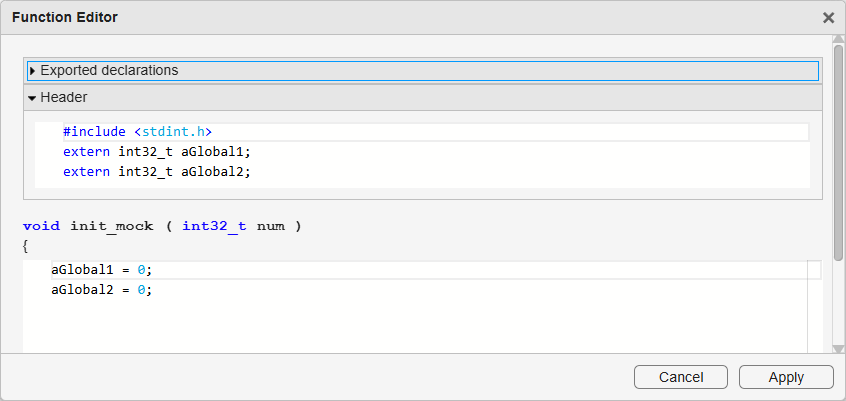
init()function and select Create Mock.In the Function Editor window, you see an empty mock body.
Enter valid C/C++ code in the mock body. For instance, you can enter:
aGlobal1 = 0;
aGlobal2 = 0;
To add code that goes outside the mock body, such as global variable declarations, expand the Mock Preamble section and enter code in this section. The content of this section is entered in the generated mock file prior to the mock function definition.
For instance, to declare the variables
aGlobal1andaGlobal2so that the mock definition can be compiled in isolation, add the following code in the Mock Preamble section (along with the inclusion ofstdint.hfor theint32_ttype):#include <stdint.h> extern int32_t aGlobal1; extern int32_t aGlobal2;Your mock definition looks like this:
Click Apply. Your project shows the mock in a Mocks node below the Test Artifacts node.
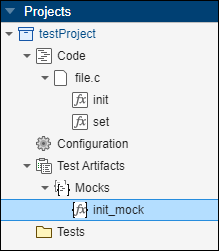
The mock is named
<mockedFunctionName>_mock, where<mockedFunctionName>is the name of the original function. In this example, the first mock for theinitfunction is namedinit_mock. Subsequent mocks are namedinit_mock_1,init_mock_2, and so on.
Instead of defining a mock from the Projects pane, you can define a mock for a callee at the time of test creation.
See the list of callees in the Callees section of a test.
Right-click the row corresponding to the callee that you want to mock and select Create Mock.
In the Function Editor window, enter a mock definition as usual.
Replace Callee with Mock
When authoring a test for a C/C++ function, you can replace a function callee with a mock.
For instance, in the preceding example, when authoring a test for the set() function, you can replace the call to the init function with a call to a mock.
To author a test case for the set function with a mocked callee:
On the Projects pane, right-click the
set()function and select Add Test Case.A new test case opens in a test case editor. The test contains a single step, with the
set()function selected as Code Under Test.On the test case editor, navigate to the Callees section of the step. Note that the function
initis listed as a callee.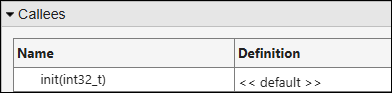
The Definition column states << default >>, implying that the actual callee definition is used when the function is called.
Right-click the Definition column and select the mock name, in this case,
init_mock.The Definition column changes to show that a mock is used instead of the default implementation.
When you build and run the test, instead of calling the init function, the test calls the mock that you previously defined.
To see the results of using a mock, create a test case that passes with the default implementation and fails when the mock is used. For instance, in this example, your test case takes an input value of 1 and assess if the global variable is set to 1 after the call to the set function. This test passes if the set function calls the default implementation of the init function, but fails if the mock
init_mock is called instead.
Identify Tests Using Mock
To find which tests are using a mock:
Select the Code Explorer button
 on the Polyspace Platform toolstrip.
Locate the mock name by searching for the function or mock name on this pane. The mock for a function appears below the function name under the Functions node.
Select a mock.
The Callee in property on the Property pane shows the tests where the mock is used.
Edit or Delete Mock
You can edit or delete a mock from one of these locations:
Projects pane: Mocks appear below the Test Artifacts node of a project.
Code pane: A mock for a function appears below the function name under the Functions node.
To edit the mock, right-click the mock name and select Edit Stub/Mock. To delete the mock, right-click the mock name and select Delete. On the Code pane, you can also delete all mocks of a function by right-clicking the function name and selecting Delete Mocks.
Update Mocks
When you create a mock for a function, any variables you define in the mock are set at the time of mock creation. If you modify one of those variables in your source code later, such as adding or removing enum values, you must refresh any mock that uses that variable. To update your mocks, find your project in the Projects pane, right‑click the Mocks node, and select Refresh (since R2026a). This updates all mocks in the project. For an example that shows how to update existing mocks and graphical tests when your source code changes, see Change Mock or Stub Implementation Based on Test.
Identify Why Function Is Not Supported for Mocking
When browsing through functions on the Code pane, you can check if a function is supported for mocking.
Open the Code pane. On the toolstrip, select the Code Explorer button
 .
.Select a function on the Code pane.
On the Properties pane on the right, check the row Supported for mocking. If the value is
No, an explanation follows indicating why the function is not supported.
Polyspace Test™ does not support the creation of mocks for:
Variadic functions
Template functions or methods
Operators, constructors, or destructors
Functions defined in header files
Methods for classes defined in source files
Inline methods
Functions with a parameter type that is defined in a source file
Troubleshoot Errors Related to Mocks
If your project contains mocks for functions that are no longer defined, you see this warning when you analyze the code in the project:
Some mock(s) are invalid because the corresponding function definitions cannot be found.Check if the unknown function is defined in a source file that you forgot to add to the project.
If the corresponding function is indeed no longer defined, delete the mock for the function.

