Set Up Wi-Fi on Raspberry Pi Using Browser
R2026bThis example shows how to use MATLAB® to turn your Raspberry Pi® hardware into a Wi-Fi® setup device. After you configure your Raspberry Pi using this process, you can connect your client device to the Raspberry Pi hotspot. You can then open a webpage on the client device and configure the Raspberry Pi connection to a Wi-Fi network. You can complete this connection using the client device alone, without need for a monitor or keyboard. This workflow eliminates the need for manual configuration through SSH and supports headless Raspberry Pi hardware that does not have access to a display.
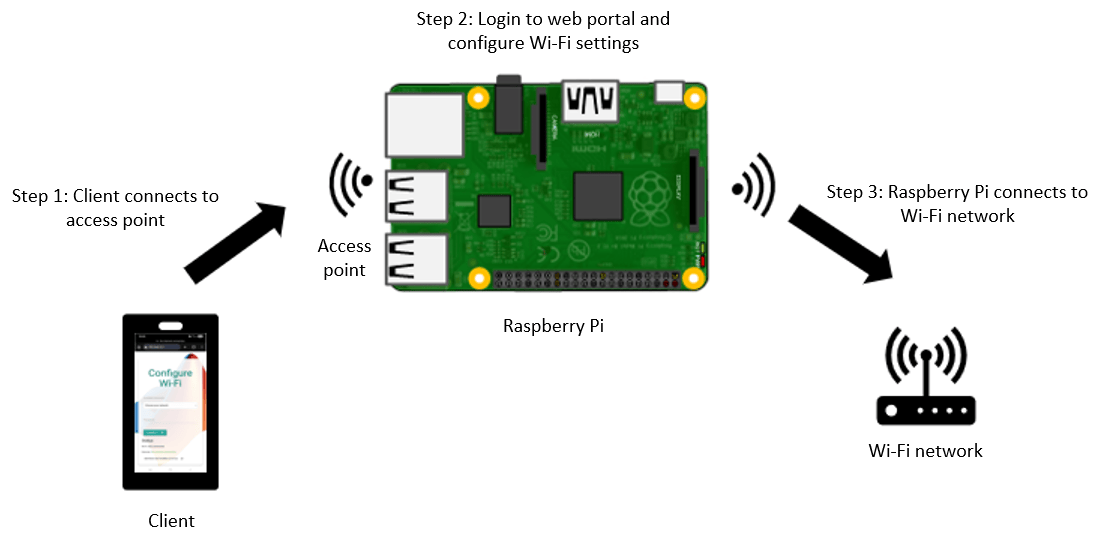
This diagram illustrates the connections between the Raspberry Pi, the client device with the browser-based configuration portal, and the wireless LAN.
Connect a mobile device or laptop to the Wi-Fi access point (hotspot) broadcast by the Raspberry Pi board.
Open a web browser on the device to access the configuration portal on the board and enter credentials for the Wi-Fi network.
The board connects to the wireless network.
This flow chart shows the workflow for setting up and connecting a Raspberry Pi to a Wi-Fi network through a hotspot and browser interface. For more information about each step, click the corresponding box in the flow chart.
Hardware Requirements
This example requires a Raspberry Pi for hosting the Wi-Fi setup workflow and a client device for accessing the web-based configuration application.
Raspberry Pi — Any Raspberry Pi model
Operating System — Any operating system on your Raspberry Pi hardware supported in Raspberry Pi Blockset
Power supply for Raspberry Pi
Client device — A mobile device or laptop with Wi-Fi capability and a web browser to access the setup portal
To complete these steps to enable browser-based Wi-Fi setup on Raspberry Pi:

