Load Simulink Environments in Reinforcement Learning Designer
R2026bWhen training an agent using the Reinforcement Learning Designer app, you can create a predefined Simulink® environment object from within the app or import a custom Simulink environment object from the MATLAB® workspace.
To create a predefined environment, on the Reinforcement Learning tab, in the Environment section, click New. Then, under Simulink Environments, select one of the predefined environments.
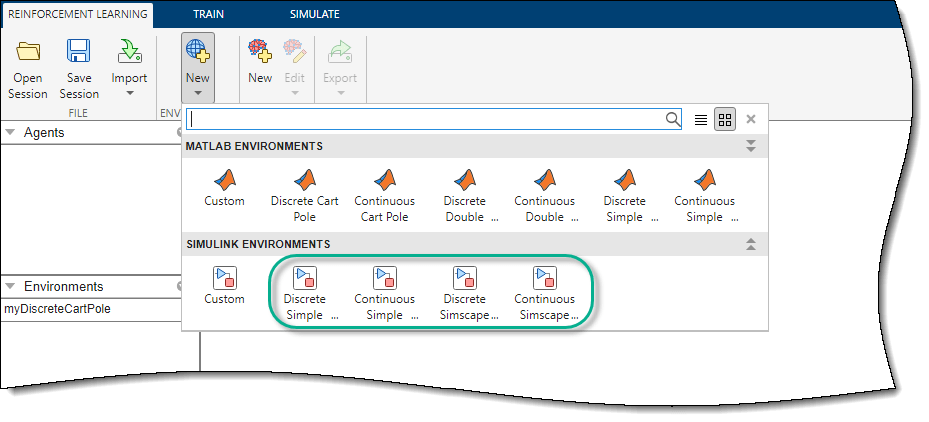
To use a custom environment, you must first create the environment at the MATLAB command line and then import the environment into Reinforcement Learning Designer. For more information on creating a Simulink environment, see Create Custom Simulink Environments.
For training and simulating Simulink environments, you must define all variables necessary for running the Simulink model in the MATLAB workspace.
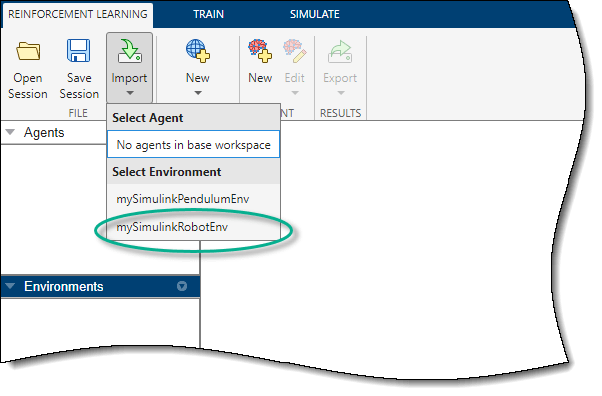
Once you create a custom environment using one of the methods described in the preceding section, import the environment into the Reinforcement Learning Designer. On the Reinforcement Learning tab, click Import. Then, under Select Environment, select the environment.
Once you have created or imported an environment, the app adds the environment to the Environments pane.
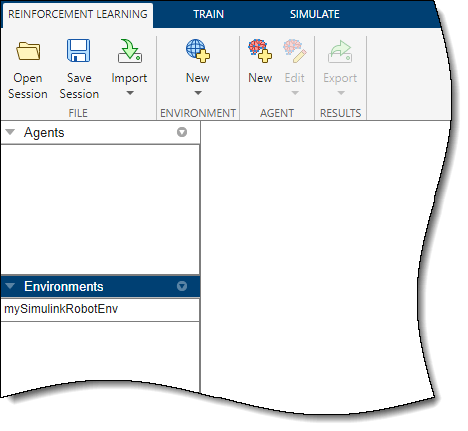
Once you have created an environment, you can create an agent to train in that environment. For more information on creating agent from within Reinforcement Learning Designer, see Create Agents Using Reinforcement Learning Designer.
See Also
Functions
Objects
Apps
Topics
- Design and Train Agent Using Reinforcement Learning Designer
- Get AI Advisor Guidance in Reinforcement Learning Designer
- Reinforcement Learning Workflow
- Reinforcement Learning Environments
- Create Custom Simulink Environments
- Load MATLAB Environments in Reinforcement Learning Designer
- Create Agents Using Reinforcement Learning Designer

