主要内容

Model Publisher

R2026b

Publish models to speed up simulation and code generation

Since R2026b

Description

The Model Publisher creates published models. These ready-to-run versions of Simulink® models contain build artifacts that Simulink uses as needed. Simulink skips rebuild checks for published models, reducing model compilation and build overhead.

Use the Model Publisher to:

  • Select supported functionality for the published model.

  • Configure tunable parameters for the published model.

  • Package supplemental files with the published model.

  • Customize the published model name, destination, icon, and description.

  • Generate a script for publishing the model.

To conceal intellectual property, use the Protected Model Creator instead.
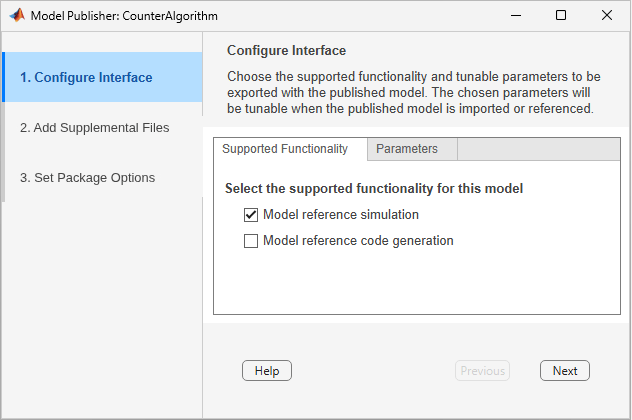
Model Publisher

Open the Model Publisher

  • Simulink Toolstrip: To publish the top model in a model hierarchy, on the Simulation tab, click Publish.

  • Simulink Toolstrip: To publish a referenced model, select the corresponding Model block. On the Model Block tab, in the Actions section, click Publish.

Examples

expand all

Suppose you have a model hierarchy that references models that are ready to lock down, or publish.

In the model hierarchy:

  1. Select a Model block that references the model you want to publish.

  2. In the Simulink Toolstrip, on the Model Block tab, in the Actions section, click Publish.

In the Model Publisher:

  1. Select the functionality that you want the published model to support. By default, Model reference simulation is selected and read-only.

  2. By default, all tunable parameters for simulation remain tunable in the published model. To limit which parameters remain tunable, on the Parameters tab, click Refresh. This compiles the model and generates a table of tunable parameters. In the table, clear the parameters that you want to be nontunable for simulation. Model arguments are selected by default and read-only because they are inherently tunable.

  3. To package supplemental files in the published model, such as instructions, test results, or code coverage reports, on the Add Supplemental Files pane, click Add Files.

    You do not need to include automatically identified model dependencies, such as data dictionaries. Publishing automatically includes these files. For more information, see Model dependencies.

  4. Optionally, on the Set Package Options pane:

    • Customize the published model filename, destination folder, and Model block icon.

      Tip

      To create multiple published models from the same source model, specify a unique filename each time you publish the model. This approach lets you distribute published models that represent different implementations, configurations, or revisions of the same source model.

    • Provide a custom tag that helps you trace the supported functionality in the published model to a commit or job number.

    • To generate a MATLAB® script that lets you republish the model with the same interface configuration, supplemental files, and package settings, select Generate publishing script. The script contains the equivalent publishmodel command.

  5. Click Create.

After publishing, if a Model block specifies the filename without a file extension, the block references the new published model (.slxp) instead of the source model (.slx) based on file precedence.

Parameters

expand all

Configure Interface: Supported Functionality

This parameter is read-only.

When enabled, a model that references the published model can simulate in normal, accelerator, or rapid accelerator mode. The published model contains the relevant build artifacts and dependencies. Simulink uses these build artifacts and does not rebuild them.

When enabled, a model that references the published model can generate C and C++ code and simulate in normal, accelerator, or rapid accelerator mode. The published model contains the relevant build artifacts and dependencies. Simulink uses these build artifacts and does not rebuild them.

Configure Interface: Parameters

Select the parameters you want to be tunable in the published model. You can tune the values of these parameters during simulation without republishing.

By default, tunable global parameters used by the model become tunable instance parameters of the published model.

To view the parameters, click Refresh. Then, clear the check boxes for the parameters you do not want to be tunable in the published model.

Model arguments are inherently tunable. You do not need to specify the tunability of model arguments.

Add Supplemental Files

Select supplemental files to package in the published model, such as instructions, test results, and code coverage reports. You do not need to include automatically identified model dependencies, such as data dictionaries. Publishing automatically includes these files. For more information about model dependencies, see Model dependencies.

To browse for files to add, click Add File.

To remove a file you no longer want to include, select the file. Then, click Remove.

To remove all supplemental files, click Select All and then click Remove.

Set Package Options

Specify the filename for the published model.

The filename and source model name can differ for published models.

To create multiple published models from the same source model, specify a different filename each time you publish the model. This approach lets you distribute published models that represent different implementations, configurations, or revisions of the same source model.

To overwrite an existing file with the same name, use the publishmodel function with ForcePublish set to true. Alternatively, delete the existing file and re-create the published model.

Specify where to save the published model. To select a folder, click Browse.

Select the icon to display on Model blocks that reference the published model.

  • Snapshot — Display a snapshot of the block diagram as the Model block icon.

  • Icon file — Display a custom PNG file as the Model block icon.

  • Off — Display the default Model block icon.

Specify the PNG file to use as the published model icon.

Dependencies

To enable this parameter, set Icon to Icon file.

Provide a custom tag that helps you trace the supported functionality in the published model to a commit or job number. The tag supports printable and white space characters, as defined by isstrprop.

The tag appears in the published model report and slxpinfo function output.

When enabled, this option generates a MATLAB script that contains the equivalent publishmodel command. To publish the model with the same settings, use the generated script.

For more information, see publishmodel.

Version History

Introduced in R2026b