Create and Edit Block Mask Icons Using Icon Editor
R2026bUse the Icon Editor to graphically create and edit icons for masked blocks. Icon Editor enables you to design block icons without writing drawing commands and enables icons to update automatically when you change parameter values or resize the block.
The Icon Editor has drawing tools, preset shapes, and support for text and images, along with alignment aids such as grids and smart guides for precise positioning. You can customize the block frame, add dynamic expressions, and control how icon elements behave during resizing or rotation. For more information, see Icon Editor.
Create and Edit Shape of Icon
This example shows how to create, add text, and modify the frame shape of a masked block icon.
By default, a masked block uses a rectangular frame. You can change the frame to shapes such as triangle, circle, ellipse, trapezium, or pentagon. In the example model slexMaskGraphicalIconEditor.slx, refer to the block Frame_Shape, where the default rectangular frame is changed to a triangular shape.
To change the frame shape of the canvas:
1. Create a mask on the block.
2. In the Mask Editor interface, switch to the Icon tab.
3. To add a text element on block icon go to the Tools pane, under Draw, select the Text element and place it on the Icon Editor canvas.
4. Double-click the added Text element on the canvas and type Gain.
5. In the Icon Properties pane, expand Transform and select Triangle from the drop-down list next to Frame.
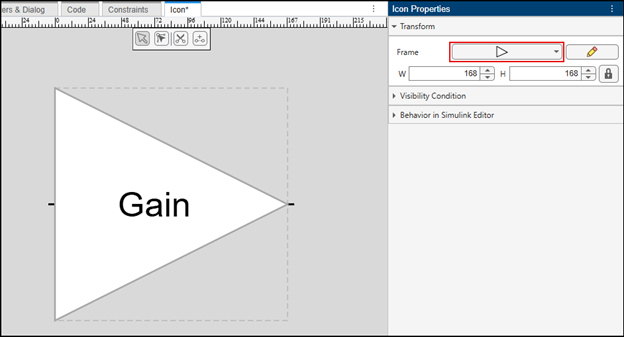
6. To further customize the chosen frame, click the pencil icon to manually modify the frame boundary.
7. To open the Preview window, on the toolstrip, click Preview in Model. The masked block icon now displays with the triangular frame.
8. On the toolstrip, click Save Mask.
You can also select None from the Frame drop-down to retain the default shape without displaying a frame for the block.

