Use Mask Containers to Group Parameters on Mask Dialog Box
R2026bYou can use containers within the mask dialog box to help organize and group mask parameters. The available containers are tabs, group boxes, tables, collapsible panels, mask part references, and parameter trees. Use containers to group related parameters and make complex dialog boxes easier to navigate and understand. This structured approach improves usability, enhances clarity, and provides a more intuitive configuration experience when working with masked blocks.
Explore the Model
The example model slexMaskContainersExample containers such as tabs, collapsible panel, table, and parameter tree to group mask parameters on the mask dialog box. To insert a container in the Mask Editor, create a mask on a subsystem. In the Mask Editor, under Controls, click the desired container to add to the Parameters & Dialog pane.
open_system('slexMaskContainersExample');
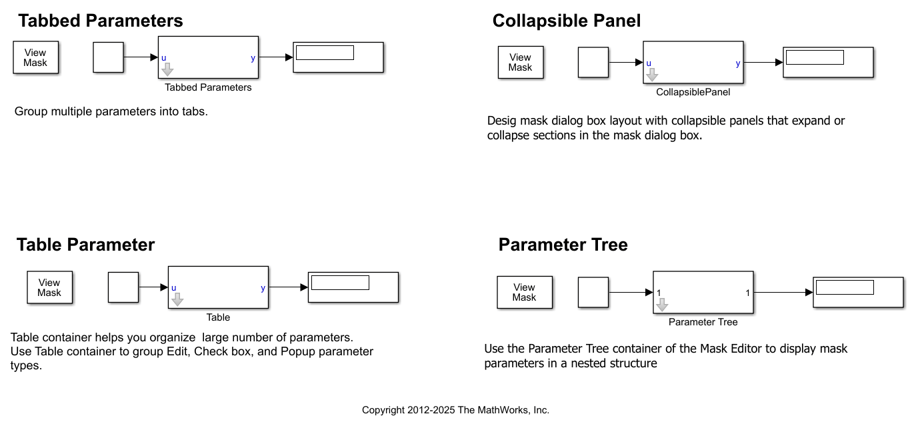
Group Mask Parameters
To access containers, open the Mask Editor by right-clicking a Subsystem block and selecting Edit Mask. These containers are listed in the Controls panel.
Group Box — Use a group box to group mask parameters and other dialog containers.
Tab Container — Group dialog controls in the mask dialog box using tab container. A tab is contained within a tab container. A tab container can have multiple tabs. For an example of a tab container, in the model, double-click the block labeled
Tabbed Parameters.
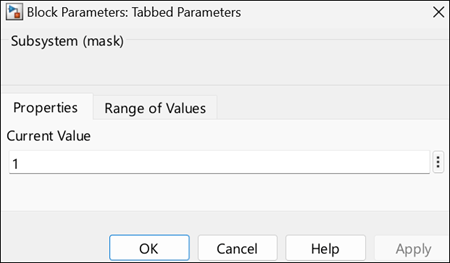
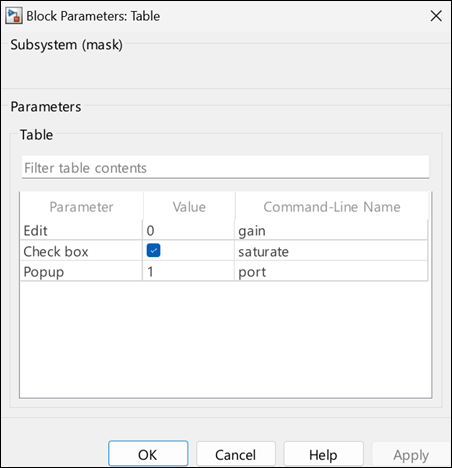
Table — Use a table container to organize large number of mask parameters. A table container supports only edit, check box, and popup parameters. The table container displays the name, value, and programmatic names of mask parameters. A custom table parameter is a mask parameter that stores the values in a cell array, whereas a table container does not store parameter values. For an example of a tab container, in the model, double-click the block labeled
Table.
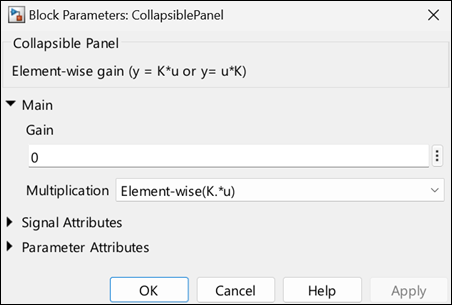
Collapsible Panel — Use a panel to hide or show mask parameters in the mask dialog box, reducing visual clutter in complex dialog boxes. For an example of a tab container, in the model, double-click the block labeled
CollapsiblePanel.
Mask Part Reference — Use a mask part reference container to create and save mask parameters and dialog controls in an XML file and reuse them across multiple masked blocks. You can modify parameters and dialog controls easily by changing the XML file's contents from any instance of the block. You can override the default value of a parameter populated from the XML file. This default value is specific to the block instance and does not override the values of the parameter in the XML file. For more information, see Reuse Mask Parameters and Dialog Controls Across Multiple Masked Blocks.
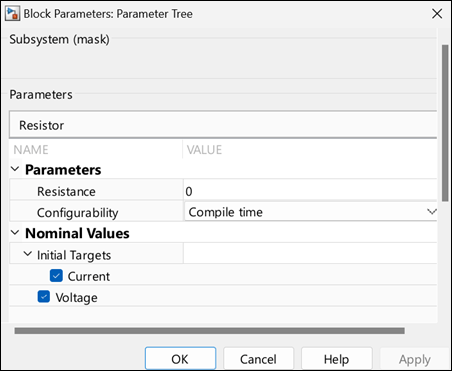
Parameter Tree — Use a parameter tree container to organize mask parameters in a tree structure. The parameter tree container supports edit, check box, popup, and combo box parameters, and group box containers. Use group boxes within a parameter tree container to organize parameters in a hierarchy. For an example of a parameter tree, in the model, double-click the block labeled
Parameter Tree. In this tree the Initial Targets parameters are nested inside Nominal Values using a group box container.
See Also
Classes
Simulink.dialog.Container|Simulink.dialog.Group|Simulink.dialog.Panel|Simulink.dialog.Tab|Simulink.dialog.TabContainer|Simulink.dialog.MaskPartReference|Simulink.dialog.ParameterTree

