Remember State Behavior by Using History Junctions
R2026bYou can use history junctions in Stateflow® charts to remember and resume states from previous activations. Use history junctions to implement systems that need to return to prior states after interruptions or mode changes.
How History Junctions Work
Use history junctions in Stateflow to return to the most recently active substate in a parent state. When a transition leads to a state with a history junction, the chart activates the previously active substate instead of following the default transition.
This example shows a coffee machine control system.
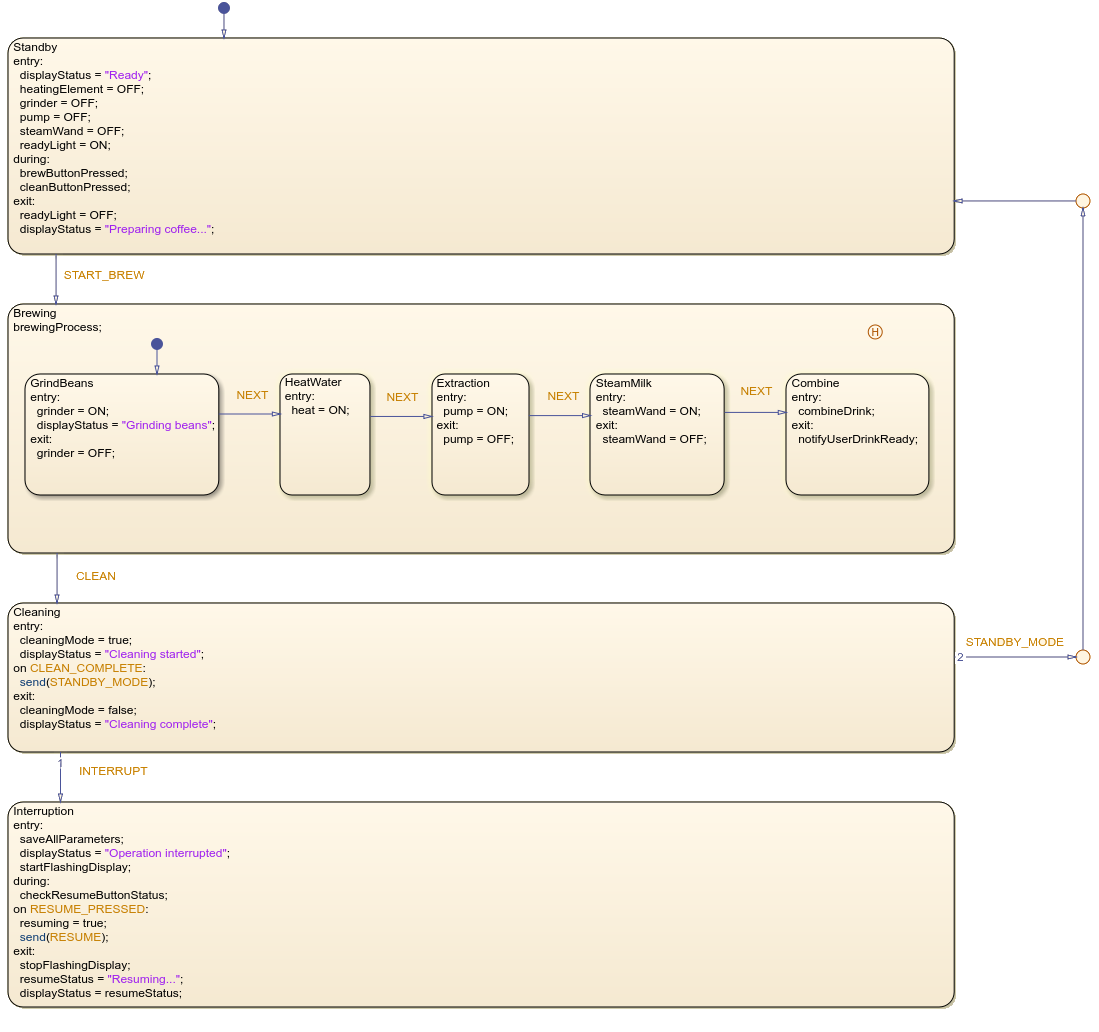
The machine progresses through the stages of brewing to prepare different coffee types.
The Brewing parent state contains a history junction that remembers which
brewing stage was active when an interruption occurs. Once the person making the coffee
addresses an interruption, like refilling water, and presses resume, the machine transitions
to the history junction. The coffee maker returns to the brewing stage it was previously
executing, with all parameters restored through entry actions.
Specify Properties for History Junctions
You can modify the properties in the Property Inspector or in the History Junction properties dialog box.
To use the Property Inspector:
In the Modeling tab, under Design Data, select Property Inspector.
In the Stateflow Editor, select the history junction.
In the Property Inspector, edit the history junction properties.
To use the History Junction properties dialog box:
In the Stateflow Editor, right-click the history junction.
Select Properties.
In the properties dialog box, edit the history junction properties.
You can also modify junction properties programmatically by using Stateflow.Junction objects. For more information about the Stateflow programmatic interface, see Overview of the Stateflow API.
Add History Junctions
To add a history junction to a Stateflow chart:
Open the chart.
In the object palette, click the History Junction icon
 .
.On the chart canvas, click the location for the new history junction.
After you add a history junction, you can use the Stateflow Editor to change the size and position of the junction:
To move the junction, click and drag the junction.
To resize the junction, right-click the junction, select Junction Size, and choose a junction size from the drop-down list.

