Predict Responses Using RegressionXGBoost Predict Block
R2026bThis example shows how to use the RegressionXGBoost Predict block for response prediction in Simulink®. The block accepts an observation (predictor data), and returns the predicted response for the observation using the trained XGBoost regression model.
The RegressionXGBoost Predict block requires a pretrained XGBoost model that you import to MATLAB® using the importModelFromXGBoost function. This example provides the pretrained model file, which was trained in Python® and saved as a JSON file using model.save_model('trainedRegressionXGBoostModel.json').
Create Simulink Model
Import the pretrained model using the importModelFromXGBoost function. The model was trained in Python using the carsmall data set to predict the fuel economy (MPG) of a car by using Cylinders, Displacement, Horsepower, and Weight as predictors.
modelfile = "trainedRegressionXGBoostModel.json";
xgbMdl = importModelFromXGBoost(modelfile)
xgbMdl =
CompactRegressionXGBoost
ResponseName: 'Y'
ResponseTransform: 'none'
NumTrained: 30
ImportedModelParameters: [1×1 struct]
Properties, Methods
Create a new model using the RegressionXGBoost Predict block. To create a new Simulink model, open the Blank Model template and add the RegressionXGBoost Predict block from the Statistics and Machine Learning Toolbox™ library.
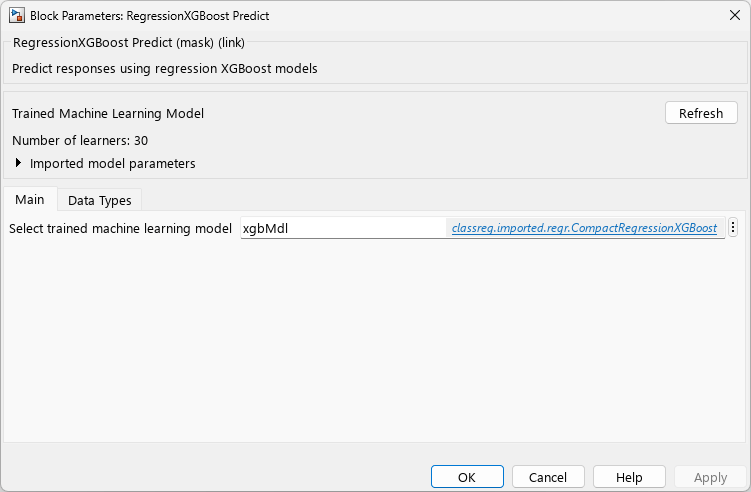
Double-click the RegressionXGBoost Predict block to open the Block Parameters dialog box. Import a trained RegressionXGBoost model into the block by specifying the name of a workspace variable that contains the model. The default variable name is xgbMdl, which is the model you imported.
Click the Refresh button to refresh the settings of the trained model in the dialog box. The Trained Machine Learning Model section of the dialog box displays the options used to train the model xgbMdl.
Add one Inport block and one Outport block, and connect them to the RegressionXGBoost Predict block. The block expects an observation containing four predictor values. Double-click the Inport block, and set the Port dimensions to 4 on the Signal Attributes tab. To specify that the output signals have the same length as the input signal, set Sample time to 1 on the Execution tab of the Inport dialog box. Click OK.
At the command line, create some sample input data.
load carsmall
rng("default");
cylinders = randsample([3 4 6 8],10,true)';
displacement = randi([80,450],10,1);
hp = randi([40,250],10,1);
weight = randi([1700,5000],10,1);
X = [cylinders,displacement,hp,weight];
Create an appropriate structure array for the input data. For more information, see Control How Models Load Input Data (Simulink).
modelInput.time = (1:size(X,1))'-1;
modelInput.signals.values = X;
modelInput.signals.dimensions = size(X,2);
To import signal data from the workspace:
Open the Configuration Parameters dialog box. On the Modeling tab, click Model Settings.
In the Data Import/Export pane, select the Input check box and enter
modelInputin the adjacent text box.In the Solver pane, under Simulation time, set Stop time to
modelInput.time(end). Under Solver selection, set Type toFixed-step, and set Solver todiscrete (no continuous states). These settings enable the model to run the simulation for each query point inmodelInput. Click OK.
For more details, see Load Signal Data for Simulation (Simulink).
Save the model as slexRegressionXGBoostPredict.slx in Simulink.
Simulate Model
Simulate the Simulink model. When the Inport block detects an observation, it places the observation into the RegressionXGBoost Predict block. You can use the Simulation Data Inspector (Simulink) to view the logged data of the Outport block.
simOut = sim("slexRegressionXGBoostPredictExample");
