Hardware Setup for STM32 Microcontroller Blockset
R2026bTo develop and deploy applications on supported STM32 hardware using MATLAB® and Simulink®, you must install the required versions of STM32CubeMX, third-party tools, firmware packages, and toolchains. Completing the setup ensures seamless integration between your model and the target hardware.
Hardware Setup for Third-Party Tools
The hardware setup for STM32™ Microcontroller Blockset installs and configures essential third-party tools that enhance modeling and deployment capabilities.
| Tool | Purpose |
|---|---|
| STM32CubeMX | Generates peripheral initialization C code for STM32 microcontrollers. |
| Armclang Compiler (Optional) | Builds C/C++ applications for ARM® processors using an optimized compiler toolchain. |
| STM32CubeProgrammer (Optional) | Downloads the generated executable to the STM32 microcontroller. |
| STM32CubeCLT (Optional) | Uses CMSIS SVD files to display register information. |
| GNU Tools | Provides a suite of open-source development utilities for building embedded applications. |
| CMSIS | Defines a standardized interface for Arm-based microcontrollers to improve software portability. |
| CMSIS-DSP | Offers optimized digital signal processing functions for real-time embedded applications. |
| CMSIS-NN | Provides highly efficient neural network kernels for embedded machine learning applications. |
| Legacy Libraries (as required) | Some legacy STM32 MBED-based boards require MBED OS, LWIP Source, or Arduino Modbus Library, depending on the selected processor. |
Run Hardware Setup
To enable all STM32 Microcontroller Blockset features, run the hardware setup using one of the following methods.
Run from MATLAB Command Window
At the MATLAB command prompt, enter:
stm32setup
This command opens the Hardware Setup wizard.
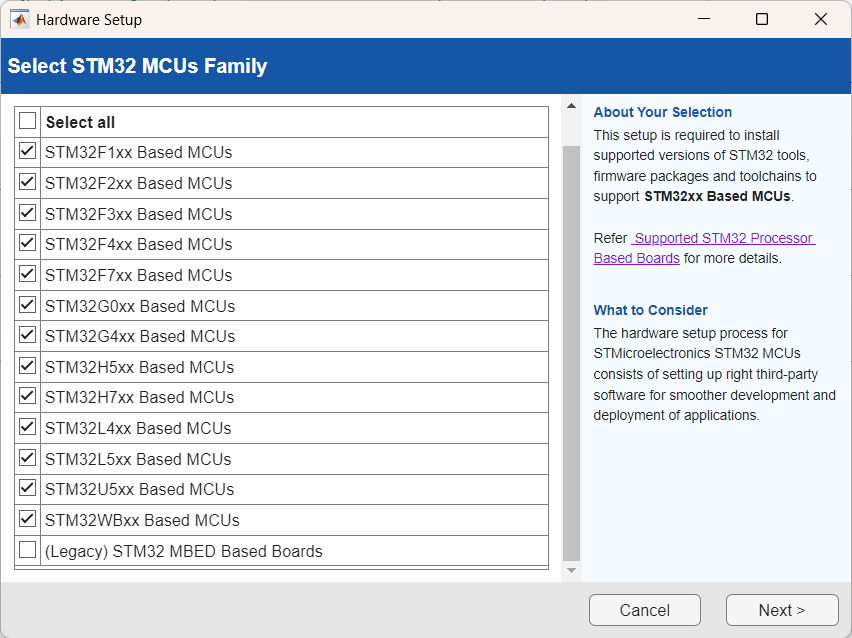
If the setup screen appears distorted or scaled incorrectly, set Display Text Scaling to 100% in your system display settings.
Follow the on-screen instructions to configure STM32 hardware and third-party tools.
After completing the setup, open the provided examples to get started with STM32 hardware workflows.
Run from MATLAB Add-On Manager
In MATLAB, on the Home tab, in the Environment section, select Add-Ons > Manage Add-Ons.
In the Installed Add-Ons list, click the Options button next to STM32 Microcontroller Blockset, and select Setup.
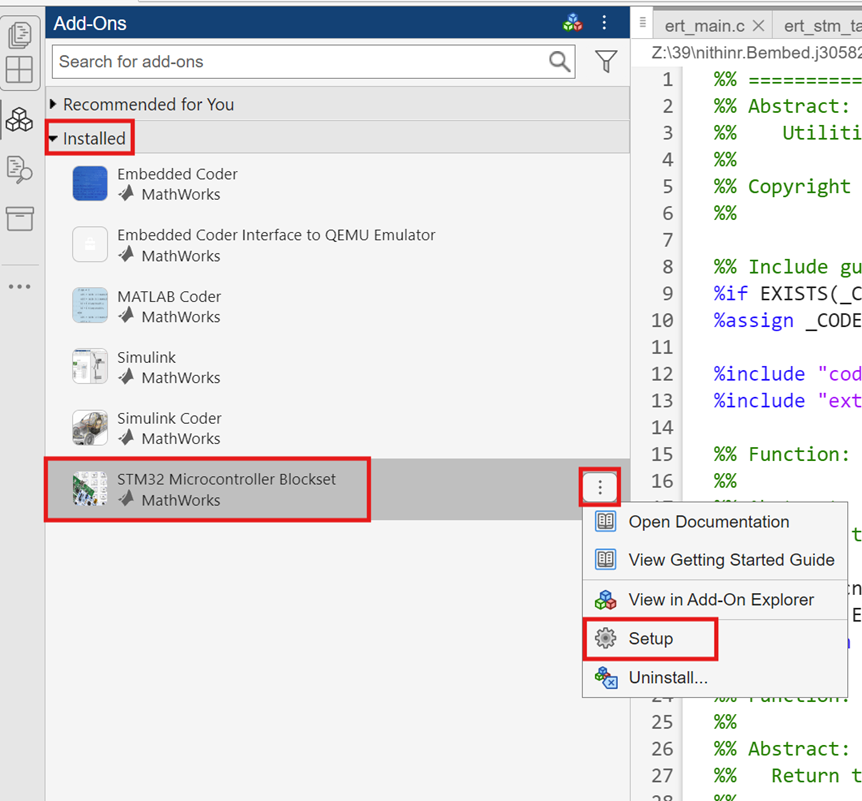
Follow the guided steps in the Hardware Setup window.
Verify Setup and Explore Examples
After completing the setup:
Explore example models in the STM32 Microcontroller Blockset to learn hardware-specific workflows.
Verify connections and test communication between your host and target hardware.
See Also
stm32setup | Hardware Setup for Third-Party Tools Configuration | Supported STM32 Processors and Third-Party Tools

