Debug Simulink Generated Code using STM32CubeIDE
R2026bIntegrate code generated from Simulink® with STM32CubeIDE to debug and deploy applications on STM32 hardware. This workflow connects model-based design with low-level hardware validation by allowing you to build, program, and debug generated code directly in STM32CubeIDE, the integrated development environment for STM32™ Microcontroller Blockset. Using this approach, you can verify algorithm behavior on target hardware, inspect execution with standard debugging tools, and streamline the transition from simulation to deployment.
The following steps enables you to effectively debug and deploy the Simulink generated code on STM32 hardware.
Open the Modeling tab and press CTRL+E to open the Configuration Parameters dialog box. Go to Hardware Implementation > Hardware board.
Select STM32 Processor Based board.
Navigate to Code Generation > Build process > Build configuration and select Debug.
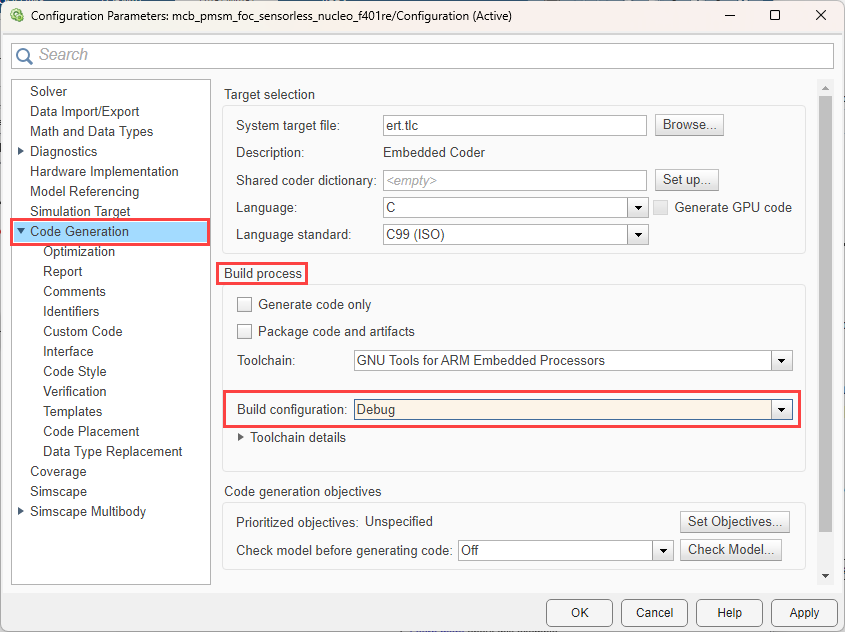
Build the project from Simulink.
Create a new STM32 Project in STM32CubeIDE. Select the required board on which you are going to debug the Simulink generated code.

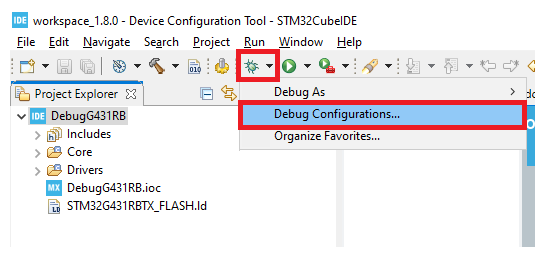
Click Debug > Debug Configuration.
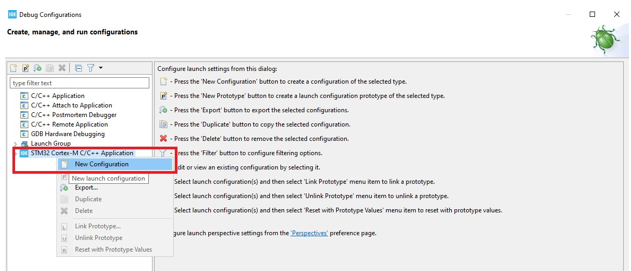
Right click on STM32 Cortex-M C/C++ Application and select New Configuration.
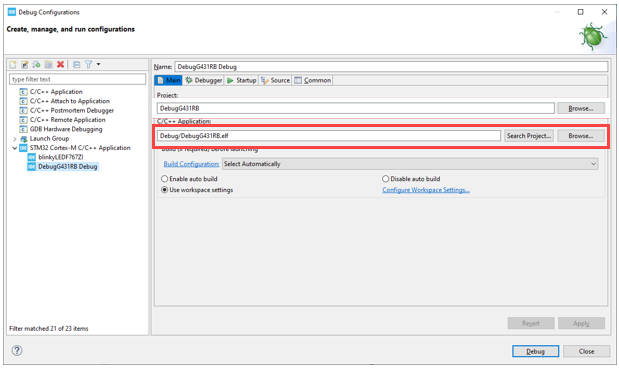
Browse to the STM32 project created earlier in step 5.
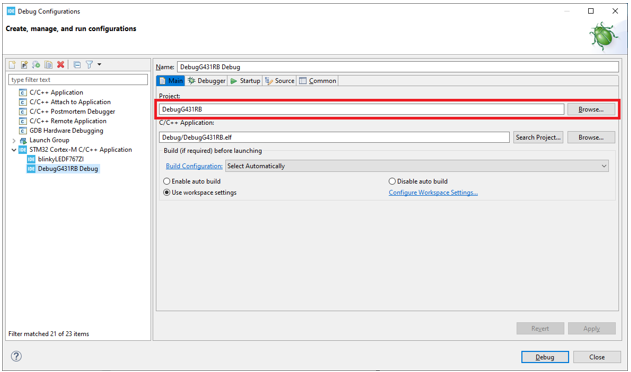
Browse the elf generated from Simulink in C/C++ Application and Click Debug.