Run 5G System-Level Simulations on AWS Cloud
R2026bThis example demonstrates how to run a 5G system-level simulation (SLS) on Amazon® Web Services (AWS) using MATLAB on AWS to run MATLAB® on a Linux® or Windows® virtual machine. This setup provides a scalable, high-performance, cloud environment tailored for large-scale 5G simulations. Key features of this setup include:
High Memory Support — Run simulations that require large amounts of random access memory (RAM), such as 256 GB or more, including NR Interference Modeling with Toroidal Wrap-Around deployments.
Parallel Execution — Run multiple independent simulations at the same time for tasks like parameter sweeps, Monte Carlo analyses, and other large-scale studies.
GPU Acceleration — Use graphics processing units (GPUs) to speed up computationally intensive tasks, such as full physical (PHY) layer simulations. This setup also supports GPU-accelerated channel filtering in the TR 38.901 channel model.
To help you get started, this overview describes when and how to use the reference architecture.
Overview
The MATLAB on AWS architecture enables you to deploy MATLAB on an Amazon Elastic Compute Cloud (EC2) instance using your AWS account, and connect to the EC2 instance using remote desktop protocol (RDP) or secure shell (SSH). This architecture also integrates with AWS storage services, such as the Amazon Simple Storage Service (S3). You can store data and simulation results in Amazon S3, enabling you to easily transfer files between AWS and your local desktop. Your local desktop serves as the MATLAB user interface, while AWS provides scalable compute power and storage, creating a flexible and cost-effective environment for cloud-based MATLAB simulations. The architecture uses an AWS CloudFormation template from the MATLAB on AWS GitHub repository for automation.
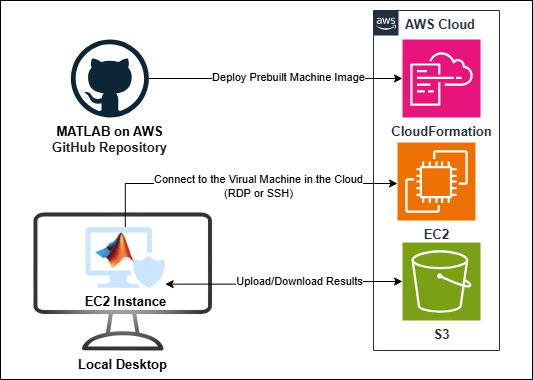
Use the MATLAB on AWS architecture when you need to:
Launch MATLAB in a specific AWS region.
Integrate MATLAB resources with your existing cloud infrastructure.
Automate MATLAB deployment on the cloud.
You can select from a range of AWS EC2 instance types to meet your performance requirements and budget. The AWS EC2 service provides a secure and efficient setup for running MATLAB, supports multiple licensing options, and offers seamless storage integration.
AWS Services and Costs
This example uses these AWS services:
AWS CloudFormation
Amazon EC2
Amazon S3
You are responsible for the cost of the AWS services used when you create cloud resources using this guide. Resource settings, such as instance type, affect the cost of deployment. For cost estimates, see the pricing pages for each AWS service you are using. Prices are subject to change. You can visualize, understand, and manage AWS costs and usage over time using AWS Cost Explorer.
Requirements for Using MATLAB Reference Architecture on AWS
To use the MATLAB on AWS architecture, make sure you have:
An AWS account.
An SSH key pair for your AWS account in your chosen region. See Amazon EC2 Key Pairs.
A MATLAB license that satisfies these conditions:
You have linked it to your MathWorks Account.
You have configured it for cloud use. Individual and Campus-Wide licenses already support cloud use. For other license types, contact your administrator. You can check your license type and administrator in your MathWorks Account. Administrators can review Administer Concurrent and Network Named User Licenses for more information.
How to Run MATLAB on AWS
To run MATLAB on AWS, choose one of the these options:
Run MATLAB Using Prebuilt Amazon Machine Image from GitHub
By default, the MATLAB on AWS architecture launches a prebuilt machine image. Using a prebuilt machine image is a simple way to deploy MATLAB on AWS. Follow these steps to launch MATLAB on AWS.
Launch the cloud stack.
Go to the MATLAB on Amazon Web Services (GitHub) page and, under Deploy Prebuilt Machine Image, select your MATLAB release in the column for your operating system.
On the next page, find the region in which you want to deploy your resources and click the Launch Stack icon.
Configure the CloudFormation stack. You must select an Amazon EC2 instance that meets your simulation needs. For pricing information, see Amazon EC2 On-Demand Pricing.
Consider what type of AWS EC2 instance type satisfies your needs, such as a memory optimized instance like
r5.8xlargeor GPU-based likeg5.8xlarge.For S3 access, add the
arn:aws:iam::aws:policy/AmazonS3FullAccessIdentity and Access Management (IAM) policy to the Additional IAM Policies field, to help you transfer files to or from an S3 bucket. For more details, see Upload or Download Simulation Results. Once you have determined what instance meets your needs, purchase access and create the stack.
Connect to the virtual machine and start MATLAB.
Wait until the CloudFormation stack status shows that creation is complete (
CREATE_COMPLETE).Follow the instructions under Connect to the Virtual Machine in the Cloud to access your EC2 instance.
Launch MATLAB and begin your simulation.
Install MATLAB on Existing EC2 Instance
If you already have a running EC2 instance, you can manually install MATLAB by following these steps:
Connect to the instance using SSH or RDP.
In the AWS EC2 instance, download the MATLAB installer from the Get MATLAB and Simulink Products page.
Run the installer and activate MATLAB with your license.
To use parallel computing, you must also install Parallel Computing Toolbox™. Go to the Home tab, click Add-Ons > Get Add-Ons, then search for and install Parallel Computing Toolbox.
Launch MATLAB and run your scripts.
Run 5G System-Level Simulations
After starting MATLAB on your AWS instance, use 5G Toolbox™ to run 5G simulations. Running these models on AWS provides the scalability and performance required for large or complex workloads.
For hands-on experience, try running the NR Interference Modeling with Toroidal Wrap-Around example available in 5G Toolbox.
To open the example in MATLAB, copy this command to the MATLAB command line, uncomment and run it:
%openExample("5g/NRInterferenceModelingWithToroidalWrapAroundExample");When running this example with a full PHY configuration and a large network, such as 19 cell sites, each with 3 sectors, and 20 UEs per cell, the memory requirements can reach several hundred gigabytes. This exceeds the capacity of most desktop systems, which typically provide limited RAM. Using cloud resources, such as AWS EC2 instances like r5.8xlarge that offer 256 GB or more of RAM, makes running such large-scale simulations feasible.
To accelerate computations such as TR 38.901 channel filtering and MIMO processing, you can enable GPU acceleration using Parallel Computing Toolbox. For example, AWS EC2 instances like g5.8xlarge (with NVIDIA® A10G GPUs) or p4d (with NVIDIA A100 GPUs) provide the necessary hardware for high-performance simulations.
In the example script, you can modify parameters such as the number of cell sites, number of sectors, number of UEs, antenna configurations, and wrap around. After adjusting these settings, run the simulation to analyze system-level performance.
Parameter Sweep for BLER Using Parallel Computing Toolbox
In 5G SLS, you often need to evaluate block error rate (BLER) across a range of conditions, such as different signal-to-interference-plus-noise ratio (SINR) values and modulation and coding scheme (MCS) indices. Running these simulations sequentially can take a long time because each configuration requires a separate run.
Use Parallel Computing Toolbox to run multiple simulations concurrently on separate cores. This approach is useful for:
Parameter sweeps (BLER versus SINR curves across MCS indices).
Monte Carlo analyses (multiple seeds for statistical accuracy).
Large-scale deployments that include full PHY transmit and receive processing, such as modulation, coding, decoding, channel estimation, equalization, and MIMO operations.
These workloads often exceed the capabilities of a local desktop, which typically has limited memory and cores. For large-scale sweeps or full PHY simulations, AWS provides high-memory EC2 instances and GPU-enabled instances for PHY acceleration.
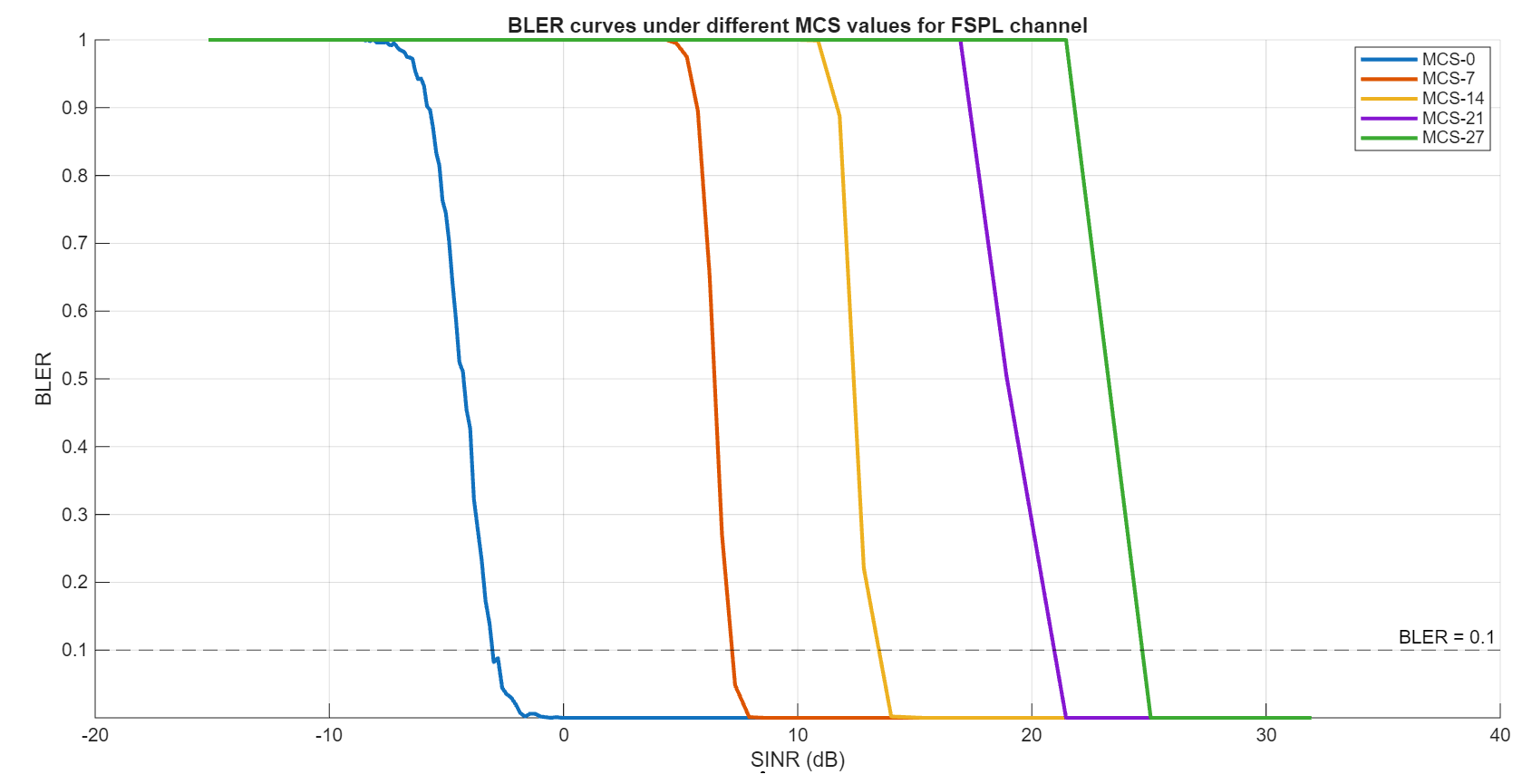
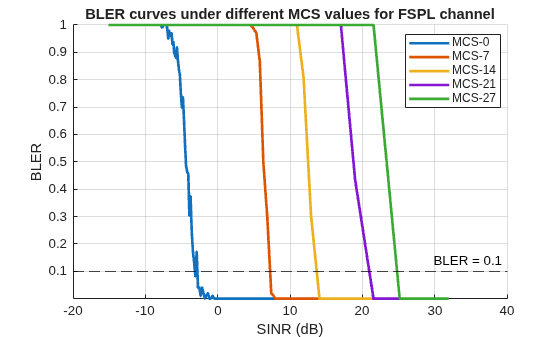
This example reproduces BLER curves using the free space path loss (FSPL) channel with an abstract PHY model. The figure shows the BLER versus SINR results obtained with the number of frames numFrames set to 100. You can produce similar results by adjusting numFrames in the example script.
%%Parameter Sweep Simulation for BLER vs SINR
% This script demonstrates how to perform a parameter sweep using parallel
% simulations. It evaluates the BLER as a function of SINR for different
% MCS indices in a 5G scenario.
%
% The script also compares the execution time of parallel and serial
% simulations for the parameter sweep.

% Initialize parameters
mcsList = [0; 7; 14; 21; 27]; % From 3GPP TS 38.214, table 5.1.3.1-2: MCS Index table 2 for PDSCH
numFrames = 10;               % Simulation time in terms of number of frames
numUEs = 200;                 % Number of UEs in simulation
ueDistance = 300;             % The distance between UEs in meters

% Collect per-MCS BLER/SINR vectors in parallel
nMCS = numel(mcsList);
blerPar = cell(nMCS,1);
sinrPar = cell(nMCS,1);

% The parfor loop uses the Parallel Computing Toolbox to run
% simulations in parallel. If this toolbox is not available, the
% simulations execute serially.
tPar = tic;
parfor i = 1:nMCS
    mcsValue = mcsList(i);
    eventsFileName = "eventlogs_" + i;
    [bVals,sVals] = simulate5GDownlinkMCS(mcsValue,numFrames,numUEs,ueDistance,eventsFileName);

    % Store column vectors
    blerPar{i} = bVals(:);
    sinrPar{i} = sVals(:);
end
tPar = toc(tPar);

% Plot BLER vs SINR using parallel results
figure
hold on
grid on
colors = lines(nMCS);
epsBLER = 1e-6; % Minimum value to avoid zeros on log scale
for i = 1:nMCS
    sinrValues = sinrPar{i};
    blerValues = blerPar{i};
    blerValues = max(blerValues,epsBLER);  % Avoid zeros on log scale
    semilogy(sinrValues,blerValues,'-',Color=colors(i,:),LineWidth=2);
end

yline(0.1, "--k","BLER = 0.1")
xlabel("SINR (dB)")
ylabel("BLER")
ylim([epsBLER 1])
title("BLER curves under different MCS values for FSPL channel")
legend(arrayfun(@(x) sprintf("MCS-%d",x),mcsList,UniformOutput=false),Location="best")
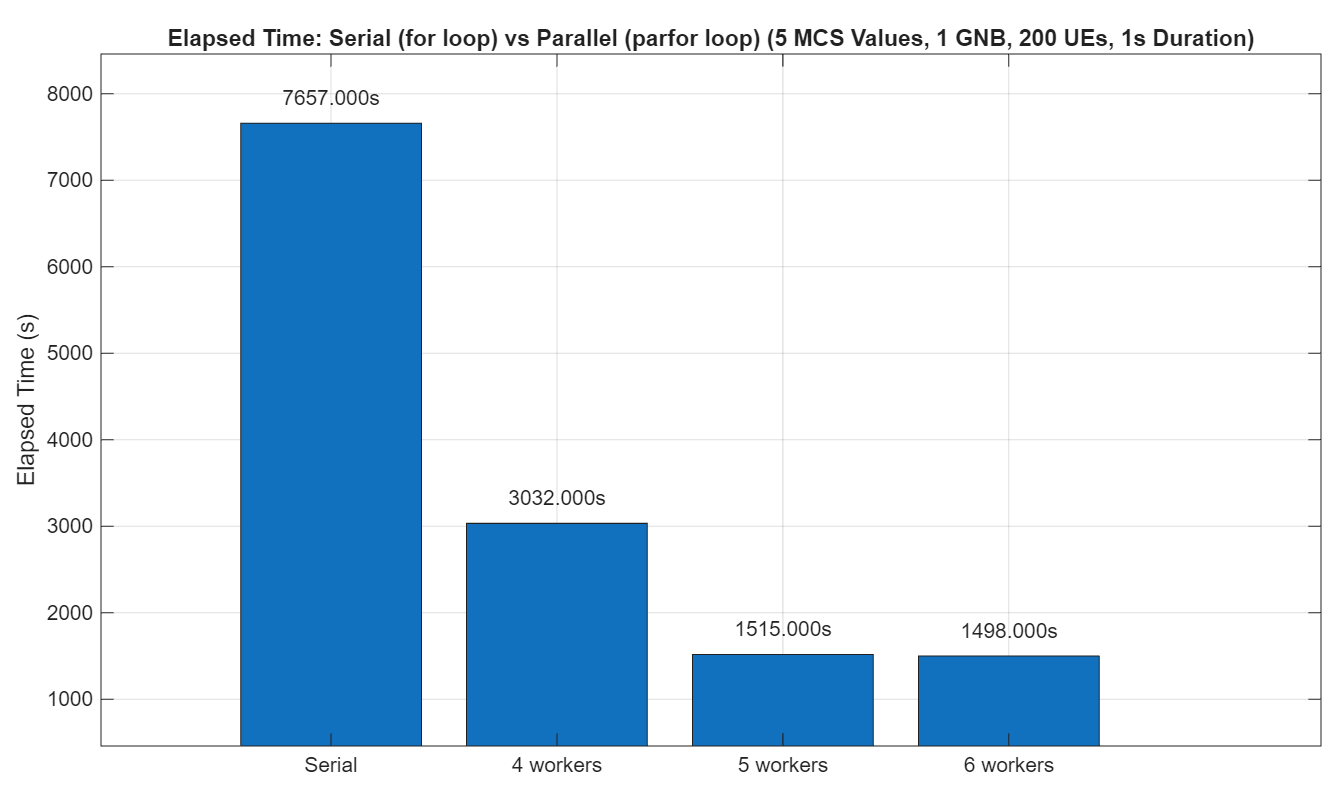
This figure shows the elapsed time taken to complete the simulations when run serially (for loop) and in parallel (parfor loop). Parallel execution significantly reduces the runtime for large parameter sweeps or Monte Carlo simulations. This example runs five parallel simulations, using up to five workers. Running a larger number of parallel simulations benefits from additional CPU cores. Cloud services such as AWS provide the necessary resources for such scalability.
Upload or Download Simulation Results
After running your 5G SLS in MATLAB, you can save the results to Amazon S3 for secure, persistent storage. This enables you to access your data even after your EC2 instance has stopped or been terminated.
To upload results from your EC2 instance to S3, uncomment and run this code, replacing /home/ubuntu/folder with your local directory path and s3://your-s3-bucket/folder with the path to your S3 bucket and folder:
% !aws s3 cp /home/ubuntu/folder s3://your-s3-bucket/folder --recursiveTo download results from your S3 to EC2 instance, uncomment and run this code, replacing /home/ubuntu/folder with your local directory path and s3://your-s3-bucket/folder with the path to your S3 bucket and folder:
% !aws s3 cp s3://your-s3-bucket/folder /home/ubuntu/folder --recursiveNote: Replace /home/ubuntu/folder with your local directory path, and s3://your-s3-bucket/folder with your actual S3 bucket and folder path.
Your results remain securely stored in S3, so you can access or download them at any time. This ensures persistent storage and makes sharing or post-processing easy.
Delete Your Cloud Resources
Once you finish using your stack, delete all resources to avoid additional costs. To delete the stack, follow these steps:
Log in to the AWS Console.
Go to the AWS CloudFormation page and select the stack you created.
Click the Delete button.
Local Functions
function [blerVals,sinrVals] = simulate5GDownlinkMCS(mcsValue,numFrames,numUEs,ueDistance,fName)
%simulate5GDownlinkMCS Simulate a downlink 5G scenario for a fixed MCS
%   Runs a simple downlink (DL) only 5G network simulation. The scheduler
%   configures a fixed DL MCS without retransmission. This function
%   returns per-UE BLER and average SINR over the physical downlink shared
%   channel (PDSCH) receptions.

% Initialize network simulator
networkSimulator = wirelessNetworkSimulator.init;

% Create gNB object with specified parameters
gNB = nrGNB(Position=[30 0 30],ReceiveGain=0,TransmitPower=29,DuplexMode="FDD", ...
    ChannelBandwidth=50e6,SubcarrierSpacing=15e3,SRSPeriodicityUE=2560,NumResourceBlocks=200);

% Configure scheduler with fixed MCS and no retransmission. The value of
% RVSequence is a scalar for this reason.
configureScheduler(gNB,FixedMCSIndexDL=mcsValue,RVSequence=0,MaxNumUsersPerTTI=numUEs)

% Generate UE positions along the x-axis and create UE objects. Place UEs
% on a line starting at x = 10 m, spaced by ueDistance (m), keeping y and z
% coordinates at 0.
positions = zeros(numUEs,3);
xPositions = 10 + (0:(numUEs-1))*ueDistance;
positions(:, 1) = xPositions(:);

% Create nrUE objects with the specified parameters
ues = nrUE(Position=positions,ReceiveGain=0,TransmitPower=18);

% Connect UEs to gNB
connectUE(gNB,ues,FullBufferTraffic="DL")

% Add nodes to the network simulator
addNodes(networkSimulator,gNB)
addNodes(networkSimulator,ues)

% Add event tracer to log ReceptionEnded events to compute SINR
eventLogger = wirelessNetworkEventTracer(FileName=fName);
addNodes(eventLogger,ues,EventName="ReceptionEnded")

% Run the simulator
run(networkSimulator,numFrames*1e-2)

% Extract PHY metrics and compute BLER per UE
ueStats = statistics(ues);
phyStats = [ueStats.PHY];
nFailDL = [phyStats.DecodeFailures];
nPktDL = [phyStats.ReceivedPackets];
blerVals = nFailDL./max(nPktDL,1);   % Avoid Inf
blerVals(nPktDL==0) = NaN;           % Set to NaN where no packets

% Compute SINR per UE
events = read(eventLogger);
if isempty(events)
    sinrVals = nan(numUEs,1);
    return;
end
ed = [events.EventData];
pdschIdx = [ed.SignalType]=="PDSCH";   % Look for PDSCH receptions
sinrs = [ed(pdschIdx).SINR];

% Compute mean SINR per UE. Not all UEs may be scheduled in every slot, so
% use accumarray to group SINR values by UE index and average them.
nodeIDs = [events.NodeID];
ueIdx = nodeIDs(pdschIdx) - 1;  % UE NodeIDs start at 2 (gNB is node 1)
sinrVals = accumarray(ueIdx(:), sinrs(:), [numUEs 1], @mean, NaN);
end

