Configure Project for Static Analysis in Polyspace Platform User Interface
R2026bThe Polyspace Platform user interface allows you to author functional tests for C/C++ code, or check C/C++ code for bugs or run-time errors using static code analysis. Before you begin test authoring or code analysis, you have to specify additional information. For example:
To build and run a test, you must specify a target, a compiler, and related information such as compiler flags, include paths and defines.
To check C/C++ code for bugs, you first have to specify the defects and coding standards that Polyspace checks for.
The information required for building and executing tests or running a static analysis comes from your project configuration. A Polyspace® Platform project configuration consists of these sets of options:
Project-specific configuration — Project-wide options
Build configuration — Options that specify how to build your code and tests
Static analysis configuration — Options specific to static analyses
Testing and profiling configuration — Options that specify how to test and profile your code
You can specify sets of distinct build, testing, and static analysis
configurations. These sets are configuration variants. A Polyspace Platform project supports multiple variants of build, testing, and static
analysis configurations. For each configuration variant, you can choose whether it is
part of the project (saved in the .psprjx file) or is saved in an
external configuration file (.pscfg or
.toml.pscfg) that is referenced by the project. Using external
configurations can improve version-control workflows by allowing you to modularize your
project and share single-sourced build, static analysis, and testing configurations
across similar projects. You cannot create variants for the project-specific
configuration options. The project options apply to all configuration variants and are
always saved in the .psprjx project file.
Set Up Configuration
To open your configuration, on the Projects pane, double-click the Configuration node of your project.
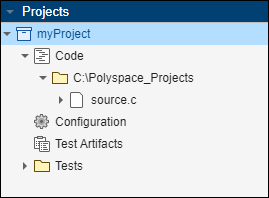
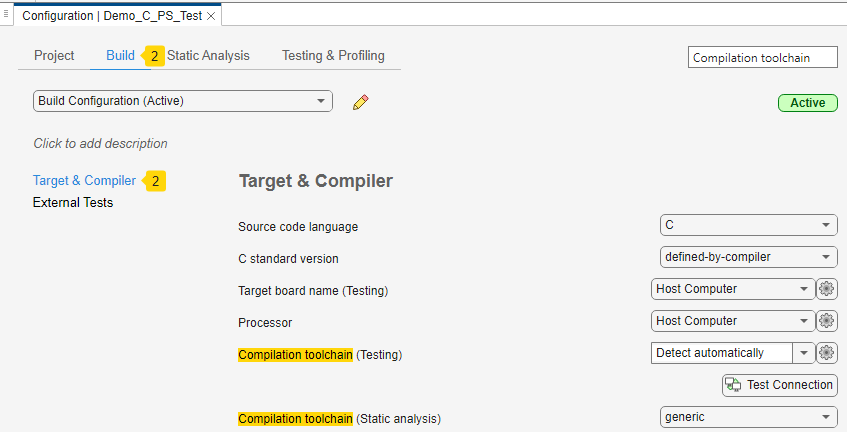
The configuration opens on a separate Configuration pane. The Configuration pane contains these tabs:
Project — The options on this tab include various options that apply to the entire project. These options are relevant to both static analysis and dynamic testing. You cannot create variants for these options.
For more information on the options, see Code Prover Analysis in Polyspace Platform User Interface .
Build — The options on this tab cover both static analysis and dynamic testing.
Only a subset of the options on the Target and Compiler node apply to Polyspace Test™. The remaining options on this and other nodes apply only to the static analysis tools, Polyspace Bug Finder™ and Polyspace Code Prover™.
For more information on the options, see Polyspace Code Prover Options in Polyspace Platform User Interface Test Execution in Polyspace Platform User Interface (Polyspace Test).
Static Analysis — The options on this tab apply only to Polyspace Bug Finder and Polyspace Code Prover. For more information on these options, see Configuration.
Testing and Profiling — The options on this tab apply only to Polyspace Test. Using these options, you can specify certain aspects of testing and profiling such as code coverage metrics and folders to exclude from profiling. For more information, see Code Profiling in Polyspace Platform User Interface (Polyspace Test).
You can also find individual options on the Configuration pane through search if you know the option name. For instance, if you search for the term Compilation toolchain, you can find two matches on the Build tab corresponding to these two options:
Compilation toolchain (Static analysis)
Compilation toolchain (Testing)
Note that you can search for options on the Static Analysis Tab by their command-line name in addition to the name that appears in the user interface. For instance, you can search for the option Constraint setup by its command-line equivalent -data-range-specifications. For more information on this option, see Constraint setup (-data-range-specifications).
Once you locate an option, you can use contextual help to find more information about an option. Hover on the option to see a tooltip describing the option or click More Help in the tooltip to open the documentation for the option.
Create Configuration Variants
You can create multiple configuration variants for build, testing, or static analysis options for specific goals and switch between them within the same project. For example, you can create different configuration variants to use different compilers, or to check for different code coverage metrics.
To create new configuration variants in your project:
Open your project configuration.
On the Polyspace Platform toolstrip, click New.
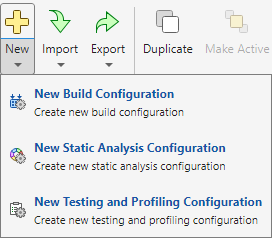
Select the type of configuration variant you want to create. For example, select New Build Configuration to create a build configuration variant.
Set options as needed. For example, set Compilation toolchain (testing) as
MinGW64| CMake/Ninja (64-bit Windows)and select Enable portable word sizes.Click
 to rename the configuration variant.
Instead of creating a configuration variant from scratch, you can also duplicate an existing configuration variant:
Select the configuration variant that you want to duplicate.

Select Duplicate on the toolstrip.
To remove a configuration variant, select the variant and then select Delete on the toolstrip.
Switch Between Configuration Variants
Once you have more than one configuration variant in or referenced by your project, you can switch between active variants. To switch to a different configuration variant:
Select the variant using the drop-down lists in the configuration tabs.
To use the selected variant as part of the active configuration, select Make Active on the toolstrip.
The configuration variant that is currently active has a green Active badge on the top right. All other variants have a gray Inactive badge in the same location. External configurations that are saved in a native .pscfg file have a blue External badge. Because you cannot edit TOML external configuration files (.toml.pscfg) in the user interface, they appear with the blue External badge as well as a blue TOML (Read-Only) badge.
Share and Reuse Configuration Variants
There are two ways to share or reuse configuration variants across projects:
To share a single-sourced configuration variant across similar projects, use external configurations. An external configuration is a build, static analysis, or testing and profiling configuration that you save in an external configuration file and link to one or more projects by reference. To use the shared configuration in another project, import the file as an external configuration. When you make changes to that external configuration file, all projects that reference it inherit those changes.
To reuse a copy of a configuration variant, export a copy of the configuration to a file and then import a copy of that file into another project. In this workflow, the imported configuration is saved as a part of the
.psprjxproject file. Any modifications you make to the configuration variant in one project do not impact other projects.
Choose How to Store Configuration Variants
By default, all configurations are owned by the project and saved as part of the
.psprjx project file. When you decide to save a configuration in an
external file, you choose between the native JSON-based format (.pscfg) and
the human-readable TOML format
(.toml.pscfg). The format you choose determines how you edit the
configuration and how it behaves in version control workflows.
Project Owned (default) | External Native Format
( | External TOML Format
( | |
|---|---|---|---|
| Storage | Inside the .psprjx project file | Separate file on disk (.pscfg) | Separate file on disk (.toml.pscfg) |
| Shareable by reference | No | Yes | Yes |
| Editable in user interface | Yes | Yes | No. Can only be viewed. |
| Editable in text editor | No | Not recommended | Yes (primary editing method) |
| Version control diffs | JSON via project file — noisy diffs due to internal identifiers and full
project content. Difficult to merge. Use | JSON — noisy diffs due to internal identifiers. Difficult to merge. Use
| TOML — Simple, human-readable diffs. Easy to merge in any text-based tool. |
| Comments allowed | No | No | Yes (standard TOML # comments) |
In a continuous integration workflow, submit external configuration files to a version
control system as you would with other text files. The TOML format (.toml.pscfg) is particularly well-suited for
version control workflows because it uses descriptive key names, supports comments, and does
not include internal identifiers that produce noise in diffs. Before submission, you can
compare and merge TOML configuration files using any text-based tool. To compare and merge
native-format external configuration files, use the diff/merge tool. For more information, see
polyspace-project -diff, polyspace-project -merge
You can convert between formats at any time. Both external formats are functionally equivalent — the same analysis options and values are available regardless of format.
Use External Configurations to Share Single-Sourced Configuration Variants
By default, when you create a new configuration variant in the Polyspace Platform user interface, it is saved in the
.psprjx project file. To modularize, or separate your
project into multiple files, convert your configurations to external files that
you can reference from one or more projects.
Convert Configuration to External Configuration. To convert a build configuration variant to an external configuration:
Open your project configuration, navigate to the Build tab and select the configuration you want to convert. On the Polyspace Platform toolstrip, click Convert.
Note that build configurations created from a build command (using
polyspace-configure) and build or static analysis configurations created from Polyspace for AUTOSAR workspaces cannot be converted to external configurations. If you need to save a copy of one of these configurations, export a copy to a.pscfgor.toml.pscfgfile. For more information, see Import and Export Copies of Configuration Variants.Choose a filename and location for the external configuration file. In the Save as type drop-down, select the format:
Polyspace Native Configuration (*.pscfg) — Native format. Editable in the user interface.
Polyspace TOML Full Configuration (*.toml.pscfg) — Human-readable TOML format that includes all configuration settings, including those set to their default values. Best for understanding and modifying the configuration in a text editor. Recommended for initial adoption. Not editable in the user interface.
Polyspace TOML Concise Configuration (*.toml.pscfg) — Human-readable TOML format that includes only configuration options set to non-default values. Best for mature workflows where you want to reduce noise in file diffs. Not editable in the user interface.
Click Save.
In the Configuration pane, a new blue External badge appears to let you know that this is an external configuration file referenced by the project. Below the configuration name, you see the name of the configuration file, as well as buttons to copy the file path and show the file in Explorer.

To make the converted configuration the active configuration, click Make Active in the toolstrip. Save the project to save the reference to the external configuration file.
Edit Native External Configuration. To edit a native (.pscfg) external configuration, on the Configuration tab of the toolstrip, in the Config Reference section, click Edit. Make any necessary changes to the configuration. When you are done, click Save on the Configuration tab of the toolstrip to save your changes in the referenced .pscfg file. You can then leave editing mode by clicking Edit again. Alternatively, to save the project and all referenced configuration and graphical test files, on the Project tab of the toolstrip, select Save All.
If you are referencing the external configuration from multiple projects, changes are reflected the next time you open the configuration in those projects.
Edit TOML Configuration Files. TOML configuration files (.toml.pscfg) are read-only in the
Polyspace Platform user interface — you cannot edit or save them from the user
interface. Instead, edit TOML configuration files in a text editor and then refresh the
configuration in the Polyspace Platform user interface to load your changes. TOML (Tom's Obvious Minimal
Language) is a configuration file format designed to be easy to read and write. For the
full specification, see toml.io.
To edit a TOML configuration file that you are viewing in the user interface:
Locate the file on disk. In the Configuration pane, click Copy Path or Show in Explorer.
Open the
.toml.pscfgfile in a text editor and make your changes. TOML key names match the Polyspace Python® API property names for the corresponding configuration class. Enumeration values are uppercase strings with underscores replacing spaces or dashes.Save the file in your text editor.
Return to the Polyspace Platform user interface. On the Configuration tab of the toolstrip, click Refresh to reload the updated configuration file.
If errors are reported, fix them in your text editor and click Refresh again in the Polyspace Platform user interface.
Because TOML is a human-readable text format, you can compare and merge
.toml.pscfg files using any text-based diff or merge tool (such as
those built into your source control system or IDE). The polyspace-project
-diff and polyspace-project -merge commands do not support
.toml.pscfg files.
When you edit a TOML configuration file:
Use the key names exactly as they appear in the file. Key names match the Polyspace Python API property names for the corresponding configuration class.
Enumeration values are uppercase strings with underscores replacing spaces or dashes. For example,
"X86_64"or"VISUAL_12_0".The
Typekey at the top of the file is mandatory and must be one of:"BUILD_CONFIG","STATIC_ANALYSIS_CONFIG", or"TEST_CONFIG".If a key is not listed in the TOML file, Polyspace uses the default value for that key.
The ordering of keys and tables is not significant. You can reorganize the file without affecting functionality. However, preserving the default order simplifies future file comparisons.
Any comments that you add in the TOML configuration file do not appear in the user interface.
For annotated templates showing all available keys, along with default and possible values, see Create TOML Configuration Files from Templates.
Import External Configuration. Once you have a configuration saved in an external configuration file (.pscfg or .toml.pscfg), you can reference it from other projects. For example, to import an external build configuration by reference:
Open the project from which you want to reference an external configuration file. Then, open the configuration for that project.
On the Configuration tab of the Polyspace Platform toolstrip, click Import > Import as External Configuration.
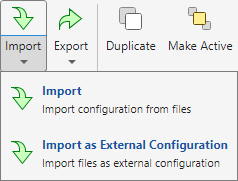
Use the file browser to find and select the configuration files (
.pscfgor.toml.pscfg) you want to import by reference and click Open.In your project configuration, navigate to the Build tab. The external build configuration you imported appears in the drop-down list. To make that external configuration active, select it from the list and click Make Active in the Configuration tab of the toolstrip.
Save the project to save the new reference to the external configuration file.
Import and Export Copies of Configuration Variants
To reuse a copy of a configuration variant across projects, export a copy of the
configuration to a file and then import a copy into another project. Importing a copy of a
configuration variant allows you to use similar or identical build, static analysis, or
testing configurations in multiple projects. Exporting a copy of a configuration to a file
allows you to compare different versions of a configuration as text files. To compare files
more easily, export your configurations to the human-readable TOML format
(.toml.pscfg) and use any standard text-based diff or merge tool. To
compare native-format external configuration files or Polyspace Platform project files, see Compare and Merge Polyspace Platform Projects and Configurations Before Submission to Source Control (Polyspace Test).
Export Copy of Configuration Variant. To export a copy of a specific configuration variant from your project:
Open your project configuration.
Navigate to the tab from which you want to export the configuration:
Build — Export a build configuration variant
Static Analysis — Export a static analysis configuration variant
Testing and Profiling — Export a testing and profiling configuration variant
On the Polyspace Platform toolstrip, click Export to export a copy of the currently selected configuration.
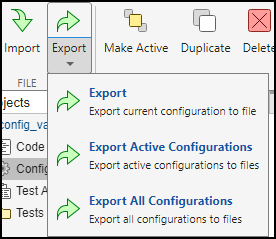
Specify a filename and location. In the Save as type drop-down, select the format (
.pscfg,.toml.pscfgTOML Full, or.toml.pscfgTOML Concise) and click Save.
To export a copy of all active configurations, select Export Active Configurations. Alternatively, you can export copies of all configuration variants in your project by selecting Export All Configurations.
When you export a copy of a build configuration created from a build command (using
polyspace-configure) or from Polyspace for AUTOSAR workspaces, the export removes autogenerated options such as file-specific
compiler options. The exported copy contains only options that you can set manually.
Import Copy of Configuration Variant. To import a copy of one or more configuration variants into your project, click Import and select one or more Polyspace configuration files (.pscfg or .toml.pscfg). This imports a copy of all the configurations you select and saves those copies in the .psprjx project file. To use one of the imported configuration variants, select it from the drop-down list and click Make Active in the toolstrip.
To import a configuration variant by referencing an external configuration file, see Import External Configuration.
Create TOML Configuration Files from Templates
To create a TOML configuration file that contains all available keys, you can export any build, static analysis, or testing and profiling configuration to the TOML full format from the Polyspace Platform user interface or the Python API. Alternatively, to create a TOML file that also contains comments describing the default and possible values for each key in the configuration, copy the following templates. Save each file with the .toml.pscfg extension, and edit the options as needed.
See Also
Topics
- Polyspace Bug Finder Options in Polyspace Platform User Interface
- Polyspace Code Prover Options in Polyspace Platform User Interface
- Create Easily Shareable Projects for Version Control
- Submit Polyspace Files to Version Control
- Compare and Merge Polyspace Platform Projects and Configurations Before Submission to Source Control (Polyspace Test)

