Configure Code Generation Settings and Generate Code
R2026bTo generate standalone code or an accelerated MEX function that meets the needs of your application, you can change the settings of the code generator. Use these settings to specify the type of code to generate and the language to use. You can also specify other customizations, such as the location of the generated code, which target-specific optimizations to use, and whether to include comments in the generated code.
In this step of the tutorial, you modify the default code generation settings to generate a C++ dynamic linked library.
To create the project file and specify the type of the input argument to the collatz function, follow the previous steps in this tutorial. Alternatively, run the script collatz_step4.m.
Modify Code Generation Settings
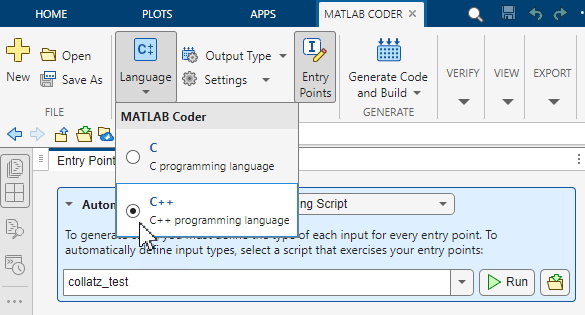
In the MATLAB Coder tab, the Prepare section contains controls that you can use to configure the code generator. To change the language of the generated code, click the Language button. To generate C++ code, select the C++ option.
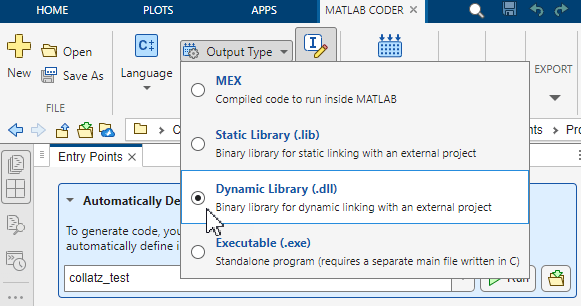
To change the type of output produced by the code generator, click the Output Type button. To generate a dynamic linked library, select the Dynamic Library (.dll) option.
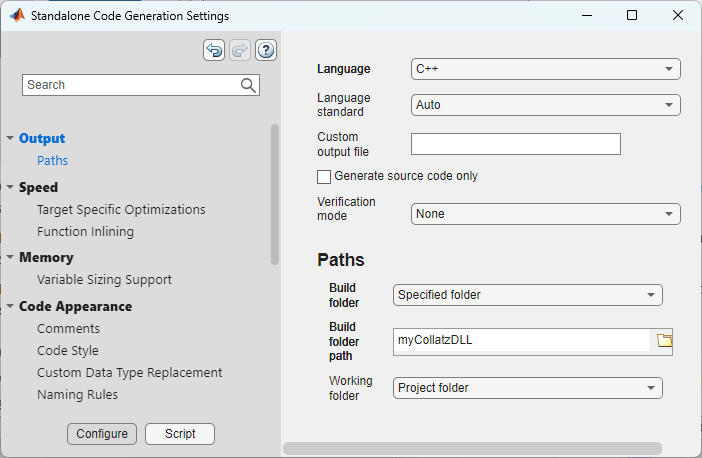
Click the Settings button. The Standalone Code Generation Settings dialog box opens. You can use this dialog box to control the appearance and function of the generated code.
In the left pane of the dialog box, click Output. In the Paths section, set the Build folder parameter to Specified folder. For this example, in the Build folder path box, enter myCollatzDLL. Close the dialog box.
When you generate standalone code, the available code configuration settings are different than when you generate a MEX function. When you switch between a MEX function and any of the other output types, verify your non-default code generation settings.
Generate C++ DLL Code
When you generate code by using the app, you must choose to generate only the source code or to generate and build the generated code. When you choose to build the generated code, the code generator runs the make command and generates compiled object code. By default, the app generates source code only when you generate a static library. When you generate an accelerated MEX function, a dynamic linked library, or an executable, the app generates and builds the code by default.
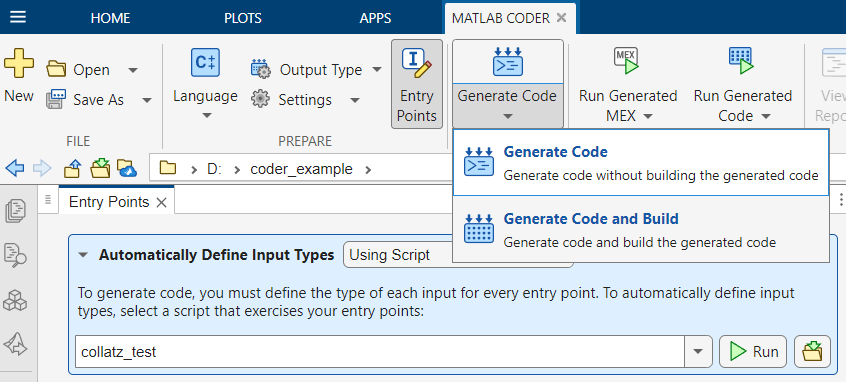
In the MATLAB Coder tab, the Generate section shows the default generation mode for the output type you select. In this example, you generate a dynamic linked library but do not build the code. Click Generate Code and Build > Generate Code. The code generator creates the folder myCollatzDLL and generates the C++ source code in that folder.
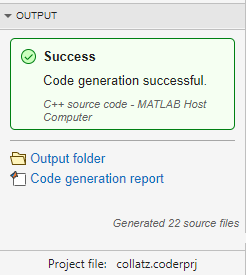
In the MATLAB Coder panel, the Output section indicates that code generation succeeds and displays links to the generated code output folder and the code generation report.
Examine Generated Code
Examine the generated code by using the code generation report. For more information about the code generation report, see Code Generation Reports.
To open the code generation report, click Code generation report in the Output section of the MATLAB Coder panel. The MATLAB Coder Report Viewer opens. In the Generated Code panel, click collatz.cpp.
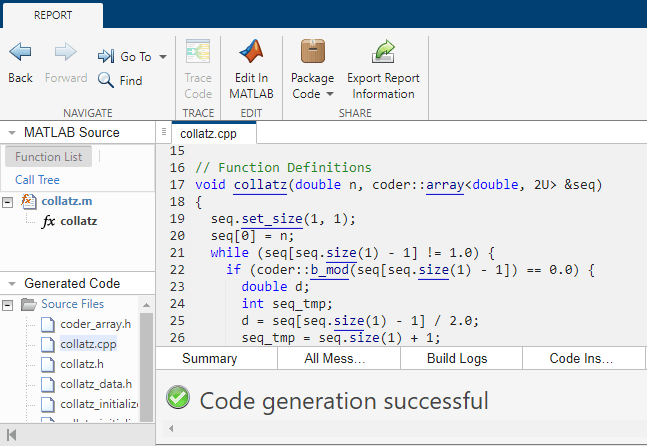
The generated C++ function looks different from the original MATLAB function. To learn more, see Differences in Appearance of Generated Code and MATLAB Code.
The generated C++ function signature contains:
double n, which corresponds to the input argumentnin your MATLAB code. This variable is a scalar double, which corresponds to the size ofnthat you specified in a previous step of this tutorial.coder::array<double, 2U> &seq, which corresponds to the output variableseqin your MATLAB code. The generated code uses thecoder::arrayclass template to specify a 2-dimensional array of doubles, where the first dimension has a size of 1 and the second dimension is unbounded. The ampersand (&) indicates that the generated code passes this output by reference.
Next, if you have Embedded Coder, you verify the generated code by using software-in-the-loop (SIL) or processor-in-the-loop (PIL) execution. If you do not have Embedded Coder, skip to the final step in this tutorial, Optimize and Deploy Generated Code.

