Deploy Direction of Arrival Estimation Using a PyTorch Model on Raspberry Pi
R2026bThis example shows how to deploy a pretrained PyTorch® model for direction of arrival (DOA) estimation on a Raspberry Pi® using Simulink® in External Mode simulation. The example demonstrates the interoperability between MATLAB®, PyTorch, and Simulink by importing a PyTorch model into MATLAB and deploying it to embedded hardware without any retraining.
For more information on the fundamentals of DOA estimation using deep learning, see the following examples:
Load the Pretrained PyTorch Model
This example uses a DOA estimation network that was exported to the PyTorch ExportedProgram format (.pt2). For more information on the trained network used in this example, see Deploy Direction of Arrival Estimation Using Deep Learning on Desktop. The network is a CNN that takes an 8-by-8-by-2 covariance matrix and outputs a probability vector over 181 angles (–90° to 90°). For more information on exporting PyTorch models for code generation, see Prepare PyTorch Models for MATLAB and Simulink Code Generation (MATLAB Coder).
Download the trained PyTorch model and load it in MATLAB using loadPyTorchExportedProgram (MATLAB Coder) from the Code Generation for PyTorch and LiteRT Models (MATLAB Coder).
if exist("DOAPyTorchNetwork.pt2","file") ~= 2 %#ok<*UNRCH>
    zipFile=matlab.internal.examples.downloadSupportFile("DSP/data","DeepDOAEstimatorPyTorch.zip");
    unzip(zipFile,tempdir)
    movefile(fullfile(tempdir, "DeepDOAEstimatorPyTorch", "DOAPyTorchNetwork.pt2"), cd);
end
ptModel = loadPyTorchExportedProgram('DOAPyTorchNetwork.pt2');
Loading the model. This may take a few minutes.
Verify the model by running a sample prediction. The PyTorch model expects input in NCHW format [batch channels height width], so permute the covariance matrix accordingly.
x = single(rand(8,8,2));
y = invoke(ptModel, permute(x, [4 3 1 2]));
disp("Model output size: " + num2str(size(y)))
Model output size: 1 181
Simulink Model
Open the top-level Simulink model. This model simulates the transmit-receive chain, feeds the resulting covariance matrix to the referenced inference model, and displays the DOA probability spectrum.
topMdl = 'DOAEstimationPyTorchTopModel';
open_system(topMdl)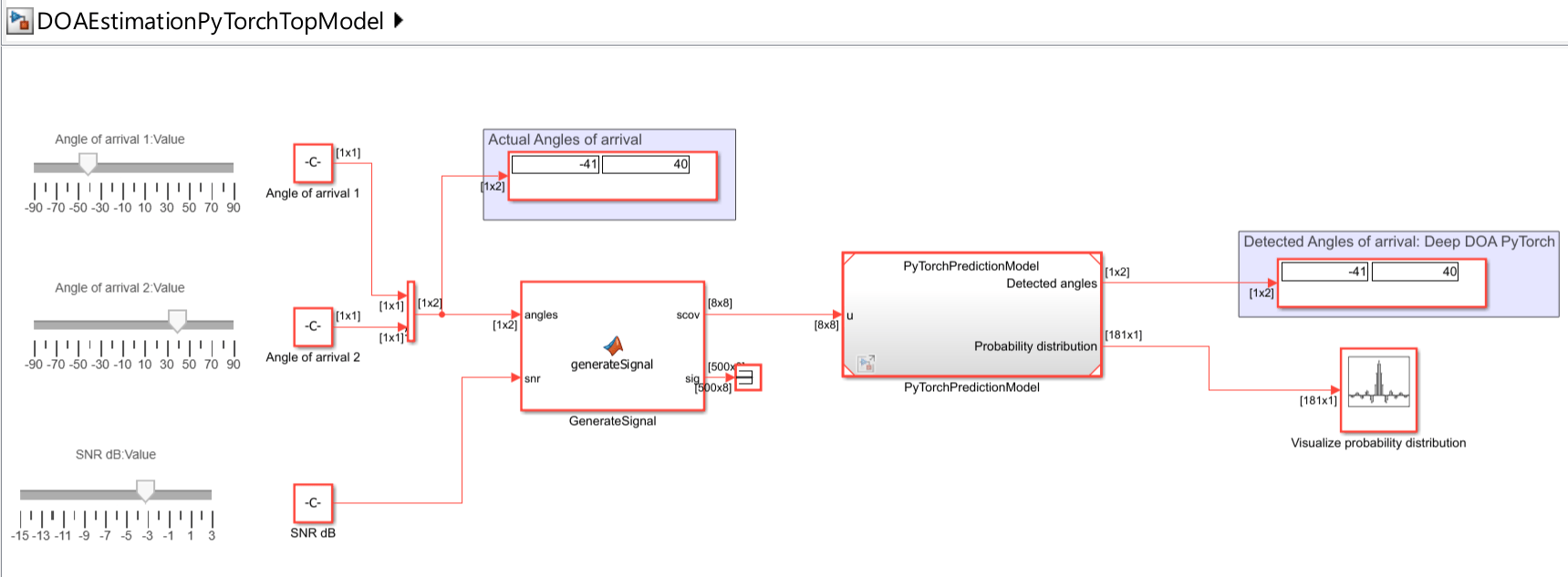
Open the referenced model. This model performs inference using the PyTorch ExportedProgram (MATLAB Coder) block, and outputs a 181-element probability vector over the angle grid, along with the detected angles.
refMdl = 'PyTorchPredictionModel';
open_system(refMdl);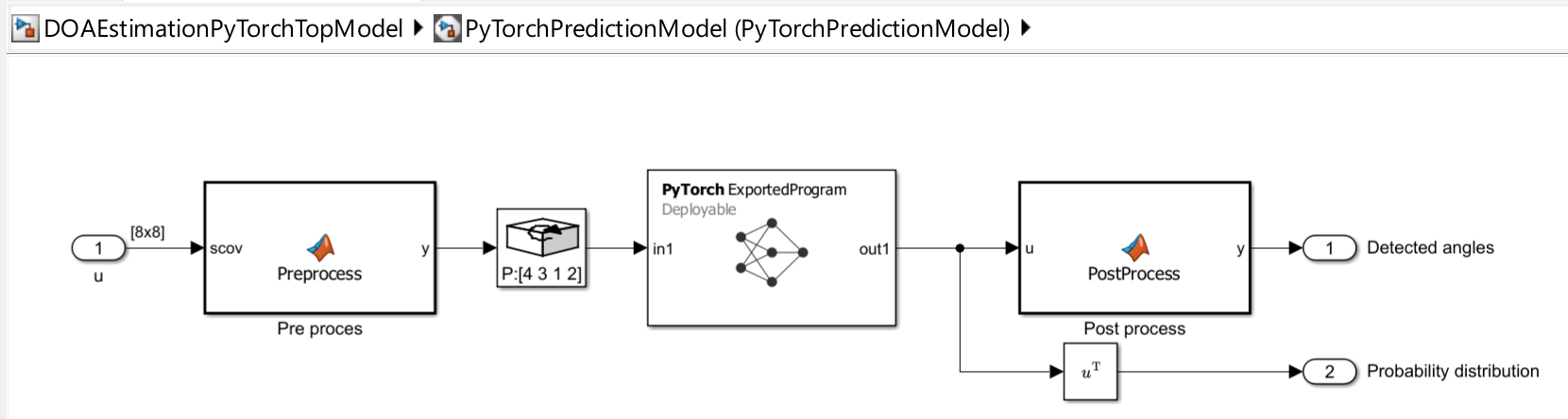
You can configure the referenced model interactively by using the Configuration Parameters dialog box from the Simulink model toolstrip, or programmatically by using the MATLAB command-line interface.
Configure Model Using UI
To configure a referenced Simulink model to generate code, complete these steps for both models DOAEstimationPyTorchTopModel and PyTorchPredictionModel:
Open the Simulink model. In the Modeling tab of the referenced model, click Model Settings to open the Configuration Parameters dialog box.
In the Hardware Implementation pane, set the Hardware board parameter to
Raspberry PiorRaspberry Pi (64 bit)based on your hardware device.In the Hardware board settings pane, expand Target hardware resources and select Board Parameters. Specify these parameter values:
Device Address – The IP address or host name of the hardware.
Username – Specify the root username of the Linux® system running on the hardware. The default username of the Raspbian Linux distribution is
pi.Password – Specify the root password of the Linux system running on the hardware. The default password of the Raspian Linux distribution is
raspberry.
In the Code Generation pane:
Set System target file to
ert.tlc.Set Language to
C.Set Build configuration to
Faster Runsto prioritize execution speed.In the Verification pane, check the Measure task execution time checkbox and set Measure function execution times to
Coarse (reference models and subsystems only).
Under Code Generation, in the Code Style pane, set Dynamic array container type to
coder::array.In the Simulation Target pane:
Enable Dynamic memory allocation in MATLAB functions.
Configure Model Using Programmatic Approach
Alternatively, you can set all the configurations using set_param commands.
Set the Hardware board parameter to Raspberry Pi or Raspberry Pi (64bit) based on your hardware device.
set_param(refMdl,'HardwareBoard','Raspberry Pi (64bit)')
set_param(topMdl,'HardwareBoard','Raspberry Pi (64bit)')
Set the parameters for code generation.
set_param(refMdl,'TargetLang','C')
set_param(refMdl,'SystemTargetFile','ert.tlc')
set_param(refMdl,'BuildConfiguration','Faster Runs')

set_param(topMdl,'TargetLang','C')
set_param(topMdl,'SystemTargetFile','ert.tlc')
set_param(topMdl,'BuildConfiguration','Faster Runs')
Enable dynamic memory allocation for MATLAB functions. Set the dynamic array container type to 'coder::array'. Enable code execution profiling.
set_param(refMdl,'MATLABDynamicMemAlloc','on')
set_param(refMdl,'DynamicArrayContainerType','coder::array')
set_param(refMdl,'CodeExecutionProfiling','on')

set_param(topMdl,'MATLABDynamicMemAlloc','on')
set_param(topMdl,'DynamicArrayContainerType','coder::array')
set_param(topMdl,'CodeExecutionProfiling','on')
Save and close the referenced models.
close_system(refMdl,1)
In the top model, set the Simulation mode parameter of the model reference block to 'Normal'.
set_param([topMdl '/' refMdl],'SimulationMode','Normal')
Run Simulink Model in External Mode
On the Hardware tab of the Simulink model, in the Mode section, select Run on board and then click Monitor & Tune.
The Array Plot block shows the probability distribution of DOA estimation using the PyTorch model, as well as the pseudospectrum from MUSIC DOA estimation. The display blocks also show the detected angles of arrival.
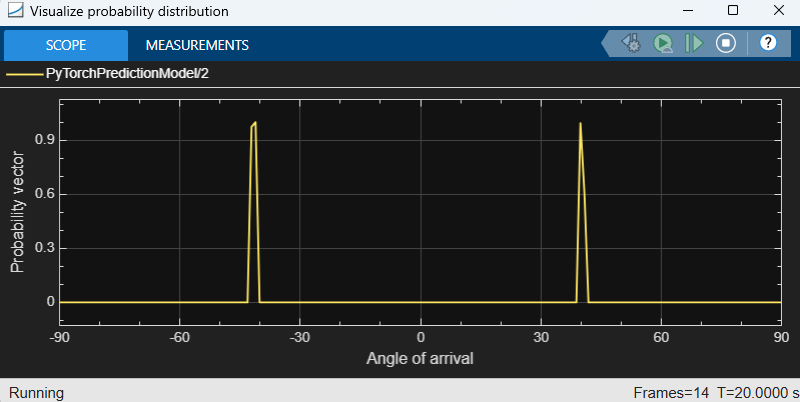
Profiling Results
In this example, the average execution time for the step function in the deep DOA detector is approximately 23 ms, well within the real-time budget for this application.

See Also
Topics
- Direction-of-Arrival Estimation Using Deep Learning
- Build and Deploy Your First Simulink Model to Raspberry Pi (Raspberry Pi Blockset)
- Compress Deep DOA Estimation Network Using Pruning and Projection
- Deploy Direction of Arrival Estimation Using Deep Learning on Desktop
- Deploy Direction of Arrival Estimation Using Deep Learning on Raspberry Pi

