更改 iLLD 版本
R2026b要在不重新安装支持包的情况下更改要使用的 iLLD 版本,请在安装程序中重新运行引导式设置向导。
通过点击主页选项卡的环境部分中的附加功能 > 管理附加功能打开“附加功能”面板。
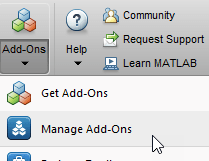
在“附加功能”面板中,转至已安装选项卡,检查 Embedded Coder® Support Package for Infineon® AURIX™ TC3x Microcontrollers。通过点击已安装支持包旁边的选项按钮
 来启动硬件设置过程,然后点击设置
  。
。导航到 Install iLLD 库窗口,并为 iLLD 安装选择操作。
Automatically download and install - 选择此选项以自动下载、安装和验证 iLLD。这将在
C:\ProgramData\MATLAB\SupportPackages\iLLD\TC3x\v1.21.0中配置 iLLD 库。点击 Install 开始安装过程。例如,下图显示 MATLAB 26.1 (R2026a) 的 iLLD 安装设置屏幕。

Manually download and install - 选择此选项以使用硬件设置屏幕中提供的安装链接手动下载并安装 iLLD 软件。
点击 Download 下载最新 iLLD 软件版本,解压缩 iLLD 文件夹,然后运行
iLLD-TC3xx.exe文件以开始安装过程。安装成功后,点击 Next 验证 iLLD 软件。对于未更改的选项,您可以跳过任何步骤。
在“硬件设置”窗口中,点击浏览按钮以指定 TC3x iLLD 安装文件夹的位置。
点击验证进行注册。例如,下图显示 MATLAB 26.1 (R2026a) 的 iLLD 验证窗口。
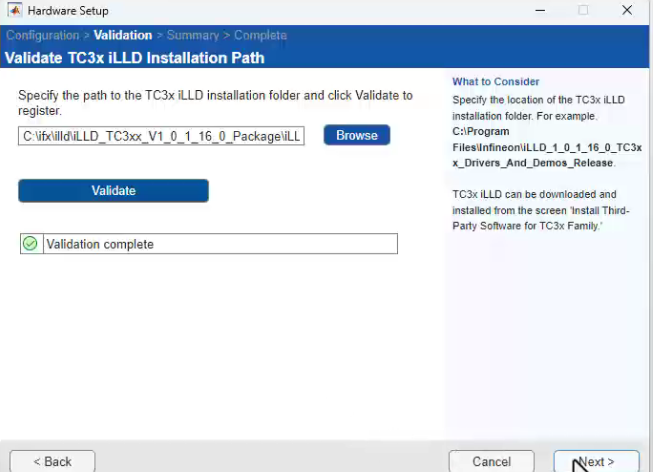
点击下一步查看第三方软件的摘要。
摘要窗口列出根据用户要求注册的所有第三方软件。该列表可能因用户已注册的第三方软件而异。
另请参阅
codertarget.aurix_target.setiLLDPrecompiledFolder() | 受支持的硬件和必需的软件 | 安装 Infineon AURIX 微控制器的支持程序 | Infineon AURIX 微控制器的硬件设置

