Model Configuration Parameters
R2026bModel configuration parameters control model behavior, simulation, code optimizations, interfaces, code style, build options, and other aspects of the generated code. When you create a new model, it contains the default configuration set that specifies the default values for the model configuration parameters. You can view and update the configuration parameters by following these steps.
Hardware Implementation Pane Overview
Default Hardware Implementation Pane
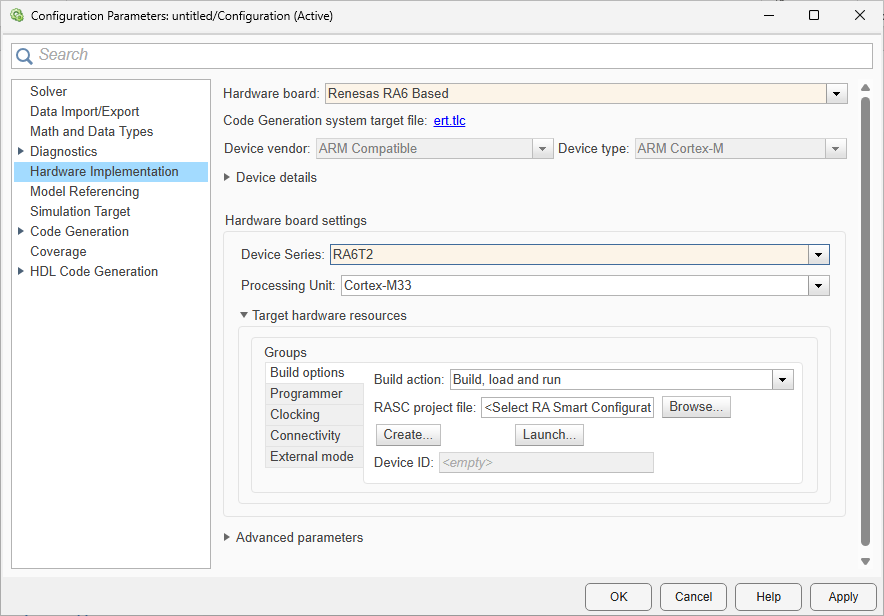
Configure hardware board to run Simulink® models.
In the Simulink Editor, select Modeling > Model Settings.
In the Configuration Parameter dialog box, click Hardware Implementation.
Set the Hardware board parameter to
Renesas RA6 Based.The parameter values under Hardware board settings are automatically populated to their default values.
You can optionally adjust these parameters for your particular use case.
To apply the changes, click Apply.
For more information on selecting a hardware support package and general configuration settings, see Hardware Implementation Pane.
Hardware Board Settings
| Parameter | Description | Default Value |
|---|---|---|
Select the device series for the Renesas RA6 hardware board. |
| |
| Select the processing unit for the device series. |
|
Build options
| Parameter | Description | Default Value |
|---|---|---|
Defines how Embedded Coder® responds when you build your model. |
| |
Select the RA Smart Configurator project file. |
| |
Browse to select the RASC project file. | ||
Create a RA Smart Configurator project for a Renesas RA6 Based hardware board. | ||
Click to launch RA Smart Configurator tool. | ||
Displays the device id. | <empty> |
Programmer
| Parameter | Description | Default Value |
|---|---|---|
Select the programming interface. |
| |
Automatically selects the hardware. |
| |
| Select the hardware. | ||
| Refreshes the list of available hardware. |
Clocking
| Parameter | Description | Default Value |
|---|---|---|
The CPU clock frequency in MHz. |
|
Connectivity
External Mode
| Parameter | Description | Default Value |
|---|---|---|
Sets the transport layer used to exchange data between host and hardware. |
| |
Sets to view external mode execution progress and updates. |
| |
Automatically set the number of bytes to preallocate for the buffer in the hardware during simulation. |
|
ADC
| Parameter | Description | Default Value |
|---|---|---|
Enable to configure the ADC sample-and-hold duration for individual channels. When selected, per-channel sample state count fields become available. |
| |
Specify the number of sampling clock cycles for the ADC sample-and-hold phase for each individual channel. A higher value increases sampling time, which can improve accuracy for high-impedance sources. |
| |
Specify the number of sampling clock cycles for channels 16 through 31 as a group. |
|

