Test Generated Code with PIL Simulations on Renesas RH850 Microcontrollers
R2026bThis example shows how to use the Embedded Coder ® Support Package for Renesas® RH850 Microcontrollers to generate code from Simulink models and perform Processor-in-the-Loop (PIL) simulations on the Renesas RH850 U2A board. You can leverage both the SIL/PIL Manager and command-line workflows for this process. PIL verification is a critical step to ensure that the generated code, when executed on actual hardware, replicates the behavior of your original Simulink design. For more details, see Choose a SIL or PIL Approach and SIL/PIL Manager.
During a PIL simulation, your algorithm runs directly on the Renesas hardware while the host computer manages simulation scheduling, generates input signals, and communicates with the controller via a serial interface. This configuration enables you to verify numerical equivalence between simulation and hardware execution, profile execution time, and monitor memory usage.
Prerequisites
Complete the Hardware Setup for Embedded Coder Support Package for Renesas RH850 Microcontrollers.
Go through SIL/PIL Manager documentation.
Required Hardware
Renesas RH850 U2A16 Starter kit (Y-ASK-RH850U2A)
USB type C cable
Renesas E2 emulator
Ribbon cable
20-Pin to 14-Pin conversion adapter
Power supply unit: 12V/1A
Hardware Connection
If you are using the Renesas RH850 U2A16 Starter Kit, make sure to enable the SW23-9 switch on the board. This step is essential for proper communication between the hardware and your host computer during PIL testing.
Configure the Simulink Model
Open the
PILCounter.slxSimulink model.
modelName = 'PILCounter.slx';
open_system(modelName)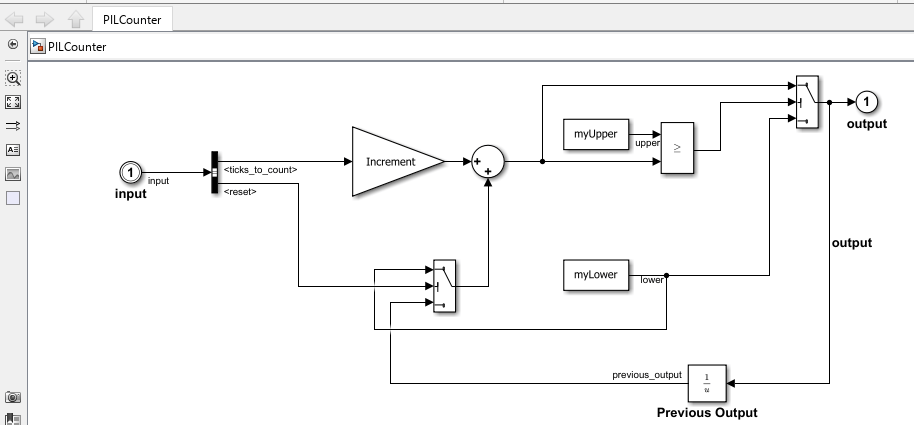
2. In the Simulink model, click Modeling > Model Settings to open the Configuration Parameters dialog box.
3. In the Configuration Parameters dialog box, navigate to Hardware Implementation > Hardware board and select Renesas RH850 U2A Based board.
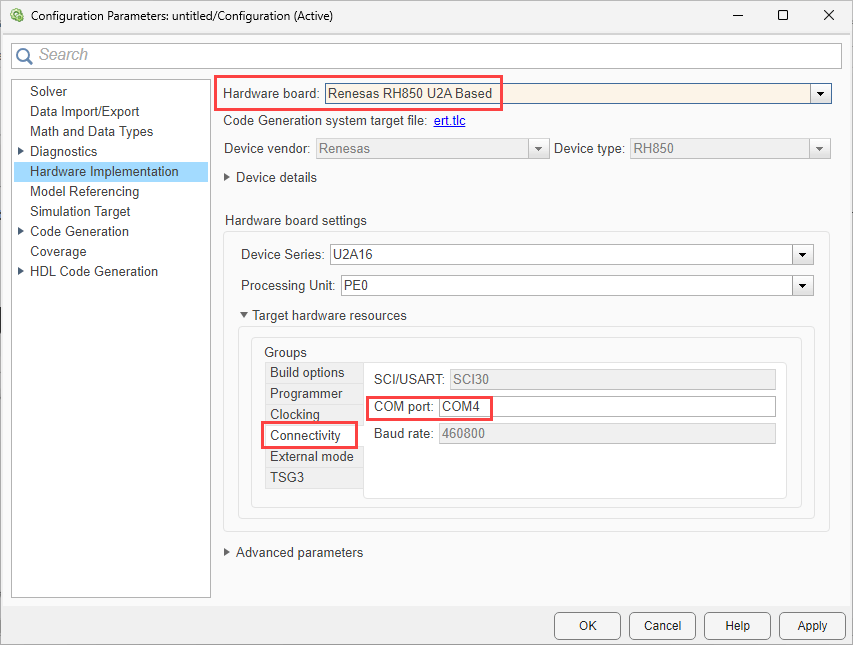
4. Navigate to Target hardware resources > Connectivity and enter the COM Port number. To find the COM port number, check the Device Manager on your PC.
Note: Ensure you provide a valid COM port. Using an invalid port may trigger a confusing error message, possibly including an error ID.
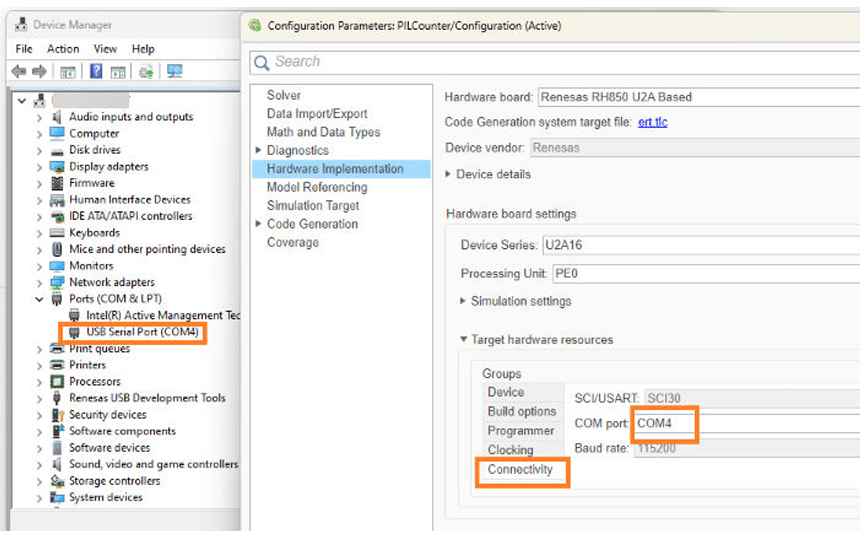
5. Click Apply and OK.
Verify Referenced Model Code Using PIL (SIL/PIL Manager Workflow)
The SIL/PIL Manager simplifies the process of simulating and verifying of generated code on your target with a single click. This example shows how to verify the generated code for a referenced model by running a PIL simulation.
With this approach:
You can verify code generated for referenced models.
You must provide a test harness model to supply test vectors or stimulus inputs.
You can easily switch a Model block between normal and PIL simulation mode.
To verify the reference model, perform these steps:
1. Open the PILModelBlock.slx model. This model contains referenced model block and stimulus inputs. You will configure the Model block to run in PIL mode.
modelName = 'PILModelBlock.slx';
open_system(modelName)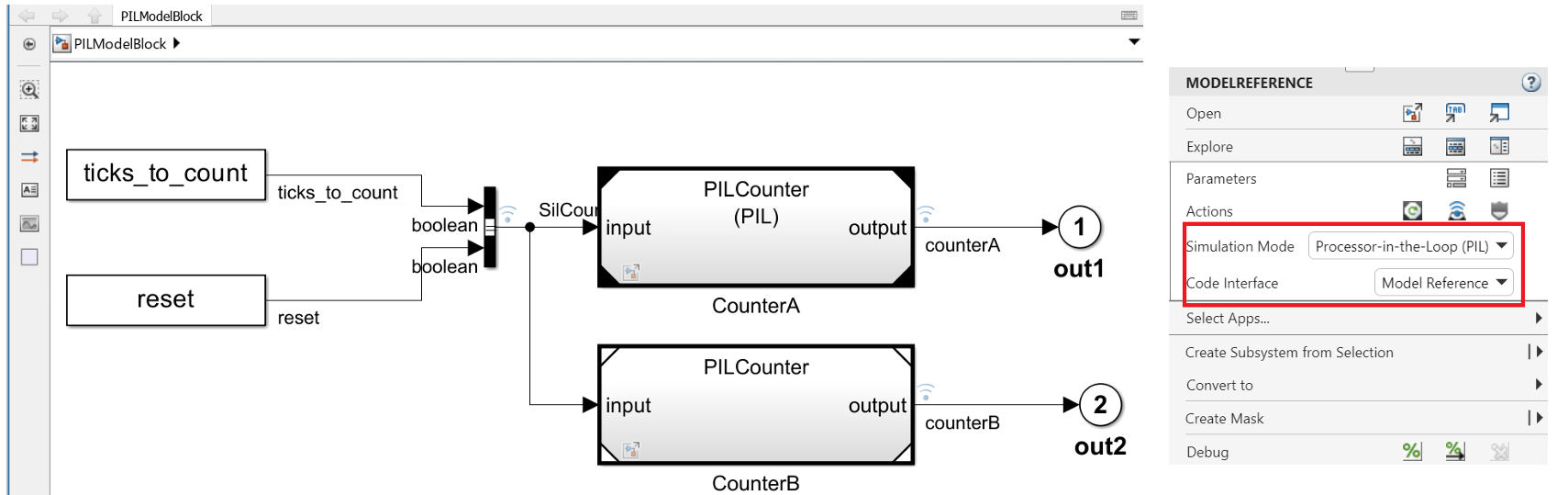
2. Configure and run the CounterA Model block in PIL mode. Right click the CounterA block and select Processor-in-the-loop (PIL) for Simulation Mode option and Model Reference for Code Interface option.
3. In the Simulink toolstrip, click Apps and then select SIL/PIL Manager.
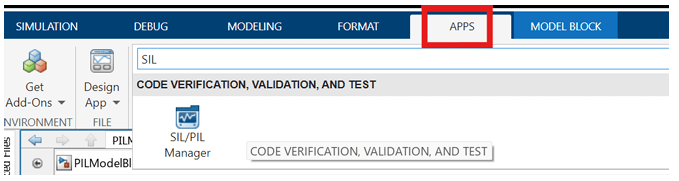
4. Select Model blocks in SIL/PIL mode in the System Under Test option.

5. Select the appropriate options in the SIL/PIL Manager to enable execution-time metrics or stack profiling, in addition to numerical equivalence. Note that Task profiling and Stack profiling are mutually exclusive, select only one profiling mode at a time. Selecting both options together can result in an error during SIL/PIL setup or execution.
For more information, see Choose a SIL or PIL Approach and SIL/PIL Manager. In this example, only numerical equivalence is tested. Coverage settings appear if you have a license for Simulink Coverage.
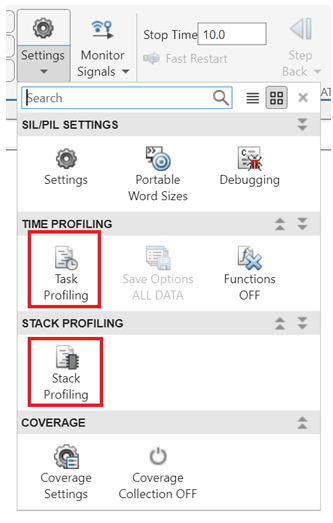
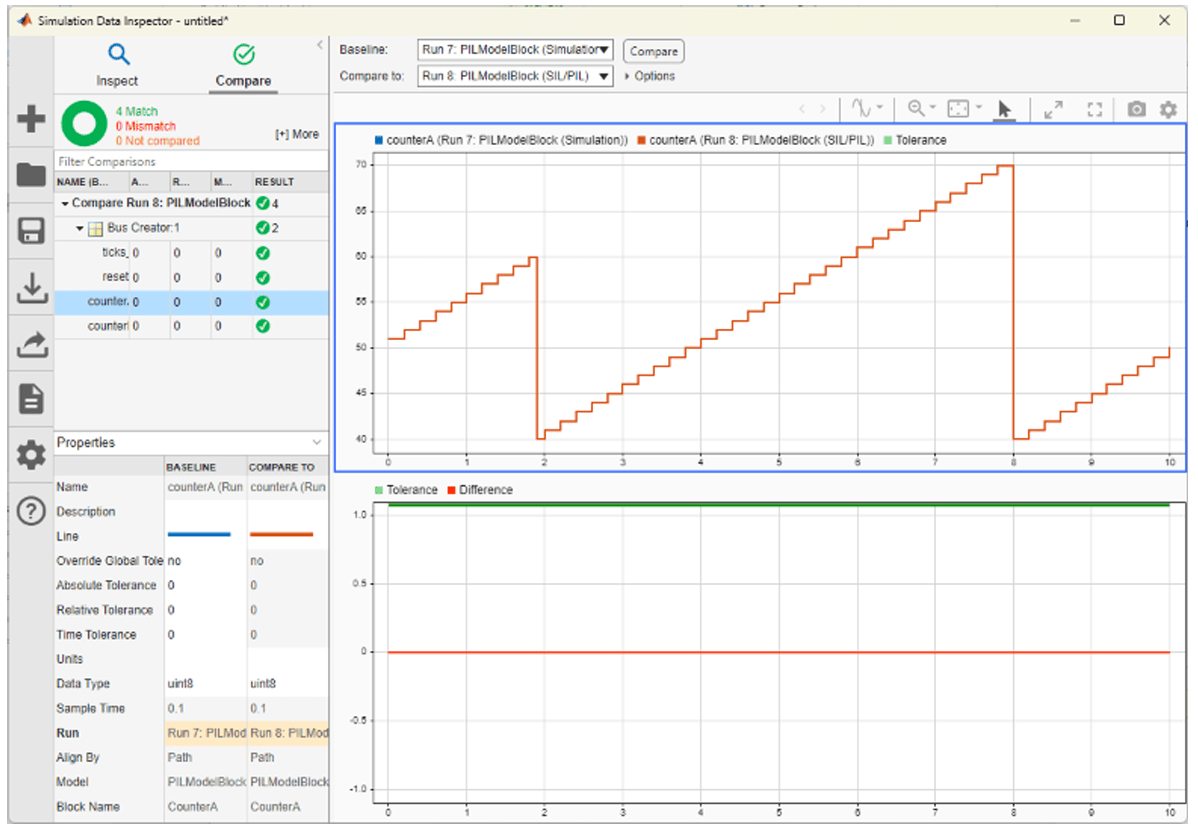
6. Click Run Verification to start the simulation. Compare Runs displays the numerical equivalence between PIL simulation output and the normal mode simulation output.
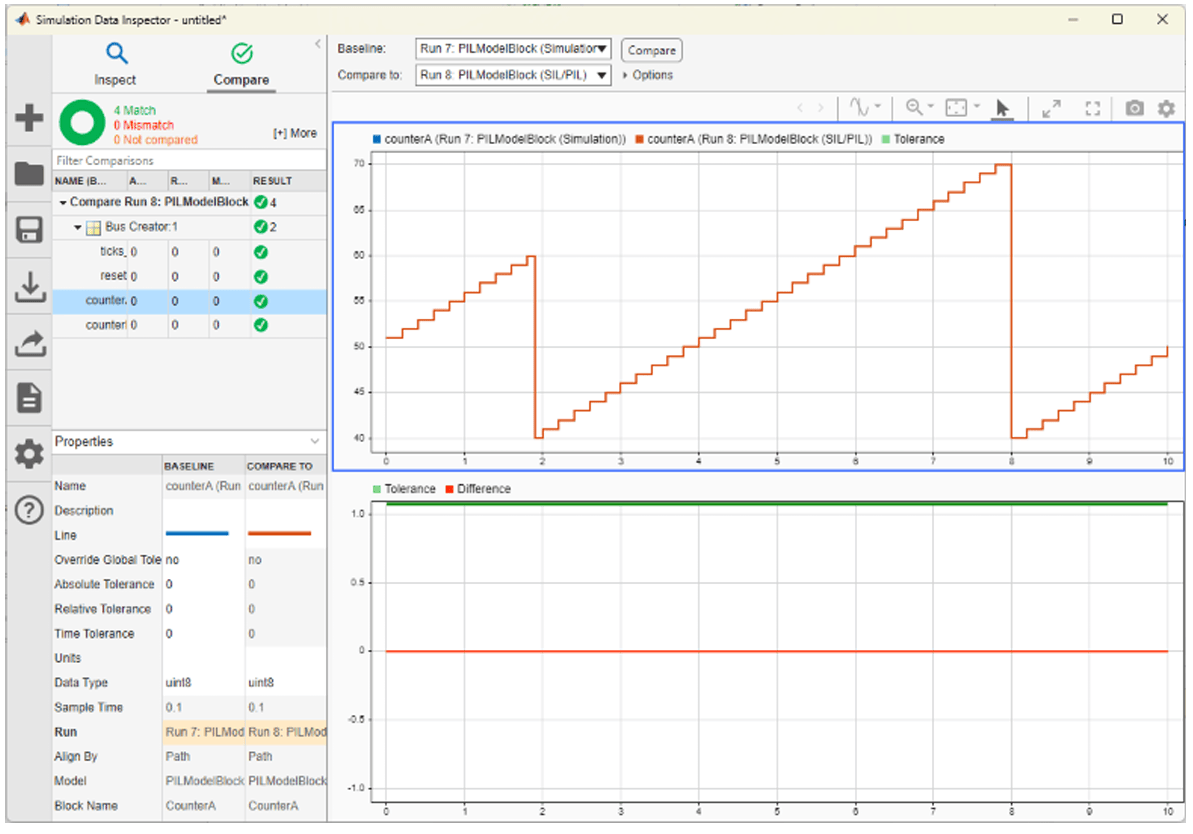
Observe that the reset signal forces the output to return to its lower limit of 40 at the 19th sample. Additionally, the difference signal highlights the numerical equivalence between the host simulation and the PIL simulation, allowing you to verify that both executions produce consistent results.
Verify Top Model Code Using PIL (SIL/PIL Manager Workflow)
This section shows how to verify the generated code for a top-level model by running a Processor-in-the-Loop (PIL) simulation using the SIL/PIL Manager.
With this approach:
You can verify code generated for top model.
You must configure the model to load test vectors or stimulus inputs from the MATLAB workspace.
You can easily switch the entire model between normal and PIL simulation mode.
To verify the model, perform these steps:
1. Open the PILTopModel.slx model. This model is configured for the Renesas RH850 Based target and perform the steps mentioned in 'Hardware Connections and Simulink Model Configuration' section.
modelName = "PILTopModel.slx";
open_system(modelName)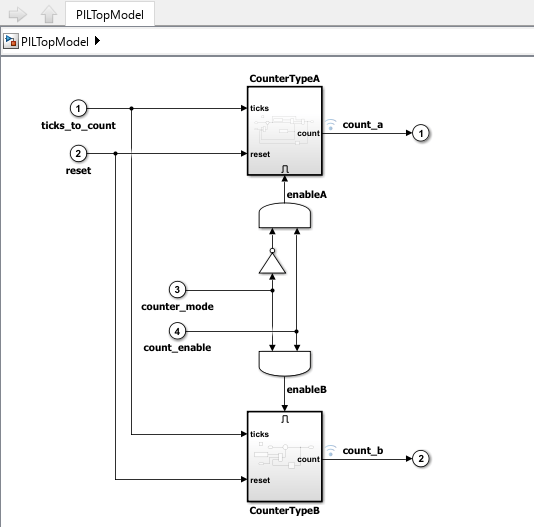
2. In the Simulink toolstrip, click Apps and then select SIL/PIL Manager.

3. For System Under Test option, select Top model and for Simulation Mode option, select Normal or Accelerator.
4. Click Run Verification to start the simulation. Compare option displays the numerical equivalence between PIL simulation output and the normal mode simulation output.
PIL Simulation of a Model Block Using the Command Line
This section shows how to implement the previously discussed workflow using a command-line approach. You will test the generated model code by running a test harness model that executes a Model block in PIL mode.
With this approach:
You can test code generated from either a top model or a referenced model. The code from the top model uses the standalone code interface, while the code from the referenced model uses the model reference code interface. For more information, see Code Interfaces for SIL and PIL.
You use a test harness model or a system model to provide test vector or stimulus inputs.
You can easily switch a Model block between the normal and PIL simulation modes.
Perform these steps:
1. Open the example model that has two Model blocks which reference the same model. In a simulation, you run one Model block in PIL mode and the other Model block in normal mode.
model = "PILModelBlock";
open_system(model)
2. Perform the steps listed in Configure the Simulink Model section to select the hardware board and COM port.
3. Turn off the following options:
Code coverage
Execution time profiling
coverageSettings = get_param(model, 'CodeCoverageSettings');
coverageSettings.CoverageTool='None';
set_param(model, 'CodeCoverageSettings',coverageSettings);
open_system(model)
set_param(model, 'CodeExecutionProfiling','off');
open_system('PILCounter')
set_param('PILCounter', 'CodeExecutionProfiling','off');
currentFolder=pwd;
save_system('PILCounter', fullfile(currentFolder,'PILCounter.slx'))
4. Configure state logging for the models.
set_param('PILCounter', 'SaveFormat','Dataset');
save_system('PILCounter', fullfile(currentFolder,'PILCounter.slx'))
set_param(model, 'SaveFormat','Dataset');
set_param(model, 'SaveState','on');
set_param(model, 'StateSaveName', 'xout');
Test Top Model Code
For the Model block in PIL mode, specify generation of top-model code, which uses the standalone code interface.
set_param([model '/CounterA'], 'CodeInterface', 'Top model');
Run a simulation of the test harness model.
out = sim(model,10);
The Model block running in PIL mode operates as a separate process on your computer. In the working folder, model reference code is generated unless code from a previous build already exists.
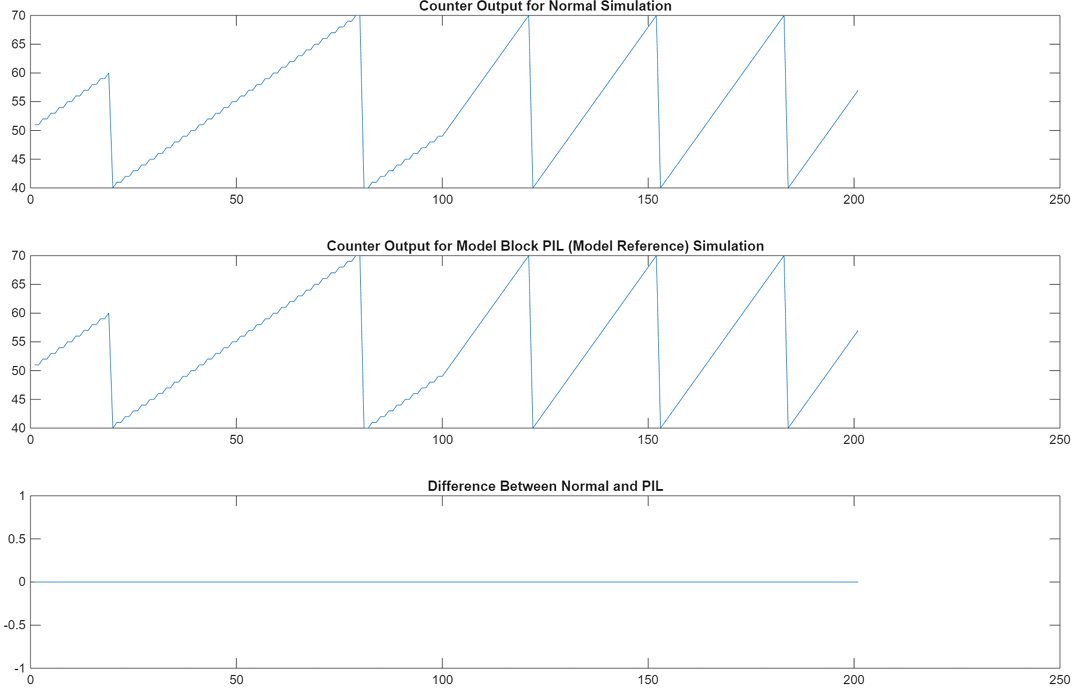
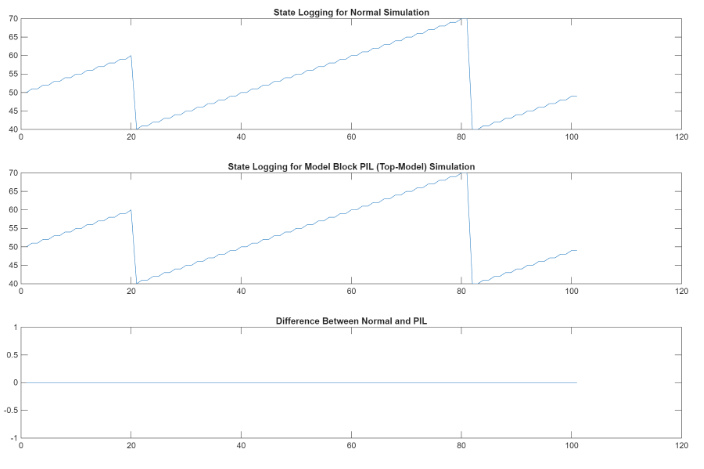
Compare the behavior of Model block in normal and PIL modes. The results match.
yout = out.logsOut;
yout_pil = yout.get('counterA').Values.Data;
yout_normal = yout.get('counterB').Values.Data;
fig1 = figure;
subplot(3,1,1), plot(yout_normal), title('Counter Output for Normal Simulation')
subplot(3,1,2), plot(yout_pil), title('Counter Output for Model Block PIL (Top-Model) Simulation')
subplot(3,1,3), plot(yout_normal-yout_pil), ...
    title('Difference Between Normal and PIL');
xout2 = out.xout;
xout2_pil = xout2{1}.Values.Data;
xout2_normal = xout2{2}.Values.Data;
fig2 = figure;
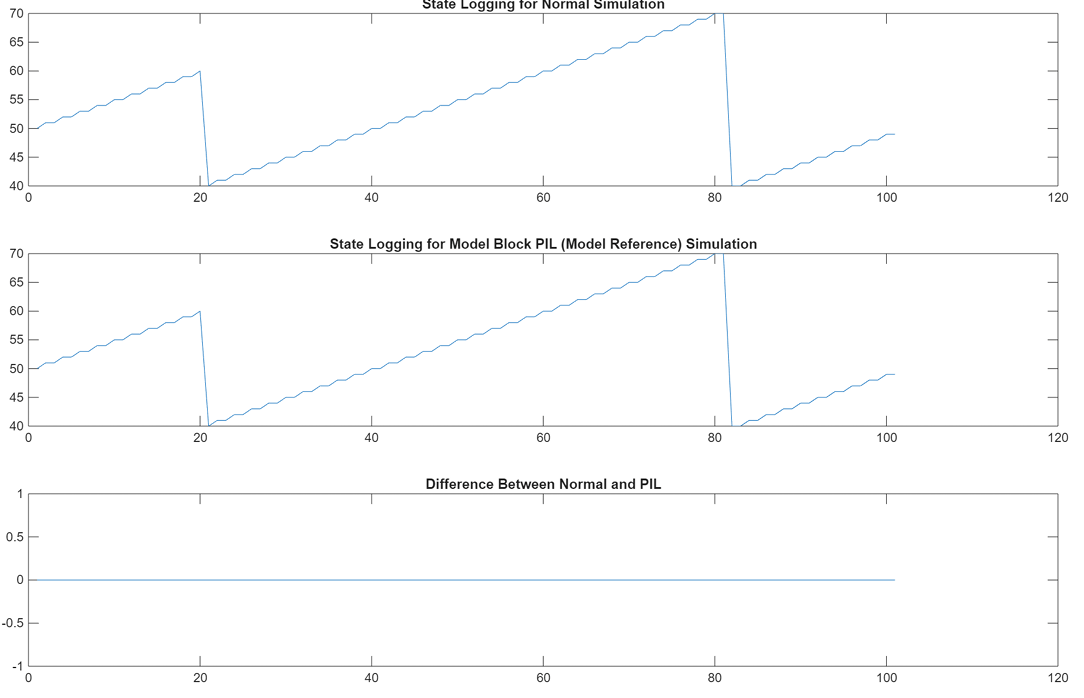
subplot(3,1,1), plot(xout2_pil), title('State Logging for Normal Simulation')
subplot(3,1,2), ...
    plot(xout2_normal), title('State Logging for Model Block PIL (Model Reference) Simulation'
subplot(3,1,3), plot(xout2_normal-xout2_pil), ...
    title('Difference Between Normal and PIL');
Clean up.
close_system(model,0);
close_system('PILCounter',0);
if ishandle(fig1), close(fig1), end, clear fig1
if ishandle(fig2), close(fig2), end, clear fig2
if ishandle(fig3), close(fig3), end, clear fig3
if ishandle(fig4), close(fig4), end, clear fig4
simResults={'out','yout','yout_pil','yout_normal', ...
    'out2','yout2','yout2_pil','yout2_normal', ...
    'PilCounterBus','T','reset','ticks_to_count','Increment'};
save([model '_results'],simResults{:});
clear(simResults{:},'simResults')
Test Model Reference Code
For the Model block in PIL mode, specify generation of referenced model code, which uses the model reference code interface.
set_param([model '/Counter'],"SimulationMode",'Processor-in-the-loop (PIL)');
set_param([model '/Counter'], 'CodeInterface', 'Model reference');
Run a simulation of the test harness model.
out2 = sim(model,20);
The model block in PIL mode runs as a separate process on your computer. In the working folder, you see that model reference code is generated unless code from a previous build exists.
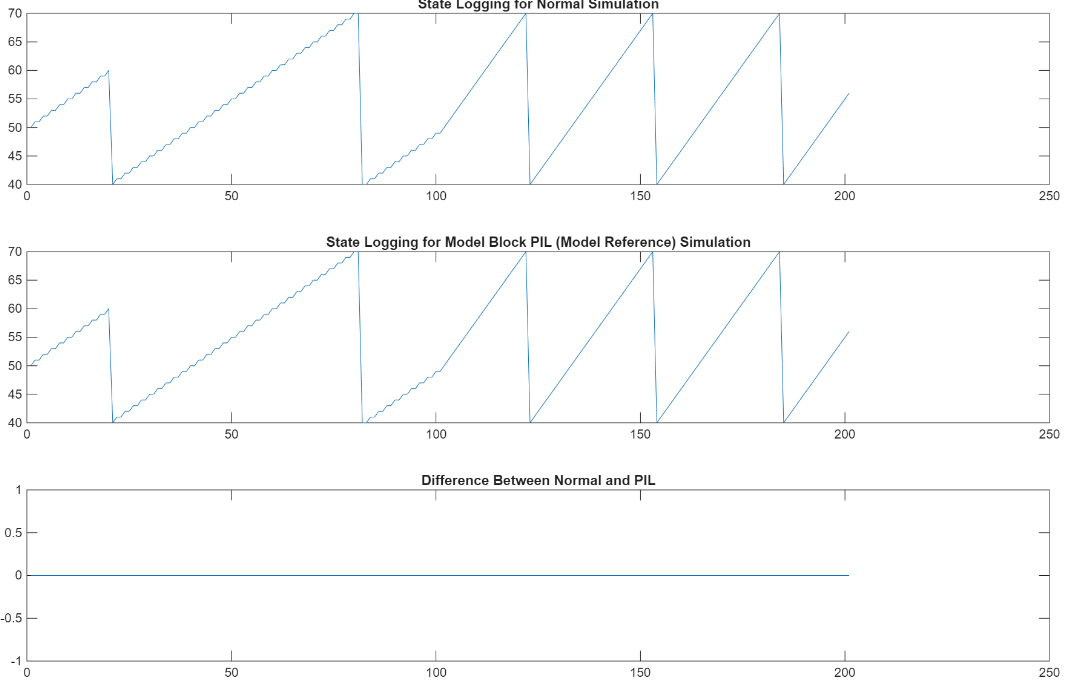
Compare the behavior of Model blocks in normal and SIL modes. The results match.
PIL mode:

yout2 = out2.logsOut;
yout2_pil = yout2.get('counterOut').Values.Data;
xout2 = out2.xout;
xout2_pil = xout2{1}.Values.Data;


Normal Mode:
set_param([model '/Counter'],"SimulationMode","Normal");
out2 = sim(model,20);

yout2 = out2.logsOut;
yout2_normal = yout2.get('counterOut').Values.Data;
xout2 = out2.xout;
xout2_normal = xout2{1}.Values.Data;


fig3 = figure;
subplot(3,1,1), plot(yout2_normal), title('Counter Output for Normal Simulation')
subplot(3,1,2), ...
    plot(yout2_pil), title('Counter Output for Model Block PIL (Model Reference) Simulation')
subplot(3,1,3), plot(yout2_normal-yout2_pil), ...
    title('Difference Between Normal and PIL');


fig4 = figure;
subplot(3,1,1), plot(xout2_pil), title('State Logging for Normal Simulation')
subplot(3,1,2), ...
    plot(xout2_normal), title('State Logging for Model Block PIL (Model Reference) Simulation')
subplot(3,1,3), plot(xout2_normal-xout2_pil), ...
    title('Difference Between Normal and PIL');
PIL Simulation for a Top-Level Model Using the Command Line
Test generated model code by running a top-model PIL simulation. With this approach:
You test code generated from the top model, which uses the standalone code interface.
You configure the model to load test vectors or stimulus inputs from the MATLAB workspace.
You can easily switch the top model between the normal and PIL simulation modes
Perform these steps:
1. Open a simple counter top model.
model = "PILTopModel";
close_system(model,0)
open_system(model)
2. Update the required settings in the configset.
cs = getActiveConfigSet(model);
cs.set_param('HardwareBoard','Renesas RH850 U2A Based');
cs.openDialog;
3. Perform the steps listed in Configure the Simulink Model section to select the hardware board and COM port.
4. To focus on numerical equivalence testing, turn off the following options:
Code coverage
Execution time profiling
set_param(gcs, 'RecordCoverage','off');
coverageSettings = get_param(model, 'CodeCoverageSettings');
coverageSettings.CoverageTool='None';
set_param(model, 'CodeCoverageSettings',coverageSettings);
set_param(model, 'CodeExecutionProfiling','off');
5. Configure the input stimulus data.
set_param(model, 'LoadExternalInput','on');
set_param(model, 'ExternalInput','ticks_to_count, reset, counter_mode, count_enable');
set_param(model, 'SignalLogging', 'on');
set_param(model, 'SignalLoggingName', 'logsOut');
set_param(model, 'SaveOutput','on')
6. Run a normal mode simulation.
set_param(model,'SimulationMode','normal')
sim_output = sim(model,10);
yout_normal = [sim_output.yout.signals(1).values sim_output.yout.signals(2).values];
7. Run a top-model PIL simulation. Delete slprj folder that might have be created in previous runs.
set_param(model,'SimulationMode','Processor-in-the-Loop (PIL)')
sim_output = sim(model,10);
yout_pil = [sim_output.yout.signals(1).values sim_output.yout.signals(2).values];
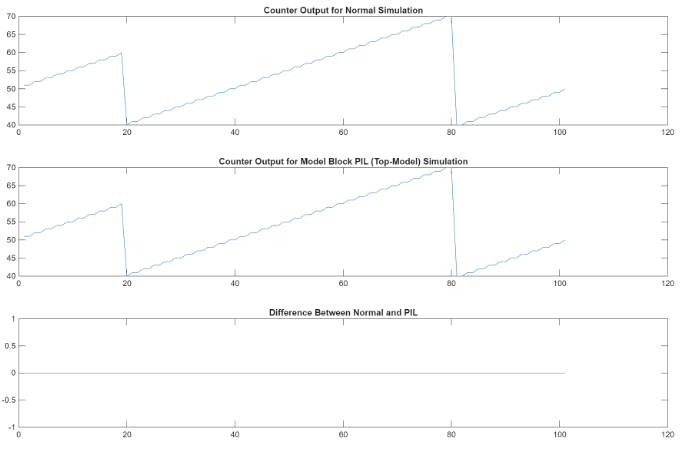
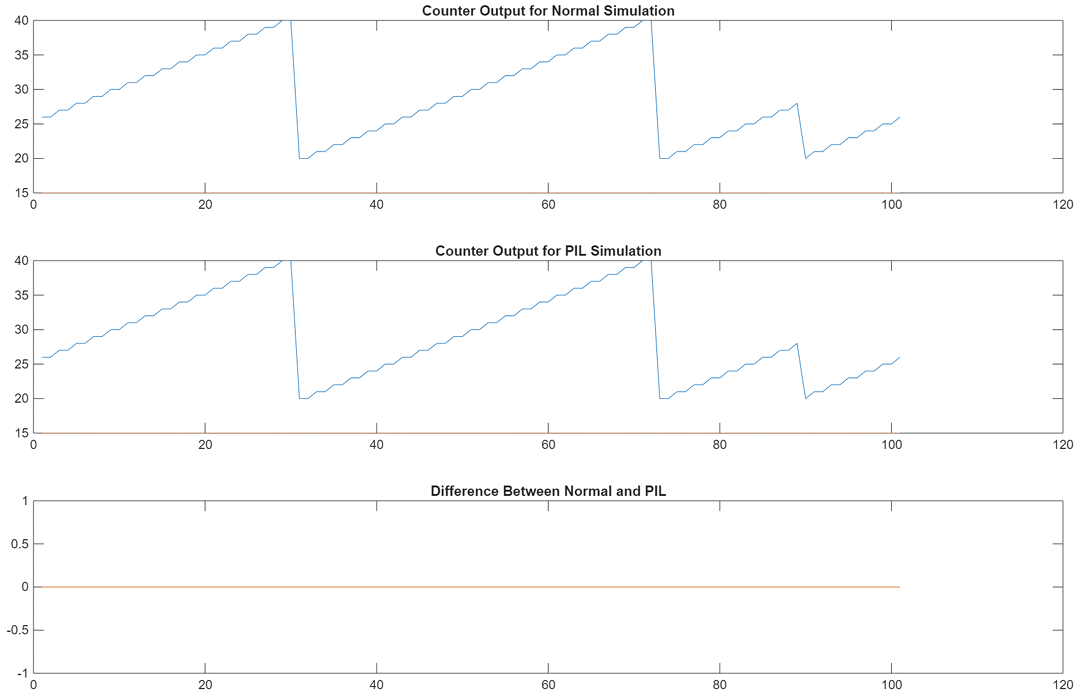
If up-to-date code for this model does not exist, Simulink generates and compiles new code. The generated code runs as a separate process on your computer. Plot and compare the results of the normal and PIL simulations, and observe that the results match.
fig1 = figure;
subplot(3,1,1), plot(yout_normal), title('Counter Output for Normal Simulation')
subplot(3,1,2), plot(yout_pil), title('Counter Output for PIL Simulation')
8. Clean up.
close_system(model,0);
if ishandle(fig1), close(fig1), end
clear fig1
simResults = {'yout_pil','yout_normal','model','T',...
    'ticks_to_count','reset'};
save([model '_results'],simResults{:});
clear(simResults{:},'simResults')

