Generate Efficient Code by Setting Model Configuration Parameters
R2026bTo generate efficient code from a Simulink model, set the model configuration parameters according to your optimization goals. Your model has many parameters that enable you to optimize specific aspects of the generated code. You can quickly set many parameters to generate efficient code by applying one of these optimization levels:
Minimum — Generate code for debugging.
Balanced with readability — Include some optimizations to balance efficiency with readability.
Maximum — Apply the available optimizations for the priority that you choose. You can balance RAM and speed, maximize execution speed, or minimize RAM.
Applying an optimization level automatically sets the model configuration parameters for that level. These optimization levels are good starting points for generating efficient code. From there, you can assess the generated code and optionally modify individual parameters to better meet your goals.
Open the Example Model
For this example, open the model FoldBlockComputations.
model = "FoldBlockComputations";
open_system(model)
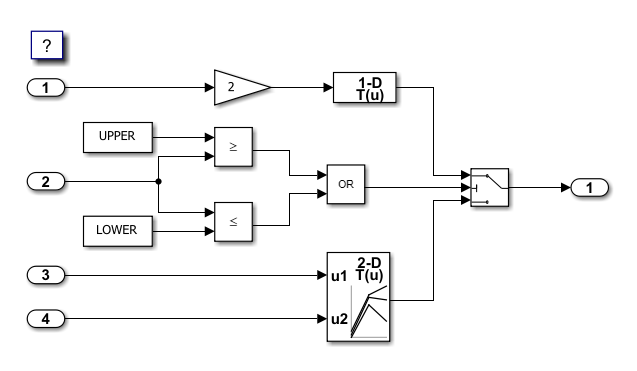
The model uses logical expressions to output data from one of two lookup tables.
Generate Code for Debugging
First, generate code with minimum optimizations. With these settings, the code generator prioritizes generating readable code for debugging.
Open the Embedded Coder app.
Open the model configuration parameters. On the C Code tab, click Settings.
On the Code Generation pane, set the System target file to
ert.tlc.On the Optimization pane, set the model configuration parameter Level to
Minimum.On the Report pane, select Generate static code metrics.
Click OK.
Generate code from the model.
To perform these steps from the command line, enter:
set_param(model,"SystemTargetFile","ert.tlc");
set_param(model,"OptimizationLevel","level0");
set_param(model,"GenerateCodeMetricsReport","on");
slbuild(model)
### Searching for referenced models in model 'FoldBlockComputations'.
### Total of 1 models to build.
### Starting top model code generation target build for: FoldBlockComputations
### Successful completion of build procedure for: FoldBlockComputations

Build Summary

Top model targets:

Model                  Build Reason                                     Status                        Build Duration
====================================================================================================================
FoldBlockComputations  Target (FoldBlockComputations.c) did not exist.  Code generated and compiled.  0h 0m 17.612s

1 of 1 models built (0 models already up to date)
Build duration: 0h 0m 19.315s
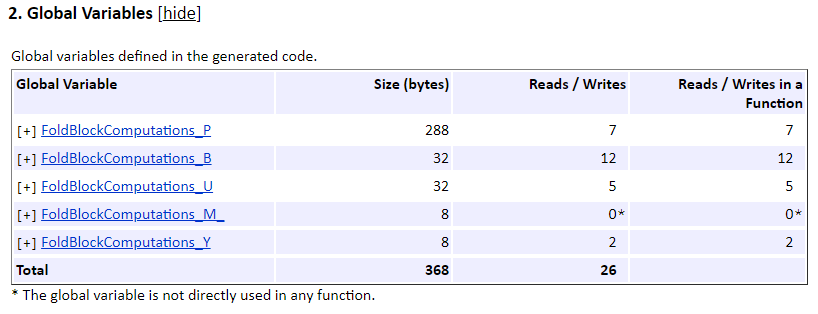
In the code generation report, open the Static Code Metrics Report. The report provides metrics about the generated code such as the sizes of variables and the complexity and stack sizes of generated functions. For this example, the generated code has five global variables that total 368 bytes.
Generate Code for Efficiency Priorities
Configure the model to generate code according to your code efficiency goals. For this configuration, apply the maximum optimization level with minimizing RAM as the priority.
On the C Code tab, click View Code to open the code view. The view displays the latest code generated from the model.
Open the model configuration parameters. On the C Code tab, click Settings.
On the Optimization pane, set the model configuration parameter Level to
Maximum.Set the parameter Priority to
Minimize RAM. Setting the optimization level and priority automatically sets other configuration parameters to match these priorities.Click OK and generate code.
To perform these steps from the command line, enter:
set_param(model,"OptimizationLevel","level2");
set_param(model,"OptimizationPriority","RAM");
slbuild(model);
### Searching for referenced models in model 'FoldBlockComputations'.
### Total of 1 models to build.
### Starting top model code generation target build for: FoldBlockComputations
### Successful completion of build procedure for: FoldBlockComputations

Build Summary

Top model targets:

Model                  Build Reason                                                 Status                        Build Duration
================================================================================================================================
FoldBlockComputations  Model or library FoldBlockComputations has unsaved changes.  Code generated and compiled.  0h 0m 11.091s

1 of 1 models built (0 models already up to date)
Build duration: 0h 0m 12.411s
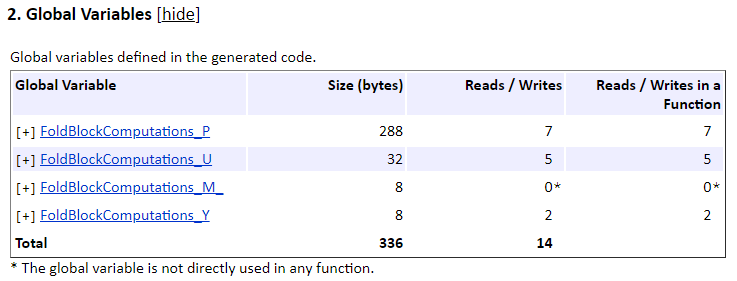
In the code generation report, open the Static Code Metrics Report. With the optimizations that minimize RAM, the generated code has only four global variables that total 336 bytes. The global variable FoldBlockComputations_B was optimized out of the code.
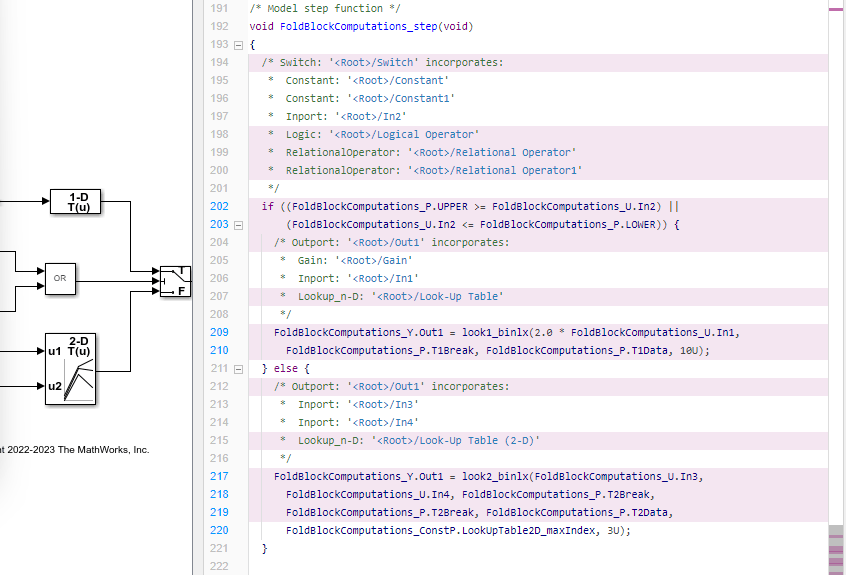
In the Simulink model window, the code view highlights lines of code that changed from the previous build. The code folds the computations in the step function into the Switch block operation.
Control Specific Optimizations by Setting Individual Parameters
After setting most configuration parameters by using the objectives, you can refine the configuration of the generated code by changing individual parameters. For example, make the code more traceable by turning off expression folding. Without expression folding, the code performs separate computations for separate blocks, which is less efficient but easier to trace to the model.
To narrow down the optimal configuration for your goals, change one parameter at a time and assess the changes to the generated code and its efficiency metrics. Decide what setting to use for that parameter and then repeat the process with other parameters until the code meets your efficiency goals.
Open the model configuration parameters. On the C Code tab, click Settings.
On the Optimization pane, select Specify custom optimizations. This setting enables more detailed configuration parameters so you can finely customize the code optimizations.
In the Details section, turn off Eliminate superfluous local variables (expression folding). For your own optimization goals, you can optionally set other parameters in the Details section or in the Advanced parameters section.
Click OK and generate code.
To perform these steps from the command line, enter:
set_param(model,"OptimizationCustomize","on");
set_param(model,"ExpressionFolding","off");
slbuild(model)
### Searching for referenced models in model 'FoldBlockComputations'.
### Total of 1 models to build.
### Starting top model code generation target build for: FoldBlockComputations
### Successful completion of build procedure for: FoldBlockComputations

Build Summary

Top model targets:

Model                  Build Reason                                                 Status                        Build Duration
================================================================================================================================
FoldBlockComputations  Model or library FoldBlockComputations has unsaved changes.  Code generated and compiled.  0h 0m 10.444s

1 of 1 models built (0 models already up to date)
Build duration: 0h 0m 12.071s
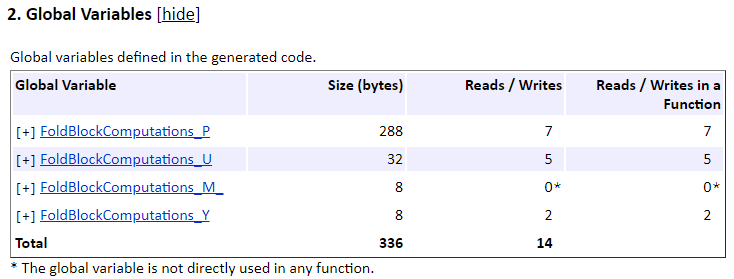
In the code generation report, open the Static Code Metrics Report. The generated code still has four global variables that total 336 bytes.
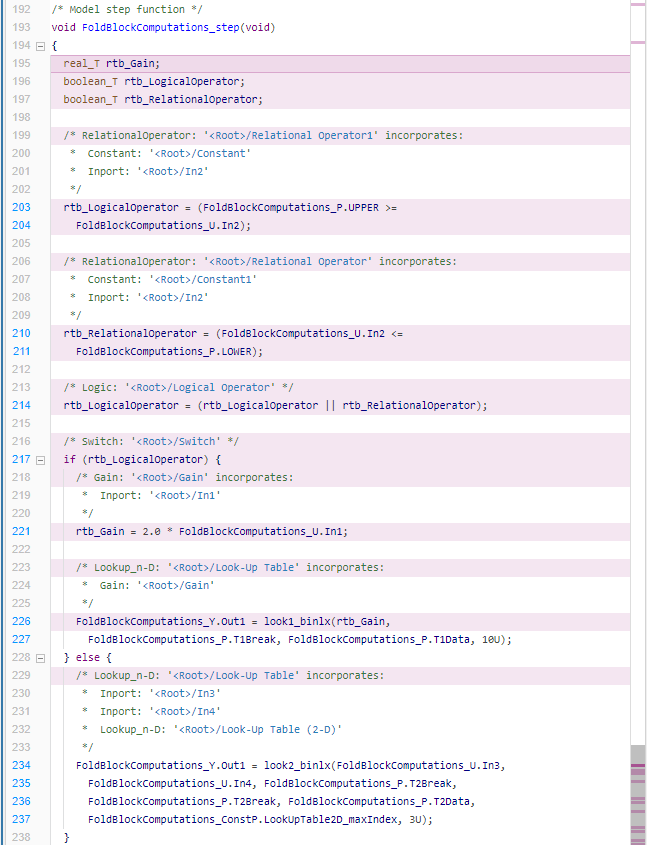
In the Simulink model window, the code view highlights lines of code that changed from the previous build. The code now performs separate computations for the blocks instead of folding them into the Switch block computation. Global variable usage is still reduced because the code uses local variables to store the results of these computations instead of the global variable FoldBlockComputations_B.
Optimize Generated Code by Iteratively Setting Parameters and Assessing Performance
If you need highly custom optimization settings to meet your code efficiency requirements, optimize the code by following this process:
On the Optimization pane, select Specify custom optimizations.
Change one configuration parameter at a time and regenerate the code.
Assess the changes to the generated code and its efficiency by using these tools:
Highlighting in the code view, which shows changes to the generated code from the previous build
Code tracing in the code view and code generation report, which shows which model elements correspond to a line of code
Static code metrics report, which shows metrics such as file sizes, variable sizes, and function complexity
SIL and PIL simulations, which show execution time metrics
Decide whether to keep the modified setting for that parameter.
Repeat this process for other optimization parameters.

