Download and Install HDL Coder Support Package for Microchip FPGA and SoC Devices
R2026bThe HDL Coder™ Support Package for Microchip FPGA and SoC Devices contains the board definition files for the IP Core Generation and FPGA Verification and Debug workflows.
Install Support Package from Add-on Explorer
On the MATLAB® Home tab, in the Environment section, select Add-Ons > Get Hardware Support Packages.

In the Add-On Explorer window, click the support package and then click Install.
Install Support Package from FPGA-in-the-Loop Wizard or the FPGA Board Manager
You can also download FPGA board support packages from within the FPGA-in-the-Loop Wizard or the FPGA Board Manager.
From the FIL Wizard
In the MATLAB command window, enter the following command:
filWizard
In the FIL Options pane, at Board Name, select
Get more boardsfrom the drop-down menu.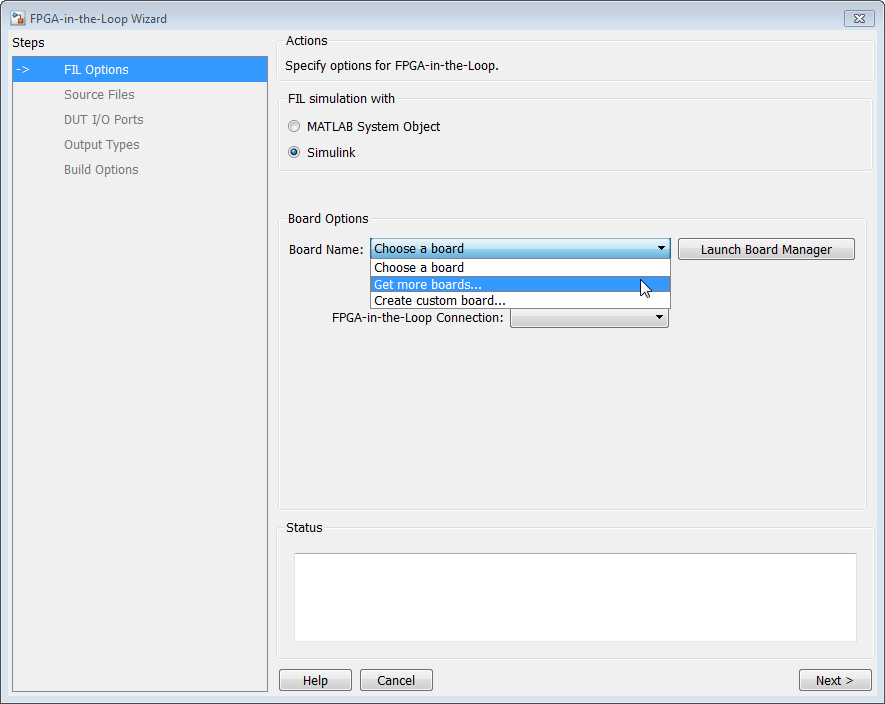
From the FPGA Board Manager
In the MATLAB command window, enter the following command:
fpgaBoardManager
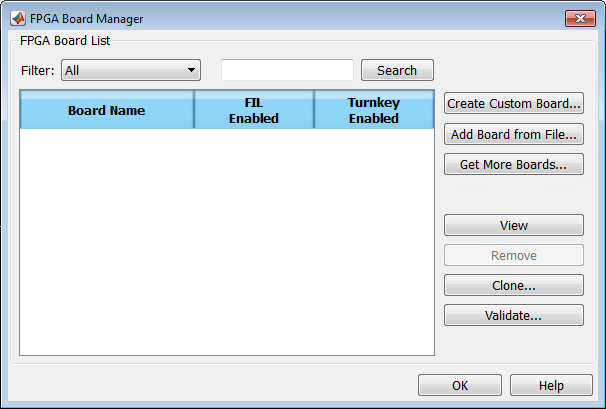
In the FPGA Board Manager dialog box, click Get More Boards.
Install Support Package Offline
To install the support packages without an Internet connection, first download the packages on a computer that does have an Internet connection.
On the computer with the Internet connection, start MATLAB.
On the MATLAB Home tab, in the Environment section, click Add-Ons > Get Hardware Support Packages.
Select your desired support package, and use the Install button pull-down menu to select Download Only....
Accept the license and select a folder for the download.
Copy the entire downloaded folder, for example, the
R2026bfolder, to a shared network drive or removable media, such as a USB drive.
Then, on the computer where you want to install the support packages:
Copy the downloaded folder to the host computer.
To start the installer, run the
install_supportsoftware.exeexecutable file.Follow the installer prompts to install the support package. If you do actually have an Internet connection, you are prompted to log in to your MathWorks® account.
Update Support Package
On the MATLAB Home tab, in the Environment section, select Help > Check for Updates.
Uninstall Support Package
On the MATLAB Home tab, in the Environment section, click Add-Ons > Manage Add-Ons.
In the Add-Ons panel, find and click the support package, and then click Uninstall.

