Asset Framework Browser
R2026bGraphically browse element hierarchy and select attributes from Asset Framework database
Since R2026a
Description
The Asset Framework (AF) Browser allows you to graphically browse the database and select attributes on an AVEVA® PI AF server.
Using the browser, you can navigate through the AF Element hierarchy, view the attributes
of every element and select attributes of interest. The browser returns the selected
attributes to the MATLAB® workspace as an array of icomm.af.Attribute objects. You can
use the attribute objects with the read or readHistory
functions to retrieve data from the attributes.
Note
You must install the AF SDK library to connect to a PI AF server from MATLAB. For more information, see AF SDK Overview.
Open the Asset Framework Browser
To open the Asset Framework Browser, in the MATLAB command line type:
afAttribtes = browseElements(afClientObj)
afClientObj is the PI AF client created with the afclient function.
afAttributes is the selected attributes returned as array of
icomm.af.Attribute objects. For more information, see AF Attribute Properties.
Examples
Create an AF client for a server named
EVS-Hydroplant. If you do not specify a database when you create the
client, the client is associated with the default database of the PI AF server.
afclientObj = afclient("EVS-Hydroplant");Launch the Asset Framework browser.
guAttribute = browseElements(afclientObj)
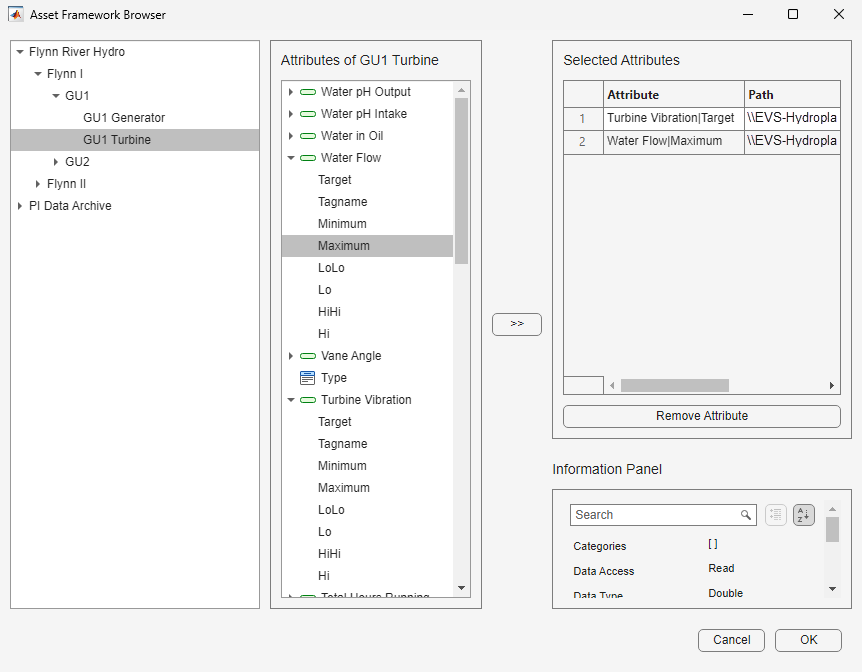
In the browser, the left pane shows the element hierarchy and the center pane shows
the attributes of the selected element. The Selected Attributes
pane lists the selected attributes in a tabular view. The Attribute
and Path columns in the table display the name and path of the
selected attributes in the AF server. The Information Panel shows
the information available in the AF server for the selected attribute.
Select required attributes and click >> to move the
attributes into the Selected Attributes pane. To remove a selected
attribute, use Remove Attribute. After you add the attributes you
want in the Selected Attributes pane, click OK. The
Asset Framework Browser creates icomm.af.Attribute objects in the
MATLAB workspace to represent the selected attributes. The output shows the created
array of attribute objects.
guAttribute =

  1×2 Attribute array:
    Index   Name                                                   Path                                                        ServerDataType
    -----  -------  ---------------------------------------------------------------------------------------------------------  --------------
      1    Target   \\EVS-HydroPlant\OSIDemo_PG_HydroPlant\Flynn River Hydro\Flynn I\GU1\GU1 Turbine|Turbine Vibration|Target      Double
      2    Maximum   \\EVS-HydroPlant\OSIDemo_PG_HydroPlant\Flynn River Hydro\Flynn I\GU1\GU1 Turbine|Water Flow|Maximum           Double
You can use the attribute objects with the read or
readHistory
functions to retrieve data from the attributes.
You can also use the attribute object with the getChildren,
getElement,
getParent or
listSupportedUnits functions to query for attribute information.
Related Examples
Version History
Introduced in R2026a

