Specify Startup Tasks and App Input Arguments in App Designer
R2026bIn App Designer, you can create a special function that executes when an app starts
up, but before the user interacts with the UI. This function is called the
startupFcn callback, and it is useful for setting default values,
defining app input arguments, initializing variables, or executing commands that affect
the initial state of the app. For example, you might use the
startupFcn callback to display a default plot or show a list of
default values in a table.
Create startupFcn Callback
To create a startupFcn callback, use one of these methods:
In Code View, on the Editor tab, select Callback. Alternatively, in the Code Browser pane, on the Callbacks tab, click the button. Select the app node as the component that executes the callback and
StartupFcnas the callback property. The app node has the same name as your app file.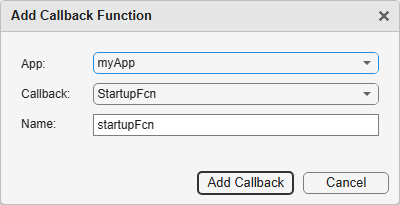
In the Component Browser, right-click the app node and select Callbacks > Add StartupFcn callback. The app node has the same name as your app file.
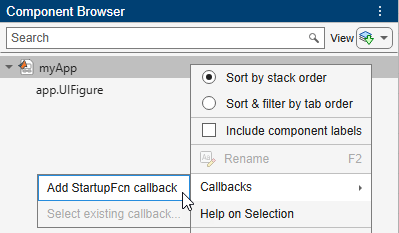
App Designer creates the function and places the cursor in the body of the function. Add the commands that you want the function to execute when the app starts up. Then save and run your app.
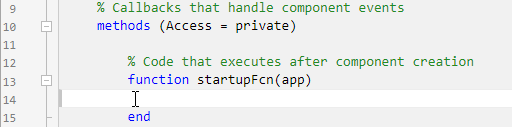
For an example of an app that has a startupFcn callback, see
Create App That Resizes with Auto-Reflow.
Define Input App Arguments
The startupFcn callback is also the function where you can
define input arguments for your app. Input arguments are useful for letting the user
(or another app) specify initial values when the app starts up.
To add input arguments to an app, open the app in App Designer and click Code View. Then click App Input Arguments on the Editor tab which launches the App Details dialog box.

Use the Input Arguments field in the dialog box to add or
remove input arguments in the function signature of the
startupFcn callback. Enter a comma-separated list of variable
names for your input arguments. You can also enter varargin to make any of the
arguments optional. Then click OK.
After you click OK, App Designer creates a
startupFcn callback. The function signature always has the
app input argument first, followed by the input arguments
that you specified. If your app already has a startupFcn
callback, then the function signature is updated to include the new input
arguments.
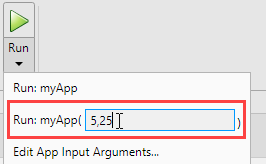
After you have created the input arguments and coded the
startupFcn callback function, you can test the app. Expand
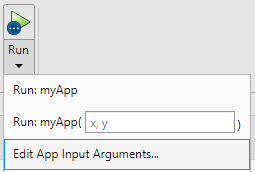
the Run button menu on the toolstrip. In the second menu
item, specify comma-separated values for each input argument. The app runs after you
enter the values and press Enter.
Note
If you click Run without specifying values for required input arguments in the button menu, MATLAB® returns an error.
If the app runs successfully with a set of input arguments, the Run button icon contains a blue circle.

The blue circle indicates that you can re-run the app using your previous input values without having to type them again. Up to seven sets of previous input values are available to choose from. Click the top half of the Run button to re-run the app with the last set of values. Or, click the bottom half of the Run button and select one of the previous sets of values.
The Run button also allows you to change the list of arguments in the function signature. Select Edit App Input Arguments from the Run button menu.
Alternatively, you can open the same App Details dialog box by clicking
App Input Arguments
on the toolstrip or by right-clicking the
startupFcn callback in the Code
Browser.
For an example of an app that uses input arguments, see Share Data Between Multiple App Designer Apps.

