Explore Parameters Using Simple Computational Experiment
R2026bA computational experiment is a systematic way to explore how changes in one or more parameters affect the outcome of your code.
Create a computational experiment when you want to:
Automatically track parameter values and results for your code.
Compare results from different parameter combinations or experiment setups.
Organize your experiment details, results, and artifacts across multiple runs.
Easily reproduce your experiments.
This example shows how to set up a simple experiment for MATLAB code by specifying parameters and an experiment function, which are the minimum details required to run an experiment in Experiment Manager.
Create MATLAB Code for Experiment
To start, write some MATLAB code that you can use to create an experiment. In this example, the MATLAB code first defines the variables x and y, which each have multiple possible values to explore. The following procedure code performs a calculation for each combination of values for x and y.
x = 1:2:7;
y = [2 4];
for i = 1:length(x)
    for j = 1:length(y)
        z(i,j) = x(i) * y(j);
    end
end
Create Experiment
To explore the parameters in your MATLAB code, create an experiment in the Experiment Manager app. Experiment Manager organizes your experiments in a MATLAB project. A project stores all the files your experiment depends on, and its results and artifacts, in one place.
A general-purpose experiment is an experiment that executes an experiment function that you author and captures the outputs that the experiment function returns.
To create a new project that contains a general-purpose experiment, follow these steps:
Open the Experiment Manager app from the Apps tab or by typing
experimentManagerin the Command Window.On the start page, click Blank Project.
Create a blank experiment by choosing the General Purpose template.
Choose a location and name for your project.
Specify a name for your experiment by right-clicking the default experiment name in the Experiment Browser panel and clicking
Rename. This example uses the experiment nameComputeProduct.
Specify Parameters Using Code That Creates Variables
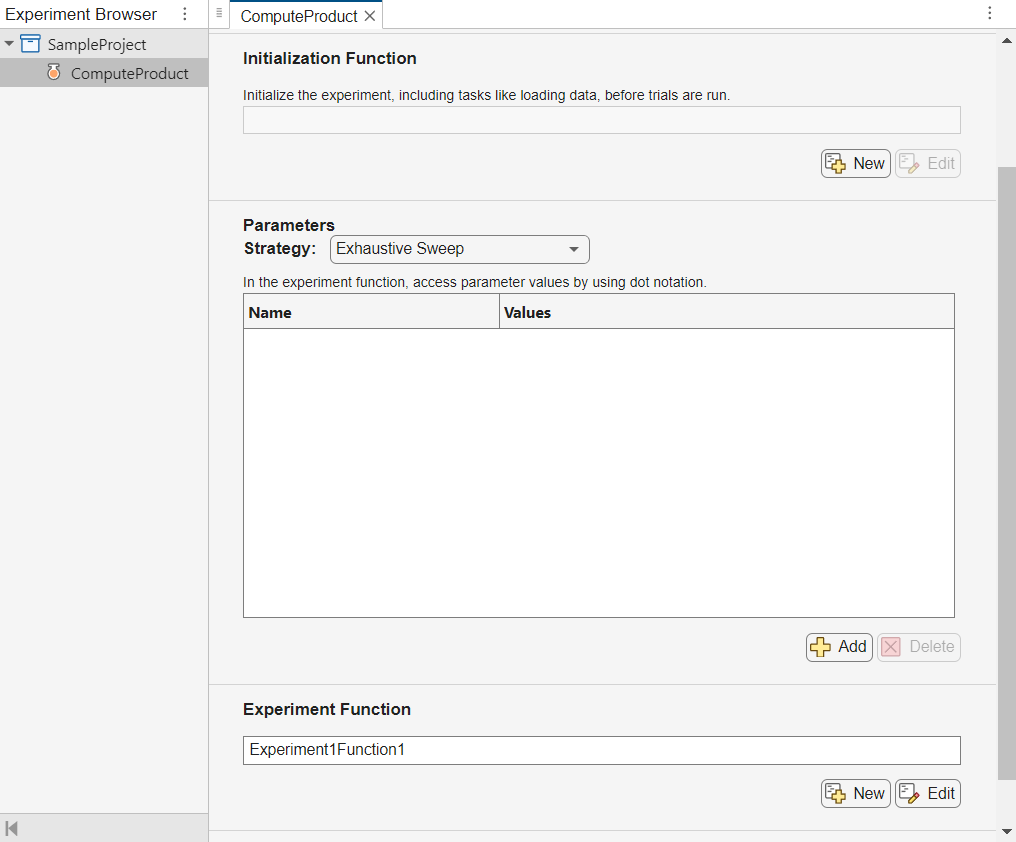
The Initialization Function section is optional. This experiment does not require an initialization function.
When you use Experiment Manager, you do not need to define the parameters in your code or loop over their values. Instead, interactively configure the parameters and their possible values in the Parameters section of the experiment editor. For example, add and configure the parameters x and y that the MATLAB code defined. Click Add twice, and then set the first parameter name to x and its value to 1:2:7 and set the second parameter name to y and its value to [2 4].
Name | Values |
|---|---|
|
|
|
|
By default, Experiment Manager generates all possible combinations of these parameter values for general-purpose experiments using a strategy named Exhaustive Sweep. Then, for each trial, Experiment Manager creates a scalar structure params with fields containing the parameter values from one of those combinations.
For example, this experiment will execute eight trials, or one trial for each of these parameter value combinations.
Trial | x | y |
|---|---|---|
1 | 1 | 2 |
2 | 1 | 4 |
3 | 3 | 2 |
4 | 3 | 4 |
5 | 5 | 2 |
6 | 5 | 4 |
7 | 7 | 2 |
8 | 7 | 4 |
Specify Experiment Function Using Procedure Code
The experiment function defines the procedure for each trial in your experiment. In other words, the experiment function is the code that runs for each parameter value combination.
To save time authoring your experiment function, you can copy and paste the procedure from your MATLAB code and then modify the code. To open the experiment function file, click Edit in the Experiment Function section of the experiment definition tab.
Then, make these modifications to your code:
Remove any loops over parameter values. The experiment function runs once for each parameter value combination.
Access the parameter values, which are passed to the experiment function as the input structure
params, by using dot notation.Specify any output variables that you want to record for each trial and display in the table of results.
For this example, the resulting experiment function is:
function z = Experiment1Function1(params)
x = params.x;
y = params.y;
z = x * y;
end
If your experiment requires setup code, you can specify an initialization function to run this code only once, rather than rerunning the setup code for each trial. For more information, see Optimize Experiment Performance Using Initialization Function.
Then save and close your experiment function file.
Run Experiment
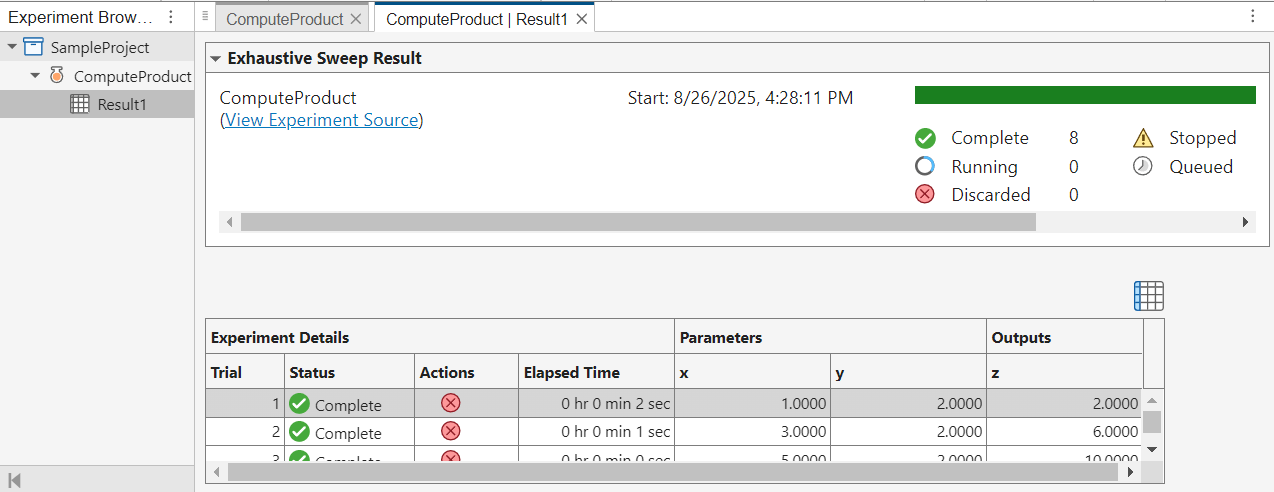
After you configure the experiment, you can run it by clicking Run on the Experiment Manager toolstrip. Experiment Manager calls the experiment function for each parameter value combination and records the results in a table.
After the experiment loads, a table displays the execution status of each trial, actions such as cancel or discard, the elapsed time for each trial, the parameter values used for the trial, and any outputs returned by the experiment function. You can show or hide columns in this table by clicking the  icon and selecting or clearing column names from the list.
Each experiment run is stored in a separate result in your project. In an experiment result, you can access a read-only view of the experiment configuration for that result by clicking View Experiment Source.
Analyze Results
You can analyze experiment results in various ways, such as sorting a column, adding an annotation, applying a filter, or displaying a visualization.
Sort Column
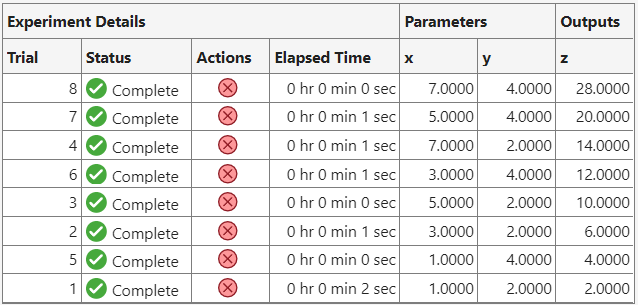
You can interpret the values in a column of the table of results by sorting its values. For example, determine which trial yields the maximum value for parameter z by sorting the z output in descending order. In the table of results, point to the header of the z variable, click the sort  icon, and select the sort order.
Add Annotation
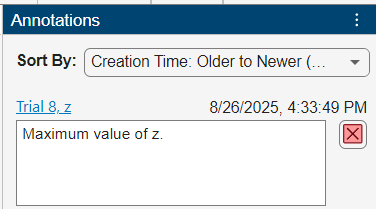
You can record an observation by adding an annotation to the table of results. For example, record the combination of parameters that yields the maximum value for parameter z. Select the table cell that contains the maximum value of z, and on the Experiment Manager toolstrip, select Annotations > Add Annotation. Enter the annotation text for the trial, such as Maximum value of z.
Apply Filter
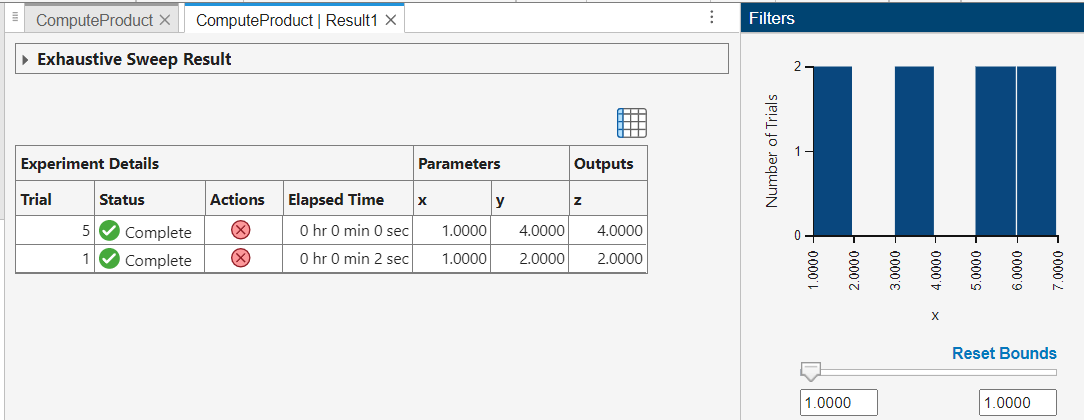
You can display only a subset of trials in the table of results by applying a filter to a column. For example, display only trials where the value of parameter x is 1. On the Experiment Manager toolstrip, click Filters. To apply a filter, in the x variable section of the Filters panel, select the numeric range.
Display Visualization
When your experiment function contains code that creates a plot, you can display a visualization to interpret the result of a single trial. For more information, see Visualize Experiment Results with Plots.
Modify Parameters and Rerun Experiment
To try new parameter values, edit the values in the Parameters section of the experiment editor and click Run. Experiment Manager creates a new result in the project and does not overwrite the previous result.
For example, on the ComputeProduct experiment tab, in the Parameters table, change the value of y to [2 5]. Then click Run.
Export Results to the MATLAB Workspace
To further analyze the experiment results, you can export one or more trials to a table in the MATLAB workspace. For example, click Export > Export All Trials and specify a name for the table. The default name for the table is resultsTable. Then, you can perform some additional analysis on the output variable z.
For example, in the Command Window, find the average value of z across all trials in the experiment result.
mean(resultsTable.Outputs.z)

