Manage Python Environments Using External Languages Panel
R2026bYou can use the Python® view in the External Languages panel to configure and maintain your Python environments directly from MATLAB®. In the panel, you can switch Python environments, add or create environments, manage and share libraries, change the execution mode, and remove or delete environments.
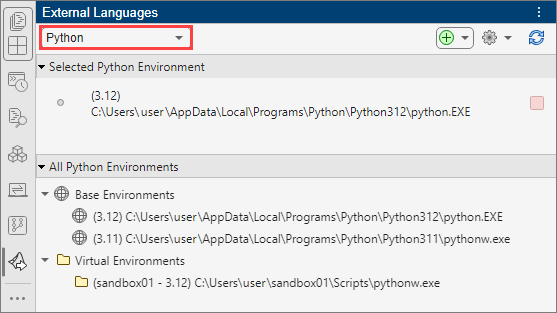
To open the Python view in the External Languages panel, click the Open more panels button
 on any sidebar and click
External Languages. Then select the
on any sidebar and click
External Languages. Then select the Python option from the language list at the upper left of the panel.
Switch Python Environments
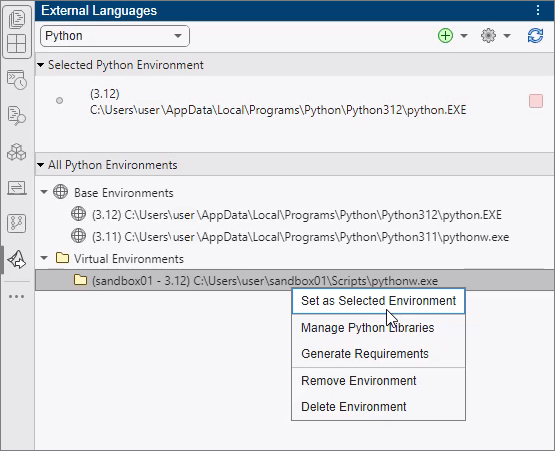
The Python view in the External Languages panel displays your currently selected Python environment and other available Python environments, including base environments and virtual environments. You can change the selected Python environment by right-clicking an environment in the All Python Environments section and selecting Set as Selected Environment.
If you do not see an environment that you expect to see in the list, then add the environment by following the steps in the next section. If you installed a Python base environment with the MATLAB window open, you can also click the Refresh button to update the All Python Environments section. If a Python environment is not on the system path, MATLAB might not detect it.
Add or Create Python Environments
If you want to configure an environment that is not listed in the Python view of the External Languages panel, you can either add an existing environment or create a new virtual environment in MATLAB.
Add Existing Environment
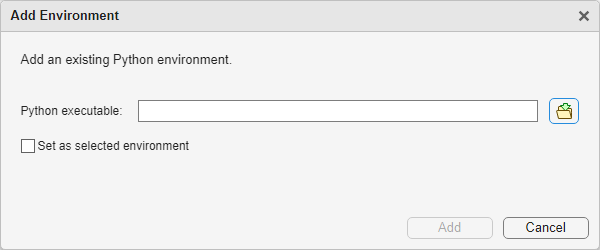
To add a base or virtual Python environment, click the Add button and select Add Environment. In the Add Environment window, type or browse to the location of the Python executable and choose whether to set it as the selected environment.
Create Virtual Environment
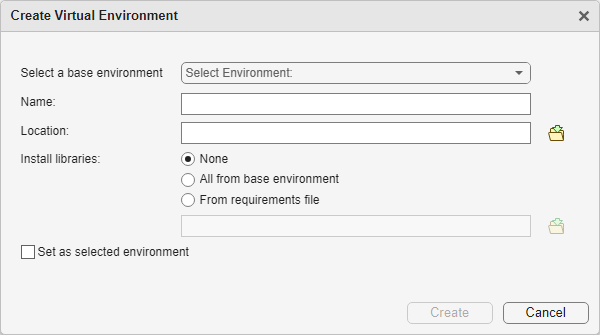
To create a virtual Python environment, click the Add button and select Create Environment. In
the Create Virtual Environment window, specify a base environment, name, location,
libraries to install, and whether to set the virtual environment as the selected
environment. MATLAB uses the Python
venv module to create virtual environments.
Manage and Share Libraries
Code written in Python often requires external libraries. You can install, update, or remove Python libraries in your environments, and share library configurations among environments.
Manage Libraries
To manage libraries in an existing Python environment, right-click the environment in the All Python
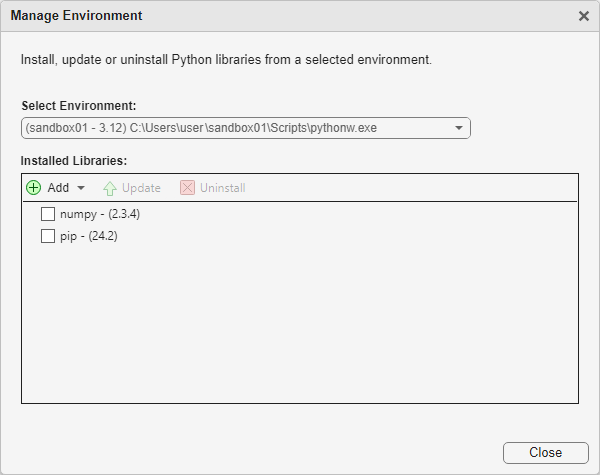
Environments section and select Manage Python Libraries. From the Manage Environment window, you can add
libraries to the environment, update installed libraries, or uninstall libraries.
MATLAB uses the Python
pip installer to add, update, or remove libraries. This installer
affects not only your MATLAB environment but also any part of your system outside of MATLAB that uses the libraries.
The Add button in the Manage Environment window allows you to add a
library using its name or a requirements.txt file. If you choose to add
a library using its name, MATLAB installs the library from the Python Package Index (PyPI). If you previously generated a
requirements.txt file, then you can use it to install libraries to a
Python environment.
Replicate Environments
If you want to use the same libraries for another Python environment, you can generate a requirements.txt file
from the original environment by right-clicking it in the All Python Environments list and selecting Generate
Requirements. The generated requirements.txt file contains
information about the Python environment, including its libraries. Then use the
requirements.txt file to install the same libraries in another
environment.
Change the Execution Mode
Depending on the purpose of your Python code, you might want to run it in in-process or out-of-process execution mode. To change the execution mode of the selected Python environment, click the Settings button and select either InProcess or OutOfProcess.
Depending on the direction of the mode change and whether the environment is loaded,
MATLAB might need to terminate the environment or restart. For more information, see
pyenv.
Remove or Delete Environments
When you no longer need a Python environment, you can remove it to reduce clutter. You can also delete virtual environments.
Remove Environment
You can remove a Python environment from the External Languages panel without deleting it. To remove an environment, right-click the environment in the All Python Environments section and select Remove Environment. When you remove an environment, it is recoverable. You can restore it to the Python view in the External Languages panel using the steps in Add Existing Environment.
Delete Virtual Environment
To permanently delete a virtual environment, right-click the environment in the All Python Environments section and select Delete Environment. This action deletes the virtual environment folder from the system and removes the environment from the External Languages panel. A deleted environment cannot be restored. You cannot delete base environments using the Python view in the External Languages panel.

