Release and Manage Package Dependencies and Versioning Using Projects
R2026bMATLAB® Projects provide a structured environment for developing, managing dependencies, and sharing MATLAB code, Simulink® models, tests and requirements, data, apps, examples, and documentation. Leveraging MATLAB Projects can significantly streamline package development, especially for collaborative or large-scale applications. Benefits of using projects for package development includes:
Consistency: Enforces organized structure and best practices.
Collaboration: Facilitates teamwork with built-in version control and sharing.
Scalability: Makes it easier to maintain and extend large codebases.
A project is collection of files, tests, artifacts, requirements needed for your ongoing development work/design.
A package or a toolbox is a released version of your development project with a version number.
Using a project to develop a package enables you to:
Use the project tools and its source control integration for development.
Set up a reproducible environment across platforms and systems by defining the settings and project path .
Use project checks to detect integrity, startup and shutdown issues.
Define which project folders and files you want to include in the package (package configuration).
Declare dependencies on other projects (not released) and packages (released)
Project automatically installs declared dependencies automatically from the packages repository on project startup
Specify version of package your project depends on.
The following illustration shows the project release workflow: From project under development until release and delivery to the consumer.
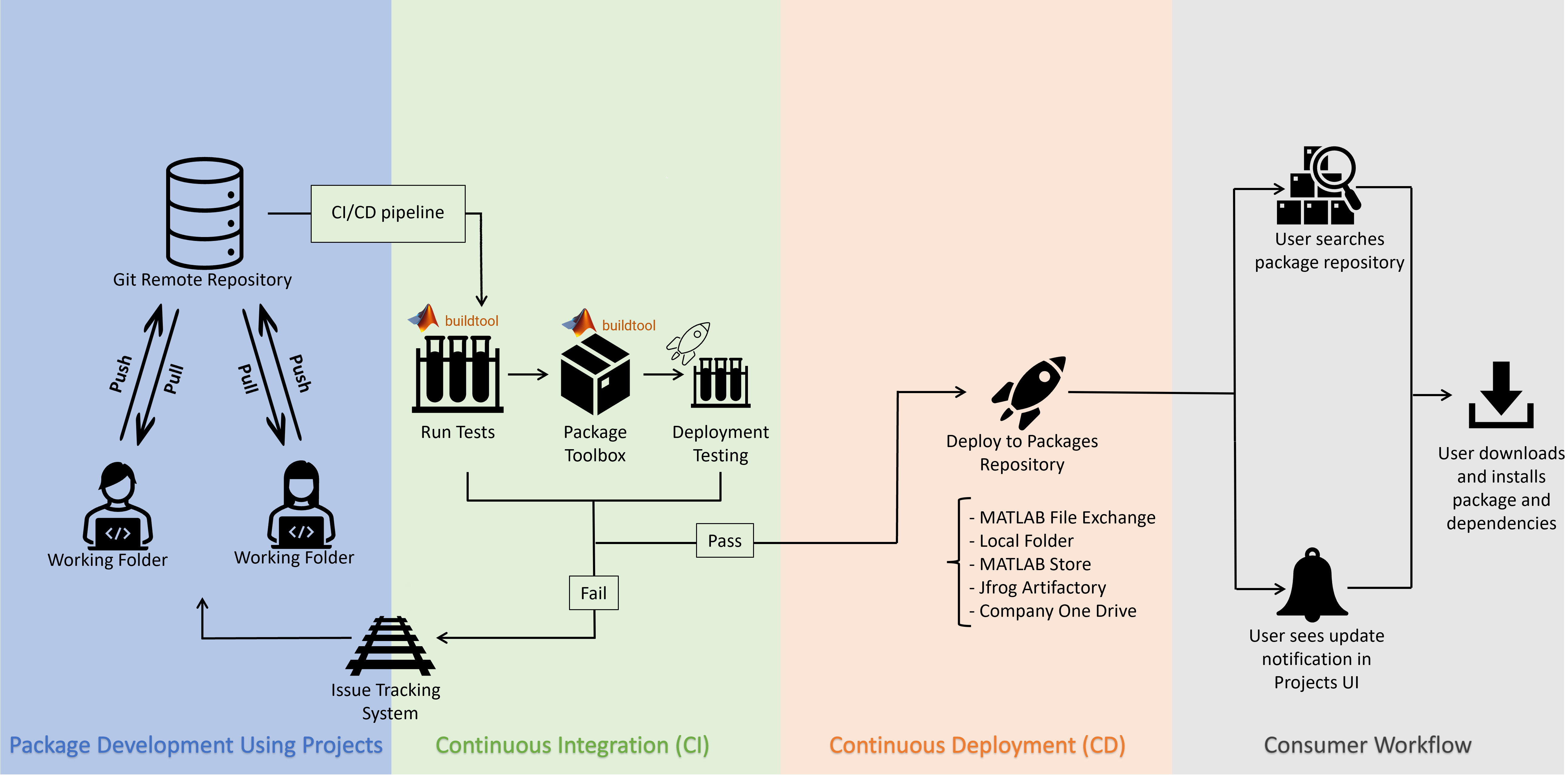
Develop a Package using Projects
You can collaborate with others and develop a package using projects.
Create Project
If you do not have a project yet, create one from your existing development folder. After you change the current folder to the folder that contains all the files needed for your package, on the Home tab, click New > Project. For detailed instructions, see Create Projects.
Note
MATLAB package management is supported only in
matlab.toml projects. For more information about the TOML
format, see MATLAB Projects TOML Format (.toml).
Version Control Integration
Integrate version control such as Git™ directly within your project. This action enables you to:
Track changes and manage branches.
Collaborate efficiently with other developers.
Revert to previous versions if needed.
For more information, see Use Source Control with MATLAB Projects.
Use Project Tools to Facilitate Development
Use project tools to help maintain project integrity, streamline workflows, and keep your files up to date.
| Run Checks and Fix Issues | Use project checks to identify and resolve common issues, such as:
For more information, see Run Project Checks. |
| Create Shortcuts and Startup Tasks | Configure shortcuts and startup tasks to automate common actions when you open the project. For example, you can:
For more information, see Automate Startup and Shutdown Tasks |
Upgrade Project Files | Use the Upgrade Project tool to upgrade your project to the current MATLAB release. For more information, see Check for Compatibility Issues Using Project Upgrade. |
Manage Dependencies
MATLAB Projects allow you to specify and track required toolboxes and third-party files. Use the Dependency Analyzer app to analyze and document which files or toolboxes your package relies on, ensuring reproducibility and easier on-boarding for collaborators.
To add a dependency to another toolbox, on the Project tab, in the Environment section, click Settings. Then, in the Dependencies section, click Add Dependency. Select the Package dependency option. Specify the name of the package from the list available packages and the required version. Then, click OK. The list of available packages includes installed packages and packages in the packages repository. For more information, see Find and Install Packages Programmatically.
Alternatively, on the Project tab, in the Environment section, click Dependencies. Then, in the Dependencies section, click New Dependency > Package Dependency.
You can also manage dependencies programmatically by editing the matlab.toml definition file.
Create Package from Project
To create a package from a project, see Interactively Create and Share Packages.
Test and Deploy a Package
To learn how to test a package, see Identify and Run Tests in MATLAB Projects.
To learn how to deploy a package, see Distribute Packages Using Folder-Based Repositories.
Install and Update Package
When you open a project that you are developing, the project prompts you to install all required packages on project startup. When you close the project, projects shutdown uninstalls the packages that project startup installed.
You can also install packages manually. For more information, see Find and Install Packages Programmatically.
See Also
matlab.toml | matlab.project.convertDefinitionFiles
Topics
- Create Projects
- Source Control Integration
- Find and Install Packages Programmatically
- Create and Manage Packages
- Develop and Share Software in MATLAB
- Create and Run Tasks Using Build Tool

