Create Composite Models
R2026bWhat Are Composite Models?
The composite model type allows you to combine a number of models to represent engine responses under different operating modes. You can use the composite model in CAGE to produce optimal calibrations for engines with multiple operating modes. Use composite models for calibration problems where the goal is to fill a single table for all modes or to fill a table for each mode, such as:
Multi-injection diesel engine
Inclusion of startup conditions in drive cycles
Rich and stoich regions for engines
You can create a composite model using either of the following approaches:
Importing into CAGE from the Model Browser and combining suitable responses from different test plans
Combining existing models in CAGE
The composite model comprises a collection of models with an extra mode input. The mode input is an index into the list of models. The component models can have different sets of inputs. CAGE uses symbol names and not signal names to determine inputs. Make sure the symbol names match for the same inputs.
Importing from the Model Browser
To import and combine models in the Model Browser into a single composite model:
Open the Model Browser, and load the project you want to import composite models from.
In CAGE, select File > Import > Composite Model.
The Import Composite Model wizard appears.
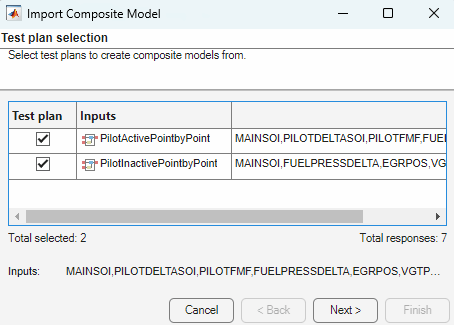
Select the test plans from which you want to import models, and then click Next.
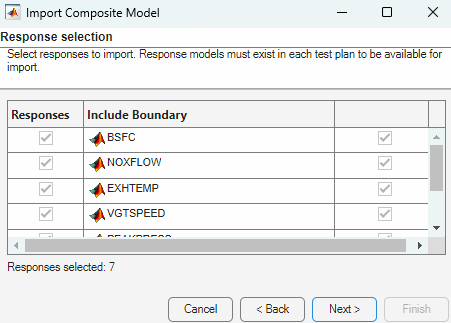
Select the responses to combine into a composite model. You can only select responses that are common to all selected test plans. If you do not want a boundary model included, clear the Include Boundary check box.
Note
Using composite models can result in very large CAGE project files when you combine point-by-point test plans with a large number of responses. To reduce the size of project files, exclude boundary models from response models that you do not want to use as optimization objectives.
After making your selections, click Next.
Optional — Edit the name for your mode variable and the names of your operating modes.
If you have point-by-point models, you can edit the input tolerances to merge close operating points.
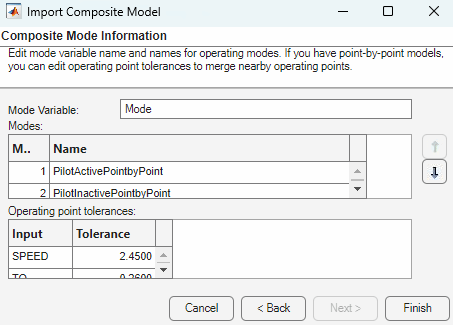
Click Finish to import your new composite model.
Combining Existing CAGE Models
To combine existing CAGE models into a single composite model:
Select File > New > Composite Model (or use the toolbar button).
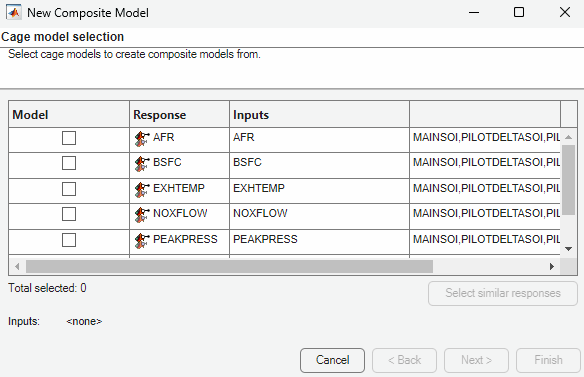
The New Composite Model wizard appears.
Select the models to combine into a composite model. The combined inputs are listed for your selected models. You can combine additional models with existing composite models as needed. Click Next.
Optional — Edit the name for your mode variable and the names of your operating modes.
If you have point-by-point models, you can edit the input tolerances to merge close operating points.
Click Finish to create your new composite model.
Viewing Composite Model Properties
Select a composite model in the Models view, and select Model > Properties.
In the Composite Model Properties dialog box, click the Model tab to view information about the model modes and inputs.
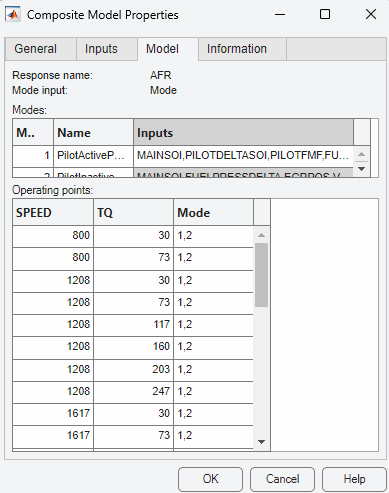
For composite models created by combining point-by-point models, use the Composite Model Properties dialog box to view which modes are available for each operating point, as shown in the next figure.