Edit Optimization Objectives and Constraints
R2026bWhen you create your optimization, you can set up initial objectives, a boundary constraint, and simple model constraints within the Optimization Quick Start Tool. You can also add and edit constraints and objectives in the main CAGE Optimization view.
You can run two types of optimizations, point optimizations and sum optimizations. Point optimizations look for the optimal values of each objective function at each point of an operating point set. A sum optimization finds the optimal value of a weighted sum of each objective function. The weighted sum is taken over each point, and the weights can be edited.
Use the Edit Constraint dialog box to set up model sum constraints. You cannot set up sum constraints from the Optimization Quick Start Tool or the Optimization Wizard.
You can also set up linear, 1- and 2-D table, and ellipsoid constraints in the Edit Constraint dialog box.
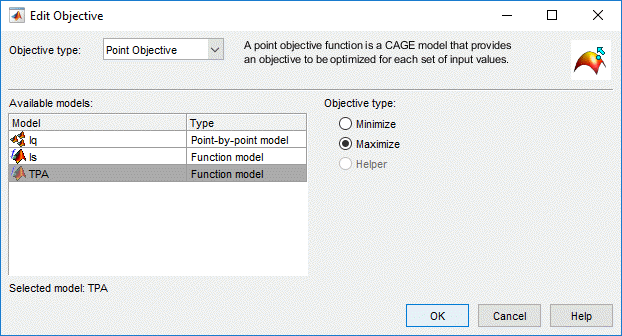
Edit Objective
Double-click or right-click objectives to open the Edit Objective dialog box.
Objective type Parameter | Description |
|---|---|
Point Objective | Point optimizations look for the optimal values of each objective function at each point of an operating point set. The You can also
include ' |
Sum Objective | Sum optimizations find the optimal value of a weighted sum of each objective function. The weighted sum is taken over each point, and the weights can be edited. Use only for weighted sum optimizations. You can edit weights in the Optimization view, to make certain operating points more important, giving more flexibility to solutions for other points. You can edit the weights in the Fixed Variables pane. |
Edit Constraint
You can rename the constraint by editing the Name edit box in the Constraints table, to aid analysis in the Optimization views. This may be disabled for user-defined optimizations.
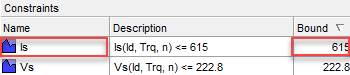
In the main CAGE Optimization view, you can edit sum and model constraint bounds that are constant directly from the Constraints table by editing the Bound edit box.
Use the Edit Constraint dialog box to edit model constraints that are not constant or to edit other properties of a constraint.
Constraint Type Parameter | Description |
|---|---|
Model | Optimization constraints. |
Range | |
Sum Constraint | |
Table Gradient | |
Linear | These are the same constraints you can apply to designs in the Model Browser part of Model-Based Calibration Toolbox™. For more information, see Define Design Constraints. You can select constraint inputs on the additional Inputs tab. Select any variable or model as an input into constraints. The default selects the optimization variables where possible. Models are treated as nonlinear functions, so if you choose to feed a model into a linear constraint it makes that constraint nonlinear. You are not able to access it as a linear constraint in user-defined optimization scripts. |
Ellipsoid | |
1D Table | |
2D Table |
To improve performance for large optimizations that use these algorithms, consider specifying a Soft Constraint.
fminconmodalGApatternsearchgamultiobjNBIparetosearchmultistart
During the optimization, Model-Based Calibration Toolbox tries to satisfy the constraint but accepts solutions which are close to the constraint.

Model Constraints
To construct a new model constraint:
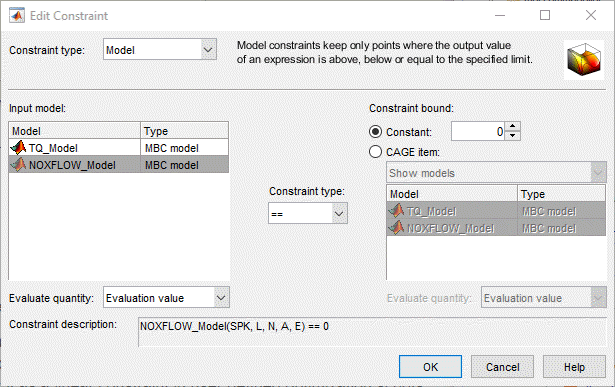
Select an Input model in the left list.
Use the Evaluate quantity drop-down list to choose
Evaluation value,Boundary constraint, orPEV value(model prediction error variance) to define your constraint.Choose the appropriate option button to either enter a value in the Constant edit box, or to select a CAGE item from the list of models or variables.
Select the Constraint type operator to define whether the optimization output should be constrained to be greater than, less than, or equal to the constant or item value specified on the right.
Check the displayed Constraint description, and click OK.
The model constraint settings are shown in the following figure.
Range Constraints
You can specify an upper and lower bound to constrain expressions (which can be variables, models, or tables). You can specify bounds with constants, vectors, variables, models, or tables.
Select a CAGE item to constrain on the Bound Expression tab. Use the drop-down menu to switch between variables, models, or tables, and then select the item to constrain. For appropriate models, you can also choose to constrain either the PEV or evaluation value.
On the Lower Bound tab, select an option button to choose whether to use a constant, vector, or CAGE item to specify the bound.
For constants, enter a value.
For vectors, you can enter the lower bound for each point in the Input Variable Values pane in the Optimization view after you close the Edit Constraint dialog box.
For CAGE items, use the drop-down menu to switch between variables, models, or tables, and then select the item to specify the lower bound. For appropriate models, you can also choose to use either the PEV or evaluation value.
Specify the upper bound on the Upper Bound tab in the same way as you specified the lower bound on the Lower Bound tab.
Check the displayed Constraint description, and click OK.
Sum Constraints
Use these for weighted sum optimizations. Choose a model, constraint bound value, and an operator.
You can have a mixture of point and sum constraints.
Table Gradient Constraints
Table Gradient constraints must be used in sum optimizations. Unless you are using a user-defined optimization, for Table Gradient constraints, use a sum objective. You cannot run point optimizations that contain table gradient constraints.
Table Gradient constraints allow you to constrain the gradient of a free variable or model over a grid of fixed variables.
Select a free variable or model to constrain.
Specify one or two fixed variables, and a grid of points either manually or by selecting table axes.
Enter values in the Maximum change and Axis value change edit boxes to specify the maximum change in the free variable or model per amount of fixed variable change between cells. For example, enter
5and1000to specify 5-degrees maximum change in cam angle per 1000 rpm.To set upper limits or lower limits in a table gradient constraint, specify a two element row vector in the Maximum change edit box. e.g.,
[-5 20].Use
Infif you only want to specify a lower or upper bound, e.g., enter[0 Inf]to specify a table gradient > 0, and[-Inf 0]to specify a table gradient < 0.Check the displayed Constraint description, and click OK.
Soft Constraints
Consider specifying a soft constraint when the:
Constraint bounds are not well understood.
Optimization has difficulty finding feasible solutions with hard constraints.
When you specify a soft constraint, Model-Based Calibration Toolbox does not require that the optimization satisfies the constraint. Instead, Model-Based Calibration Toolbox allows for some slack around the constraint. During the optimization, the algorithm satisfies the soft constraint by minimizing the slack and optimizing the objective.
To specify a soft constraint, in CAGE, on the Constraints pane, select Soft Constraint.
For example, follow this general workflow to find feasible optimization solutions using soft constraints.
Run the optimization with hard constraints.
Make some constraints soft. For example, for sum optimizations, make the table gradient constraints soft constraints.
In the Optimization Parameters dialog box, specify a Soft constraints weighting to place more or less emphasis on satisfying the constraints. By default, the value is 1. Increasing the value forces the optimization to find feasible solutions while satisfying the hard constraints and minimizing the slack for soft constraints. If you set the value to inf, the optimization considers all constraints hard constraints. If you set the value to 0, the optimization does not try to satisfy any soft constraints.
Run the optimization with soft constraints. Review the optimization results. CAGE highlights soft constraints that do not satisfy the hard constraint bound in light blue.
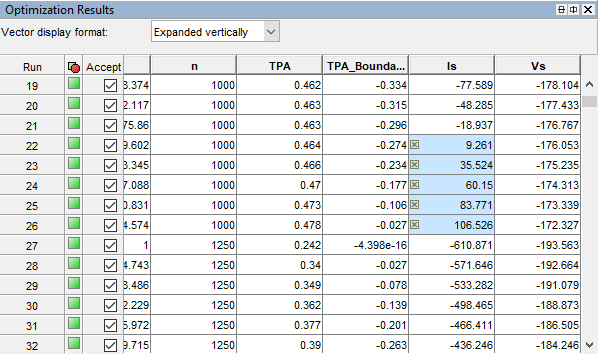
Identify constraints that are not satisfied. Consider making hard constraints soft constraints.
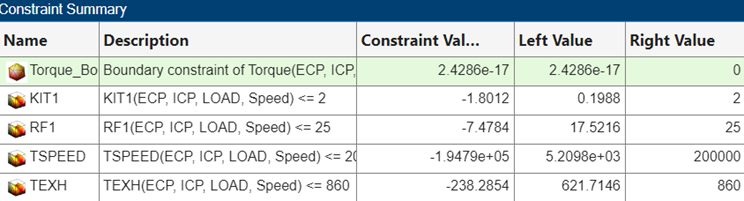
View active constraints, shaded green, in the Constraint Summary table. Constraints are active when the Left Value is within a tolerance of the Right Value.