Optimization Quick Start Tool
R2026bDescription
The Optimization Quick Start Tool helps you set up your optimization problem. Every optimization requires one or more models. You can set up point or sum, single, multiobjective, or modal optimizations.
If you have a user-defined optimization script that defines operating point sets, a fixed number of optimization variables, or both, you must use the Optimization Wizard instead. This condition is common with Version 2.0 scripts. For more information, see Custom Optimization Wizard.
The Optimization Quick Start Tool dialog box has four pages:
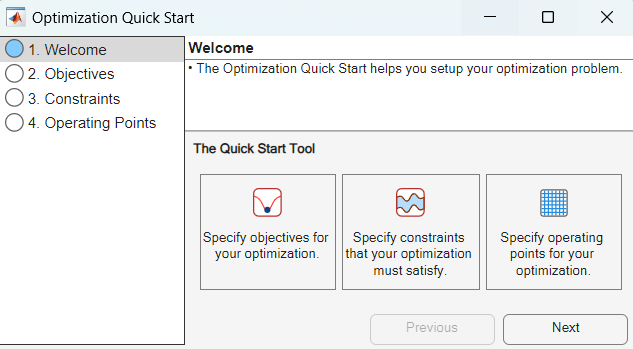
Welcome — See an overview of the optimization setup.
Objectives — Define the optimization type, objectives, and solver.
Constraints — Define the constraints your optimization problem must satisfy.
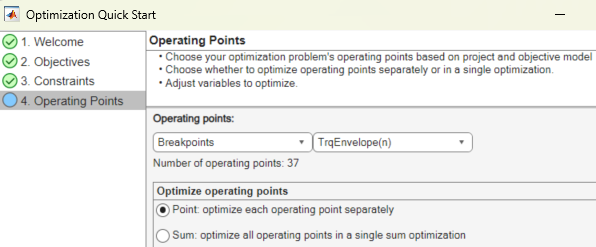
Operating Points — Define the operating points for your optimization problem and select at least one variable to optimize.
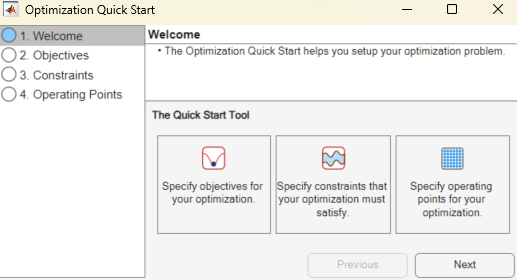
Open the Optimization Quick Start Tool
At the command prompt, type cage. Import the model or models you want
to optimize into your CAGE project. After you import your models, select Tools > Create Optimization From Model. For more information importing models, see Import Models and Calibration Items.
Examples
To set up an optimization using a model in your CAGE project, select Tools > Create Optimization from Model.
The Optimization Quick Start tool opens. Click Next.
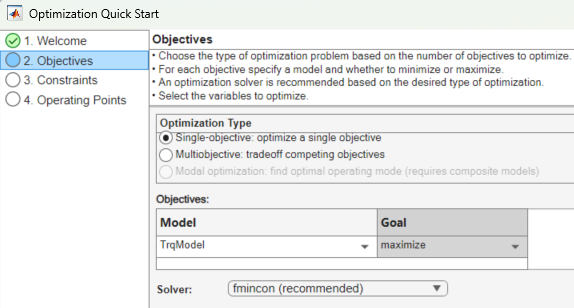
On the Objectives page:
Select the Optimization Type.
Specify the Model and Goal for the Objectives.
Select the Solver.
Click Next.
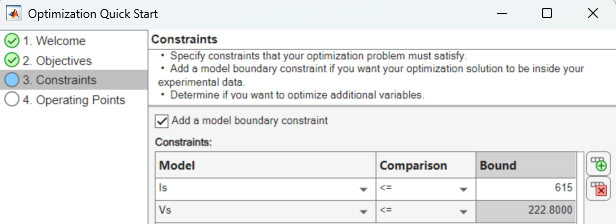
On the Constraints page, select whether to add a boundary model constraint and add one or more simple model constraints. Click Next.
On the Operating Points page, select the operating points, whether to optimize the operating points separately or in a single optimization, and which variables to optimize. Click Apply.
Related Examples
Parameters
Objectives
Use the tool to select the optimization type, one or more models to optimize, whether to maximize or minimize your model, and the solver.
Select the optimization type:
Single-objective: optimize a single objective — Run an optimization problem defined by a single objective function.
Multiobjective: tradeoff competing objectives — Run an optimization problem that requires optimizing more than one objective function simultaneously. For more information, see Set Up Multiobjective Optimizations.
Modal optimization: find optimal operating models (requires composite models) — Use the modal optimization algorithm to produce optimal calibrations for engines with multiple operating modes. This algorithm helps you choose the best operating mode for each operating point. For more information, see Set Up Modal Optimizations.
From the Model list, select the model you want to optimize.
From the Goal list, select maximize to
maximize the model or minimize to minimize the
model.
The solver options available depend on the optimization type. For more information about different options, see Edit Optimization Options.
Note
After you create the optimization, can change the solver type by selecting Optimization > Change solver. However, you cannot change the optimization type from multiobjective to single-objective or vice versa.
| Optimization Type | Solver |
|---|---|
Single-objective |
|
Multiobjective |
|
Modal optimization |
|
* Requires Global Optimization Toolbox.
Constraints
Use the tool to add a boundary model constraint and simple model constraints that your optimization problem must satisfy. Use the Optimization view in the CAGE browser to apply other types of constraints: model, linear, ellipsoid, 1–D table, 2–D table, and range. For more information, see Edit Constraint.
Select this parameter to add a model boundary constraint. Your optimization solution will be inside your experimental data.
Use these buttons to create simple model constraints or remove a selected constraint from the constraint table:
 — Add constraint
 — Remove constraint
To define a simple model constraint, click the button to add a constraint. Specify these columns in the Constraints table to create an equation to compare a model to a bound:
Model
Comparison
Bound
Note
When you return to the Optimization view, you can add or edit constraints and settings.
Example: model <= bound
Operating Points
Use the tool to select the operating points to run your optimization at based on your project and objective model. In the Optimization view, you can select the points manually or import them from data sets, tables, or the output of existing optimizations. See Edit Optimization Variable Values.
Select one of these operating point types:
Model operating points— Optimize at model operating points. This option is the default for point-by-point models and is available for composite models, where the mode variable is included in the operating points.Set point— Optimize using a single operating point. This option is available for all model types.Breakpoints— Optimize at a grid defined by a lookup table. The optimization operating points must be inputs to the lookup tables in CAGE.Datasets— This option is available if a data set in the current CAGE session has some of the required variables.Unique operating points— This option is only available for modal optimizations and is the default when creating a modal optimization. The mode variable is treated like an operating point.
Select the operating point optimization type.
| Optimize Operating Points Selection | Description |
|---|---|
Point: optimize each operating point separately | Select for a point optimization problem to find optimal control parameter values at a single operating point per optimization run. Each operating point is treated as a separate optimization run. The resulting values can be used as initial values for a sum optimization. In CAGE, a run refers to each call to the optimization algorithm. You specify the number of runs that you want CAGE to perform with the Number of runs control in the Input Variable Values pane. |
Sum: optimize all operating points in a single sum optimization | Select for a sum optimization to find optimal control parameter values at several operating points simultaneously. Thus, one call to the optimization solver determines the optimal settings of the control parameters for all operating points. For more information, see Set Up Sum Optimizations. |
Optimization Variables
Select variables to optimize from the set of model inputs.
Version History
Introduced in R2025a

