Edit Optimization Variable Values
R2026bWhat Are Variable Values?
In the optimization view, the Variable Values panes define the set of operating points for the optimization. If you use the tool for Optimization Quick Start Tool, you can choose to set up operating points automatically in the tool. You can choose to use the variable set points, a data set, table breakpoints, or model operating points (if you have point-by-point models). When you close the wizard, CAGE displays your chosen points in the Variable Values panes. You can use the Variable Values panes to edit your optimization operating points.
You do not have to choose a set of operating points; you can run the optimization at a single point.
Running the optimization requires the selected models to be evaluated (many times over) and hence values are required for all the model input factors. Choose values for the fixed variables in the Fixed Variables pane. You chose one or more optimization variables, so the optimization chooses different values for those optimization variables in trying to find the best value of the objectives. The initial values for a free variable are shown in the Free Variables pane.
To define the set of operating points for the optimization, you can define variables manually, or you can import values from these sources: data set, optimization output, table breakpoints, or table values.
Define Variables Manually
To define values manually:
In the Input Variable Values pane, select the Number of runs. New rows appear for both fixed and free variables, all containing the default set point values of each variable. Each row defines an operating point for an optimization run.
Edit the values in the Fixed Variables pane to define the points where you want to run the optimization.
You can copy and paste values from other parts of CAGE (existing optimizations or data sets etc.), or from the system web browser or other documents.
You can select Optimization > Import From Data Set if you have suitable variables to import.
You can select Optimization > Import From Output if you have suitable optimization outputs.
An example is shown in the following figure.
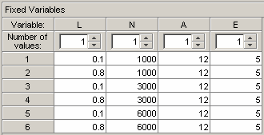
Edit the values in the Free Variables pane in a similar way, if you want to define the starting values of the free variables, or you can leave these at the default.
For
fminconoptimizations you can specify various initial starting values per run, see fmincon Optimization Parameters.If you want to restrict the range of the free variables, you can select Optimization > Edit Free Variable Ranges. The default is the range of the variable as defined in the Variable Dictionary.
Use the right-click context menu to duplicate or delete runs, or select Fill All Runs to copy the run values to all other runs.
The Number of Values controls are for sum optimizations. See Selecting Scalar Variables.
Import from a Data Set
Select Optimization > Import From Data Set (or use the toolbar button) to define the operating points for an optimization from a data set, if you have suitable variables to import. The Import From Data Set dialog box appears.
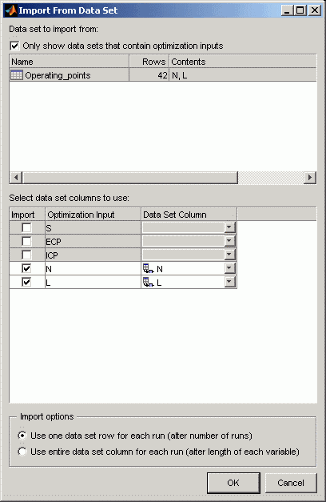
Select a data set.
Select data set columns to import.
Choose whether you want a run per data set row (alter number of runs), or each imported variable to have the same length as the number of data set rows (alter length). For information on altering the length of variables (for sum optimizations only), see Selecting Scalar Variables.
Click OK to import the variable values.
Import from Output
Select Optimization > Import From Output to import starting values from the output values of a previous optimization. The Import From Output dialog box appears.
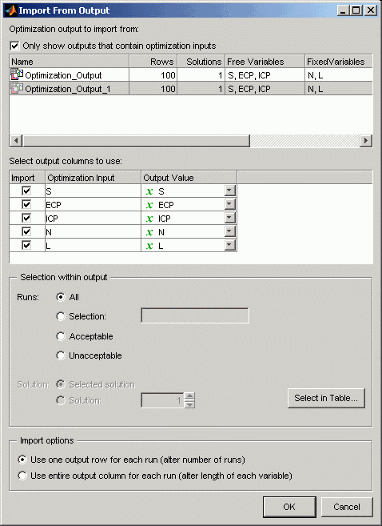
Select the desired optimization output.
Select the columns from the output you want to import.
Choose the runs from the optimization output that you want to use. The Selection within output controls allow you to choose a subselection. If the number of values per run differs between current inputs and selected outputs, the inputs are altered to match.
Select the option button All to import all runs.
Select the option button Selection to import a subset of runs. You can enter a vector specifying the runs you want to import (e.g.,
1 3 6:9), or click the button Select in Table to open a dialog box and select runs manually.Select the option button Acceptable to use only the runs with a selected Accept check box. See View Your Optimization Results. Click the button Select in Table to open a dialog box and view or edit the selection.
Select the option button Unacceptable to use only the runs without a selected Accept check box. Click the button Select in Table to open a dialog box and view and edit the selection.
For multiobjective optimizations, you can choose to use the selected solutions or a solution number.
Use the Import options buttons to choose whether you want a run per output row (alter number of runs), or each imported variable to have the same length as the number of output rows (alter length).
If you click the button Select in Table, you see the following dialog box.
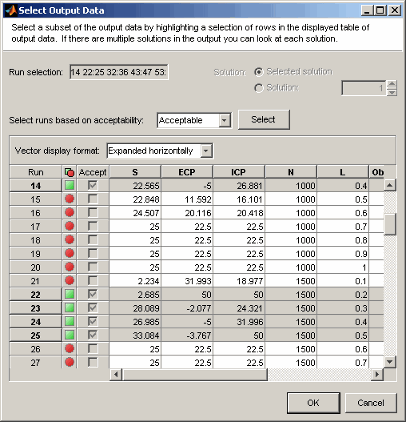
Highlight cells in the table (Shift+click, Ctrl+click, or click and drag) to select runs to import.
If you chose a subselection on the parent dialog box (e.g., a vector of runs or an
acceptable status), the table appears prefiltered with runs selected by those choices. You
can filter again for acceptable status on this dialog box: select
Acceptable or Unacceptable from the
drop-down list and click the Select button.
If there are multiple solutions in the output, you can browse them with the Solution controls.
When you are satisfied with the selected runs, click OK to return to the Import From Output dialog box. Click OK to import the runs.
Import from Lookup Table Breakpoints
Select Optimization > Import From Lookup Table Breakpoints to import starting values from the breakpoint values of a table. The Import From Breakpoints dialog box appears.
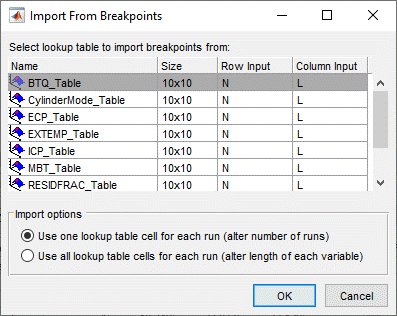
Select the desired table in the list.
Use the Import options buttons to choose whether you want a run per table cell (alter number of runs), or each imported variable to have the same length as the number of table cells (alter length).
Click OK.
When you click OK, values for each table cell are imported into the optimization input variable values pane, e.g., for a 10 by 10 table, 100 starting points are imported.
Import from Lookup Table Values
Select Optimization > Import From Table Values to import starting values from the evaluation of a table. The Import From Table Values dialog box appears.
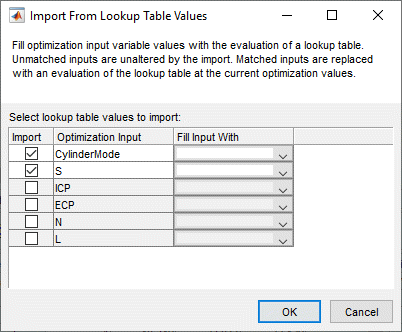
For each input you want to import, select the appropriate table from the Fill Input With list.
The check box for an input is automatically selected when you select a table for it.
You cannot choose to fill an input with a table that depends on it.
Click OK.
When you click OK, your selected optimization inputs are replaced with an evaluation of the table at the current optimization values. Other inputs are not altered.

