Create an Optimization
R2026bCreate optimizations from models using the Optimization Quick Start Tool.
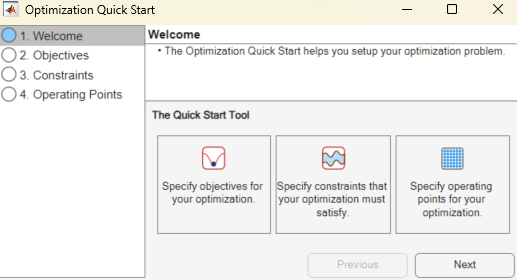
Tools for Common Optimization Tasks
After you create an optimization, you can select additional options from the Optimization drop-down menu. The table describes common tasks available in the toolbar.
| Icon | Task | Description |
|---|---|---|
| Create lookup tables and tradeoff for a model. | Use this wizard to create tables (and optionally, a tradeoff) for use with the current optimization. For example, you can create tables with the same inputs as your optimization for filling with optimization results. The wizard automatically selects the model in the first objective, though you can choose any model in your project. Then, you can choose which variables and responses to set up tables for. You can then fill these tables with the results from your optimization, and investigate your results in the tradeoff view. See Create Lookup Tables from a Model. |
| Add a new objective. | Add an objective to your optimization, if enabled. (Remember that
|
| Add a new constraint. | Add a constraint to your optimization. In the list of constraints, double-click the new constraint to open the Constraint Editor and set up the constraint. See Edit Constraint. |
| Import initial data from a data set. Import initial data from an optimization output. Import initial data from lookup table breakpoints. Import initial data from lookup table values. | Populate the Variable Values panes by importing values. See Edit Optimization Variable Values. |
| Set up optimization options. Set up options and run optimization. | Open the Optimization Parameters dialog box, where you can change optimization settings such as tolerances and number of solutions. When you close the dialog box, the settings are saved. If you select Set Up and Run, then the optimization runs. See Edit Optimization Options. |
| Run optimization. | Starts the optimization. See Run Optimizations. |


Custom Optimization Wizard
For most optimizations, using the Optimization Quick Start Tool simplifies the setup process.
If your user-defined optimization script defines operating point sets, a fixed number of optimization variables, or both, use the Custom Optimization Wizard instead. These conditions are common with Version 2.0 scripts.
To use the Optimization Wizard, select File > New > Custom Optimization.
The Optimization Wizard leads you through the steps of choosing the optimization to run, specifying the number of variables to optimize over (unless this number is predefined by the function), and linking the variables referenced in the optimization to CAGE variables.
For example, if you have advanced operating point set requirements, you need to match the data set variables as part of setting up the optimization variables. Alternatively, your optimization problem might involve optimization variables that are not part of the objective model, as is the case with some feasibility problems.
The table summarizes actions you can take with the Optimization Wizard.
| Action | Step |
|---|---|
Choose algorithm. | Optimization Wizard Step 1 |
Set up optimization variables, objectives, and constraints options. | Optimization Wizard Step 2 |
Select optimization variables. | Optimization Wizard Step 3 |
Set up objectives. | Optimization Wizard Step 4 |
Set up model constraints. | Optimization Wizard Step 5 |
Set up data sets (user-defined optimizations only). | Optimization Wizard Step 6 |
Optimization Wizard Step 1
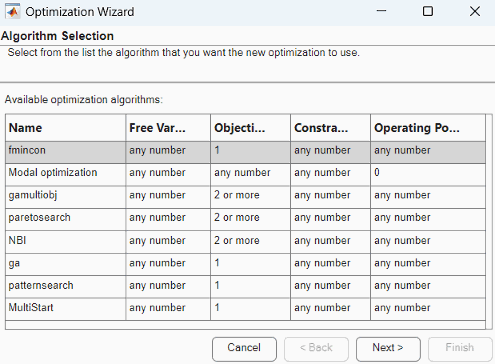
Choose your algorithm. The first screen of the Optimization Wizard is shown below.
The first five algorithm choices on the first screen of the Optimization Wizard are standard routines you can use for constrained single and multiobjective optimization.
fminconis a single-objective optimization subject to constraints. This function uses the MATLAB®fminconalgorithm from the Optimization Toolbox™.The
NBI,paretosearch, andgamultiobjalgorithms are multiobjective and can also be subject to constraints.The
ga,gamultiobj,paretosearch, andpatternsearchalgorithms are only available if you have the Global Optimization Toolbox installed.gais a genetic algorithm, for single-objective optimizations subject to constraints. This function uses the MATLABgaalgorithm from the Global Optimization Toolbox. See Genetic Algorithm (Global Optimization Toolbox).patternsearchis another algorithm for single-objective optimization subject to constraints, from the Global Optimization Toolbox. See Direct Search (Global Optimization Toolbox).
Modal optimizationselects the best operating mode for each operating point, and requires a composite model. See Set Up Modal Optimizations.
These standard routines are generally sufficient to solve your optimization problem. However, when solving your optimization problems requires writing a customized optimization algorithm, you can modify the supplied template to meet your needs. Any optimization functions that you have checked into CAGE appear in this list. The Worked Example option is designed to show you how to use the modified template. For step-by-step instructions, see Create a User-Defined Optimization.
Note
If you choose a user-defined optimization function at step 1, the choices in subsequent steps depend on the settings defined by that function. When writing user-defined optimizations, you can choose to set predetermined algorithm options or make selections on any subsequent screen of the Optimization Wizard.
Optimization Wizard Step 2
Select algorithm options for numbers of optimization variables, objectives, and constraints. The optimization tries to find the best values of the optimization (free) variables. The options available depend on your selected algorithm.
If in step 1, select the
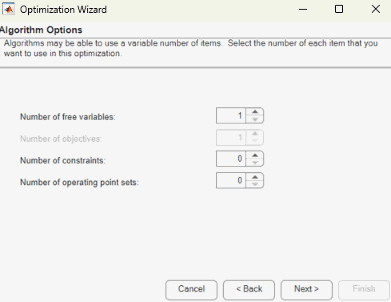
fminconalgorithm and click Next.For each algorithm, you can select a value for Number of free variables, Number of constraints, and Number of operating point sets.
The
fminconalgorithm can only have a single objective, so this control is not enabled. Choose the number of optimization variables and constraints you require. You can also add constraints later.If in step 1, you select the algorithm
NBIand click Next, you can also select a value for Number of objectives.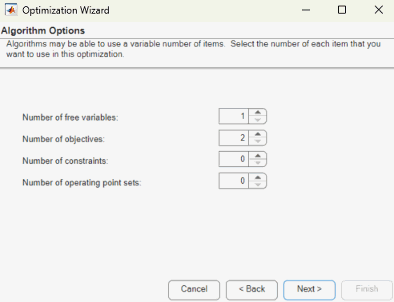
The
NBIalgorithm must have a minimum of two objectives, and you can choose as many optimization variables and constraints as you like. You can add constraints later if necessary.
Optimization Wizard Step 3
The models have at least one optimization variable as an input. You must select variables to link with the optimization variables used in your optimization.
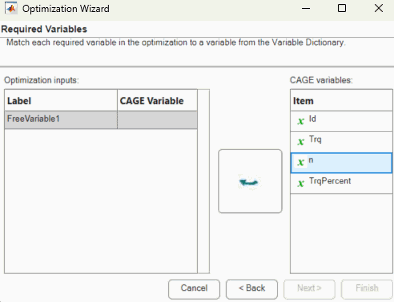
Select the variables from your CAGE session to associate with the optimization variable or variables (FreeVariable) you want to use in the optimization. Click the optimization inputs, click the CAGE variables, and then click the large arrow button to associate them.
Once you assign your optimization variables, click Next or Finish.
Optimization Wizard Step 4
You can set up your objectives on this screen or in the Optimization view in CAGE. See Edit Objective.
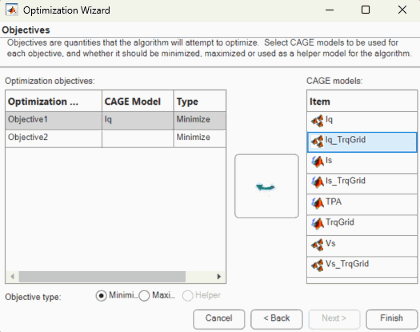
Select which models from your session you want to use for the optimization, and set
whether to maximize or minimize the model output. The fmincon algorithm
is for single objectives, so you can only maximize or minimize one model. The
NBI and gamultiobj algorithms can evaluate
multiple objectives. For example, you might want to maximize torque while minimizing NOx
emissions. You can also define constraints later, for example, using emissions
requirements.
You can also include 'helper' models in your user-defined
optimizations, so you can view other useful information to help you make optimization
decisions. (This setting is not enabled for the NBI or
fmincon algorithms).
To proceed to setting up constraints, click Next.
To complete the Optimization Wizard and return to the Optimization view, click Finish. Note you can only set up point objectives in the wizard, but you can also set up sum objectives in the main Optimization view. See Edit Optimization Objectives and Constraints.
Optimization Wizard Step 5
You can use models to define constraint regions that restrict optimization variables. If you want to use constraints, you can select them here, or add them in the Optimization view in CAGE. You can also add other types of constraints in this view. See Edit Constraint.
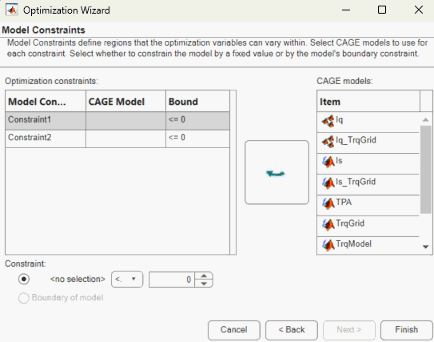
Select a model for each constraint by selecting a CAGE model and a model constraint, and then clicking the large arrow button.
For each constraint:
Enter a value in the edit box to define the bound. Select the operator to define whether the optimization output should be constrained to be greater than or less than the value.
Alternatively, click the option button to use the Boundary of model value as the constraint.
Optimization Wizard Step 6
If your user-defined optimization allows you to add a data set, you can select the
data set on step 6 of the Optimization Wizard. You can use data sets to evaluate models
over a different set of operating points during an optimization run. For example, you
could run an optimization at the points (N1, L1),
(N2, L2), but an important quantity to monitor and
possibly act upon is, say, temperature at points (N3,
L3), (N4, L4). You can monitor
the temperature at these points by using data sets, to help you select optimization
results. You can set up data sets in step 6 of the wizard or in the Optimization view in
CAGE (select Optimization > Edit Data Sets).
Data sets are not enabled for fmincon and NBI
optimizations.
To return to the Optimization view in CAGE, click Finish. Your new optimization appears as a new node in the tree node on the left. The setup details appear on the right.
See Also
Set Up Sum Optimizations | Set Up Multiobjective Optimizations | Set Up Modal Optimizations

