Create Lookup Tables from a Model
R2026bYou can access the lookup table creation wizard by menu or toolbar, from any view in CAGE. The wizard helps you quickly create a set of lookup tables with the same axes for all the inputs of a model, and the model response, and any other responses that share inputs. You can choose which of these lookup tables to create, and select the values for the axes (or normalizers) that all lookup tables share. You can also add all the new tables to a tradeoff.
This wizard can be useful when creating tables for an optimization, to use when filling tables with optimization results, and for investigating results in the tradeoff views.
To create lookup tables (and optionally a tradeoff) from a model,
Select Tools > Create Lookup Tables From Model.
The Create Lookup Tables From Model Wizard opens.
Select a model to base the new tables on.
If you are viewing a model, then the wizard automatically selects the current model. If you are viewing an optimization or an optimization output node, then the wizard automatically selects the model in the first objective. You can use this to create lookup tables for the selected optimization.
If you have selected a point-by-point model, you can optionally select the check box to Create operating point data set.
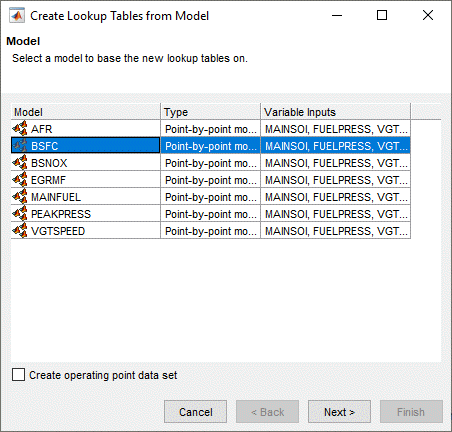
Click Next.
Select table axes input variables and set up the normalizers to use for the new tables.
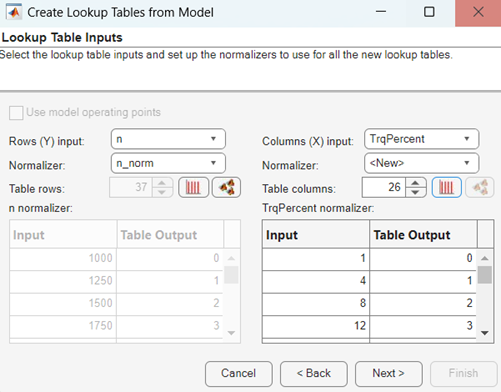
If you have selected a point-by-point model, CAGE automatically selects the check box to Use model operating points for the table normalizers. You can clear the check box if you want to select different normalizers.
Select inputs. For the X- and Y-axis inputs, you can select any input variable for your selected model, or the model response.
Select normalizers. You can select existing normalizers in your project or create ones. If creating normalizers you can edit the numbers of Table rows and Table columns, and edit values in the Input columns. By default CAGE initializes normalizers with equally spaced points across variable ranges, unless you select the response model as a table input.
If you choose a response model input, you must specify the breakpoints. Click the button to Edit breakpoints, then enter a number of points and the range to space the breakpoints over. If you do not do this, the model is evaluated over the input range to find the best spacing between breakpoints. If you use operating points for breakpoints, click the button to Use operating points for breakpoints. After you create your tables with a model input, in your Variable Dictionary you can view a new variable named
modelnamewith the range you specified. CAGE uses this input variable to match to model names when you fill lookup tables from optimization results._input
Click Next.
Select check boxes to specify which variables and responses to create lookup tables for. You can create lookup tables for other responses with the same inputs as the primary model (and the same operating points for point-by-point models).
By default, you create a tradeoff containing all of the new tables. The tradeoff can be useful for investigating optimization results. If you do not want to create the tradeoff, clear the check box.
Click Finish to create the tables and tradeoff.
You see a dialog box listing all the items you have created, and you can choose which (if any) of the items to view next.

