Calibration Manager
R2026bUse the Calibration Manager dialog box to manage the sizes, values, and precision of all items
that can be calibrated. Open this tool by selecting a lookup table, then selecting Tools > Calibration Manager or by clicking the Calibration Manager button  on the toolbar.
You can either set up your lookup tables manually or from a calibration file. You can also copy lookup table data from other sources.
You can enter the required inputs, number of rows and columns and an initial value for lookup table cells when you add a lookup table. Use the File > New menu items to make new lookup tables.
Set Up Lookup Tables from a Calibration File
Setting up lookup tables with a calibration file involves two steps.
| Step | Description |
|---|---|
Import calibration files into the Calibration Manager | You can import calibration files from the CAGE Browser by selecting File > Import > Calibration. Your selected file opens in the Calibration Manager. You can also open the Calibration Manager and import calibration files from within the Calibration Manager window by using the following procedure:
In the Calibration Manager, review the files you have imported:
|
Import calibration file values into a Lookup Table | To import the data in your calibration file into a lookup table in your project:
|


When you close the Calibration Manager, you can view your updated lookup tables in CAGE. If you want to compare or revert to an earlier version of your lookup table, select View > History.
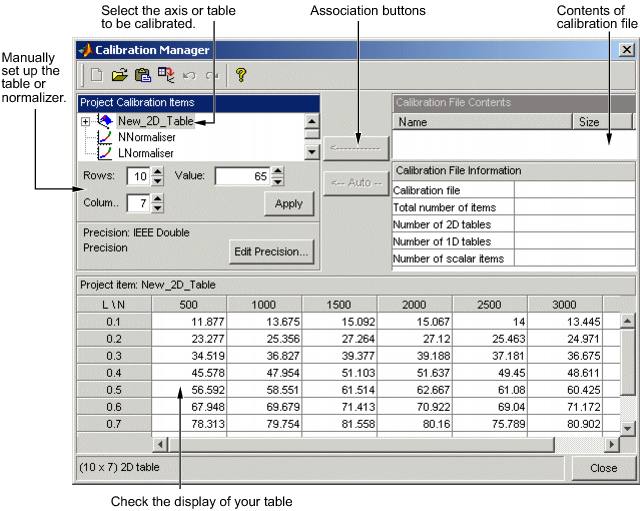
This figure shows the Calibration Manager.
Set Up Lookup Tables Manually
To set up the lookup tables manually:
Select the normalizer or lookup table to set up from the list on the left.
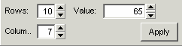
Enter the number of rows and columns in the edit boxes on the left and select initial values for each cell in the lookup table.
Click Apply.
When initializing lookup tables for a feature calibration, consider your strategy. CAGE cannot fill those lookup tables if you try to divide by zero. Initialize the modifier lookup tables with a value of 1 for all cells if they are multipliers, and a value of 0 if they are added to other lookup tables.
Check the display of your lookup table, then click Close.
Copy Lookup Table Data from Other Sources
You can paste lookup table values from other applications by copying the array in the other
application and clicking Paste  in the Calibration Manager:
Open the desired file and copy the array that you want to import.
In the Calibration Manager dialog box, click Paste
.
You can also set up a lookup table from a text file:
Click Set Up From ASCII File
 in the toolbar.
Select the desired file, then click Open.
If the size of the lookup table is different from the file that you are copying, CAGE changes the size of the lookup table in the session.

