View Data in a Table
R2026bClick the View Data button ( ) in the toolbar or select View -> Data to display the data in
tabular form and a list of the current items in the project.
) in the toolbar or select View -> Data to display the data in
tabular form and a list of the current items in the project.
Note that this view is only enabled if you have a grid of points at which to
evaluate and display the models and variables. This grid is not necessarily
derived from the normalizers of any tables included in the data set. You can
set the grid by importing experimental or table data, or by using the Build
Grid toolbar button ( ). See Set Up Data Sets.
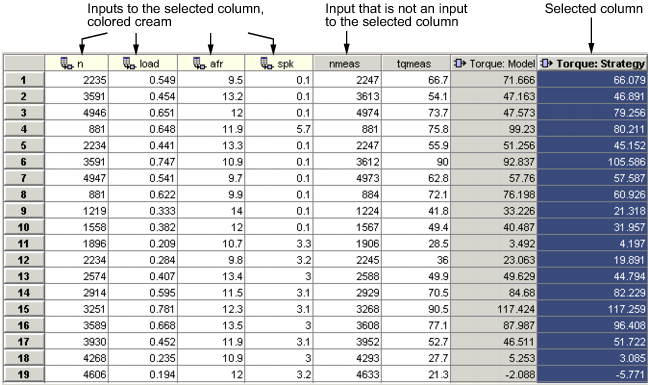
Columns are color coded by factor type:
Input factors are white.
Output factors are gray.
Selecting an output column highlights the input columns associated with it by turning the header cells cream.
Standard editing facilities are available. Double-click an input cell to edit the value.
Cut and paste using the desktop clipboard. Cells, columns, and rows can be copied directly to and from other applications (for example, Excel).
Note
You can only edit input values, not output values.

